ESP32 C3 Super Mini 버튼 디바운스

ESP32 C3 Super Mini에서 적절한 디바운스 기술로 버튼 채터링을 제거하는 방법을 배웁니다. 이 튜토리얼은 버튼 누르기를 정확하게 처리하는 간단한 방법을 보여줍니다.

이 튜토리얼에서 배울 내용:

ESP32 C3 Super Mini - 버튼 - 디바운스

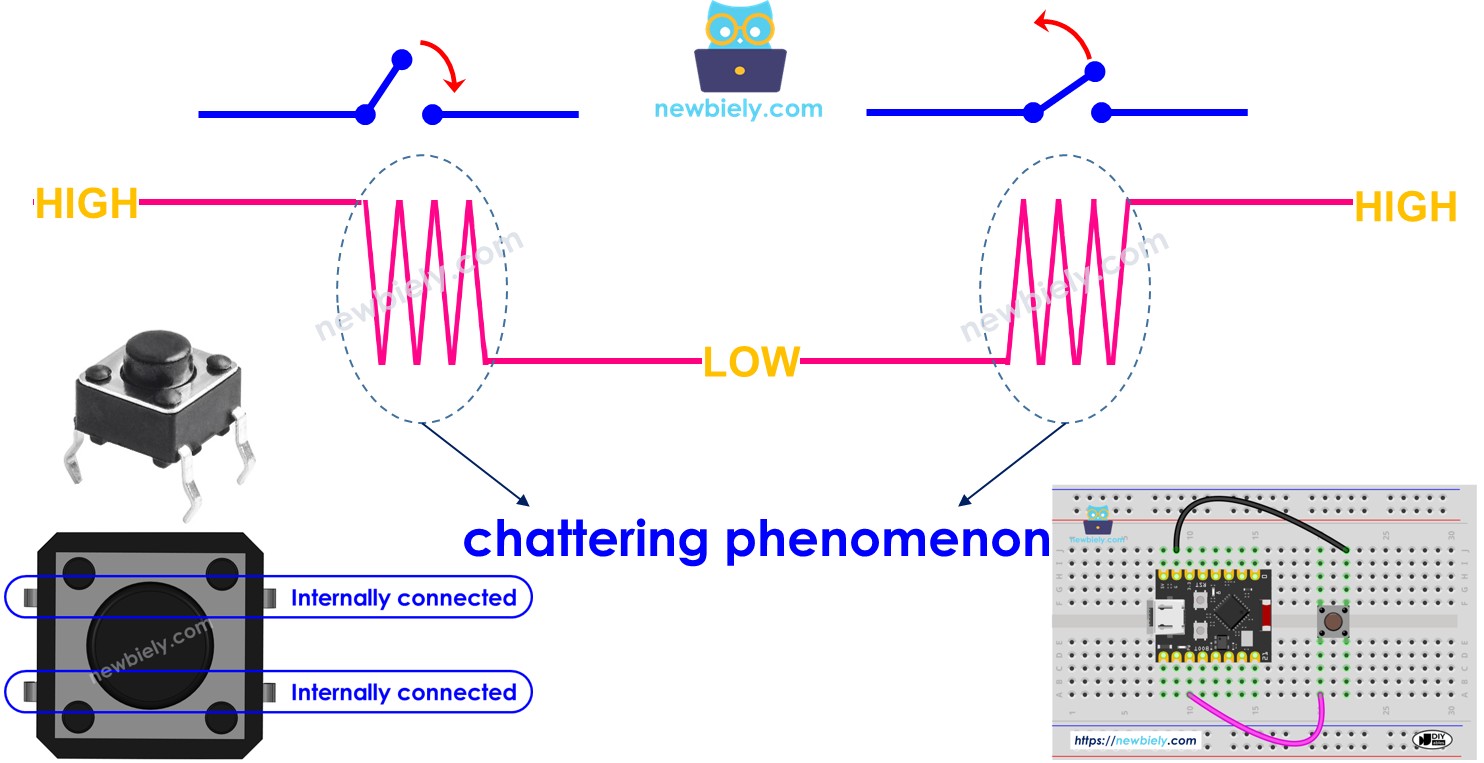
버튼을 누르면 상태가 LOW에서 HIGH로 (또는 HIGH에서 LOW로) 한 번에 변경됩니까? 아닙니다! 실제로 버튼을 누르면 상태가 LOWHIGH 사이에서 매우 빠르게 여러 번 토글됩니다. 이것은 채터링이라고 불리는 기계식 버튼의 물리적 특성입니다. 채터링 현상으로 인해 ESP32 C3 Super Mini가 한 번만 누른 것을 여러 번 감지하여 프로젝트에서 오류가 발생합니다. 이 문제를 제거하는 솔루션을 버튼 디바운스라고 합니다.
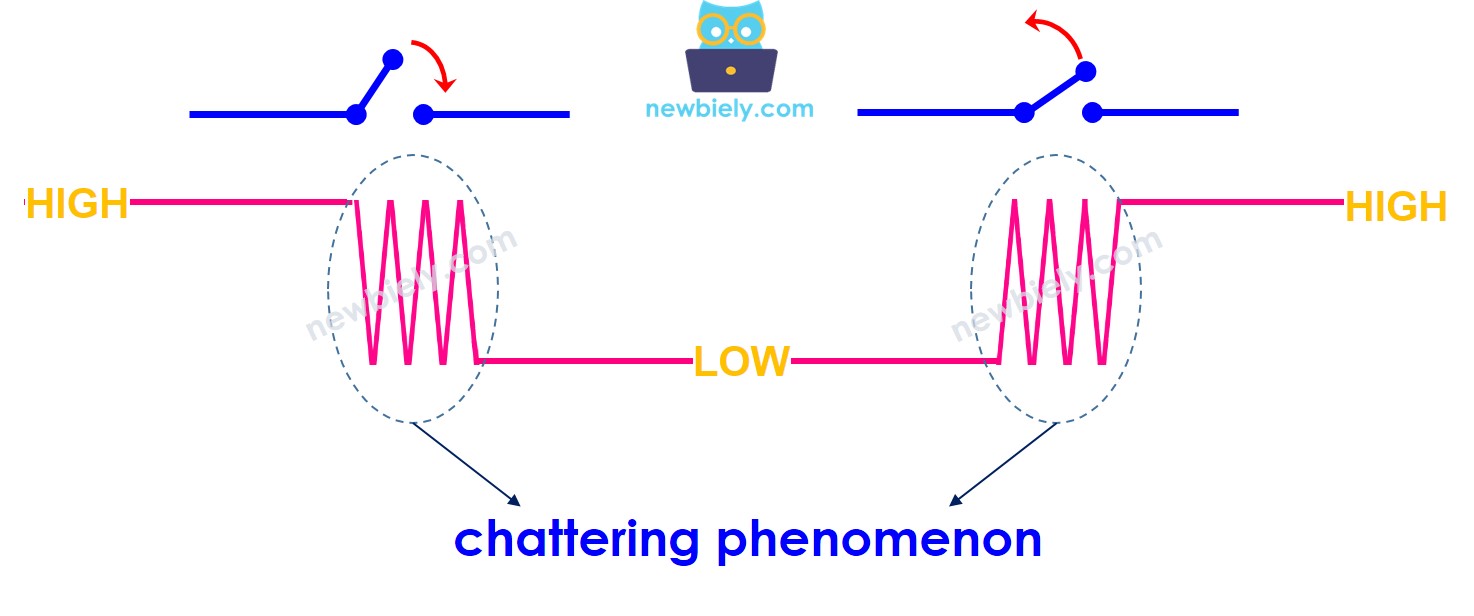
ESP32 C3 Super Mini 채터링 현상

이 튜토리얼은 다음을 포함합니다:

필요한 하드웨어

1×ESP32 C3 Super Mini 아마존
1×USB 케이블 타입-A to 타입-C (USB-A PC용) 쿠팡 | 아마존
1×USB 케이블 타입-C to 타입-C (USB-C PC용) 아마존
1×캡이 있는 버튼 쿠팡 | 아마존
1×버튼 키트 쿠팡 | 아마존
1×패널 장착 푸시 버튼 아마존
1×푸시 버튼 모듈 아마존
1×브레드보드 쿠팡 | 아마존
1×점퍼케이블 쿠팡 | 아마존
1×(옵션) DC 커넥터 전원 연결 잭 플러그 소켓 쿠팡 | 아마존
공개: 이 포스팅 에 제공된 일부 링크는 아마존 제휴 링크입니다. 이 포스팅은 쿠팡 파트너스 활동의 일환으로, 이에 따른 일정액의 수수료를 제공받습니다.

버튼 정보

버튼은 눌리거나 놓이는 시점을 감지하는 입력 장치입니다.

ESP32 C3 Super Mini의 버튼에 대한 모든 것을 다루는 전용 튜토리얼이 있습니다:

  • 완전한 핀아웃 세부 사항
  • 버튼의 작동 원리
  • 배선 연결
  • 샘플 코드 예제
  • 단계별 지침

더 알아보기: ESP32 C3 Super Mini - 버튼

배선 다이어그램

아래 배선 다이어그램은 버튼을 ESP32 C3 Super Mini에 연결하는 방법을 보여줍니다.
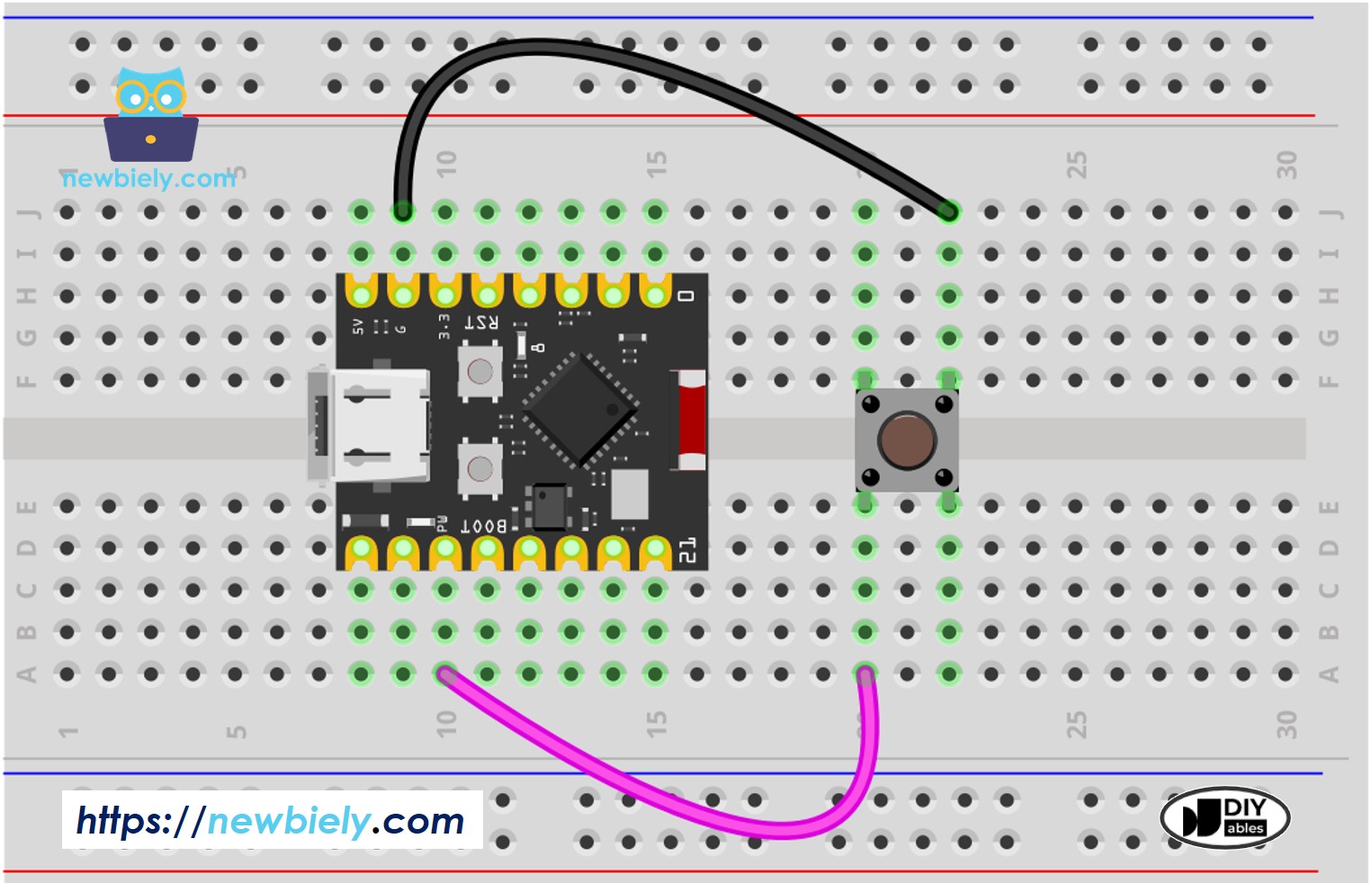
ESP32 C3 Super Mini 버튼 배선 다이어그램

이 이미지는 Fritzing을 사용하여 만들어졌습니다. 이미지를 확대하려면 클릭하세요.

Button Pin ESP32 C3 Super Mini Pin
One pin GPIO7
Other pin GND

차이점을 명확하게 보기 위해 먼저 디바운스 없이 ESP32 C3 Super Mini 코드를 실행한 후 디바운스를 포함하여 결과를 비교합니다.

디바운스 없이 버튼 읽기

빠른 단계

  • Arduino를 처음 사용하세요? 먼저 ESP32 C3 Super Mini 시작하기 가이드를 시작하세요.
  • 컴포넌트 연결: 위에 표시된 배선 다이어그램을 따라 버튼을 GPIO7 핀에 연결합니다.
  • 보드 연결: USB Type-C 케이블을 사용하여 ESP32 C3 Super Mini를 컴퓨터에 연결합니다.
  • Arduino IDE 열기: 컴퓨터에서 Arduino IDE를 실행합니다.
  • 보드 선택: Tools 메뉴에서 "ESP32 C3 Super Mini"과 올바른 COM 포트를 선택합니다.
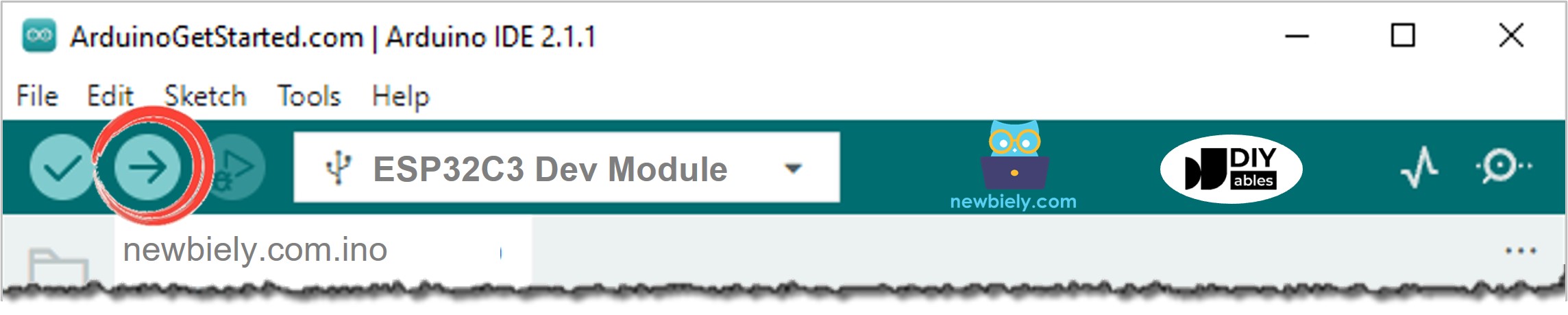
  • 코드 업로드: 아래 코드를 복사하여 ESP32 C3 Super Mini 보드에 업로드합니다.
  • Serial Monitor 열기: Serial Monitor 아이콘을 클릭하여 출력을 확인합니다.
  • 버튼 테스트: 버튼을 한 번 누르고 몇 초 동안 누른 후 놓습니다.
  • 결과 관찰: Serial Monitor 출력에서 여러 누르기/놓기 이벤트를 확인합니다.
  • Pro Tip: 채터링이 즉시 보이지 않으면 버튼을 여러 번 눌러보세요 - 간헐적으로 나타나는 임의 현상입니다.
/* * 이 ESP32 C3 Super Mini 코드는 newbiely.kr 에서 개발되었습니다 * 이 ESP32 C3 Super Mini 코드는 어떠한 제한 없이 공개 사용을 위해 제공됩니다. * 상세한 지침 및 연결도에 대해서는 다음을 방문하세요: * https://newbiely.kr/tutorials/esp32-c3/esp32-c3-super-mini-button-debounce */ #define BUTTON_PIN 7 // The ESP32 C3 SuperMini pin GPIO7 pin connected to button int prev_state = LOW; // The previous state from the input pin int button_state; // The current reading from the input pin void setup() { // Initialize the Serial to communicate with the Serial Monitor. Serial.begin(115200); // initialize the button pin as an pull-up input (HIGH when the switch is open and LOW when the switch is closed) pinMode(BUTTON_PIN, INPUT_PULLUP); } void loop() { // read the state of the switch/button: button_state = digitalRead(BUTTON_PIN); if (prev_state == HIGH && button_state == LOW) Serial.println("The button is pressed"); else if (prev_state == LOW && button_state == HIGH) Serial.println("The button is released"); // save the the last state prev_state = button_state; }
아두이노 ide 코드 업로드
아두이노 ide에서 serial monitor를 여는 방법

Serial Monitor 출력:

Newbiely | Arduino IDE 2.3.8
──
File
Edit
Sketch
Tools
Help
ESP32C3 Dev Module
Newbiely.ino
···
8 Serial.println("Hello World!");
Output
Serial Monitor
Message (Enter to send message to 'ESP32C3 Dev Module' on 'COM15')
New Line
9600 baud
The button is pressed The button is pressed The button is pressed The button is pressed The button is released The button is released The button is released
Ln 11, Col 1
ESP32C3 Dev Module on COM15
2

⇒ 보시다시피 버튼을 한 번만 눌렀고 한 번 놓았지만 채터링 때문에 ESP32 C3 Super Mini가 여러 번의 누르기와 놓기를 감지했습니다.

※ 주의:

채터링 현상은 항상 발생하지는 않습니다. 발생하지 않으면 위의 테스트를 여러 번 시도하여 관찰합니다.

디바운스를 포함하여 버튼 읽기

이 코드는 ESP32 C3 Super Mini에서 버튼 디바운스를 구현하여 채터링을 제거합니다.

이 디바운스 코드가 하는 일:

  • 버튼 상태 변경 시간 기록
  • 변경을 확인하기 전에 짧은 지연 (디바운스 시간) 대기
  • 디바운스 기간 동안 빠른 상태 변경 무시
  • 안정적인 버튼 누르기 및 놓기만 보고

빠른 단계

  • Arduino를 처음 사용하세요? 먼저 ESP32 C3 Super Mini 시작하기 가이드를 시작하세요.
  • 코드 복사: 아래 디바운스 코드를 Arduino IDE에 복사합니다.
  • 코드 업로드: Upload 버튼을 클릭하여 ESP32 C3 Super Mini를 프로그래밍합니다.
  • Serial Monitor 열기: Serial Monitor 아이콘을 클릭하여 출력을 확인합니다.
  • 버튼 테스트: 버튼을 누르고 몇 초 동안 누른 후 놓습니다.
  • 결과 관찰: 이제 버튼 누르기 한 개와 놓기 한 개만 표시되는 것을 알 수 있습니다.
  • Pro Tip: 여전히 채터링이 보이면 DEBOUNCE_TIME 값을 50에서 100 밀리초로 증가해 보세요.
/* * 이 ESP32 C3 Super Mini 코드는 newbiely.kr 에서 개발되었습니다 * 이 ESP32 C3 Super Mini 코드는 어떠한 제한 없이 공개 사용을 위해 제공됩니다. * 상세한 지침 및 연결도에 대해서는 다음을 방문하세요: * https://newbiely.kr/tutorials/esp32-c3/esp32-c3-super-mini-button-debounce */ #define BUTTON_PIN 7 // The ESP32 C3 SuperMini pin GPIO7 pin connected to button #define DEBOUNCE_TIME 50 // The debounce time in millisecond, increase this time if it still chatters int prev_state_steady = LOW; // The previous steady state from the input pin int prev_state_flick = LOW; // The previous flickerable state from the input pin int button_state; // The current reading from the input pin unsigned long last_debounce_time = 0; // The last time the output pin was toggled void setup() { // Initialize the Serial to communicate with the Serial Monitor. Serial.begin(115200); // initialize the button pin as an pull-up input (HIGH when the switch is open and LOW when the switch is closed) pinMode(BUTTON_PIN, INPUT_PULLUP); } void loop() { // read the state of the switch/button: button_state = digitalRead(BUTTON_PIN); // check to see if you just pressed the button // (i.e. the input went from LOW to HIGH), and you've waited long enough // since the last press to ignore any noise: // If the switch/button changed, due to noise or pressing: if (button_state != prev_state_flick) { // reset the debouncing timer last_debounce_time = millis(); // save the the last flickerable state prev_state_flick = button_state; } if ((millis() - last_debounce_time) > DEBOUNCE_TIME) { // whatever the reading is at, it's been there for longer than the debounce // delay, so take it as the actual current state: // if the button state has changed: if(prev_state_steady == HIGH && button_state == LOW) Serial.println("The button is pressed"); else if(prev_state_steady == LOW && button_state == HIGH) Serial.println("The button is released"); // save the the last steady state prev_state_steady = button_state; } }

Serial Monitor 출력:

Newbiely | Arduino IDE 2.3.8
──
File
Edit
Sketch
Tools
Help
ESP32C3 Dev Module
Newbiely.ino
···
8 Serial.println("Hello World!");
Output
Serial Monitor
Message (Enter to send message to 'ESP32C3 Dev Module' on 'COM15')
New Line
9600 baud
The button is pressed The button is released
Ln 11, Col 1
ESP32C3 Dev Module on COM15
2

⇒ 완벽합니다! 한 번 눌렀고 한 번 놓았고 ESP32 C3 Super Mini가 올바르게 한 번의 누르기와 한 번의 놓기를 읽었습니다. 적절한 버튼 디바운스로 채터링이 제거되었습니다.

간단하게 만들었습니다 - 라이브러리를 사용한 ESP32 C3 Super Mini 버튼 디바운스 코드

특히 ESP32 C3 Super Mini에서 여러 버튼을 작업할 때 버튼 디바운싱을 훨씬 더 쉽게 만드는 ezButton 라이브러리를 만들었습니다.

ezButton 라이브러리 사용의 이점:

  • 버튼 디바운스를 위한 간단한 한 줄 설정
  • 깔끔하고 읽기 쉬운 코드
  • 여러 버튼을 쉽게 관리
  • 누르기 및 놓기 감지를 위한 내장 함수
  • 복잡한 타이밍 코드 필요 없음

더 알아보기: ezButton 라이브러리 문서

단일 버튼을 위한 ESP32 C3 Super Mini 버튼 디바운스 코드

이 예제는 ESP32 C3 Super Mini에서 ezButton 라이브러리를 사용하여 단일 버튼을 디바운스하는 방법을 보여줍니다.

/* * 이 ESP32 C3 Super Mini 코드는 newbiely.kr 에서 개발되었습니다 * 이 ESP32 C3 Super Mini 코드는 어떠한 제한 없이 공개 사용을 위해 제공됩니다. * 상세한 지침 및 연결도에 대해서는 다음을 방문하세요: * https://newbiely.kr/tutorials/esp32-c3/esp32-c3-super-mini-button-debounce */ #include <ezButton.h> #define DEBOUNCE_TIME 50 // the debounce time in millisecond, increase this time if it still chatters ezButton button(D7); // create ezButton object for pin GPIO7 void setup() { Serial.begin(115200); button.setDebounceTime(DEBOUNCE_TIME); // set debounce time to 50 milliseconds } void loop() { button.loop(); // MUST call the loop() function first if (button.isPressed()) Serial.println("The button is pressed"); if (button.isReleased()) Serial.println("The button is released"); }

여러 버튼을 위한 ESP32 C3 Super Mini 버튼 디바운스 코드

이 예제는 ezButton 라이브러리를 사용하여 ESP32 C3 Super Mini에서 동시에 3개의 버튼을 디바운스하는 방법을 보여줍니다.

배선 다이어그램

아래와 같이 3개의 버튼을 ESP32 C3 Super Mini에 연결합니다.
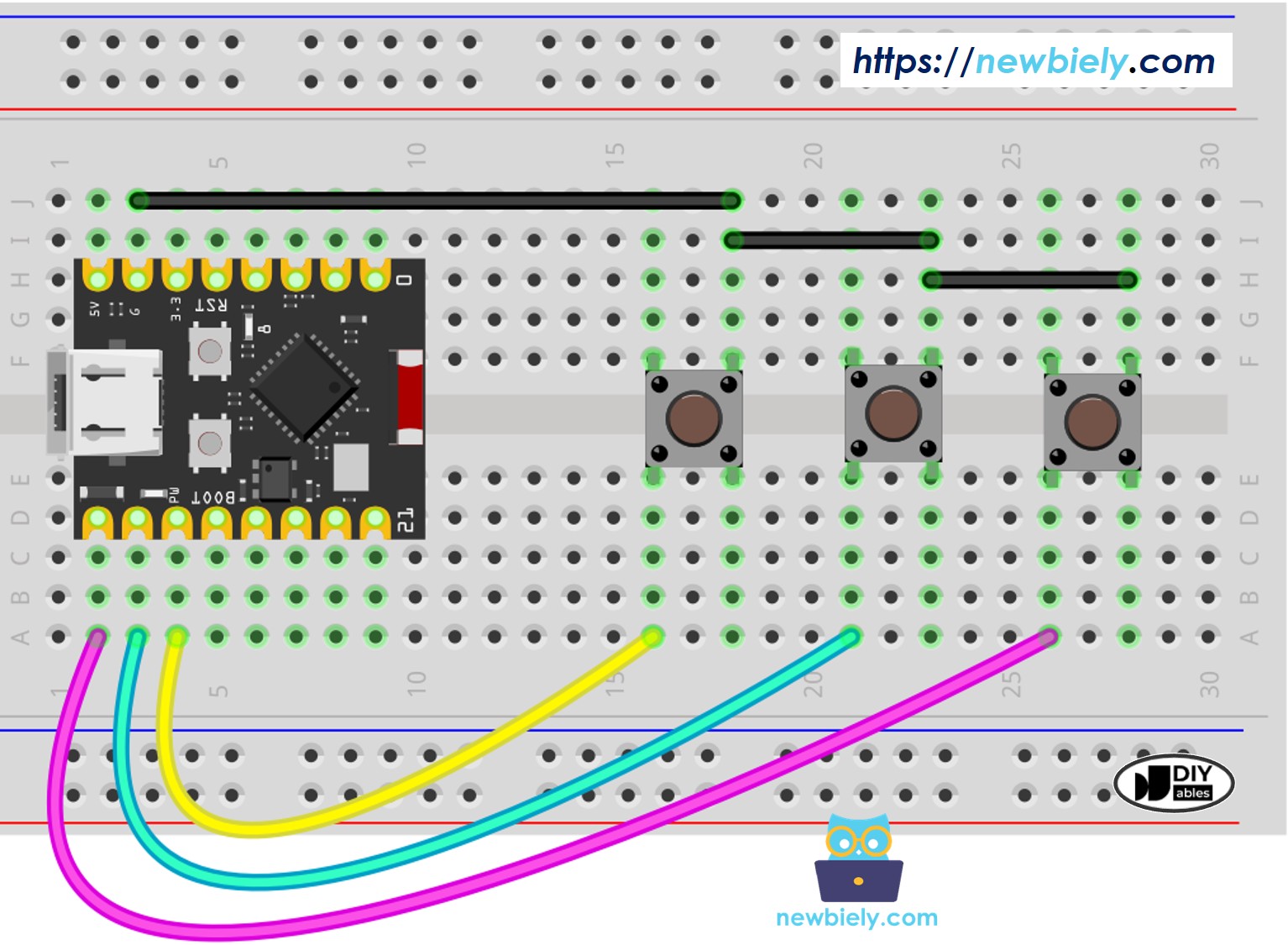
ESP32 C3 Super Mini 버튼 라이브러리 배선 다이어그램

이 이미지는 Fritzing을 사용하여 만들어졌습니다. 이미지를 확대하려면 클릭하세요.

Button ESP32 C3 Super Mini Pin
Button 1 D5 and GND
Button 2 D6 and GND
Button 3 D7 and GND
/* * 이 ESP32 C3 Super Mini 코드는 newbiely.kr 에서 개발되었습니다 * 이 ESP32 C3 Super Mini 코드는 어떠한 제한 없이 공개 사용을 위해 제공됩니다. * 상세한 지침 및 연결도에 대해서는 다음을 방문하세요: * https://newbiely.kr/tutorials/esp32-c3/esp32-c3-super-mini-button-debounce */ #include <ezButton.h> #define DEBOUNCE_TIME 50 // the debounce time in millisecond, increase this time if it still chatters ezButton button1(D5); // create ezButton object for pin D5 ezButton button2(D6); // create ezButton object for pin D6 ezButton button3(D7); // create ezButton object for pin D7 void setup() { Serial.begin(115200); button1.setDebounceTime(DEBOUNCE_TIME); // set debounce time to 50 milliseconds button2.setDebounceTime(DEBOUNCE_TIME); // set debounce time to 50 milliseconds button3.setDebounceTime(DEBOUNCE_TIME); // set debounce time to 50 milliseconds } void loop() { button1.loop(); // MUST call the loop() function first button2.loop(); // MUST call the loop() function first button3.loop(); // MUST call the loop() function first if (button1.isPressed()) Serial.println("The button 1 is pressed"); if (button1.isReleased()) Serial.println("The button 1 is released"); if (button2.isPressed()) Serial.println("The button 2 is pressed"); if (button2.isReleased()) Serial.println("The button 2 is released"); if (button3.isPressed()) Serial.println("The button 3 is pressed"); if (button3.isReleased()) Serial.println("The button 3 is released"); }

Serial Monitor 출력:

Newbiely | Arduino IDE 2.3.8
──
File
Edit
Sketch
Tools
Help
ESP32C3 Dev Module
Newbiely.ino
···
8 Serial.println("Hello World!");
Output
Serial Monitor
Message (Enter to send message to 'ESP32C3 Dev Module' on 'COM15')
New Line
9600 baud
The button 1 is pressed The button 2 is pressed The button 1 is released The button 3 is pressed The button 2 is released The button 3 is released
Ln 11, Col 1
ESP32C3 Dev Module on COM15
2

응용 프로그램 아이디어

ESP32 C3 Super Mini에서 버튼 디바운스가 필수적인 일부 실용적인 프로젝트는 다음과 같습니다:

  • 키패드 입력이 있는 도어 잠금 장치
  • 반응형 버튼 입력이 있는 게임 컨트롤러
  • 홈 자동화를 위한 원격 제어 장치
  • 여러 버튼이 있는 메뉴 네비게이션 시스템
  • 정확한 누르기 감지가 필요한 카운터 회로
  • 신뢰할 수 있는 입력이 있는 보안 경보 키패드

자신을 시도해보기

이러한 과제를 시도하여 ESP32 C3 Super Mini 버튼 디바운스 기술을 향상합니다:

  • 쉬움: 디바운스 시간을 다양한 값으로 변경하고 버튼 응답에 어떻게 영향을 미치는지 관찰
  • 중간: 디바운스된 입력을 사용하여 각 버튼 누르기로 켜지고 꺼지는 LED 추가
  • 중간: 버튼 누르기당 한 번만 증가하고 Serial Monitor에 개수를 표시하는 카운터 생성
  • 고급: 각 버튼이 다른 작업을 수행하는 디바운스가 있는 4버튼 메뉴 시스템 구축
  • 고급: 짧은 누르기와 긴 누르기에 대해 다른 작업을 트리거하는 긴 누르기 감지 구현

추가 지식

ESP32 C3 Super Mini를 위한 중요한 디바운스 팁:

  • DEBOUNCE_TIME 값은 특정 버튼 하드웨어에 따라 다름
  • 다양한 버튼은 다양한 디바운스 시간이 필요할 수 있습니다 (일반적으로 20-100ms)
  • 50ms로 시작하고 여전히 채터링이 보이면 조정합니다
  • 디바운스 기술은 또한 스위치, 리미트 스위치, 리드 스위치 및 터치 센서에도 작동합니다
  • 하드웨어 디바운스 (캐패시터 사용)는 중요한 응용 프로그램의 소프트웨어 디바운스를 보완할 수 있습니다

의견