Thonny IDE에서 Tools Options로 이동하여 MicroPython (Raspberry Pi Pico) Interpreter을 선택합니다.
Interpreter 탭에서 드롭다운 메뉴에서 MicroPython (Raspberry Pi Pico)를 선택합니다.
올바른 포트가 선택되어 있는지 확인합니다. Thonny IDE가 포트를 자동으로 감지하지만, 수동으로 선택해야 할 수도 있습니다 (예: Windows의 COM3 또는 Linux의 /dev/ttyACM0).
위 코드를 복사하여 Thonny IDE의 편집기에 붙여넣습니다.
다음과 같이 Raspberry Pi Pico에 스크립트를 저장합니다:
저장 버튼을 클릭하거나 Ctrl+S 키를 사용합니다.
저장 대화 상자에서 'This computer'와 'Raspberry Pi Pico' 두 영역이 보입니다. 'Raspberry Pi Pico'를 선택합니다.
파일 이름을 main.py로 저장합니다.
녹색 Run 버튼을 클릭하거나 F5 키를 눌러 스크립트를 실행합니다. 스크립트가 실행됩니다.
Thonny 하단의 Shell에서 메시지를 확인합니다.
스크립트 파일의 이름을 main.py로 지정하고 Raspberry Pi Pico의 루트 디렉터리에 저장하면, Pico의 전원이 켜지거나 리셋될 때마다 자동으로 실행됩니다. 이는 전원이 켜지자마자 바로 실행되어야 하는 독립형 애플리케이션에 유용합니다. 만약 스크립트 파일의 이름을 main.py가 아닌 다른 이름으로 지정하면, Thonnys의 Shell에서 수동으로 실행해야 합니다.
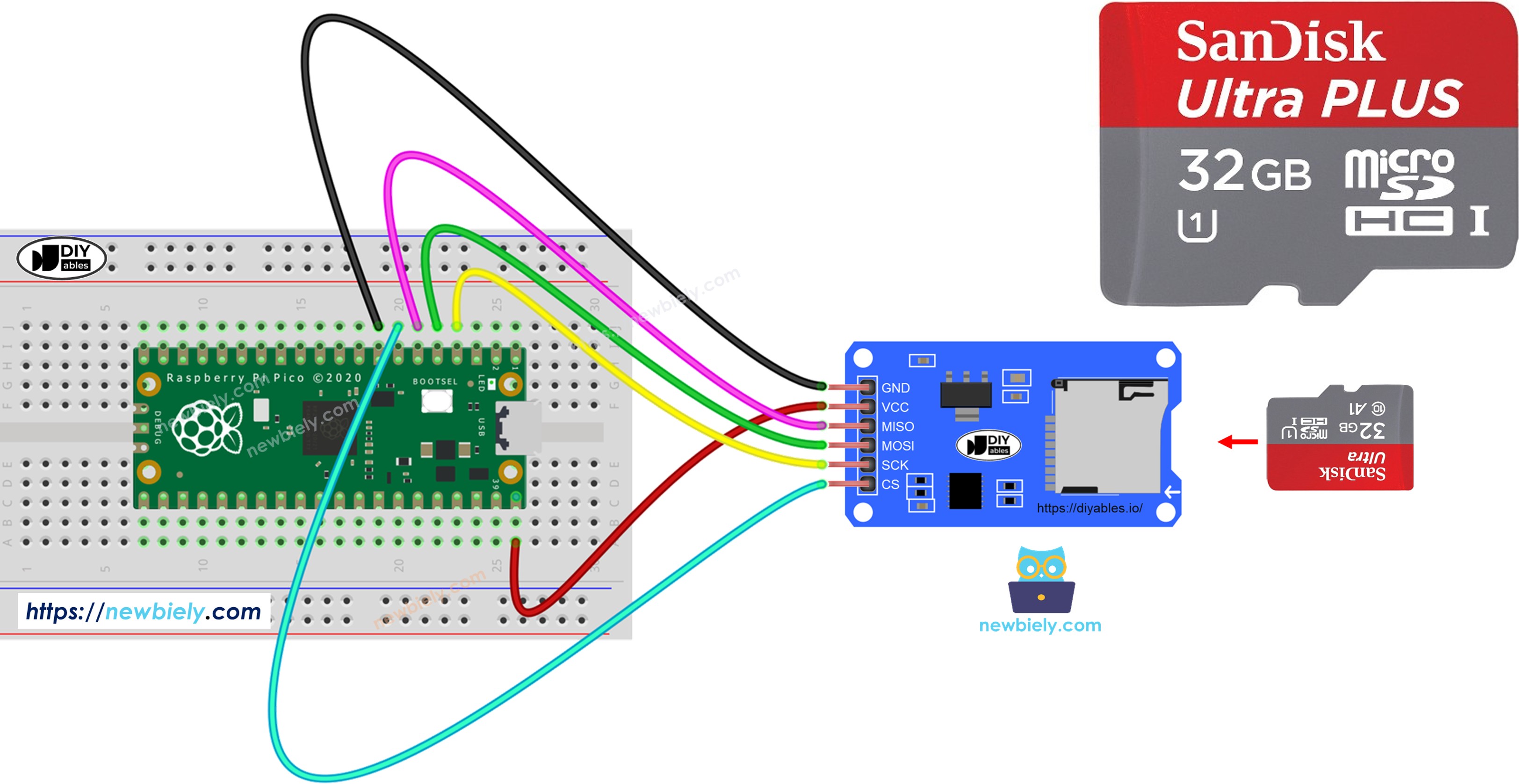
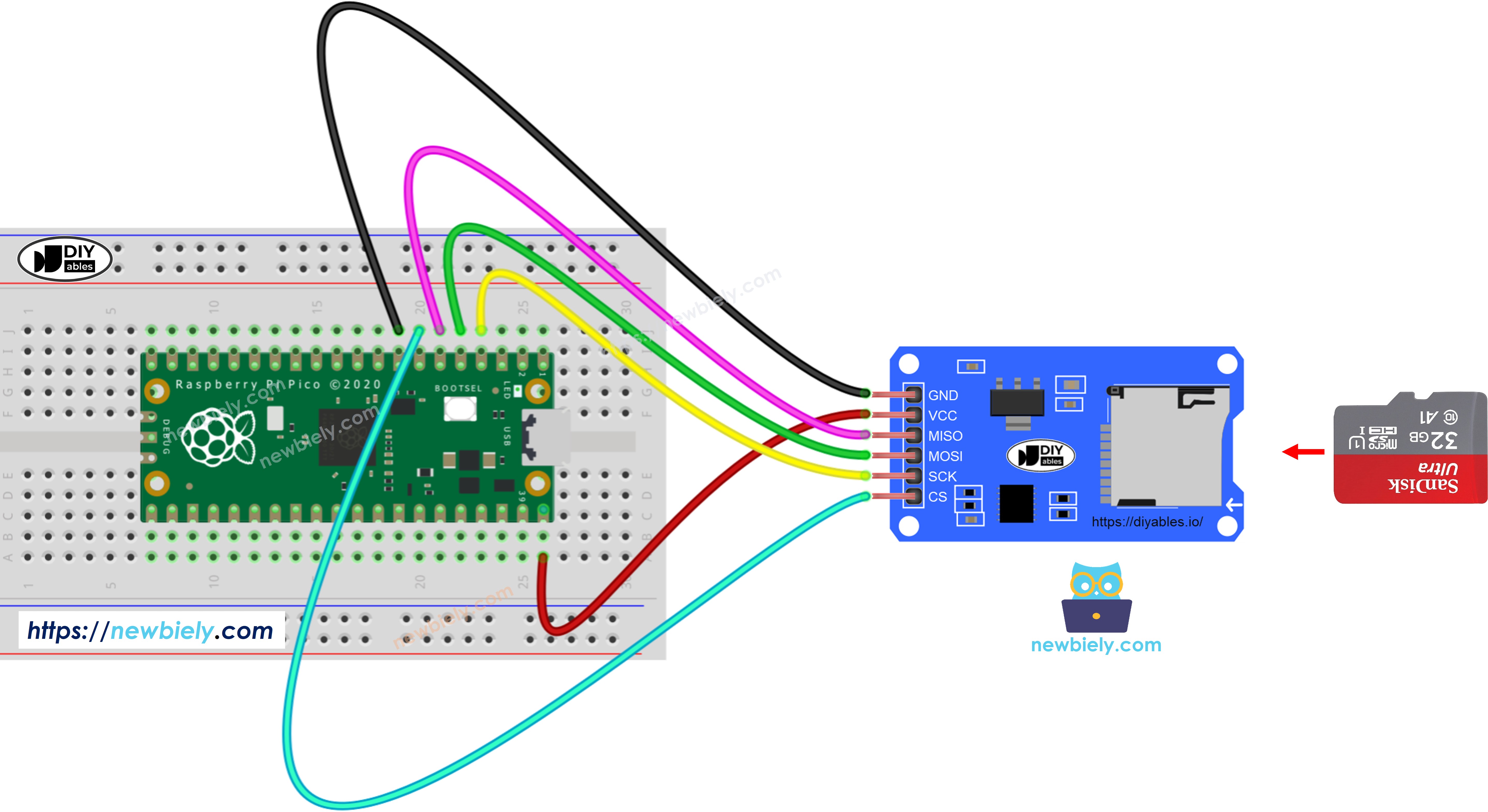
Micro SD 카드를 Micro SD 카드 모듈에 넣습니다.
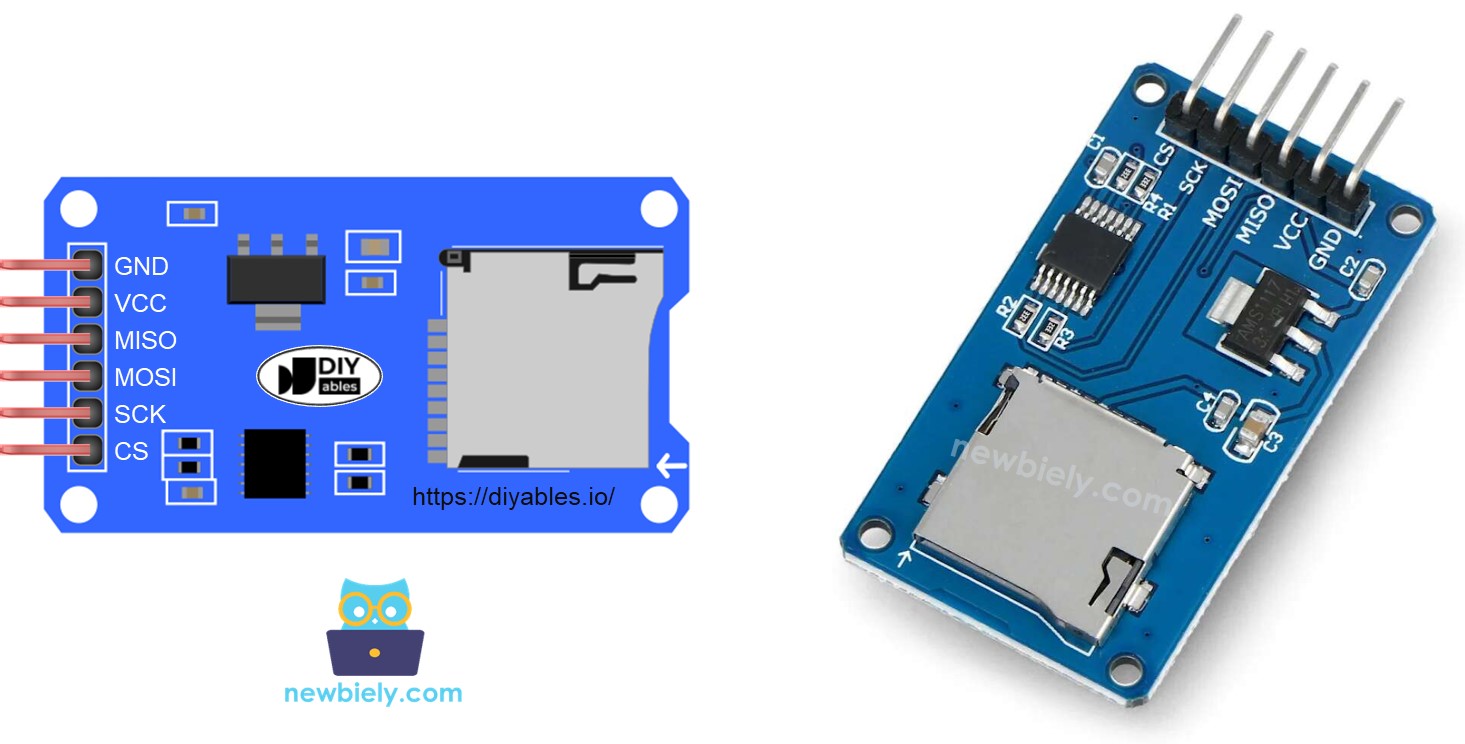
배선도를 사용하여 Micro SD 카드 모듈을 Raspberry Pi Pico에 연결합니다.
Thonny IDE에서 Serial Monitor를 엽니다.
주어진 코드를 복사하여 Thonny IDE에 붙여넣습니다.
/* * 이 라즈베리 파이 피코 코드는 newbiely.kr 에서 개발되었습니다 * 이 라즈베리 파이 피코 코드는 어떠한 제한 없이 공개 사용을 위해 제공됩니다. * 상세한 지침 및 연결도에 대해서는 다음을 방문하세요: * https://newbiely.kr/tutorials/raspberry-pico/raspberry-pi-pico-micro-sd-card */import machineimport osimport sdcard# Define SPI pins for the Micro SD Card moduleSPI_SCK_PIN = 2 # The Raspberry Pi Pico pin GP2 connected to SCKSPI_MOSI_PIN = 3 # The Raspberry Pi Pico pin GP3 connected to MOSISPI_MISO_PIN = 4 # The Raspberry Pi Pico pin GP4 connected to MISOSPI_CS_PIN = 5 # The Raspberry Pi Pico pin GP5 connected to SS (CS)# Initialize SD card using SoftSPI and sdcard driverspi = machine.SoftSPI(baudrate=1000000, polarity=0, phase=0, sck=machine.Pin(SPI_SCK_PIN), mosi=machine.Pin(SPI_MOSI_PIN), miso=machine.Pin(SPI_MISO_PIN))cs = machine.Pin(SPI_CS_PIN, machine.Pin.OUT)try: sd = sdcard.SDCard(spi, cs) os.mount(sd, "/sd")print("SD Card is ready")exceptExceptionas e:print("SD CARD FAILED, OR NOT PRESENT!", e)raiseSystemExit# Check if the file existsfile_path = "/sd/pico.txt"if file_path.replace("/sd/", "") notin os.listdir("/sd"):print("pico.txt doesn't exist. Creating pico.txt file...")# Create a new file by opening it and immediately closing it f = open(file_path, "w") f.close()# Recheck if file is created or notif file_path.replace("/sd/", "") in os.listdir("/sd"):print("pico.txt exists on SD Card.")else:print("pico.txt doesn't exist on SD Card.")os.umount("/sd")
Thonny IDE에서 Upload 버튼을 클릭하여 코드를 Raspberry Pi Pico로 전송합니다.
첫 업로드 후 Serial Monitor를 확인하여 결과를 확인합니다.
Shell x
>>> %Run -c $EDITOR_CONTENT
MPY: soft reboot
SD Card is ready
arduino.txt doesn't exist. Creating arduino.txt file...
arduino.txt exists on SD Card.
MicroPython (Raspberry Pi Pico) • Board CDC @ COM29 ≡
다음 시도에서 시리얼 모니터에 표시된 결과
Shell x
>>> %Run -c $EDITOR_CONTENT
MPY: soft reboot
SD Card is ready
arduino.txt exists on SD Card.
MicroPython (Raspberry Pi Pico) • Board CDC @ COM29 ≡
※ 주의:
첫 업로드 후 시리얼 모니터를 열면 출력이 없을 수도 있습니다.
모듈에서 Micro SD 카드를 꺼냅니다.
마이크로 탈착식 디스크 카드를 USB 카드 리더기에 삽입합니다.
USB 카드 리더기를 컴퓨터에 연결합니다.
파일이 있는지 확인합니다.
라즈베리 파이 피코 - 마이크로 SD 카드의 파일에 데이터 쓰기/읽기 방법
이 코드는 다음과 같은 작업을 수행합니다:
파일에 데이터를 저장합니다.
파일을 열고 시리얼 모니터에 문자를 한 번에 하나씩 표시합니다.
/* * 이 라즈베리 파이 피코 코드는 newbiely.kr 에서 개발되었습니다 * 이 라즈베리 파이 피코 코드는 어떠한 제한 없이 공개 사용을 위해 제공됩니다. * 상세한 지침 및 연결도에 대해서는 다음을 방문하세요: * https://newbiely.kr/tutorials/raspberry-pico/raspberry-pi-pico-micro-sd-card */import machineimport osimport sdcard# Define SPI pins for the Micro SD Card moduleSPI_SCK_PIN = 2 # The Raspberry Pi Pico pin GP2 connected to SCKSPI_MOSI_PIN = 3 # The Raspberry Pi Pico pin GP3 connected to MOSISPI_MISO_PIN = 4 # The Raspberry Pi Pico pin GP4 connected to MISOSPI_CS_PIN = 5 # The Raspberry Pi Pico pin GP5 connected to SS (CS)# Initialize SD card using SoftSPI and sdcard driverspi = machine.SoftSPI(baudrate=1000000, polarity=0, phase=0, sck=machine.Pin(SPI_SCK_PIN), mosi=machine.Pin(SPI_MOSI_PIN), miso=machine.Pin(SPI_MISO_PIN))cs = machine.Pin(SPI_CS_PIN, machine.Pin.OUT)try: sd = sdcard.SDCard(spi, cs) os.mount(sd, "/sd")print("SD CARD INITIALIZED.")exceptExceptionas e:print("SD CARD FAILED, OR NOT PRESENT!", e)raiseSystemExitfile_path = "/sd/pico.txt"# Open file for writing (append mode)try: f = open(file_path, "a") f.write("Created by newbiely.com\n") # write a line to pico.txt f.write("Learn Raspberry Pi Pico and SD Card\n") # write another line to pico.txt f.close()exceptExceptionas e:print("SD Card: Issue encountered while attempting to open the file pico.txt", e)# Open file for readingtry: f = open(file_path, "r")whileTrue: ch = f.read(1) # read characters one by one from Micro SD Cardifnot ch:breakprint(ch, end="") # print the character to the Shell f.close()exceptExceptionas e:print("SD Card: Issue encountered while attempting to open the file pico.txt", e)os.umount("/sd")
시리얼 모니터가 파일 안에 있는 내용을 보여주었습니다.
Shell x
>>> %Run -c $EDITOR_CONTENT
MPY: soft reboot
Created by newbiely.com
Learn Raspberry Pi Pico and SD Card
MicroPython (Raspberry Pi Pico) • Board CDC @ COM29 ≡
※ 주의:
Raspberry Pi Pico에서 코드를 실행하면 파일 끝에 데이터가 추가됩니다. Raspberry Pi Pico를 재시작하면 이 과정이 반복되어 파일에 동일한 텍스트가 반복됩니다. 시리얼 모니터에서 다음과 같은 추가 줄을 확인할 수 있습니다:
Shell x
>>> %Run -c $EDITOR_CONTENT
MPY: soft reboot
newbiely.com에서 제작
Raspberry Pi Pico 및 SD 카드 학습
newbiely.com에서 제작
Raspberry Pi Pico 및 SD 카드 학습
MicroPython (Raspberry Pi Pico) • Board CDC @ COM29 ≡
모듈에서 마이크로 SD 카드를 빼내고 USB SD 카드 리더기를 사용하여 컴퓨터에서 파일을 확인할 수 있습니다.
Raspberry Pi Pico - 마이크로 SD 카드의 파일을 한 줄씩 읽는 방법
/* * 이 라즈베리 파이 피코 코드는 newbiely.kr 에서 개발되었습니다 * 이 라즈베리 파이 피코 코드는 어떠한 제한 없이 공개 사용을 위해 제공됩니다. * 상세한 지침 및 연결도에 대해서는 다음을 방문하세요: * https://newbiely.kr/tutorials/raspberry-pico/raspberry-pi-pico-micro-sd-card */import machineimport osimport sdcard# Define SPI pins for the Micro SD Card moduleSPI_SCK_PIN = 2 # The Raspberry Pi Pico pin GP2 connected to SCKSPI_MOSI_PIN = 3 # The Raspberry Pi Pico pin GP3 connected to MOSISPI_MISO_PIN = 4 # The Raspberry Pi Pico pin GP4 connected to MISOSPI_CS_PIN = 5 # The Raspberry Pi Pico pin GP5 connected to SS (CS)# Initialize SD card using SoftSPI and sdcard driverspi = machine.SoftSPI(baudrate=1000000, polarity=0, phase=0, sck=machine.Pin(SPI_SCK_PIN), mosi=machine.Pin(SPI_MOSI_PIN), miso=machine.Pin(SPI_MISO_PIN))cs = machine.Pin(SPI_CS_PIN, machine.Pin.OUT)try: sd = sdcard.SDCard(spi, cs) os.mount(sd, "/sd")print("SD Card is ready")exceptExceptionas e:print("SD CARD FAILED, OR NOT PRESENT!", e)raiseSystemExitfile_path = "/sd/pico.txt"# Open file for writing (append mode)try: f = open(file_path, "a") f.write("Created by newbiely.com\n") # write a line to pico.txt f.write("Learn Raspberry Pi Pico and SD Card\n") # write another line to pico.txt f.close()exceptExceptionas e:print("SD Card: Issue encountered while attempting to open the file pico.txt", e)# Open file for reading line-by-linetry: f = open(file_path, "r") line_count = 0whileTrue: line = f.readline() # read line-by-line from Micro SD Cardifnot line:break line_count += 1print("Line {}: {}".format(line_count, line.strip())) # print the line to the Shell f.close()exceptExceptionas e:print("SD Card: Issue encountered while attempting to open the file pico.txt", e)
직렬 모니터에 표시된 결과.
Shell x
>>> %Run -c $EDITOR_CONTENT
MPY: soft reboot
SD Card is ready
Line 1: Created by newbiely.com
Line 2: Learn Raspberry Pi Pico and SD Card
MicroPython (Raspberry Pi Pico) • Board CDC @ COM29 ≡
※ 주의:
파일에서 이전 내용을 제거하지 않으면, 시리얼 모니터에서 추가 줄이 표시될 수 있습니다.
Raspberry Pi Pico - 마이크로 SD 카드에서 파일 덮어쓰기 방법
일반적으로 정보는 파일 끝에 추가됩니다. 파일을 변경하려면 먼저 기존 파일을 제거한 다음 동일한 이름으로 새 파일을 만듭니다.
/* * 이 라즈베리 파이 피코 코드는 newbiely.kr 에서 개발되었습니다 * 이 라즈베리 파이 피코 코드는 어떠한 제한 없이 공개 사용을 위해 제공됩니다. * 상세한 지침 및 연결도에 대해서는 다음을 방문하세요: * https://newbiely.kr/tutorials/raspberry-pico/raspberry-pi-pico-micro-sd-card */import machineimport osimport sdcard# Define SPI pins for the Micro SD Card moduleSPI_SCK_PIN = 2 # The Raspberry Pi Pico pin GP2 connected to SCKSPI_MOSI_PIN = 3 # The Raspberry Pi Pico pin GP3 connected to MOSISPI_MISO_PIN = 4 # The Raspberry Pi Pico pin GP4 connected to MISOSPI_CS_PIN = 5 # The Raspberry Pi Pico pin GP5 connected to SS (CS)# Initialize SD card using SoftSPI and sdcard driverspi = machine.SoftSPI(baudrate=1000000, polarity=0, phase=0, sck=machine.Pin(SPI_SCK_PIN), mosi=machine.Pin(SPI_MOSI_PIN), miso=machine.Pin(SPI_MISO_PIN))cs = machine.Pin(SPI_CS_PIN, machine.Pin.OUT)try: sd = sdcard.SDCard(spi, cs) os.mount(sd, "/sd")print("SD Card is ready")exceptExceptionas e:print("SD CARD FAILED, OR NOT PRESENT!", e)raiseSystemExitfile_path = "/sd/pico.txt"# Delete the file if it exists (to overwrite)try: os.remove(file_path)exceptOSError:pass# Create new file by opening file for writingtry: f = open(file_path, "w") f.write("Created by newbiely.com\n") # write a line to pico.txt f.write("Learn Raspberry Pi Pico and SD Card\n") # write another line to pico.txt f.close()exceptExceptionas e:print("SD Card: Issue encountered while attempting to open the file pico.txt", e)# Open file for readingtry: f = open(file_path, "r")whileTrue: ch = f.read(1) # read characters one by one from Micro SD Cardifnot ch:breakprint(ch, end="") # print the character to the Shell f.close()exceptExceptionas e:print("SD Card: Issue encountered while attempting to open the file pico.txt", e)os.umount("/sd")
직렬 모니터의 결과
Shell x
>>> %Run -c $EDITOR_CONTENT
MPY: soft reboot
SD Card is ready
Created by newbiely.com
Learn Raspberry Pi Pico and SD Card
MicroPython (Raspberry Pi Pico) • Board CDC @ COM29 ≡
Raspberry Pi Pico를 재시작합니다.
시리얼 모니터에서 파일에 새로운 내용이 추가되었는지 확인합니다.
기기에서 마이크로 SD 카드를 꺼내 USB SD 카드 리더기를 사용하여 컴퓨터에서 그 안의 내용을 확인할 수도 있습니다.
동영상
비디오 제작은 시간이 많이 걸리는 작업입니다. 비디오 튜토리얼이 학습에 도움이 되었다면, YouTube 채널 을 구독하여 알려 주시기 바랍니다. 비디오에 대한 높은 수요가 있다면, 비디오를 만들기 위해 노력하겠습니다.