아두이노 우노 Q 피드백이 있는 액추에이터

이 가이드에서는 Arduino UNO Q와 Motor Shield Rev3에서 포텐셔미터를 사용하여 위치 피드백이 있는 선형 액추에이터를 제어하는 방법을 배웁니다. 다음을 배우게 됩니다:

피드백이 없는 기본 확장/축소 제어는 아두이노 우노 Q - 액추에이터를 참조하세요.
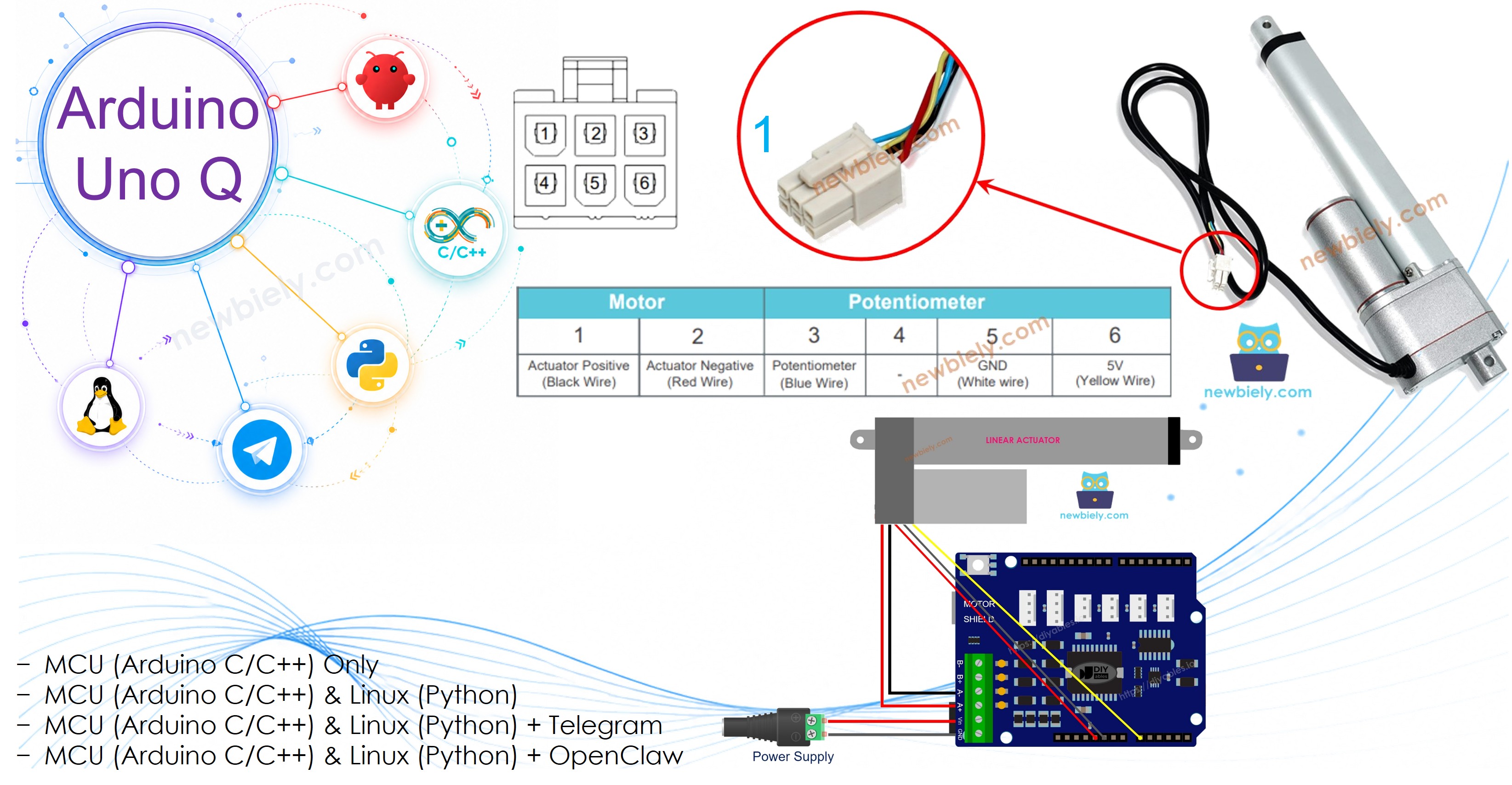
Arduino UNO Q 액추에이터 피드백

필요한 하드웨어

1×Arduino UNO Q 아마존
1×USB Cable for Arduino Uno Q 아마존
1×12V 피드백 기능이 있는 선형 액추에이터 아마존
1×Motor Shield for Arduino 쿠팡 | 아마존
1×12V 전원 어댑터 아마존
1×DC 커넥터 전원 연결 잭 플러그 소켓 쿠팡 | 아마존
1×점퍼케이블 쿠팡 | 아마존
1×(추천) 아두이노 우노용 스크루 터미널 블록 쉴드 쿠팡 | 아마존
1×(추천) Sensors/Servo Expansion Shield for Arduino Uno 쿠팡 | 아마존
1×(추천) 아두이노 우노용 브레드보드 쉴드 쿠팡 | 아마존
1×(추천) 아두이노 우노용 케이스 쿠팡 | 아마존
1×(추천) 아두이노 우노용 프로토타이핑 베이스 플레이트 & 브레드보드 키트 아마존
공개: 이 포스팅 에 제공된 일부 링크는 아마존 제휴 링크입니다. 이 포스팅은 쿠팡 파트너스 활동의 일환으로, 이에 따른 일정액의 수수료를 제공받습니다.

피드백이 있는 선형 액추에이터에 대해

피드백이 있는 선형 액추에이터에는 로드가 확장되고 축소됨에 따라 저항이 변하는 통합 포텐셔미터가 있습니다. 이 포텐셔미터를 읽으면 로드의 현재 위치를 계산하고 정확한 목표 위치로 구동할 수 있습니다.

피드백이 있는 선형 액추에이터 핀아웃

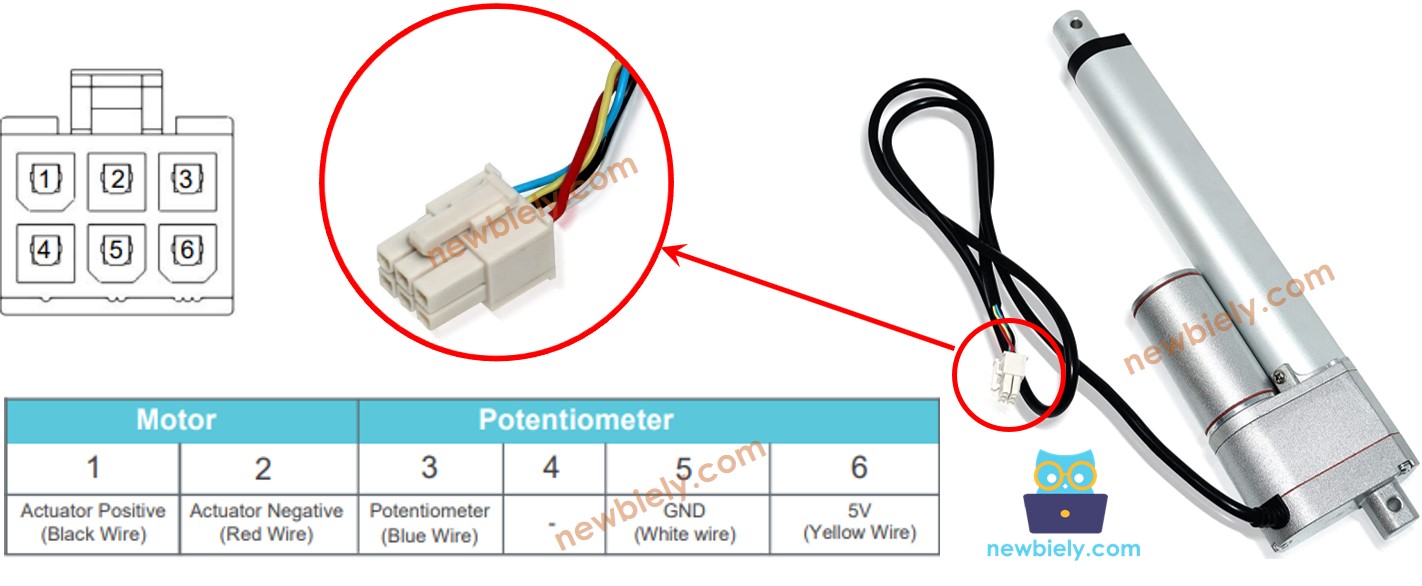
피드백이 있는 선형 액추에이터는 5개의 와이어(일부 모델에서는 4개)가 있습니다:

  • 모터 와이어(2개): Motor Shield Rev3 채널 A를 통한 전원 및 극성 제어
  • 포텐셔미터 와이어(3개): VCC, GND 및 신호(와이퍼)
선형 액추에이터 피드백 핀아웃

※ 주의:

Motor Shield Rev3 채널 A는 현재 감지에 A0을 사용합니다. 충돌을 피하려면 액추에이터의 피드백 포텐셔미터 신호 와이어를 A2에 연결하세요.

작동 방식

  1. Motor Shield Rev3를 통해 모터에 전원을 공급합니다(motor.run(MOTOR_FORWARD, 255)로 확장, motor.run(MOTOR_BACKWARD, 255)로 축소, motor.brake()로 정지).
  2. analogRead(A2)로 포텐셔미터 신호를 읽습니다 — Arduino UNO Q에서 12비트 값(0–4095)을 반환합니다.
  3. map()을 사용하여 원시 ADC 값을 밀리미터로 변환합니다.
  4. 현재 위치와 목표를 비교합니다. 필요에 따라 계속 이동하거나 정지합니다.

※ 주의:

위치를 제어하기 전에 액추에이터를 보정해야 합니다: 전체 한계까지 확장하고 POTENTIOMETER_MAX를 읽습니다. 전체 한계까지 축소하고 POTENTIOMETER_MIN을 읽습니다. 이 값들은 코드의 자리 표시자를 대체합니다.

Motor Shield Rev3(핀아웃, 작동 방식 및 프로그래밍 방법)에 익숙하지 않으면 아두이노 우노 Q - DC 모터 실드 튜토리얼을 먼저 참조하세요.

배선도
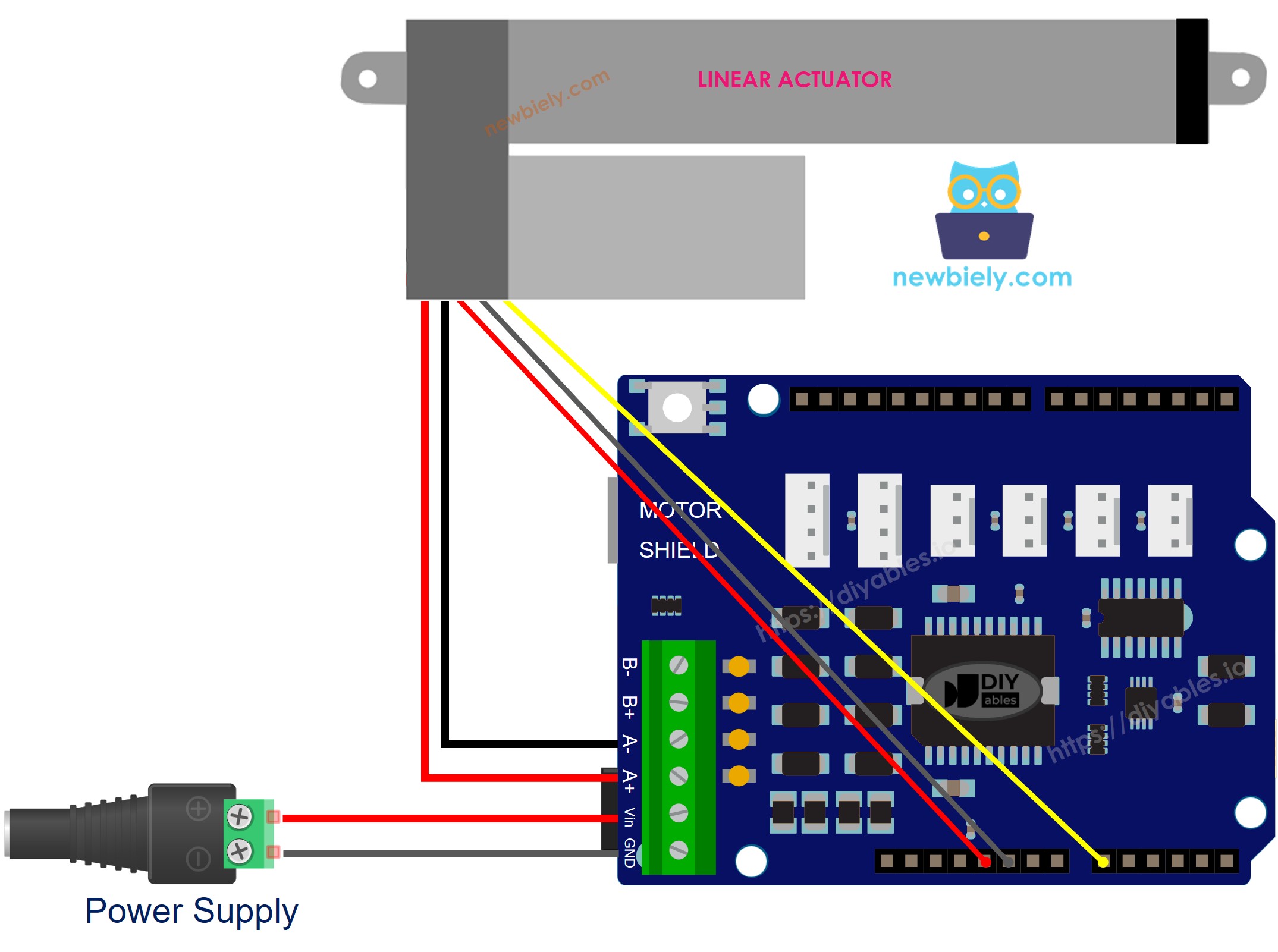
Arduino UNO Q 액추에이터 피드백 모터 shield 배선도

이 이미지는 Fritzing을 사용하여 만들어졌습니다. 이미지를 확대하려면 클릭하세요.

MCU 코드

Arduino UNO Q에는 두 개의 프로세서가 있습니다: STM32 MCU(실시간 하드웨어 제어 처리)와 Qualcomm MPU(Debian Linux 실행). 이 섹션에서는 STM32 MCU만 프로그래밍합니다. 나중 섹션에서는 두 프로세서가 함께 작동하는 방식을 보여줍니다.

이 튜토리얼은 세 단계로 나뉩니다:

1단계 – 보정

액추에이터가 완전히 확장되고 완전히 축소될 때의 원시 ADC 값을 찾으려면 이 코드를 실행하세요. 값을 메모하세요 — 2단계와 3단계에서 사용합니다.

/* * 이 Arduino UNO Q 코드는 newbiely.kr 에서 개발되었습니다 * 이 Arduino UNO Q 코드는 어떠한 제한 없이 공개 사용을 위해 제공됩니다. * 상세한 지침 및 연결도에 대해서는 다음을 방문하세요: * https://newbiely.kr/tutorials/arduino-uno-q/arduino-uno-q-actuator-with-feedback */ // Step 1: Calibration — find POTENTIOMETER_MIN and POTENTIOMETER_MAX values // NOTE: Motor Shield Channel A uses A0 for current sensing. // Connect the actuator's feedback potentiometer signal wire to A2. #include <DIYables_DC_Motor.h> #define POTENTIOMETER_PIN A2 // The Arduino UNO Q pin connected to the actuator's feedback potentiometer DIYables_DC_Motor motor(MOTOR_CH_A); void setup() { motor.begin(); } void loop() { // extend the actuator fully motor.run(MOTOR_FORWARD, 255); delay(20000); // wait for actuator to reach its limit int POTENTIOMETER_MAX = analogRead(POTENTIOMETER_PIN); // read max position value (0-4095 on UNO Q) // TODO: note this value // retract the actuator fully motor.run(MOTOR_BACKWARD, 255); delay(20000); // wait for actuator to reach its limit int POTENTIOMETER_MIN = analogRead(POTENTIOMETER_PIN); // read min position value // TODO: note this value // stop motor.brake(); while (true); // stop after one calibration cycle }

빠른 단계

  • 실드 스택: Motor Shield Rev3를 Arduino UNO Q 헤더에 단단히 누르세요. 액추에이터 모터 와이어를 채널 A 나선 단자에 연결합니다. 12V 전원 공급 장치를 실드의 전원 나선 단자에 연결합니다. 포텐셔미터 신호 와이어를 A2에, 포텐셔미터 VCC를 3.3V에, 포텐셔미터 GNDGND에 연결합니다.
  • 연결: USB-C 케이블로 Arduino UNO Q를 컴퓨터에 연결합니다.
  • Arduino App Lab 열기: Arduino App Lab을 시작하고 Arduino UNO Q를 감지할 때까지 기다립니다.
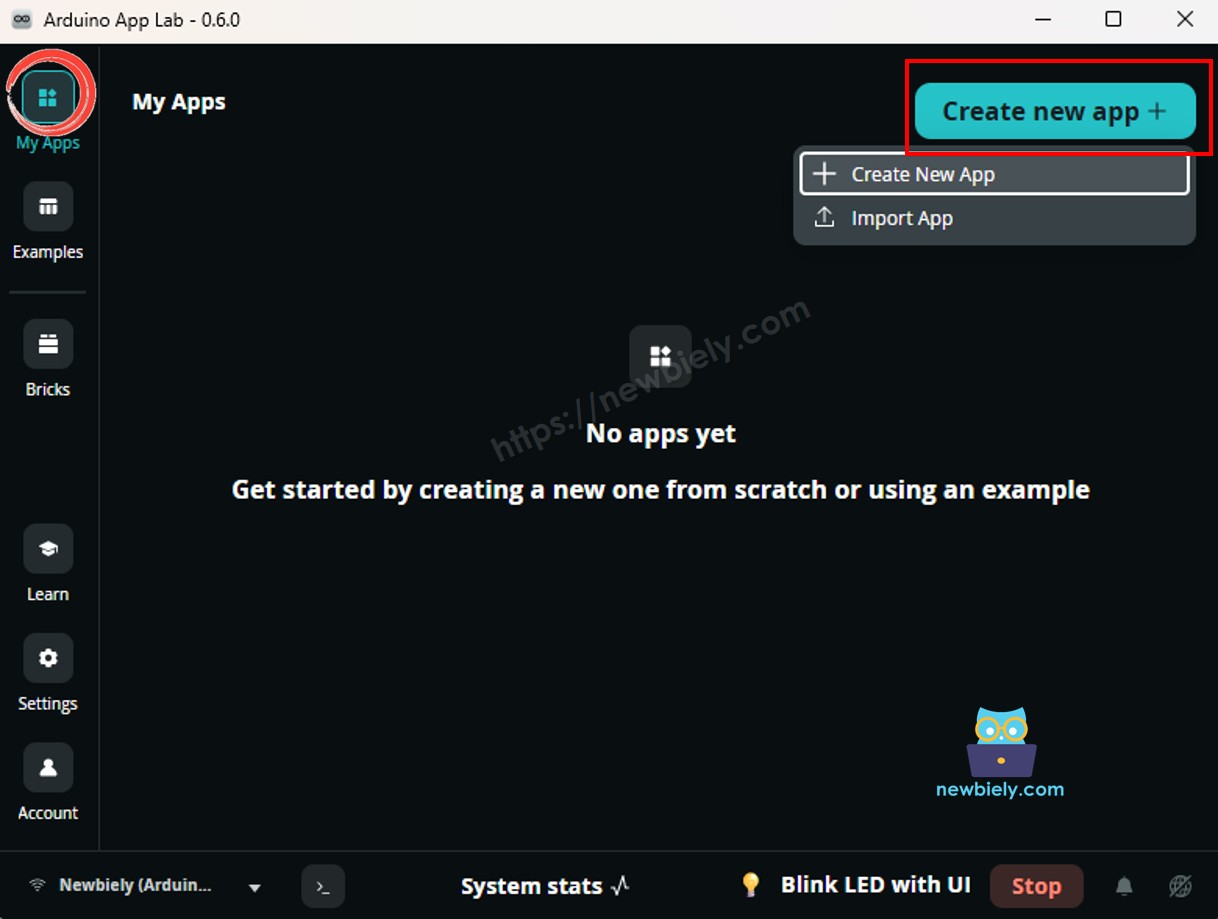
  • 새 앱 만들기: Create New App 버튼을 클릭합니다.
Arduino UNO Q의 아두이노 app lab에서 새 앱 만들기
  • 앱에 이름을 지정합니다(예: DIYables_ActuatorFeedback).
  • Create를 클릭하여 확인합니다.
  • sketch/sketch.ino 파일을 찾고 위의 보정 코드를 붙여넣습니다.
  • Install the library: Click the Add sketch library button (the open book icon with a + sign) in the left sidebar.
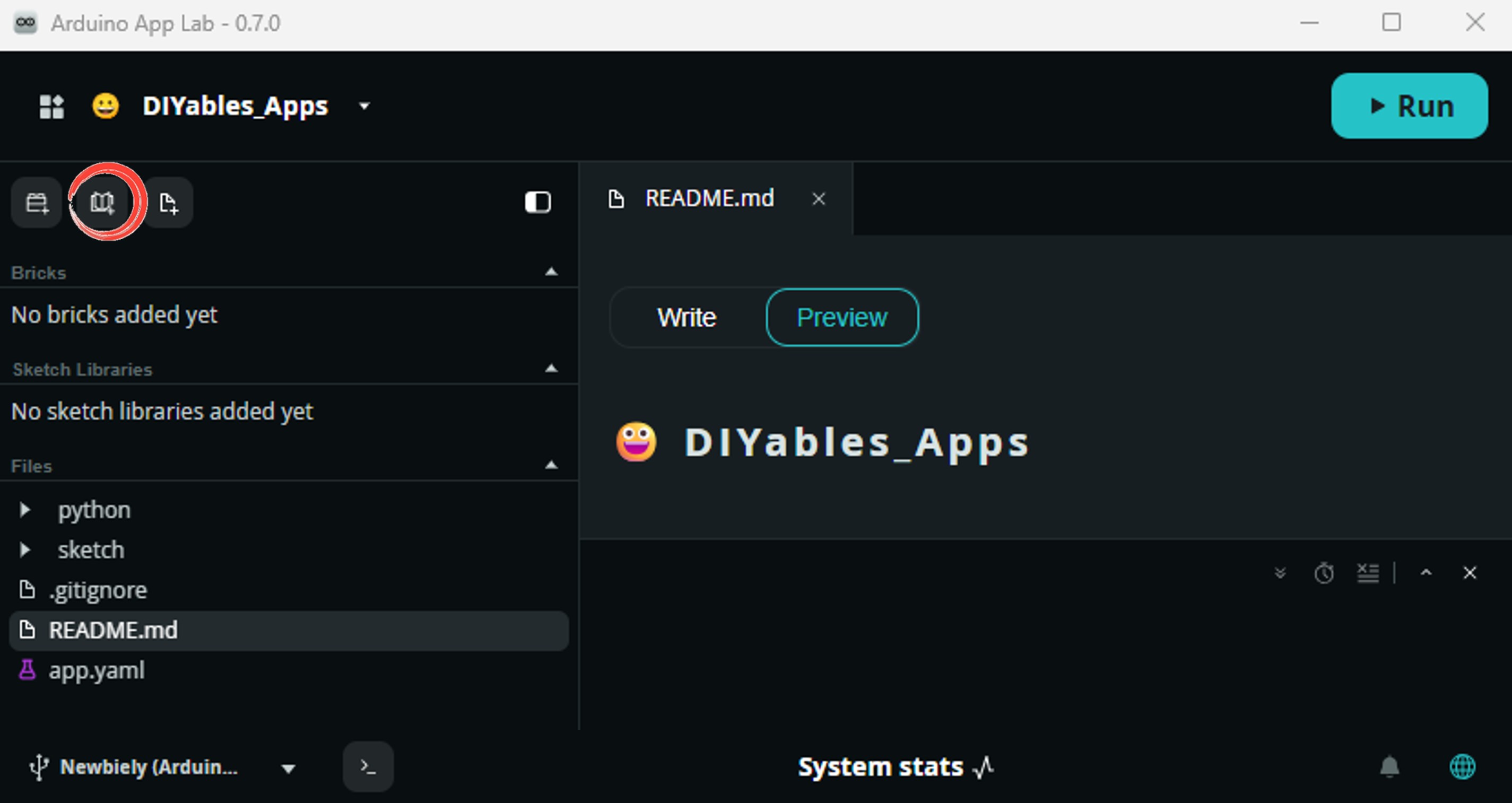
add sketch 라이브러리 in 아두이노 app lab on Arduino UNO Q
  • Search for DIYables_DC_Motor created by DIYables.io and click the Install button.
My Apps / DIYables Apps
Run
Bricks
No bricks added...
Sketch Libraries
No sketch libra...
Files
python
sketch
.gitignore
README.md
app.yaml
sketch.ino
Add sketch library
DIYables_DC_Motor DIYables.io

Easy-to-use library for controlling DC motors via the Arduino Motor Shield Rev3 (L298P). Supports both Channel A and Channel B with direction control, PWM speed, brake, and current sensing. Custom pin assignments also supported.

1.0.0
Install
More Info
  • 업로드: Run을 클릭하여 업로드합니다.
  • 값 메모: 40초 후(20초 확장 + 20초 축소), POTENTIOMETER_MAXPOTENTIOMETER_MIN 값을 메모합니다.

2단계 – 위치 계산

보정된 값을 사용하여 현재 위치를 밀리미터 단위로 계산합니다:

  • STROKE_LENGTH를 액추에이터의 스트로크 길이(mm)로 바꿉니다.
  • POTENTIOMETER_MAXPOTENTIOMETER_MIN을 1단계에서 메모한 값으로 바꿉니다.
/* * 이 Arduino UNO Q 코드는 newbiely.kr 에서 개발되었습니다 * 이 Arduino UNO Q 코드는 어떠한 제한 없이 공개 사용을 위해 제공됩니다. * 상세한 지침 및 연결도에 대해서는 다음을 방문하세요: * https://newbiely.kr/tutorials/arduino-uno-q/arduino-uno-q-actuator-with-feedback */ // Step 2: Calculate position from potentiometer feedback // NOTE: Motor Shield Channel A uses A0 for current sensing. // Connect the actuator's feedback potentiometer signal wire to A2. #include <DIYables_DC_Motor.h> #define POTENTIOMETER_PIN A2 // The Arduino UNO Q pin connected to the actuator's feedback potentiometer #define STROKE_LENGTH 102 // PLEASE UPDATE THIS VALUE (in mm) #define POTENTIOMETER_MAX 4050 // PLEASE UPDATE THIS VALUE (from calibration) #define POTENTIOMETER_MIN 50 // PLEASE UPDATE THIS VALUE (from calibration) DIYables_DC_Motor motor(MOTOR_CH_A); void setup() { motor.begin(); // extend the actuator continuously while displaying position motor.run(MOTOR_FORWARD, 255); } void loop() { int potentiometer_value = analogRead(POTENTIOMETER_PIN); int stroke_pos = map(potentiometer_value, POTENTIOMETER_MIN, POTENTIOMETER_MAX, 0, STROKE_LENGTH); // stroke_pos is the current position in mm — use this to verify feedback accuracy (void)stroke_pos; }

빠른 단계

  • 코드 맨 위의 자리 표시자를 실제 값으로 업데이트합니다.
  • 업로드 및 관찰: 액추에이터가 확장되는 동안 계산된 위치를 확인합니다.

3단계 – 위치 제어

보정된 값으로 액추에이터를 특정 목표 위치로 구동합니다:

  • targetPosition_mm을 원하는 위치로 설정합니다(0 = 완전히 축소, STROKE_LENGTH = 완전히 확장).
/* * 이 Arduino UNO Q 코드는 newbiely.kr 에서 개발되었습니다 * 이 Arduino UNO Q 코드는 어떠한 제한 없이 공개 사용을 위해 제공됩니다. * 상세한 지침 및 연결도에 대해서는 다음을 방문하세요: * https://newbiely.kr/tutorials/arduino-uno-q/arduino-uno-q-actuator-with-feedback */ // Step 3: Control actuator position using feedback // NOTE: Motor Shield Channel A uses A0 for current sensing. // Connect the actuator's feedback potentiometer signal wire to A2. #include <DIYables_DC_Motor.h> #define POTENTIOMETER_PIN A2 // The Arduino UNO Q pin connected to the actuator's feedback potentiometer #define STROKE_LENGTH 102 // PLEASE UPDATE THIS VALUE (in mm) #define POTENTIOMETER_MAX 4050 // PLEASE UPDATE THIS VALUE (from calibration) #define POTENTIOMETER_MIN 50 // PLEASE UPDATE THIS VALUE (from calibration) #define TOLERANCE 5 // position tolerance in mm int targetPosition_mm = 50; // target position in mm DIYables_DC_Motor motor(MOTOR_CH_A); void setup() { motor.begin(); motor.brake(); } void loop() { int potentiometer_value = analogRead(POTENTIOMETER_PIN); int stroke_pos = map(potentiometer_value, POTENTIOMETER_MIN, POTENTIOMETER_MAX, 0, STROKE_LENGTH); if (stroke_pos < (targetPosition_mm - TOLERANCE)) motor.run(MOTOR_FORWARD, 255); else if (stroke_pos > (targetPosition_mm + TOLERANCE)) motor.run(MOTOR_BACKWARD, 255); else motor.brake(); }

빠른 단계

  • 자리 표시자를 업데이트합니다(STROKE_LENGTH, POTENTIOMETER_MAX, POTENTIOMETER_MIN) 및 targetPosition_mm을 설정합니다.
  • 업로드 및 테스트: 액추에이터가 목표로 이동하여 위치를 유지합니다.

Linux + MCU Bridge 프로그래밍

Arduino UNO Q에는 함께 작동하는 두 개의 프로세서가 있습니다: MPU(Qualcomm, Debian Linux 실행)와 MCU(STM32, Zephyr OS와 Arduino 스케치 실행). Arduino_RouterBridge 라이브러리를 통해 RPC를 사용하여 통신합니다.

  • Motor Shield Rev3 및 액추에이터는 MCU(STM32)에 의해 제어됩니다DIYables_DC_Motor 라이브러리가 채널 A를 구동합니다. 포텐셔미터 피드백은 A2에 있습니다.
  • MPU는 액추에이터를 직접 제어할 수 없습니다Bridge.call("read_position")을 호출하여 위치를 읽고 액추에이터를 구동하는 MCU 함수를 호출합니다.
  • MPU는 Wi-Fi를 가지고 있습니다 — 따라서 Telegram 명령을 수락하여 목표 위치를 원격으로 모니터링하거나 변경할 수 있습니다.
  • 통신: Linux 측의 Bridge.call()은 MCU 측의 Bridge.provide_safe()를 호출합니다(motor.run()motor.brake()는 하드웨어 API를 사용하므로).
  • ⚠️ 예약됨: /dev/ttyHS1(Linux) 및 Serial1(MCU)은 Arduino Router에서 사용됩니다 — 절대로 직접 열지 마세요.

MCU 스케치 — Bridge를 사용한 위치 피드백:

/* * 이 Arduino UNO Q 코드는 newbiely.kr 에서 개발되었습니다 * 이 Arduino UNO Q 코드는 어떠한 제한 없이 공개 사용을 위해 제공됩니다. * 상세한 지침 및 연결도에 대해서는 다음을 방문하세요: * https://newbiely.kr/tutorials/arduino-uno-q/arduino-uno-q-actuator-with-feedback */ #include "Arduino_RouterBridge.h" #include <DIYables_DC_Motor.h> #define POTENTIOMETER_PIN A2 // NOTE: A0 is used by Motor Shield current sensing; use A2 #define STROKE_LENGTH 102 #define POTENTIOMETER_MAX 4050 // PLEASE UPDATE THIS VALUE (from calibration) #define POTENTIOMETER_MIN 50 // PLEASE UPDATE THIS VALUE (from calibration) #define TOLERANCE 5 int targetPosition_mm = 50; DIYables_DC_Motor motor(MOTOR_CH_A); void read_position() { int potentiometer_value = analogRead(POTENTIOMETER_PIN); int stroke_pos = map(potentiometer_value, POTENTIOMETER_MIN, POTENTIOMETER_MAX, 0, STROKE_LENGTH); if (stroke_pos < (targetPosition_mm - TOLERANCE)) motor.run(MOTOR_FORWARD, 255); else if (stroke_pos > (targetPosition_mm + TOLERANCE)) motor.run(MOTOR_BACKWARD, 255); else motor.brake(); Monitor.print("Position: "); Monitor.print(stroke_pos); Monitor.print(" mm | Target: "); Monitor.print(targetPosition_mm); Monitor.println(" mm"); } void setup() { Bridge.begin(); Monitor.begin(); motor.begin(); motor.brake(); Bridge.provide_safe("read_position", read_position); Monitor.println("Actuator Feedback Bridge ready"); } void loop() {}

Python 스크립트(Arduino App Lab) — 위치를 계속 읽고 제어:

/* * 이 Arduino UNO Q 코드는 newbiely.kr 에서 개발되었습니다 * 이 Arduino UNO Q 코드는 어떠한 제한 없이 공개 사용을 위해 제공됩니다. * 상세한 지침 및 연결도에 대해서는 다음을 방문하세요: * https://newbiely.kr/tutorials/arduino-uno-q/arduino-uno-q-actuator-with-feedback */ from arduino.app_utils import * import time def loop(): Bridge.call("read_position") time.sleep(0.2) App.run(user_loop=loop)
  • 참고: MCU 스케치에서 Bridge.begin()이 호출되었는지 확인하고 Python 스크립트를 실행하기 전에 스케치가 업로드되었는지 확인하세요.
  • ⚠️ 경고: /dev/ttyHS1(Linux에서) 또는 Serial1(MCU에서)을 직접 열지 마세요 — 이들은 Arduino Router에서 예약되었습니다.

빠른 단계

  • Bridge MCU 스케치의 자리 표시자를 업데이트합니다(STROKE_LENGTH, POTENTIOMETER_MAX, POTENTIOMETER_MIN) 및 targetPosition_mm을 설정합니다.
  • Bridge MCU 스케치의 자리 표시자를 업데이트합니다(STROKE_LENGTH, POTENTIOMETER_MAX, POTENTIOMETER_MIN) 및 targetPosition_mm을 설정합니다.
  • MCU 스케치 업로드: Arduino App Lab을 열고 Bridge MCU 스케치를 sketch/sketch.ino에 붙여넣고 DIYables_DC_MotorArduino_RouterBridge 라이브러리를 모두 설치한 후 Run을 클릭합니다.
  • Python 스크립트 추가: 위의 Python 코드를 Python 탭에 붙여넣습니다.
  • 앱 실행: Python은 200ms마다 read_position을 호출합니다. MCU는 목표로 이동하고 위치를 보고합니다.
  • 콘솔 확인: 콘솔 → MCU Monitor 하위 탭을 엽니다.

App Lab 콘솔 출력

DIYables_Apps
Stop
sketch.ino
1#include "Arduino_RouterBridge.h"
Serial Monitor
Python
Message (Enter to send a message to "Newbiely" on usb(2820070321))
New Line
9600 baud
Actuator Feedback Bridge ready Position: 30 mm | Target: 50 mm Position: 38 mm | Target: 50 mm Position: 47 mm | Target: 50 mm Position: 50 mm | Target: 50 mm

Telegram 통합

Telegram의 /position 명령으로 액추에이터 위치를 모니터링하고 보고합니다.

아직 Telegram 봇이 없으면 계속하기 전에 아두이노 우노 Q - 텔레그램 봇을 참조하여 봇 토큰을 얻으세요.

MCU 스케치: 이전 Bridge 섹션의 동일한 MCU 스케치를 유지하세요 — 변경이 필요 없습니다. STM32에서 이미 업로드되고 실행 중인지 확인하세요.

Python 스크립트(Arduino App Lab) — 액추에이터 위치를 위한 Telegram 봇:

/* * 이 Arduino UNO Q 코드는 newbiely.kr 에서 개발되었습니다 * 이 Arduino UNO Q 코드는 어떠한 제한 없이 공개 사용을 위해 제공됩니다. * 상세한 지침 및 연결도에 대해서는 다음을 방문하세요: * https://newbiely.kr/tutorials/arduino-uno-q/arduino-uno-q-actuator-with-feedback */ from arduino.app_utils import * import requests import time BOT_TOKEN = "YOUR_BOT_TOKEN" API_URL = f"https://api.telegram.org/bot{BOT_TOKEN}" last_update_id = 0 def send_message(chat_id, text): requests.post(f"{API_URL}/sendMessage", json={"chat_id": chat_id, "text": text}) def get_updates(): global last_update_id resp = requests.get(f"{API_URL}/getUpdates", params={"offset": last_update_id + 1, "timeout": 5}) return resp.json().get("result", []) def loop(): global last_update_id updates = get_updates() for update in updates: last_update_id = update["update_id"] msg = update.get("message", {}) chat_id = msg.get("chat", {}).get("id") text = msg.get("text", "").strip() if text == "/position": position = Bridge.call("read_position") send_message(chat_id, position) else: send_message(chat_id, "Commands:\n/position — read and control actuator position") time.sleep(0.5) App.run(user_loop=loop)
  • 참고: YOUR_BOT_TOKEN을 @BotFather에서 얻은 토큰으로 바꾸세요.
  • /position을 전송하여 MCU에서 위치 읽기를 트리거합니다.

빠른 단계

  • MCU 스케치 업로드: Bridge MCU 스케치를 사용합니다(아직 수행하지 않았으면 먼저 업로드하세요).
  • Telegram 스크립트 붙여넣기: 위의 Python 코드를 앱의 Python 탭에 복사합니다.
  • 토큰 설정: YOUR_BOT_TOKEN을 실제 봇 토큰으로 바꾸세요.
  • 앱 실행하고 Telegram을 통해 /position을 전송합니다.

App Lab 콘솔 출력

DIYables_Apps
Stop
sketch.ino
1#include "Arduino_RouterBridge.h"
Serial Monitor
Python
[2026-04-29 12:00:01] Telegram: /position [2026-04-29 12:00:01] Position: 30 mm | Target: 50 mm
Telegram
Telegram 12:45
Welcome to Telegram!
ArduinoBot 10:19
Chatting with Arduino...
telegram-botfather
BotFather Yesterday
Your bot has been created.

ArduinoBot

bot
Today
/position
10:15 AM ✓✓
Position: 30 mm | Target: 50 mm
10:16 AM

OpenClaw 통합

이 튜토리얼을 OpenClaw에 적용하려면 아두이노 우노 Q - OpenClaw 튜토리얼의 지침을 참조하세요.

응용 프로그램/프로젝트 아이디어

  • 정밀 게이트: 일정을 기반으로 정확한 위치(예: 50% 이동)로 게이트를 엽니다
  • 조정 가능한 태양광 패널: 액추에이터 위치 피드백을 사용하여 계산된 각도로 패널을 기울입니다
  • 높이 조정 지그: 제조 설정에서 보정된 높이로 워크피스를 이동합니다
  • 자동 밸브: 흐름 요구 사항을 기반으로 특정 열린 백분율에서 밸브를 배치합니다
  • 재활 장치: 위치 추적으로 목표 각도로 운동 액추에이터를 구동합니다

자신에게 도전하세요

  • 쉬움: targetPosition_mm을 25mm로 변경하고 정확도를 확인합니다
  • 중간: /set50 Telegram 명령을 추가하여 액추에이터를 50mm로 이동합니다
  • 고급: 동적 목표로 /goto <mm> 명령을 수락하고 이동하기 전에 범위를 확인합니다