아두이노 우노 Q 온도 센서 LCD

Arduino UNO Q에서 LCD에 실시간 온도를 표시하고 싶으신가요 - 그리고 너무 뜨거워지면 Telegram 알림을 받으시겠어요? 이 튜토리얼은 DS18B20 온도 센서와 I2C LCD를 결합하여 완전한 온도 모니터링 스테이션을 만듭니다.

이 튜토리얼에서는 다음을 배웁니다:

Arduino UNO Q 온도 센서 lcd

필요한 하드웨어

1×Arduino UNO Q 아마존
1×USB Cable for Arduino Uno Q 아마존
1×LCD I2C 16x2 쿠팡 | 아마존
1×(또는) LCD I2C 20x4 쿠팡 | 아마존
1×DS18B20 온도 센서 (어댑터 포함) 쿠팡 | 아마존
1×DS18B20 온도 센서(어댑터 없음) 아마존
1×점퍼케이블 쿠팡 | 아마존
1×(추천) 아두이노 우노용 스크루 터미널 블록 쉴드 쿠팡 | 아마존
1×(추천) Sensors/Servo Expansion Shield for Arduino Uno 쿠팡 | 아마존
1×(추천) 아두이노 우노용 브레드보드 쉴드 쿠팡 | 아마존
1×(추천) 아두이노 우노용 케이스 쿠팡 | 아마존
1×(추천) 아두이노 우노용 프로토타이핑 베이스 플레이트 & 브레드보드 키트 아마존
공개: 이 포스팅 에 제공된 일부 링크는 아마존 제휴 링크입니다. 이 포스팅은 쿠팡 파트너스 활동의 일환으로, 이에 따른 일정액의 수수료를 제공받습니다.

온도 센서 및 LCD 정보

DS18B20 센서나 I2C LCD 디스플레이를 처음 사용한다면 먼저 이 튜토리얼을 확인하세요:

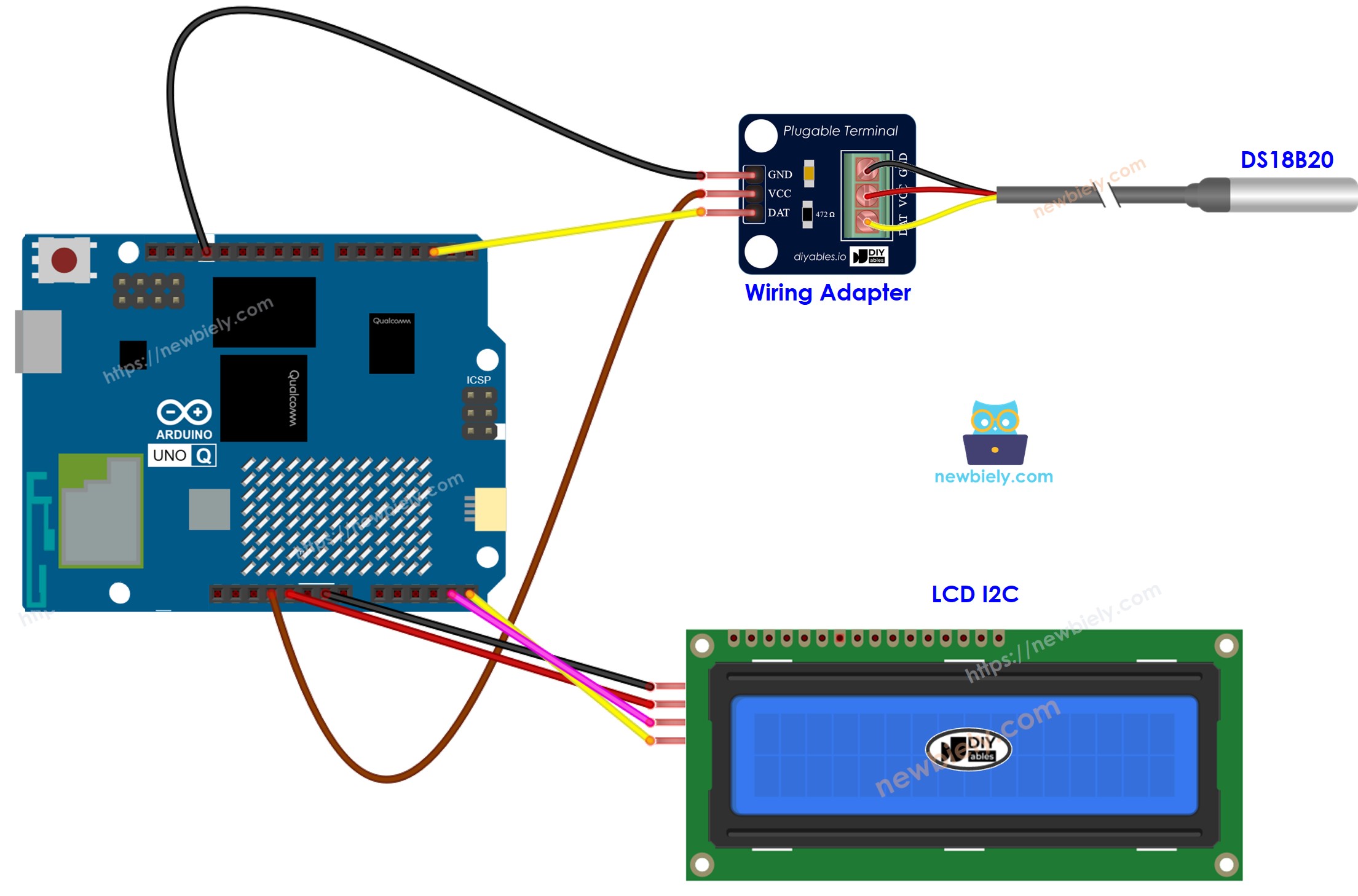
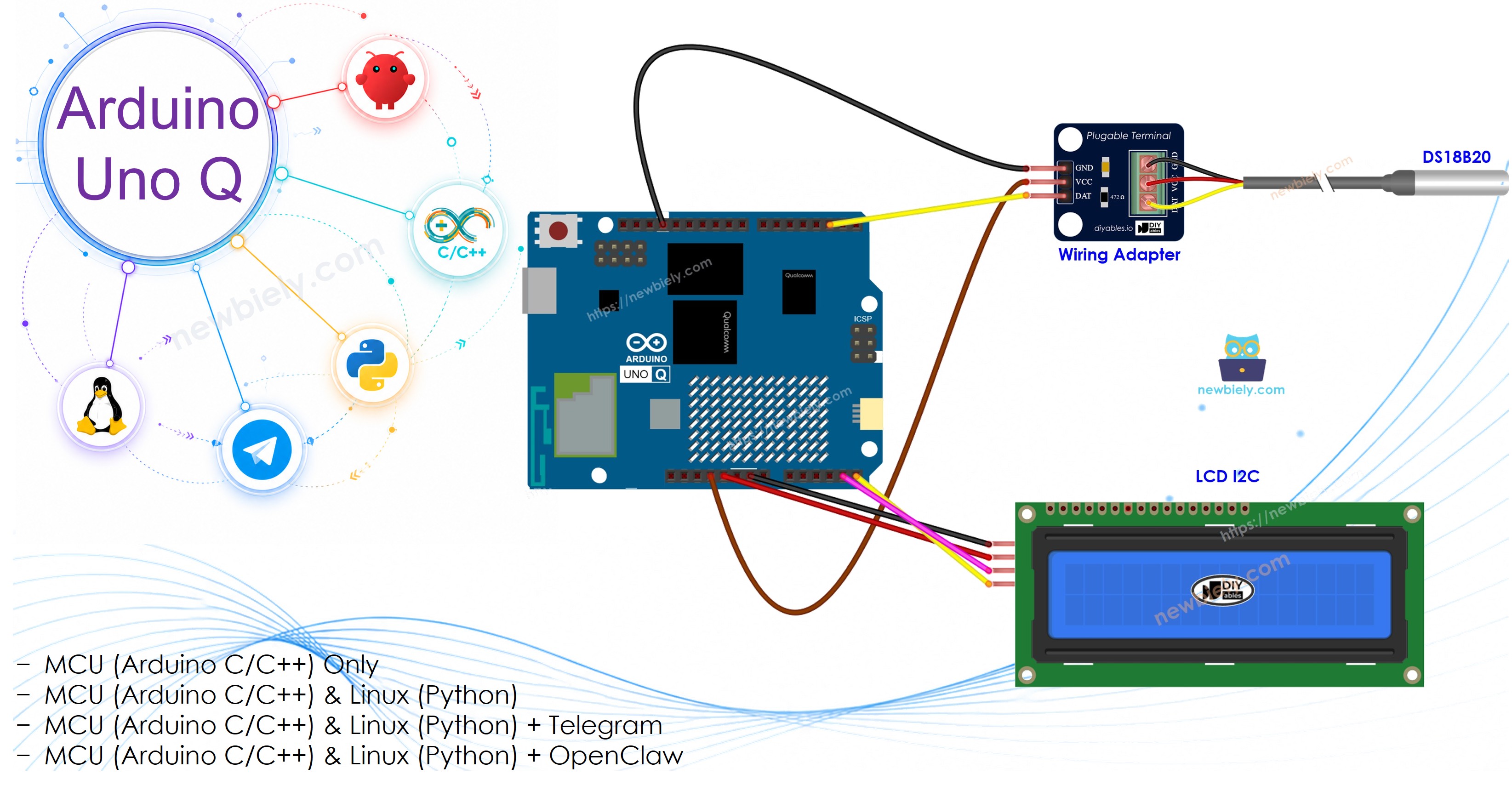
배선 다이어그램

Arduino UNO Q 온도 센서 lcd 연결 배선도

이 이미지는 Fritzing을 사용하여 만들어졌습니다. 이미지를 확대하려면 클릭하세요.

DS18B20 연결:

DS18B20 핀 Arduino UNO Q MCU
GND GND
VCC 3.3V or 5V
DATA D4

LCD I2C 연결:

LCD I2C 핀 Arduino UNO Q MCU
VCC 5V
GND GND
SDA A4
SCL A5

Arduino UNO Q 코드

Arduino UNO Q는 두 개의 프로세서가 함께 작동합니다:

  • STM32 MCU - DS18B20 센서를 읽고 LCD를 직접 구동합니다
  • Qualcomm MPU - Debian Linux를 실행하고 Wi-Fi, Python 및 클라우드 연결을 처리합니다
  • 이 섹션에서는 MCU만 프로그래밍됩니다 - Linux 측은 유휴 상태로 남아 있습니다. 이후 섹션에서는 두 프로세서가 Bridge를 통해 함께 작동하는 방식을 보여줍니다.

MCU는 매 초마다 온도를 읽고 LCD 디스플레이와 Serial Monitor를 모두 업데이트합니다.

/* * 이 Arduino UNO Q 코드는 newbiely.kr 에서 개발되었습니다 * 이 Arduino UNO Q 코드는 어떠한 제한 없이 공개 사용을 위해 제공됩니다. * 상세한 지침 및 연결도에 대해서는 다음을 방문하세요: * https://newbiely.kr/tutorials/arduino-uno-q/arduino-uno-q-temperature-sensor-lcd */ #include <OneWire.h> #include <DallasTemperature.h> #include <DIYables_LCD_I2C.h> #define SENSOR_PIN 4 // Arduino UNO Q MCU pin connected to DS18B20 DATA pin OneWire oneWire(SENSOR_PIN); DallasTemperature DS18B20(&oneWire); DIYables_LCD_I2C lcd(0x27, 16, 2); float temperature_C; float temperature_F; void setup() { Serial.begin(115200); delay(1500); DS18B20.begin(); lcd.init(); lcd.backlight(); lcd.print("Temp Sensor Ready"); Serial.println("Arduino UNO Q Temperature Sensor + LCD ready"); } void loop() { DS18B20.requestTemperatures(); temperature_C = DS18B20.getTempCByIndex(0); temperature_F = temperature_C * 9.0 / 5.0 + 32.0; lcd.clear(); lcd.setCursor(0, 0); lcd.print(temperature_C); lcd.print((char)223); // degree symbol lcd.print("C"); lcd.setCursor(0, 1); lcd.print(temperature_F); lcd.print((char)223); lcd.print("F"); Serial.print("Temperature: "); Serial.print(temperature_C); Serial.print("°C ~ "); Serial.print(temperature_F); Serial.println("°F"); delay(1000); }

※ 주의:

LCD의 I2C 주소는 제조업체에 따라 변경될 수 있습니다. 이 코드에서는 제조업체 DIYables에서 제공한 주소인 0x27을 사용했습니다.

빠른 시작

Arduino UNO Q를 처음 사용하시나요? 진행하기 전에 아두이노 우노 Q 시작하기 튜토리얼을 따르세요.

  • 연결: 위의 배선 다이어그램에 표시된 대로 DS18B20 센서와 LCD I2C를 Arduino UNO Q MCU에 배선합니다.
  • Arduino App Lab 열기: Arduino App Lab을 시작하고 Arduino UNO Q를 감지할 때까지 기다립니다.
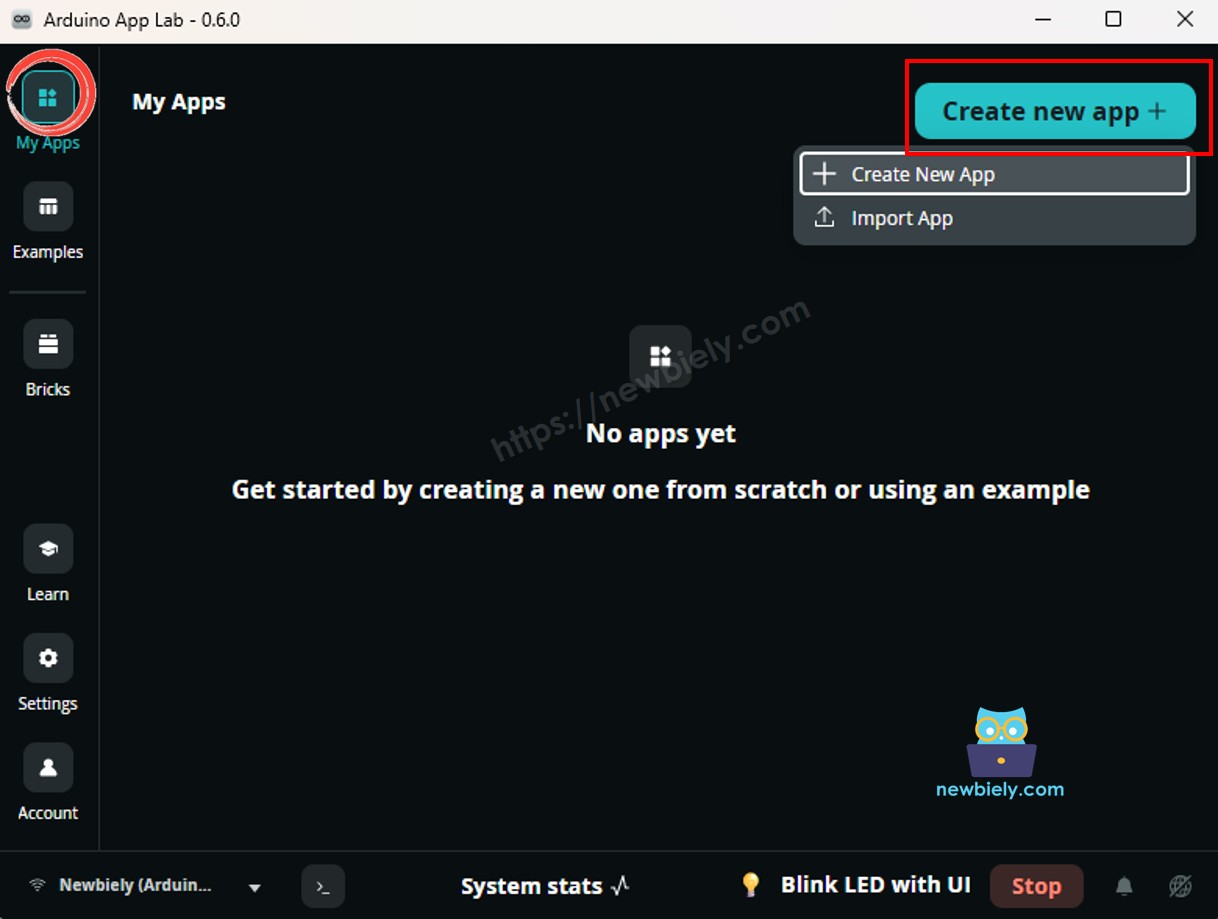
  • 새 앱 만들기: Create New App 버튼을 클릭합니다.
create new app in 아두이노 app lab on Arduino UNO Q
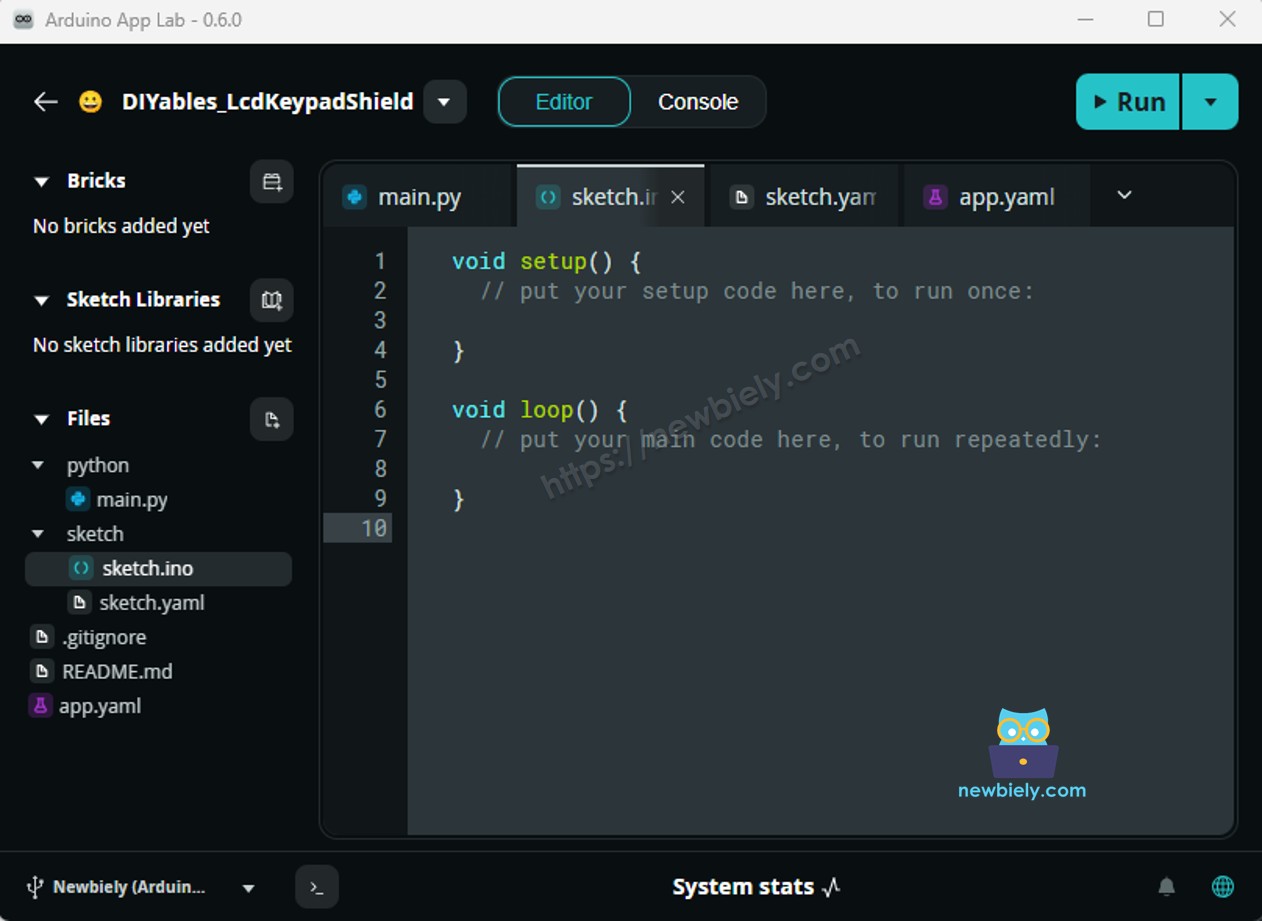
  • 앱에 이름을 지정합니다(예: TemperatureSensorLcd).
  • Create를 클릭하여 확인합니다.
아두이노 app lab app folders and files on Arduino UNO Q
  • 스케치 붙여넣기: 위의 MCU 코드를 복사하여 sketch/sketch.ino에 붙여넣습니다. 다른 파일은 기본값으로 유지합니다.
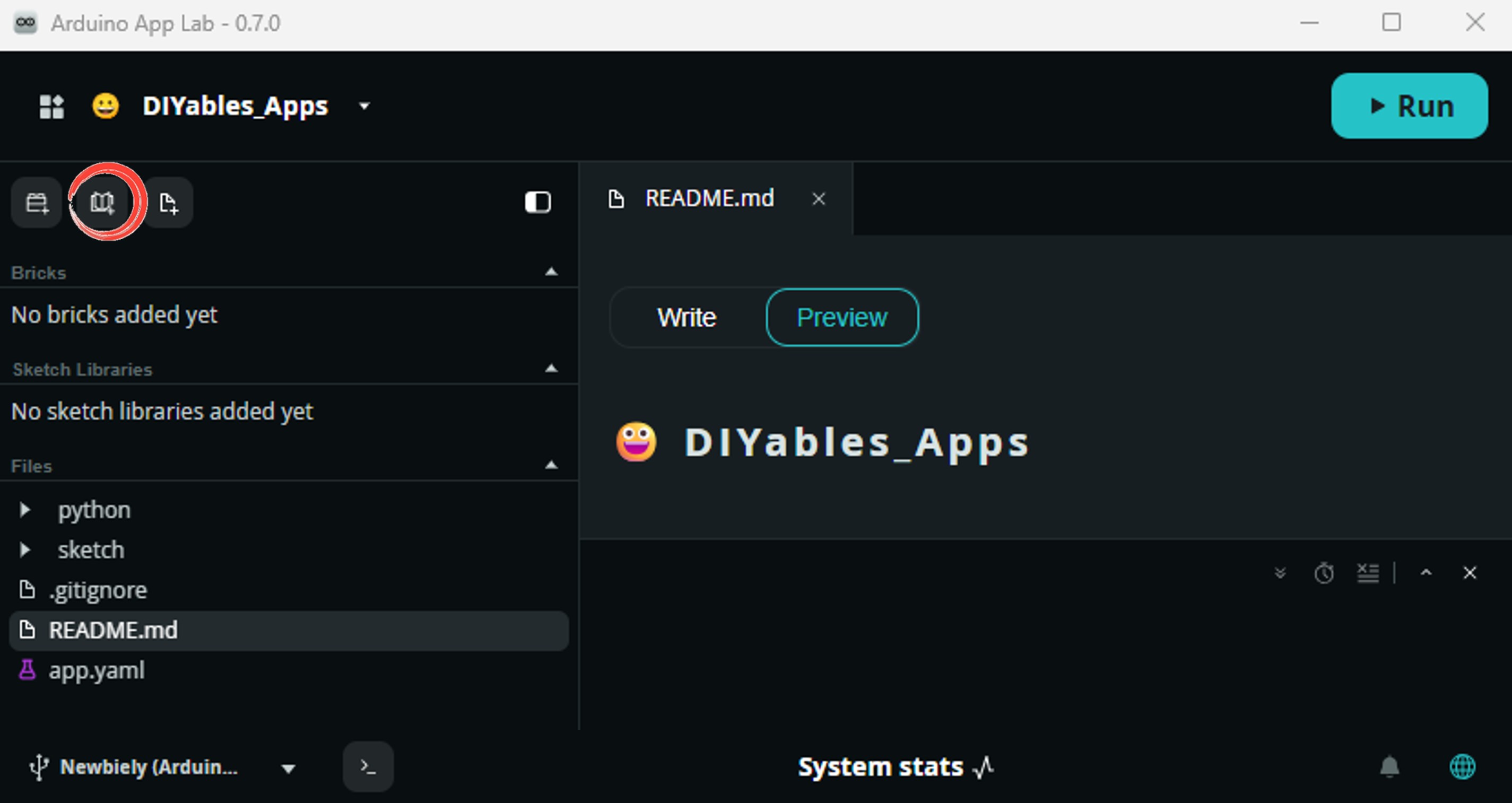
  • Install the library: Click the Add sketch library button (the open book icon with a + sign) in the left sidebar.
add sketch 라이브러리 in 아두이노 app lab on Arduino UNO Q
  • Search for DallasTemperature created by Miles Burton , Tim Newsome , Guil Barros , Rob Tillaart and click the Install button.
My Apps / DIYables Apps
Run
Bricks
No bricks added...
Sketch Libraries
No sketch libra...
Files
python
sketch
.gitignore
README.md
app.yaml
sketch.ino
Add sketch library
DallasTemperature Miles Burton , Tim Newsome , Guil Barros , Rob Tillaart

Supports DS18B20, DS18S20, DS1822, DS1820

3.9.0
Install
More Info
  • Search for OneWire created by Jim Studt, Tom Pollard, Robin James, Glenn Trewitt, Jason Dangel, Guillermo Lovato, Paul Stoffregen, Scott Roberts, Bertrik Sikken, Mark Tillotson, Ken Butcher, Roger Clark, Love Nystrom and click the Install button.
My Apps / DIYables Apps
Run
Bricks
No bricks added...
Sketch Libraries
No sketch libra...
Files
python
sketch
.gitignore
README.md
app.yaml
sketch.ino
Add sketch library
OneWire Jim Studt, Tom Pollard, Robin James, Glenn Trewitt, Jason Dangel, Guillermo Lovato, Paul Stoffregen, Scott Roberts, Bertrik Sikken, Mark Tillotson, Ken Butcher, Roger Clark, Love Nystrom

2.3.8
Install
More Info
  • Search for DIYables LCD I2C created by DIYables.io and click the Install button.
My Apps / DIYables Apps
Run
Bricks
No bricks added...
Sketch Libraries
No sketch libra...
Files
python
sketch
.gitignore
README.md
app.yaml
sketch.ino
Add sketch library
DIYables LCD I2C DIYables.io

This library is designed for HD44780-based I2C LCD displays. It provides LiquidCrystal-compatible API plus helper functions (text alignment, progress bars, predefined custom characters). Supports multiple I2C buses (Wire, Wire1, Wire2) for advanced boards like Arduino Giga, Due, and ESP32. Compatible with all Arduino-based platforms including Arduino Uno, Mega, Nano, ESP32, ESP8266, STM32, and Raspberry Pi Pico.

1.0.0
Install
More Info
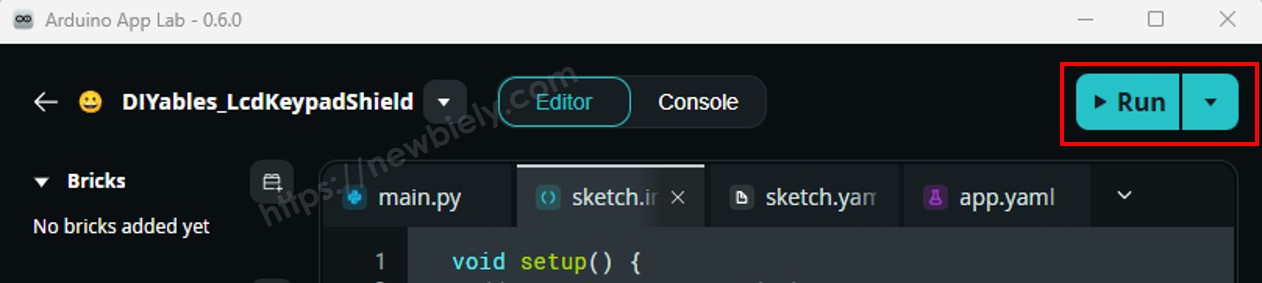
  • 업로드: Arduino App Lab의 Run 버튼을 클릭합니다.
click run 버튼 in 아두이노 app lab on Arduino UNO Q
  • 센서를 손에 들거나 뜨거운/찬 물에 넣고 LCD의 온도 업데이트를 봅니다.

LCD에 아무것도 표시되지 않으면 LCD I2C 문제 해결을 확인하세요.

App Lab 콘솔 출력

DIYables_Apps
Stop
sketch.ino
1#include "Arduino_RouterBridge.h"
Serial Monitor
Python
Message (Enter to send a message to "Newbiely" on usb(2820070321))

New Line
9600 baud
[2026-04-29 09:00:01] Arduino UNO Q Temperature Sensor + LCD ready [2026-04-29 09:00:02] Temperature: 26.31°C ~ 79.36°F [2026-04-29 09:00:03] Temperature: 26.44°C ~ 79.59°F [2026-04-29 09:00:04] Temperature: 27.06°C ~ 80.71°F [2026-04-29 09:00:05] Temperature: 28.50°C ~ 83.30°F

Bridge: Linux + MCU

이 섹션에서는 Arduino UNO Q의 두 프로세서를 모두 프로그래밍하여 Linux 측이 Bridge를 통해 온도를 원격으로 모니터링하는 방법을 보여줍니다:

  • DS18B20 센서와 LCD는 모두 MCU(STM32)에 연결됩니다 - MCU는 매 초마다 온도를 읽고 LCD 디스플레이를 자동으로 업데이트합니다
  • MPU는 센서나 LCD에 직접 액세스할 수 없습니다 - Bridge 함수를 호출하여 온도 읽기를 검색하거나 LCD를 지워야 합니다
  • MPU에는 Wi-Fi가 있습니다 - 완전한 Debian Linux를 실행하는 동안 읽기를 기록하고, 대시보드에 게시하거나, 인터넷을 통해 알림을 보낼 수 있습니다
  • Arduino_RouterBridge는 두 프로세서 간에 RPC 통신을 가능하게 합니다
  • ⚠️ /dev/ttyHS1(Linux) 및 Serial1(MCU)은 라우터에서 예약됨 - 사용자 코드에서 이를 열지 마세요

요약하면: MCU가 매 초마다 센서를 읽고 LCD를 업데이트 → MPU가 Bridge를 통해 온도를 읽음 → MPU가 Wi-Fi를 통해 게시, 기록 또는 알림을 보냅니다.

MCU 코드 (Bridge)

/* * 이 Arduino UNO Q 코드는 newbiely.kr 에서 개발되었습니다 * 이 Arduino UNO Q 코드는 어떠한 제한 없이 공개 사용을 위해 제공됩니다. * 상세한 지침 및 연결도에 대해서는 다음을 방문하세요: * https://newbiely.kr/tutorials/arduino-uno-q/arduino-uno-q-temperature-sensor-lcd */ #include <OneWire.h> #include <DallasTemperature.h> #include <DIYables_LCD_I2C.h>#include "Arduino_RouterBridge.h" #define SENSOR_PIN 4 OneWire oneWire(SENSOR_PIN); DallasTemperature DS18B20(&oneWire); DIYables_LCD_I2C lcd(0x27, 16, 2); float last_temp_c = 0.0; float last_temp_f = 0.0; unsigned long last_read_ms = 0; void update_lcd() { lcd.clear(); lcd.setCursor(0, 0); lcd.print(last_temp_c); lcd.print((char)223); lcd.print("C"); lcd.setCursor(0, 1); lcd.print(last_temp_f); lcd.print((char)223); lcd.print("F"); } String get_temp_c(String arg) { return String(last_temp_c, 2); } String get_temp_f(String arg) { return String(last_temp_f, 2); } String clear_lcd(String arg) { lcd.clear(); Monitor.println("LCD cleared"); return "OK"; } String get_status(String arg) { return "Temp: " + String(last_temp_c, 2) + "°C / " + String(last_temp_f, 2) + "°F"; } void setup() { Bridge.begin(); Monitor.begin(); DS18B20.begin(); lcd.init(); lcd.backlight(); lcd.print("Bridge Ready"); DS18B20.requestTemperatures(); last_temp_c = DS18B20.getTempCByIndex(0); last_temp_f = last_temp_c * 9.0 / 5.0 + 32.0; update_lcd(); Bridge.provide("get_temp_c", get_temp_c); Bridge.provide("get_temp_f", get_temp_f); Bridge.provide_safe("clear_lcd", clear_lcd); Bridge.provide("get_status", get_status); Monitor.println("Arduino UNO Q Temperature Sensor + LCD Bridge ready"); } void loop() { unsigned long now = millis(); if (now - last_read_ms >= 1000) { last_read_ms = now; DS18B20.requestTemperatures(); last_temp_c = DS18B20.getTempCByIndex(0); last_temp_f = last_temp_c * 9.0 / 5.0 + 32.0; update_lcd(); Monitor.println("Temp: " + String(last_temp_c, 2) + "°C / " + String(last_temp_f, 2) + "°F"); } }

Python 코드 (Bridge)

/* * 이 Arduino UNO Q 코드는 newbiely.kr 에서 개발되었습니다 * 이 Arduino UNO Q 코드는 어떠한 제한 없이 공개 사용을 위해 제공됩니다. * 상세한 지침 및 연결도에 대해서는 다음을 방문하세요: * https://newbiely.kr/tutorials/arduino-uno-q/arduino-uno-q-temperature-sensor-lcd */ from arduino.app_utils import * import time def loop(): status = Bridge.call("get_status") print(status) time.sleep(1) App.run(user_loop=loop)

빠른 시작

  • 연결: 배선 다이어그램에 표시된 대로 DS18B20 센서와 LCD I2C를 Arduino UNO Q에 배선합니다.
  • Arduino App Lab 열기: Arduino App Lab을 시작하고 보드가 감지될 때까지 기다립니다.
  • 새 앱 만들기: Create New App을 클릭하고 TemperatureSensorLcdBridge 이름을 지정한 다음 Create를 클릭합니다.
  • MCU 스케치 붙여넣기: 위의 MCU Bridge 코드를 복사하여 sketch/sketch.ino에 붙여넣습니다.
  • Python 코드 붙여넣기: 위의 Python Bridge 코드를 복사하여 앱의 Python 파일에 붙여넣습니다.
  • 업로드: Arduino App Lab의 Run 버튼을 클릭합니다.
click run 버튼 in 아두이노 app lab on Arduino UNO Q
  • LCD가 자동으로 업데이트되는 동안 Python 콘솔에 온도 읽기가 나타나는 것을 봅니다.

App Lab 콘솔 출력

DIYables_Apps
Stop
sketch.ino
1#include "Arduino_RouterBridge.h"
Serial Monitor
Python
Message (Enter to send a message to "Newbiely" on usb(2820070321))
New Line
9600 baud
[2026-04-29 09:00:01] Arduino UNO Q Temperature Sensor + LCD Bridge ready [2026-04-29 09:00:02] Temp: 26.31°C / 79.36°F [2026-04-29 09:00:03] Temp: 26.44°C / 79.59°F [2026-04-29 09:00:04] Temp: 27.06°C / 80.71°F
DIYables_Apps
Stop
sketch.ino
1#include "Arduino_RouterBridge.h"
Serial Monitor
Python
[2026-04-29 09:00:02] Temp: 26.31°C / 79.36°F [2026-04-29 09:00:03] Temp: 26.44°C / 79.59°F [2026-04-29 09:00:04] Temp: 27.06°C / 80.71°F [2026-04-29 09:00:05] Temp: 28.50°C / 83.30°F

Telegram

온도를 원격으로 모니터링하고 온도가 35°C 이상으로 올라갈 때 자동 Telegram 알림을 받습니다.

MCU 스케치: 이전 Bridge 섹션의 MCU 스케치를 유지합니다.

Python 코드 (Telegram)

/* * 이 Arduino UNO Q 코드는 newbiely.kr 에서 개발되었습니다 * 이 Arduino UNO Q 코드는 어떠한 제한 없이 공개 사용을 위해 제공됩니다. * 상세한 지침 및 연결도에 대해서는 다음을 방문하세요: * https://newbiely.kr/tutorials/arduino-uno-q/arduino-uno-q-temperature-sensor-lcd */ from arduino.app_utils import * import requests import time TELEGRAM_BOT_TOKEN = "YOUR_TELEGRAM_BOT_TOKEN" CHAT_ID = "YOUR_CHAT_ID" last_update_id = 0 ALERT_THRESHOLD_C = 35.0 alert_sent = False def get_updates(): global last_update_id url = f"https://api.telegram.org/bot{TELEGRAM_BOT_TOKEN}/getUpdates" params = {"offset": last_update_id + 1, "timeout": 5} try: response = requests.get(url, params=params, timeout=10) data = response.json() if data["ok"]: return data["result"] except Exception as e: print(f"Error getting updates: {e}") return [] def send_message(chat_id, text): url = f"https://api.telegram.org/bot{TELEGRAM_BOT_TOKEN}/sendMessage" payload = {"chat_id": chat_id, "text": text} try: requests.post(url, data=payload, timeout=10) except Exception as e: print(f"Error sending message: {e}") def loop(): global alert_sent # Auto-alert on high temperature temp_c_str = Bridge.call("get_temp_c") try: temp_c = float(temp_c_str) if temp_c > ALERT_THRESHOLD_C and not alert_sent: alert_sent = True temp_f = Bridge.call("get_temp_f") msg = f"⚠️ High temperature alert: {temp_c_str}°C / {temp_f}°F" print(msg) send_message(CHAT_ID, msg) elif temp_c <= ALERT_THRESHOLD_C: alert_sent = False except ValueError: pass # Handle Telegram commands updates = get_updates() for update in updates: last_update_id = update["update_id"] if "message" not in update: continue message = update["message"] chat_id = message["chat"]["id"] text = message.get("text", "").strip() print(f"Received: {text}") if text == "/start": send_message(chat_id, "Arduino UNO Q Temperature Sensor + LCD Bot\n" "/temp - Read temperature (°C and °F)\n" "/tempC - Read temperature in Celsius\n" "/tempF - Read temperature in Fahrenheit\n" "/clear - Clear the LCD display\n" "/status - Get sensor status") elif text == "/temp": temp_c = Bridge.call("get_temp_c") temp_f = Bridge.call("get_temp_f") send_message(chat_id, f"Temperature: {temp_c}°C ~ {temp_f}°F") elif text == "/tempC": result = Bridge.call("get_temp_c") send_message(chat_id, f"Temperature: {result}°C") elif text == "/tempF": result = Bridge.call("get_temp_f") send_message(chat_id, f"Temperature: {result}°F") elif text == "/clear": result = Bridge.call("clear_lcd") send_message(chat_id, result) elif text == "/status": result = Bridge.call("get_status") send_message(chat_id, result) else: send_message(chat_id, "Unknown command. Send /start for help.") time.sleep(1) App.run(user_loop=loop)

빠른 시작

  • YOUR_TELEGRAM_BOT_TOKEN을 BotFather에서 얻은 실제 봇 토큰으로 바꿉니다.
  • YOUR_CHAT_ID를 Telegram 채팅 ID로 바꿉니다.
  • 이 Python 코드를 앱의 Python 파일에 붙여넣습니다(MCU 스케치는 동일하게 유지).
  • Run 버튼을 클릭합니다. Telegram에서 /temp를 보내거나 센서를 들어 높은 온도 알림을 트리거합니다.

App Lab 콘솔 출력

DIYables_Apps
Stop
sketch.ino
1#include "Arduino_RouterBridge.h"
Serial Monitor
Python
[2026-04-29 09:10:00] Waiting for Telegram messages... [2026-04-29 09:10:15] ⚠️ High temperature alert: 36.25°C / 97.25°F [2026-04-29 09:10:30] Received: /temp [2026-04-29 09:10:45] Received: /clear
Telegram
Telegram 12:45
Welcome to Telegram!
ArduinoBot 10:19
Chatting with Arduino...
telegram-botfather
BotFather Yesterday
Your bot has been created.

ArduinoBot

bot
Today
/temp
10:15 AM ✓✓
Temperature: 26.31°C ~ 79.36°F
10:16 AM
/tempC
10:17 AM ✓✓
Temperature: 26.31°C
10:18 AM
/tempF
10:19 AM ✓✓
Temperature: 79.36°F
10:20 AM
/clear
10:21 AM ✓✓
OK
10:22 AM
/status
10:23 AM ✓✓
Temp: 26.31°C / 79.36°F
10:24 AM
⚠️ High temperature alert: 36.25°C / 97.25°F
10:25 AM

OpenClaw

You can adapt the OpenClaw to this tutorial by refering the instruction on 아두이노 우노 Q - OpenClaw Tutorial

프로젝트 아이디어

Arduino UNO Q와 함께 온도 센서 및 LCD를 결합하여 많은 유용한 프로젝트를 구축할 수 있습니다:

  • 스마트 온도계: 자동으로 5초마다 섭씨와 화씨 사이를 전환하는 독립형 LCD 온도계 - 책상이나 실험실에 완벽합니다
  • 디스플레이가 있는 온도 로거: MCU는 LCD에 실시간 온도를 표시하고 Linux MPU는 타임스탬프와 함께 매 분마다 파일에 읽기를 기록합니다
  • 온실 제어기: 온도 읽기를 사용하여 릴레이 팬을 제어합니다 - LCD에 현재 상태가 표시되고 Telegram은 온도가 범위를 벗어날 때 알림을 받습니다
  • 원격 온도 스테이션: MPU는 30초마다 온도를 MQTT 브로커에 게시합니다. LCD는 항상 현재 로컬 읽기를 표시하고 원격 대시보드는 기록을 추적합니다
  • 2-존 온도계: 동일한 1-Wire 버스에 두 개의 DS18B20 센서를 연결하고 각 센서의 읽기를 별도 LCD 행에 표시하고 "Zone A"와 "Zone B"로 표시합니다

자신을 도전해 보세요

Arduino UNO Q의 온도 센서 및 LCD로 더 나아가고 싶으신가요? 이 도전을 시도하세요:

  • 쉬움: MCU 스케치를 수정하여 두 번째 LCD 행이 사용자 지정 메시지를 표시하도록 합니다 - 온도가 35°C 이상이면 "HOT!", 10°C 미만이면 "COLD!", 그 외에는 "NORMAL"입니다.
  • 중간: Python 측이 두 번째 LCD 행에 사용자 지정 레이블을 쓸 수 있는 set_label(String) Bridge 함수를 추가합니다(예: "Office" 또는 "Server Room"과 같은 위치 이름), 첫 번째 행은 계속 온도를 표시합니다.
  • 고급: 온도 기록 차트 구축: Linux MPU는 10분 동안 10초마다 온도를 읽고 값을 저장하고 /report에서 최소, 최대 및 평균을 추세를 보여주는 간단한 ASCII 그래프와 함께 Telegram으로 보냅니다.