if (isnan(humidity) || isnan(tempC) || isnan(tempF)) {Serial.println("Failed to read from DHT22 sensor!");}
Arduino UNO Q 코드
Arduino UNO Q에는 함께 작동하는 두 개의 프로세서가 있습니다:
STM32 MCU는 DHT22 센서를 직접 읽습니다 — 모든 센서 통신은 MCU에서 실행됩니다
Qualcomm MPU는 Debian Linux를 실행하고 Wi-Fi, Python 및 클라우드 연결을 처리합니다
이 섹션에서는 MCU만 프로그래밍됩니다 — Linux 측은 유휴 상태입니다. 나중 섹션에서는 두 프로세서가 Bridge를 통해 함께 작동하는 방법을 보여줍니다.
MCU는 3초마다 온도와 습도를 읽고 Serial Monitor에 출력합니다.
/* * 이 Arduino UNO Q 코드는 newbiely.kr 에서 개발되었습니다 * 이 Arduino UNO Q 코드는 어떠한 제한 없이 공개 사용을 위해 제공됩니다. * 상세한 지침 및 연결도에 대해서는 다음을 방문하세요: * https://newbiely.kr/tutorials/arduino-uno-q/arduino-uno-q-dht22 */#include <DHT.h>#define DHT22_PIN 2 // Arduino UNO Q MCU pin connected to DHT22 DATA pinDHT dht22(DHT22_PIN, DHT22);voidsetup() {Serial.begin(115200);delay(1500); dht22.begin();Serial.println("Arduino UNO Q DHT22 ready");}voidloop() {delay(3000); // DHT22 requires at least 2 seconds between readingsfloat humidity = dht22.readHumidity();float tempC = dht22.readTemperature();float tempF = dht22.readTemperature(true);if (isnan(humidity) || isnan(tempC) || isnan(tempF)) {Serial.println("Failed to read from DHT22 sensor!"); } else {Serial.print("Humidity: ");Serial.print(humidity);Serial.print("% | Temperature: ");Serial.print(tempC);Serial.print("°C ~ ");Serial.print(tempF);Serial.println("°F"); }}
빠른 단계
Arduino UNO Q를 처음 사용하시나요? 진행하기 전에 아두이노 우노 Q 시작하기 튜토리얼을 따릅니다.
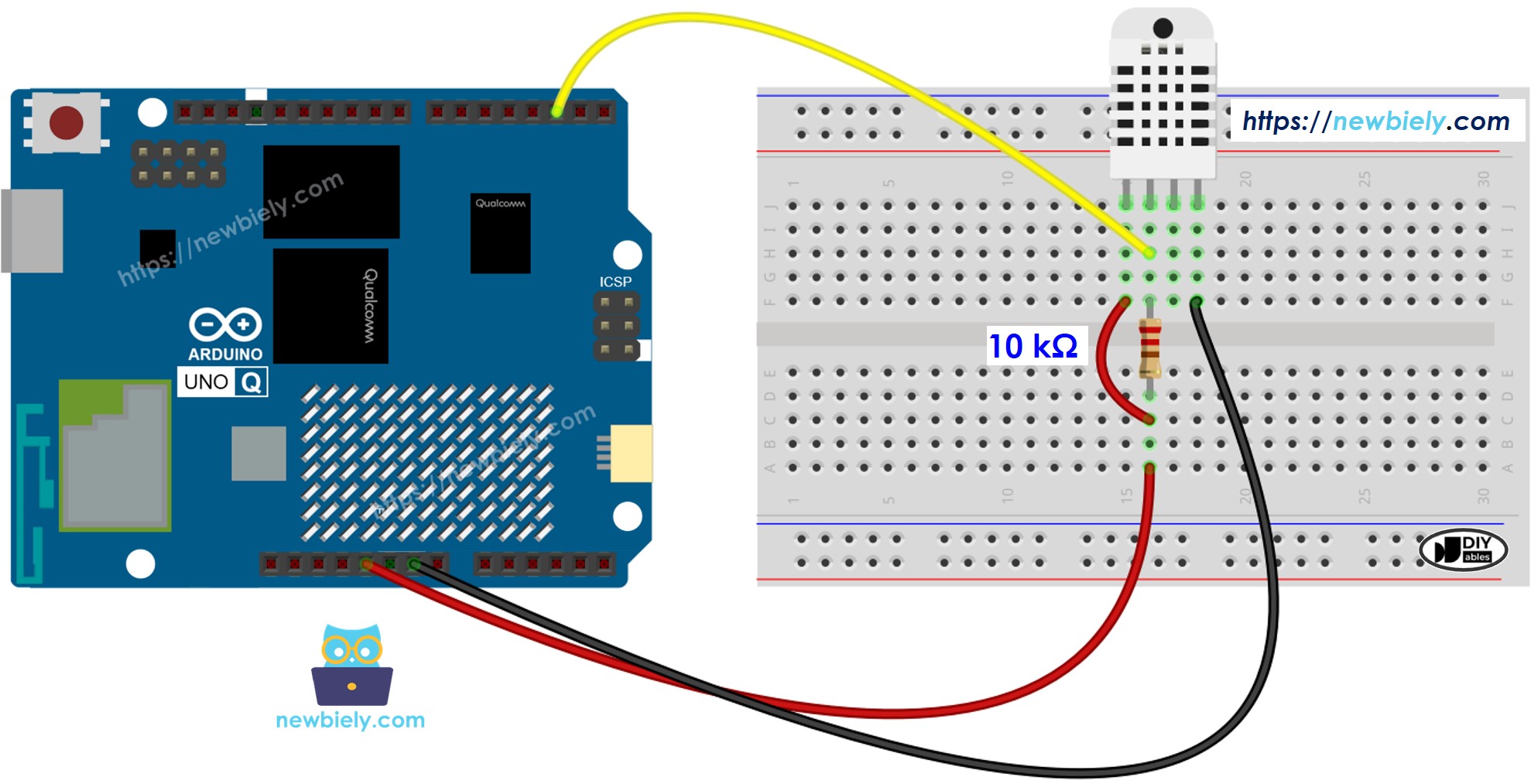
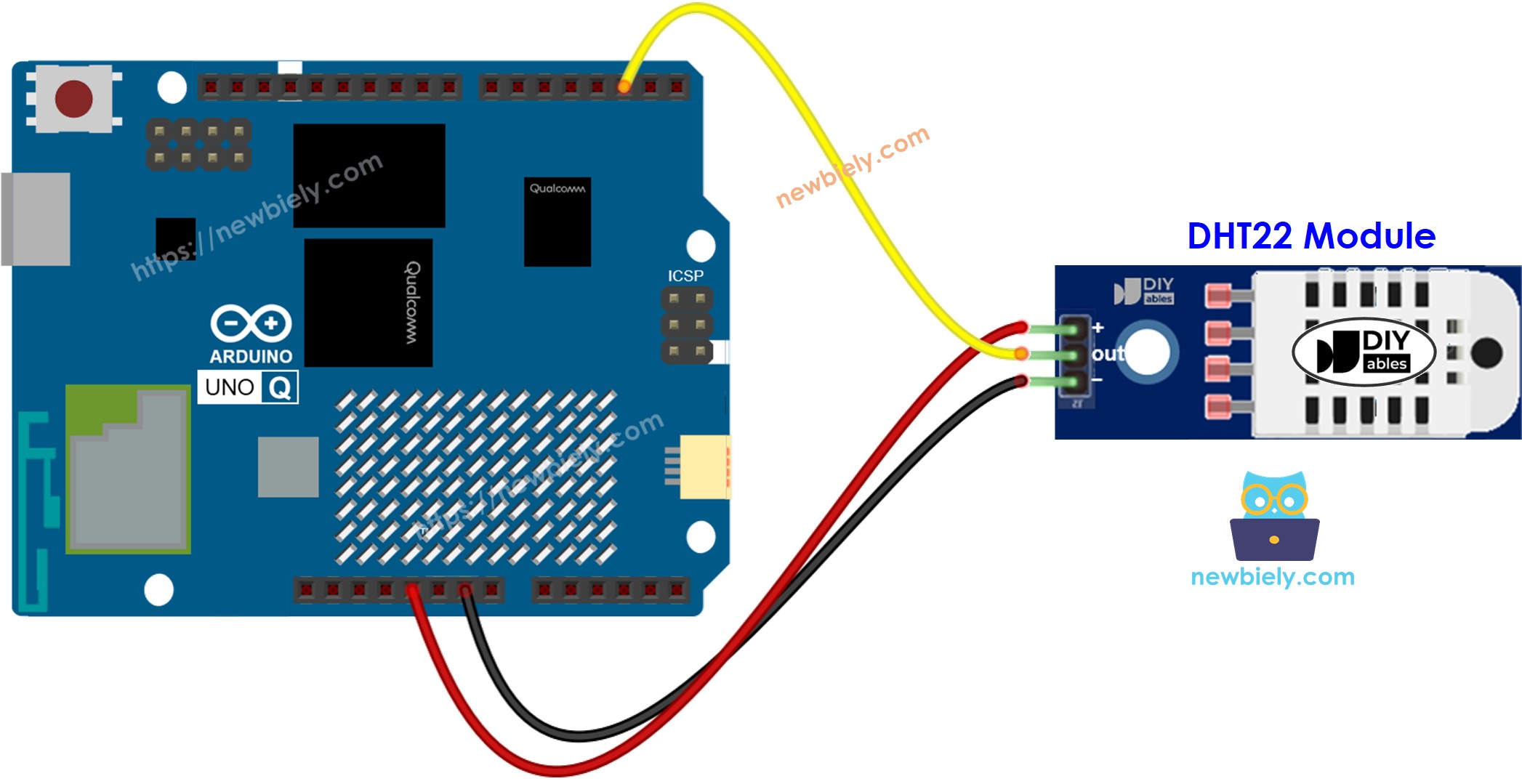
연결: 배선 다이어그램에 표시된 대로 DHT22 센서 또는 모듈을 Arduino UNO Q MCU에 연결합니다.
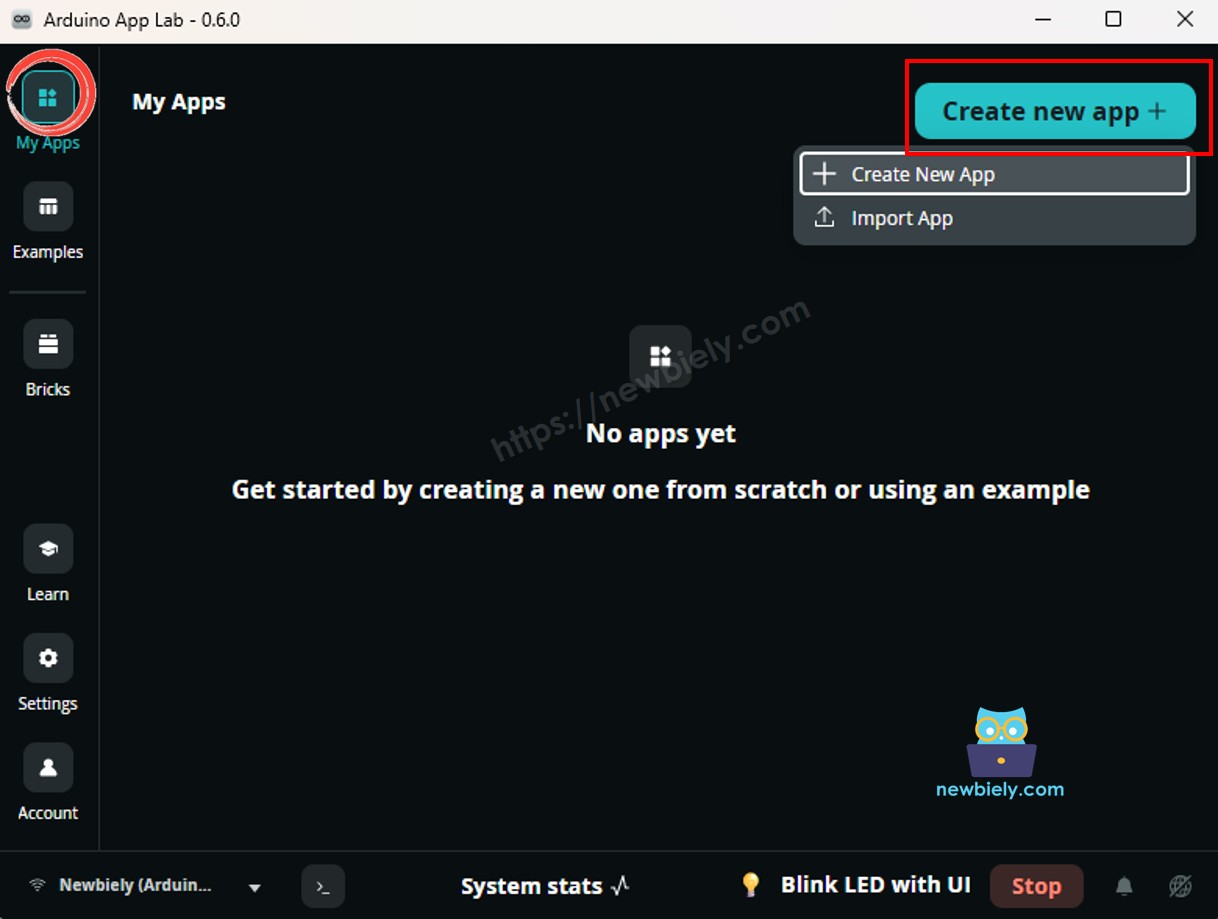
Arduino App Lab 열기: Arduino App Lab을 시작하고 Arduino UNO Q를 감지할 때까지 기다립니다.
새 App 만들기:Create New App 버튼을 클릭합니다.
App에 이름을 지정합니다 (예: Dht22)
Create를 클릭하여 확인합니다.
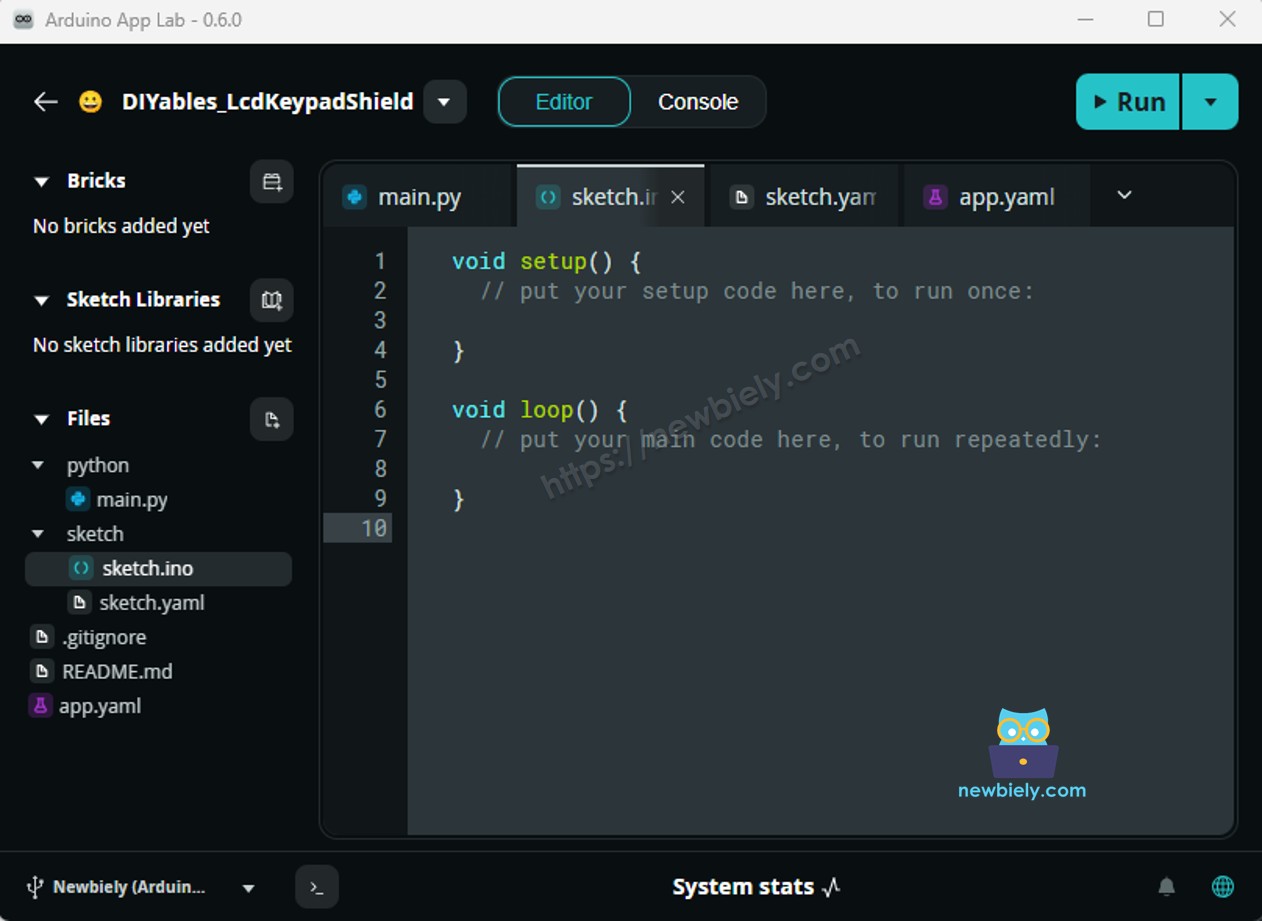
스케치 붙여넣기: 위의 MCU 코드를 복사하고 sketch/sketch.ino에 붙여넣습니다. 다른 파일은 기본값으로 유지합니다.
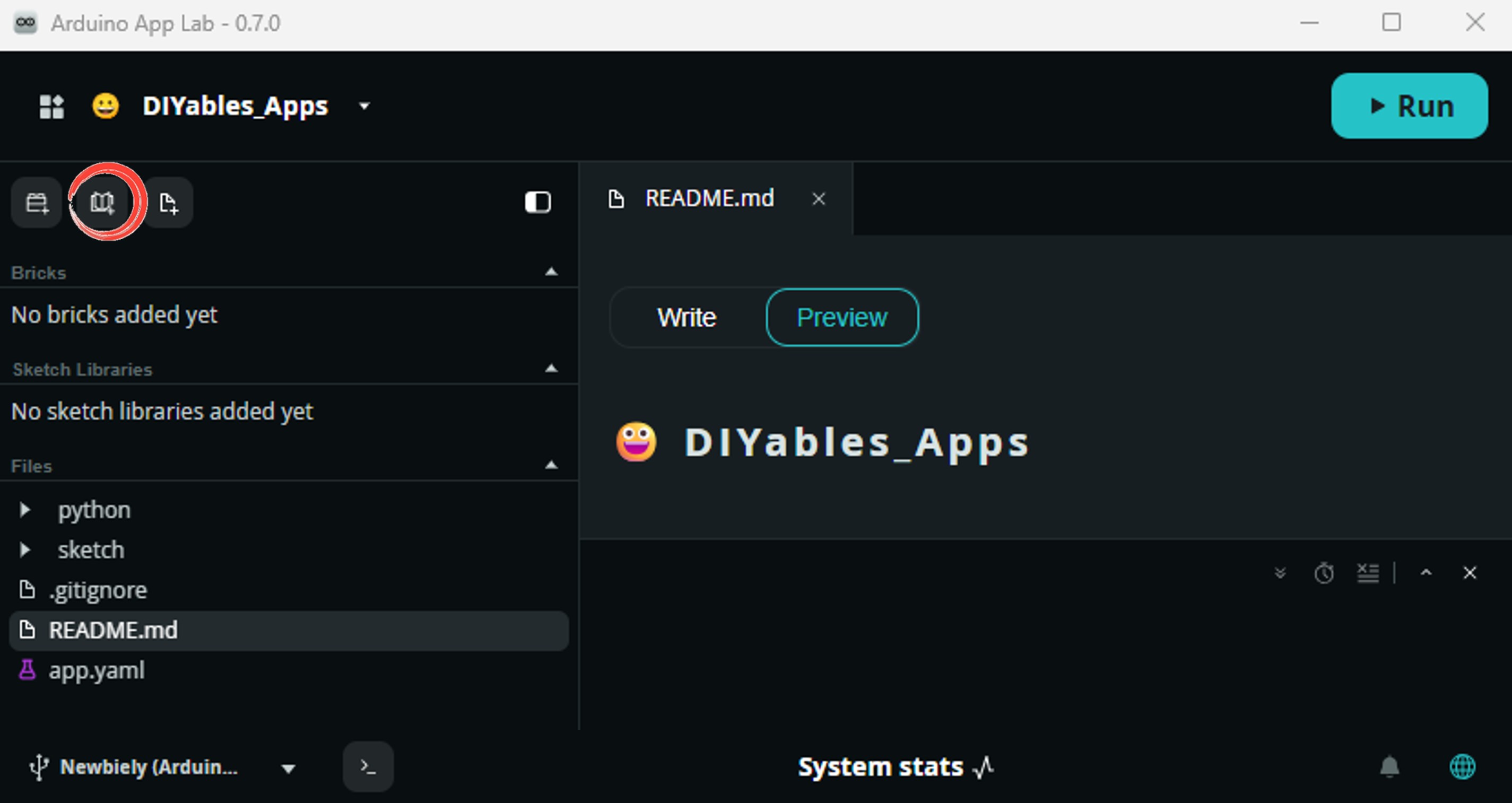
Install the library: Click the Add sketch library button (the open book icon with a + sign) in the left sidebar.
Search for DHT sensor library created by Adafruit and click the Install button.
My Apps/DIYables Apps
Run
Bricks
No bricks added...
Sketch Libraries
No sketch libra...
Files
python
sketch
.gitignore
README.md
app.yaml
sketch.ino
Add sketch library
DHT sensor library
DHT sensor libraryAdafruit
Arduino library for DHT11, DHT22, etc Temp & Humidity Sensors
1.4.6
Install
More Info
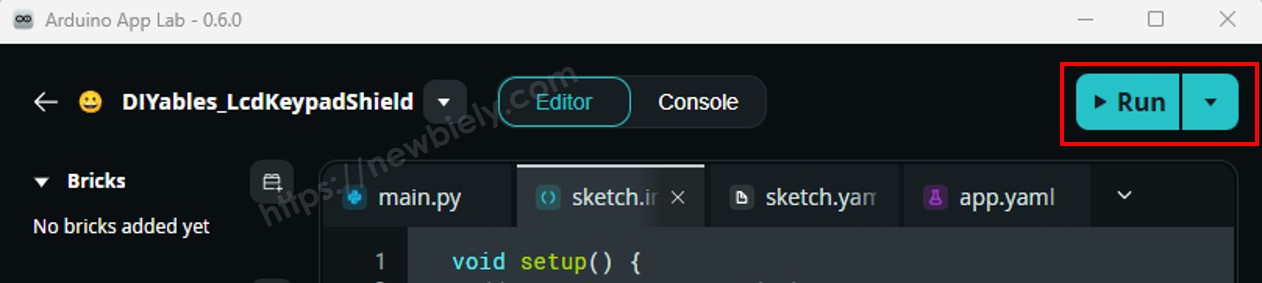
업로드: Arduino App Lab에서 Run 버튼을 클릭합니다.
센서에 숨을 쉬거나 잡고 - 3초마다 습도 및 온도 측정이 업데이트되는 것을 확인합니다.
App Lab 콘솔 출력
DIYables_Apps
Stop
sketch.ino
1#include"Arduino_RouterBridge.h"
Serial Monitor
Python
Message (Enter to send a message to "Newbiely" on usb(2820070321))
이 섹션은 Arduino UNO Q의 두 프로세서를 모두 프로그래밍하여 Linux 측이 Bridge를 통해 온도 및 습도를 읽을 수 있도록 하는 방법을 보여줍니다:
DHT22 센서는 MCU (STM32)에 연결됩니다 — MCU는 3초마다 데이터를 읽고 최신 값을 캐시합니다
MPU는 DHT22에 직접 액세스할 수 없습니다 — Bridge 함수를 호출하여 읽기를 검색해야 합니다
MPU는 Wi-Fi를 가지고 있습니다 — 전체 Debian Linux를 실행하므로 데이터를 기록하고, 대시보드에 게시하거나, 인터넷을 통해 경고를 보낼 수 있습니다
Arduino_RouterBridge는 RPC 통신을 두 프로세서 간에 사용할 수 있게 합니다
⚠️ /dev/ttyHS1 (Linux) 및 Serial1 (MCU)는 라우터에서 예약됨 — 사용자 코드에서 절대 열지 마세요
요약하면: MCU가 3초마다 DHT22를 읽고 결과를 캐시합니다 → MPU는 Bridge를 폴링하여 읽기를 검색합니다 → MPU는 Wi-Fi를 통해 게시하거나 경고합니다.
참고: Bridge 스케치에서 loop() 함수는 3초마다 DHT22를 읽어 캐시된 값을 최신으로 유지합니다. 모든 Bridge 콜백은 읽기 전용이며 블로킹 없이 캐시된 데이터를 반환합니다.
MCU 코드 (Bridge)
/* * 이 Arduino UNO Q 코드는 newbiely.kr 에서 개발되었습니다 * 이 Arduino UNO Q 코드는 어떠한 제한 없이 공개 사용을 위해 제공됩니다. * 상세한 지침 및 연결도에 대해서는 다음을 방문하세요: * https://newbiely.kr/tutorials/arduino-uno-q/arduino-uno-q-dht22 */#include <DHT.h>#include"Arduino_RouterBridge.h"#define DHT22_PIN 2DHT dht22(DHT22_PIN, DHT22);float last_humidity = 0.0;float last_temp_c = 0.0;float last_temp_f = 0.0;unsignedlong last_read_ms = 0;String get_humidity(String arg) {returnString(last_humidity, 1);}String get_temp_c(String arg) {returnString(last_temp_c, 2);}String get_temp_f(String arg) {returnString(last_temp_f, 2);}String get_status(String arg) {return"Temp: " + String(last_temp_c, 2) + "°C / " + String(last_temp_f, 2) + "°F Humidity: " + String(last_humidity, 1) + "%";}voidsetup() {Bridge.begin(); Monitor.begin(); dht22.begin();delay(2000); // allow sensor to stabilizefloat h = dht22.readHumidity();float c = dht22.readTemperature();float f = dht22.readTemperature(true);if (!isnan(h) && !isnan(c) && !isnan(f)) { last_humidity = h; last_temp_c = c; last_temp_f = f; }Bridge.provide("get_humidity", get_humidity);Bridge.provide("get_temp_c", get_temp_c);Bridge.provide("get_temp_f", get_temp_f);Bridge.provide("get_status", get_status); Monitor.println("Arduino UNO Q DHT22 Bridge ready");}voidloop() {unsignedlongnow = millis();if (now - last_read_ms >= 3000) { last_read_ms = now;float h = dht22.readHumidity();float c = dht22.readTemperature();float f = dht22.readTemperature(true);if (isnan(h) || isnan(c) || isnan(f)) { Monitor.println("Failed to read from DHT22 sensor!"); } else { last_humidity = h; last_temp_c = c; last_temp_f = f; Monitor.println("Humidity: " + String(h, 1) + "% Temp: " + String(c, 2) + "°C / " + String(f, 2) + "°F"); } }}
Python 코드 (Bridge)
/* * 이 Arduino UNO Q 코드는 newbiely.kr 에서 개발되었습니다 * 이 Arduino UNO Q 코드는 어떠한 제한 없이 공개 사용을 위해 제공됩니다. * 상세한 지침 및 연결도에 대해서는 다음을 방문하세요: * https://newbiely.kr/tutorials/arduino-uno-q/arduino-uno-q-dht22 */from arduino.app_utils import *import timedef loop(): status = Bridge.call("get_status")print(status) time.sleep(3)App.run(user_loop=loop)
빠른 단계
연결: 배선 다이어그램에 표시된 대로 DHT22 센서를 Arduino UNO Q에 연결합니다.
Arduino App Lab 열기: Arduino App Lab을 시작하고 보드가 감지될 때까지 기다립니다.
새 App 만들기:Create New App을 클릭하고, Dht22Bridge라고 이름을 지정한 다음 Create를 클릭합니다.
MCU 스케치 붙여넣기: 위의 MCU Bridge 코드를 복사하고 sketch/sketch.ino에 붙여넣습니다.
Python 코드 붙여넣기: 위의 Python Bridge 코드를 복사하고 앱의 Python 파일에 붙여넣습니다.
업로드: Arduino App Lab에서 Run 버튼을 클릭합니다.
3초마다 온도 및 습도 측정이 Python 콘솔에 나타나는 것을 확인합니다.
App Lab 콘솔 출력
DIYables_Apps
Stop
sketch.ino
1#include"Arduino_RouterBridge.h"
Serial Monitor
Python
Message (Enter to send a message to "Newbiely" on usb(2820070321))
온도 및 습도를 원격으로 모니터링합니다. 온도가 35°C를 초과하거나 습도가 80%를 초과할 때 자동 알림을 받습니다.
MCU 스케치: 이전 Bridge 섹션에서 동일한 MCU 스케치를 유지합니다.
Python 코드 (Telegram)
/* * 이 Arduino UNO Q 코드는 newbiely.kr 에서 개발되었습니다 * 이 Arduino UNO Q 코드는 어떠한 제한 없이 공개 사용을 위해 제공됩니다. * 상세한 지침 및 연결도에 대해서는 다음을 방문하세요: * https://newbiely.kr/tutorials/arduino-uno-q/arduino-uno-q-dht22 */from arduino.app_utils import *import requestsimport timeTELEGRAM_BOT_TOKEN = "YOUR_TELEGRAM_BOT_TOKEN"CHAT_ID = "YOUR_CHAT_ID"last_update_id = 0TEMP_ALERT_C = 35.0HUMIDITY_ALERT = 80.0temp_alert_sent = Falsehumi_alert_sent = Falsedef get_updates():global last_update_id url = f"https://api.telegram.org/bot{TELEGRAM_BOT_TOKEN}/getUpdates" params = {"offset": last_update_id + 1, "timeout": 5}try: response = requests.get(url, params=params, timeout=10) data = response.json()if data["ok"]:return data["result"]exceptExceptionas e:print(f"Error getting updates: {e}")return []def send_message(chat_id, text): url = f"https://api.telegram.org/bot{TELEGRAM_BOT_TOKEN}/sendMessage" payload = {"chat_id": chat_id, "text": text}try: requests.post(url, data=payload, timeout=10)exceptExceptionas e:print(f"Error sending message: {e}")def loop():global temp_alert_sent, humi_alert_sent# Auto-alerts temp_c_str = Bridge.call("get_temp_c") humi_str = Bridge.call("get_humidity")try: temp_c = float(temp_c_str) humi = float(humi_str) temp_f_str = Bridge.call("get_temp_f")if temp_c > TEMP_ALERT_C andnot temp_alert_sent: temp_alert_sent = True msg = f"⚠️ High temperature: {temp_c_str}°C / {temp_f_str}°F"print(msg) send_message(CHAT_ID, msg)elif temp_c <= TEMP_ALERT_C: temp_alert_sent = Falseif humi > HUMIDITY_ALERT andnot humi_alert_sent: humi_alert_sent = True msg = f"💧 High humidity: {humi_str}%"print(msg) send_message(CHAT_ID, msg)elif humi <= HUMIDITY_ALERT: humi_alert_sent = FalseexceptValueError:pass# Handle Telegram commands updates = get_updates()for update in updates: last_update_id = update["update_id"]if"message"notin update:continue message = update["message"] chat_id = message["chat"]["id"] text = message.get("text", "").strip()print(f"Received: {text}")if text == "/start": send_message(chat_id,"Arduino UNO Q DHT22 Bot\n""/temp - Read temperature (°C and °F)\n""/humidity - Read humidity\n""/status - Get full sensor status")elif text == "/temp": temp_c = Bridge.call("get_temp_c") temp_f = Bridge.call("get_temp_f") send_message(chat_id, f"Temperature: {temp_c}°C ~ {temp_f}°F")elif text == "/humidity": result = Bridge.call("get_humidity") send_message(chat_id, f"Humidity: {result}%")elif text == "/status": result = Bridge.call("get_status") send_message(chat_id, result)else: send_message(chat_id, "Unknown command. Send /start for help.") time.sleep(3)App.run(user_loop=loop)
빠른 단계
YOUR_TELEGRAM_BOT_TOKEN을 BotFather에서 실제 봇 토큰으로 바꿉니다.
YOUR_CHAT_ID를 Telegram 채팅 ID로 바꿉니다.
이 Python 코드를 앱의 Python 파일에 붙여넣습니다 (동일한 MCU 스케치 유지).
Run 버튼을 클릭합니다. Telegram에서 /temp 또는 /humidity를 보내거나 센서에 숨을 쉬어 알림을 트리거합니다.
App Lab 콘솔 출력
DIYables_Apps
Stop
sketch.ino
1#include"Arduino_RouterBridge.h"
Serial Monitor
Python
[2026-04-29 09:10:00] Waiting for Telegram messages...
[2026-04-29 09:10:10] ⚠️ High temperature: 36.00°C / 96.80°F
[2026-04-29 09:10:25] 💧 High humidity: 82.3%
[2026-04-29 09:10:40] Received: /temp
[2026-04-29 09:10:55] Received: /humidity
Telegram12:45
Welcome to Telegram!
ArduinoBot10:19
Chatting with Arduino...
BotFatherYesterday
Your bot has been created.
ArduinoBot
bot
Today
/temp
10:15 AM✓✓
Temperature: 26.10°C ~ 79.00°F
10:16 AM
/humidity
10:17 AM✓✓
Humidity: 55.2%
10:18 AM
/status
10:19 AM✓✓
Temp: 26.10°C / 79.00°F Humidity: 55.2%
10:20 AM
⚠️ High temperature: 36.00°C / 96.80°F
10:21 AM
💧 High humidity: 82.3%
10:22 AM
OpenClaw
You can adapt the OpenClaw to this tutorial by refering the instruction on 아두이노 우노 Q - OpenClaw Tutorial
프로젝트 아이디어
Arduino UNO Q와 DHT22 센서로 많은 유용한 프로젝트를 만들 수 있습니다:
정밀 기상 스테이션: DHT22의 더 넓은 범위와 높은 정확도는 정밀한 실내/실외 스테이션에 이상적입니다 — Linux MPU는 매분 데이터를 기록하고 시간 추이를 차트로 표시합니다
스마트 HVAC 컨트롤러: 온도 및 습도 데이터를 사용하여 에어컨 또는 가습기를 켜고 끄는 릴레이를 제어합니다 — 조건이 범위를 벗어날 때 Telegram 알림
씨앗 발아 모니터: 씨앗 발아를 위한 최적의 습도 및 온도를 유지합니다 — 습도가 임계값 아래로 떨어지면 알림을 받고 검토를 위해 데이터가 기록됩니다
와인 셀러 모니터: DHT22는 와인 보관에 필요한 낮은 온도 범위를 다룹니다 — 온도 또는 습도가 안전한 한계를 벗어날 때 온도 및 습도와 Telegram 알림을 모니터링합니다
서버실 환경 모니터: Wi-Fi를 배포하여 원격 모니터링 — MPU는 시간별 보고서를 전송하고 온도 또는 습도가 급증하면 즉시 Telegram 알림을 전송합니다
스스로 도전해보세요
Arduino UNO Q의 DHT22로 더 나아가실 준비가 되셨나요? 이 도전 과제들을 시도해보세요:
쉬움: MCU 스케치를 수정하여 온도 범위에 따라 내장 LED를 다른 속도로 깜박입니다 — 20°C 아래에서는 느린 깜박임, 35°C 이상에서는 빠른 깜박임, 그 사이에서는 깜박임 없음.
중간: Magnus 공식을 사용하여 Python 측에서 온도 및 습도로부터 이슬점을 계산하고, Telegram /status 응답에 온도 및 습도와 함께 포함시킵니다.
고급: 데이터 시각화 파이프라인 구축: MPU가 5분마다 Bridge를 통해 DHT22를 읽고, 읽기를 JSON 파일에 저장하고, Chart.js를 사용하는 온도/습도 차트를 포함한 간단한 HTTP 페이지를 제공합니다 — 로컬 네트워크의 모든 브라우저에서 액세스할 수 있습니다.