아두이노 우노 Q 여러 버튼

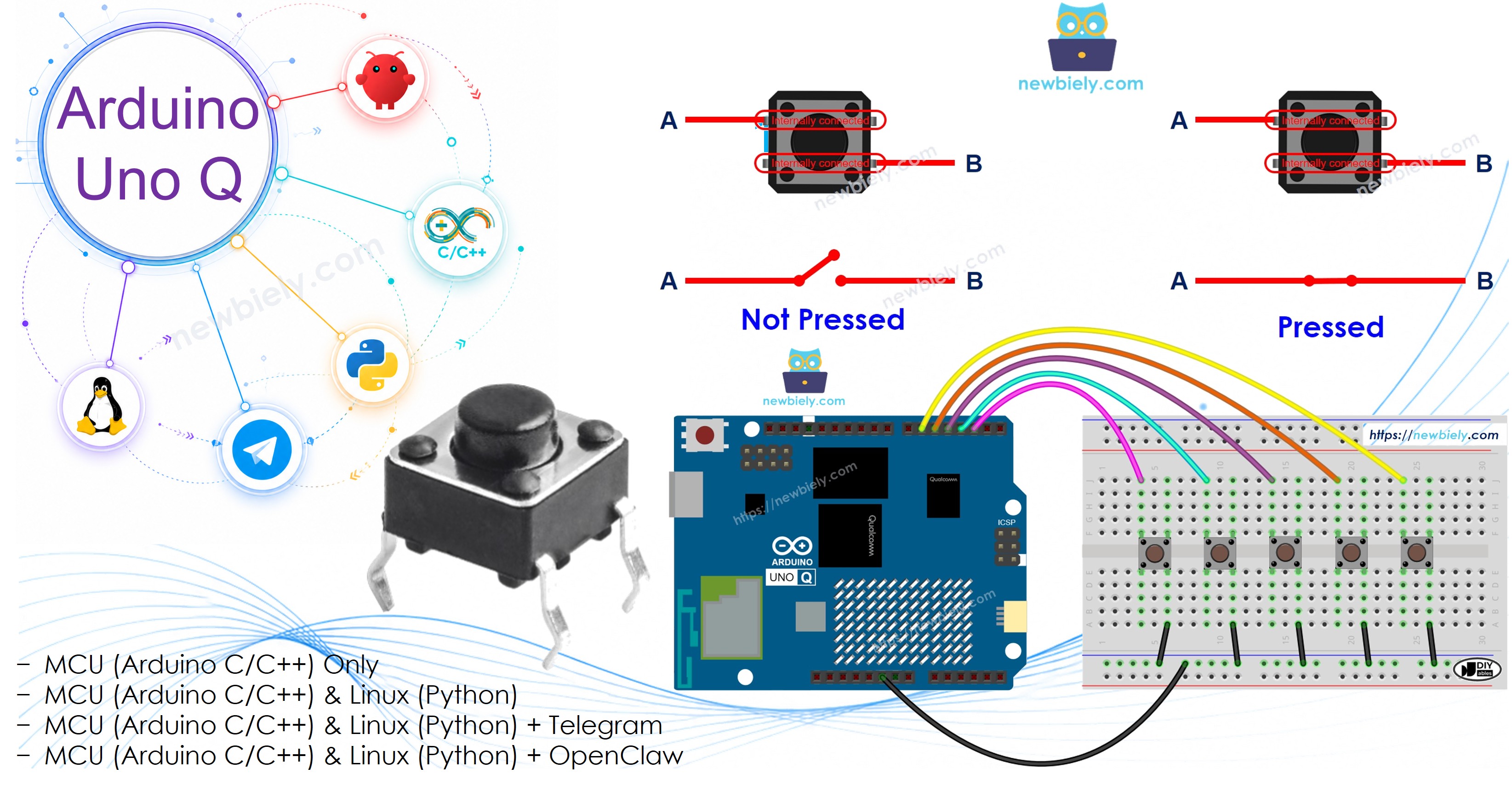
Arduino UNO Q에서 여러 버튼을 동시에 관리하는 것은 올바른 접근 방식으로 간단합니다. 이 튜토리얼에서는 완전한 디바운싱 및 누름/해제 감지를 제공하는 ezButton 라이브러리를 사용하여 5개의 버튼을 동시에 처리하는 방법을 배우고, Telegram을 통해 원격으로 누름 횟수를 추적하도록 프로젝트를 확장합니다.

이 튜토리얼에서 배우게 될 내용:

Arduino UNO Q - 여러 버튼

필요한 하드웨어

1×Arduino UNO Q 아마존
1×USB Cable for Arduino Uno Q 아마존
5×캡이 있는 버튼 쿠팡 | 아마존
1×버튼 키트 쿠팡 | 아마존
1×브레드보드 쿠팡 | 아마존
1×점퍼케이블 쿠팡 | 아마존
1×(추천) 아두이노 우노용 스크루 터미널 블록 쉴드 쿠팡 | 아마존
1×(추천) Sensors/Servo Expansion Shield for Arduino Uno 쿠팡 | 아마존
1×(추천) 아두이노 우노용 브레드보드 쉴드 쿠팡 | 아마존
1×(추천) 아두이노 우노용 케이스 쿠팡 | 아마존
1×(추천) 아두이노 우노용 프로토타이핑 베이스 플레이트 & 브레드보드 키트 아마존
공개: 이 포스팅 에 제공된 일부 링크는 아마존 제휴 링크입니다. 이 포스팅은 쿠팡 파트너스 활동의 일환으로, 이에 따른 일정액의 수수료를 제공받습니다.

버튼 정보

버튼에 대해 배우기 (핀아웃, 배선, 디바운싱):

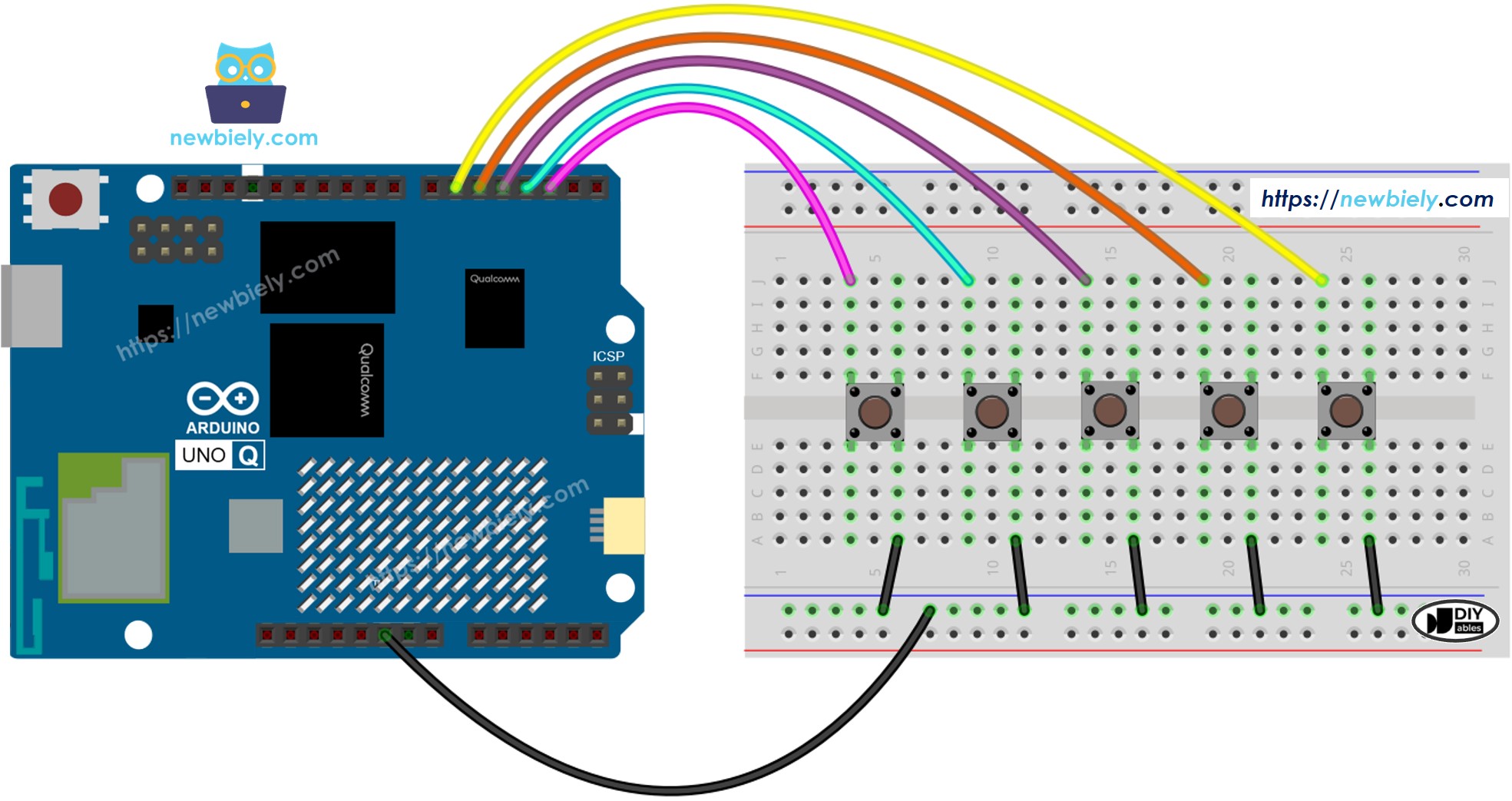
배선 다이어그램

Arduino UNO Q 여러 버튼 배선 다이어그램

이 이미지는 Fritzing을 사용하여 만들어졌습니다. 이미지를 확대하려면 클릭하세요.

MCU 코드 — 디바운싱이 있는 여러 버튼

Arduino UNO Q에는 두 가지 프로세서가 있습니다: STM32 MCU(실시간 하드웨어 제어 담당)와 Qualcomm MPU(Debian Linux 실행). 이 섹션에서는 STM32 MCU만 프로그래밍되고 Linux 측은 유휴 상태로 유지됩니다. 이후 섹션에서는 두 프로세서가 함께 작동하는 방식을 보여줄 것입니다.

ezButton 라이브러리는 각 버튼에 대해 디바운싱 및 누름/해제 감지를 자동으로 처리합니다 — 수동 타임스탐프 추적이 필요하지 않습니다:

/* * 이 Arduino UNO Q 코드는 newbiely.kr 에서 개발되었습니다 * 이 Arduino UNO Q 코드는 어떠한 제한 없이 공개 사용을 위해 제공됩니다. * 상세한 지침 및 연결도에 대해서는 다음을 방문하세요: * https://newbiely.kr/tutorials/arduino-uno-q/arduino-uno-q-multiple-button */ #include <ezButton.h> #define BUTTON_NUM 5 #define BUTTON_PIN_1 2 // The Arduino UNO Q pin connected to button 1 #define BUTTON_PIN_2 3 // The Arduino UNO Q pin connected to button 2 #define BUTTON_PIN_3 4 // The Arduino UNO Q pin connected to button 3 #define BUTTON_PIN_4 5 // The Arduino UNO Q pin connected to button 4 #define BUTTON_PIN_5 6 // The Arduino UNO Q pin connected to button 5 ezButton button1(BUTTON_PIN_1); ezButton button2(BUTTON_PIN_2); ezButton button3(BUTTON_PIN_3); ezButton button4(BUTTON_PIN_4); ezButton button5(BUTTON_PIN_5); void setup() { button1.setDebounceTime(100); button2.setDebounceTime(100); button3.setDebounceTime(100); button4.setDebounceTime(100); button5.setDebounceTime(100); } void loop() { button1.loop(); // MUST call the loop() function first button2.loop(); button3.loop(); button4.loop(); button5.loop(); if (button1.isPressed()) { /* TO DO: button 1 pressed action */ } if (button1.isReleased()) { /* TO DO: button 1 released action */ } if (button2.isPressed()) { /* TO DO: button 2 pressed action */ } if (button2.isReleased()) { /* TO DO: button 2 released action */ } if (button3.isPressed()) { /* TO DO: button 3 pressed action */ } if (button3.isReleased()) { /* TO DO: button 3 released action */ } if (button4.isPressed()) { /* TO DO: button 4 pressed action */ } if (button4.isReleased()) { /* TO DO: button 4 released action */ } if (button5.isPressed()) { /* TO DO: button 5 pressed action */ } if (button5.isReleased()) { /* TO DO: button 5 released action */ } }

빠른 단계

  • Arduino UNO Q를 처음 사용하나요? 아두이노 우노 Q 시작하기 튜토리얼을 따라 개발 환경을 준비한 후 진행하세요.
  • 버튼 배선: 배선 다이어그램에 따라 5개의 버튼을 핀 2-6에 연결합니다. 각 버튼의 한 핀은 GND에, 다른 핀은 신호 핀에 연결됩니다.
  • 연결: Arduino UNO Q를 USB-C 케이블로 컴퓨터에 연결합니다.
  • Arduino App Lab 열기: Arduino App Lab을 시작하고 Arduino UNO Q를 감지할 때까지 기다립니다.
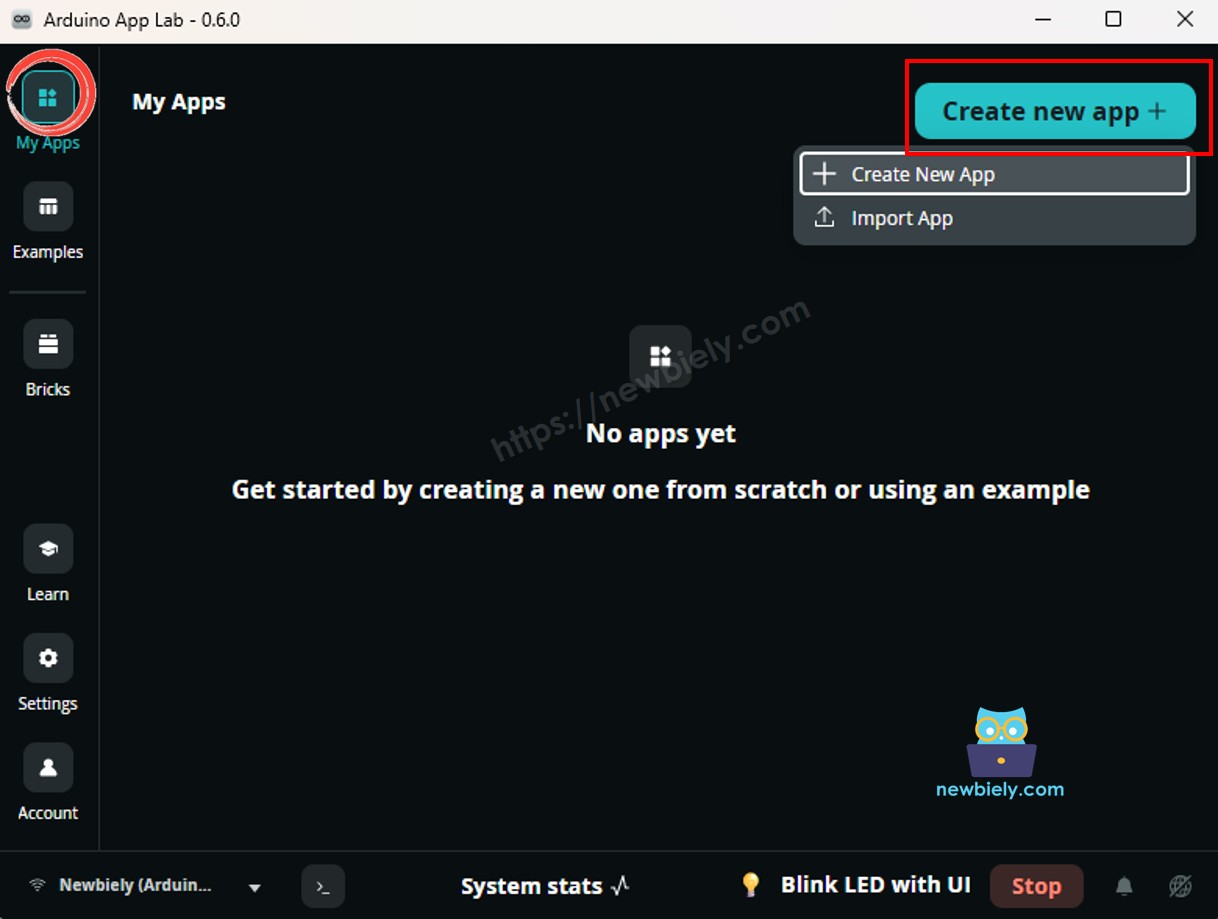
  • 새 앱 만들기: 새 앱 만들기 버튼을 클릭합니다.
아두이노 app lab에서 Arduino UNO Q에 새 앱 만들기
  • 앱에 이름을 지정합니다. 예: DIYables_MultiButton
  • 만들기를 클릭하여 확인합니다.
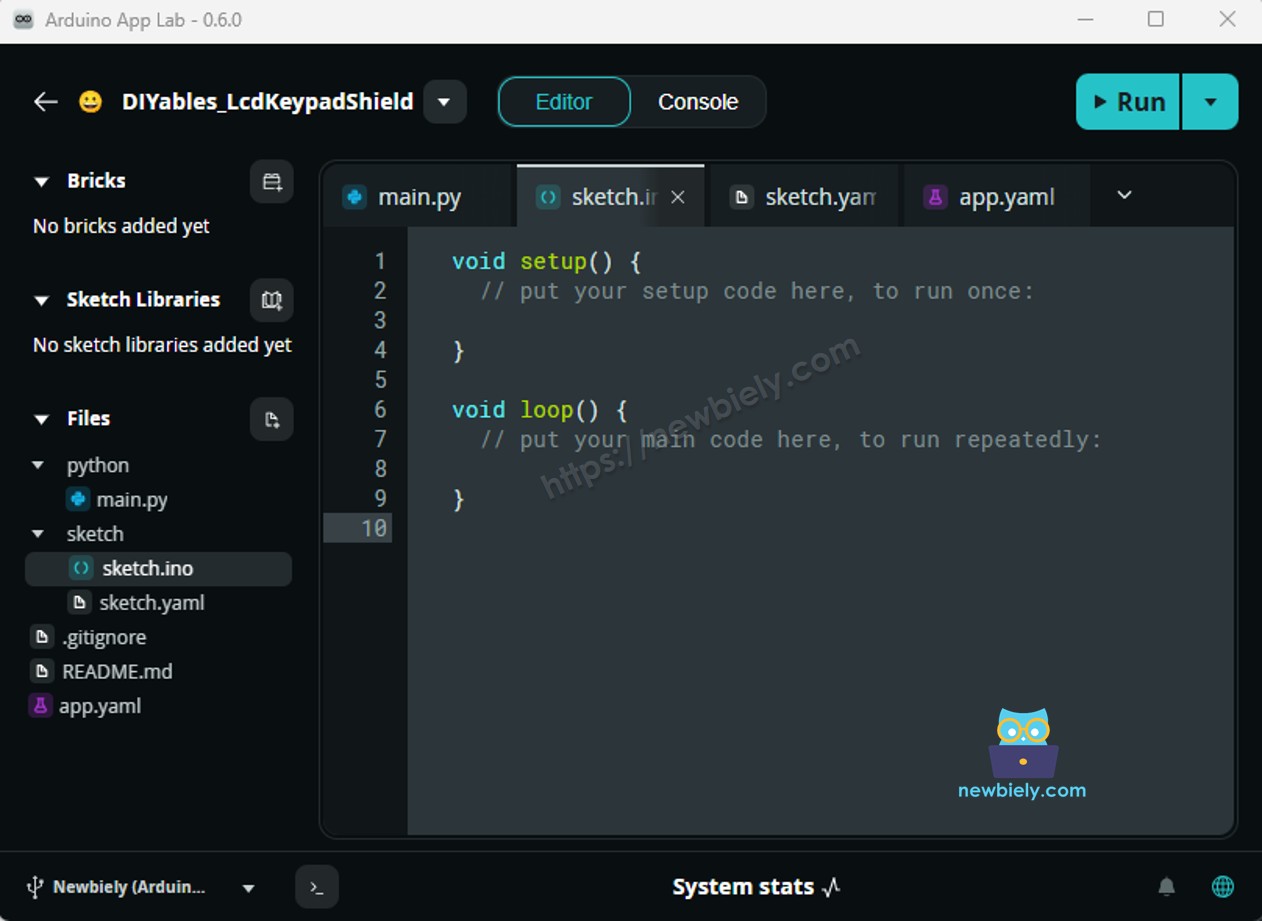
  • 새 앱 내에 생성된 폴더 및 파일 집합을 보게 됩니다.
아두이노 app lab 앱 폴더 및 파일 - Arduino UNO Q
  • sketch/sketch.ino 파일을 찾습니다 — MCU 스케치를 여기에 붙여넣을 것입니다.
  • 스케치 붙여넣기: 위의 MCU 코드를 복사하여 스케치 파일에 붙여넣습니다. 다른 파일은 기본값으로 유지합니다.
    • Install the library: Click the Add sketch library button (the open book icon with a + sign) in the left sidebar.
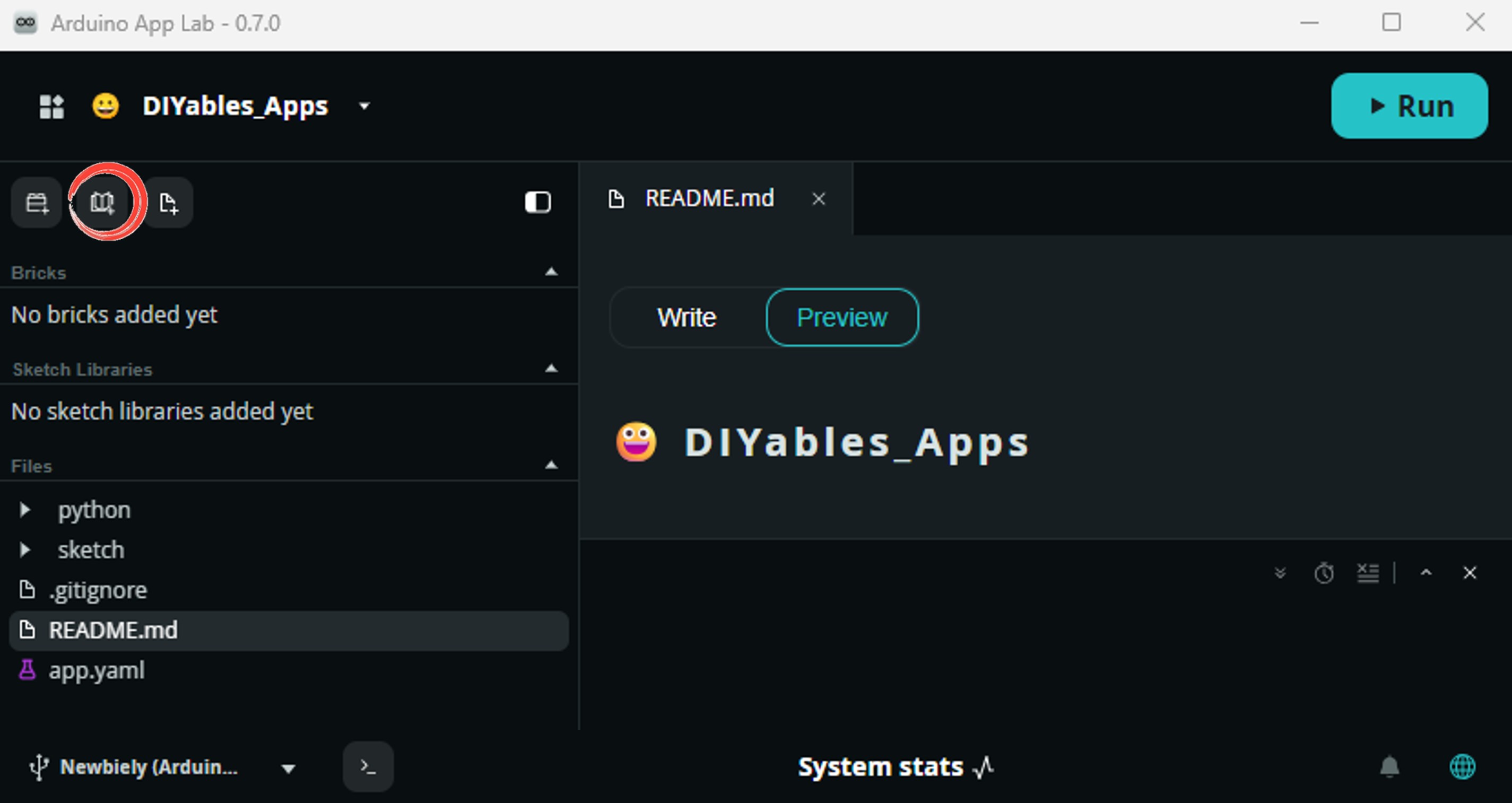
    add sketch 라이브러리 in 아두이노 app lab on Arduino UNO Q
    • Search for ezButton created by ArduinoGetStarted.com and click the Install button.
    My Apps / DIYables Apps
    Run
    Bricks
    No bricks added...
    Sketch Libraries
    No sketch libra...
    Files
    python
    sketch
    .gitignore
    README.md
    app.yaml
    sketch.ino
    Add sketch library
    ezButton ArduinoGetStarted.com

    Button library supports debounce, pressed/released events and the press counting. It is easy to use with multiple buttons. The library can be used for push-button, momentary switches, toggle switch, magnetic contact switch (door sensor)... It is designed for not only beginners but also experienced users.

    1.0.6
    Install
    More Info
    • Search for Arduino_RouterBridge created by Arduino and click the Install button.
    My Apps / DIYables Apps
    Run
    Bricks
    No bricks added...
    Sketch Libraries
    No sketch libra...
    Files
    python
    sketch
    .gitignore
    README.md
    app.yaml
    sketch.ino
    Add sketch library
    Arduino_RouterBridge Arduino

    This library provides a simple RPC bridge for Arduino UNO Q boards, allowing communication between the board and other devices using MsgPack serialization.

    0.4.1
    Install
    More Info
    • 업로드: Arduino App Lab에서 실행 버튼을 클릭하여 STM32에 컴파일하고 업로드합니다.
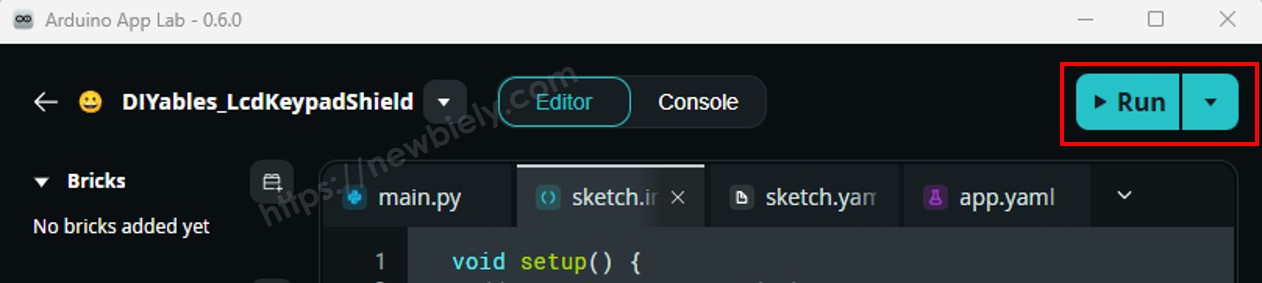
    아두이노 app lab에서 Arduino UNO Q의 실행 버튼 클릭
    • 버튼을 누릅니다 — 각 버튼을 한 번에 하나씩 누르고 해제하여 아래 Bridge 섹션에서 결과를 봅니다.
    • 팁:isPressed() / isReleased() 블록 내에 액션 코드를 추가하여 LED, 서보 또는 다른 구성 요소를 제어합니다.

    버튼 배열을 사용한 더 깔끔한 코드

    ezButton 객체의 배열을 사용하면 코드를 확장할 수 있습니다 — 버튼을 추가하려면 BUTTON_NUM만 변경하면 됩니다:

    /* * 이 Arduino UNO Q 코드는 newbiely.kr 에서 개발되었습니다 * 이 Arduino UNO Q 코드는 어떠한 제한 없이 공개 사용을 위해 제공됩니다. * 상세한 지침 및 연결도에 대해서는 다음을 방문하세요: * https://newbiely.kr/tutorials/arduino-uno-q/arduino-uno-q-multiple-button */ #include <ezButton.h> #define BUTTON_NUM 5 #define BUTTON_PIN_1 2 // The Arduino UNO Q pin connected to button 1 #define BUTTON_PIN_2 3 // The Arduino UNO Q pin connected to button 2 #define BUTTON_PIN_3 4 // The Arduino UNO Q pin connected to button 3 #define BUTTON_PIN_4 5 // The Arduino UNO Q pin connected to button 4 #define BUTTON_PIN_5 6 // The Arduino UNO Q pin connected to button 5 ezButton buttonArray[] = { ezButton(BUTTON_PIN_1), ezButton(BUTTON_PIN_2), ezButton(BUTTON_PIN_3), ezButton(BUTTON_PIN_4), ezButton(BUTTON_PIN_5) }; void setup() { for (byte i = 0; i < BUTTON_NUM; i++) buttonArray[i].setDebounceTime(100); } void loop() { for (byte i = 0; i < BUTTON_NUM; i++) buttonArray[i].loop(); // MUST call the loop() function first for (byte i = 0; i < BUTTON_NUM; i++) { if (buttonArray[i].isPressed()) { // TO DO: button (i+1) pressed action here } if (buttonArray[i].isReleased()) { // TO DO: button (i+1) released action here } } }
    • 작동 방식: 루프는 배열 인덱스를 사용하여 모든 버튼을 일반적으로 처리합니다. 각 버튼의 누름/해제 이벤트는 독립적인 작업을 트리거합니다.
    • 팁: 카운터 배열(int press_count[BUTTON_NUM] = {0})을 추가하고 각 isPressed()에서 press_count[i]를 증가시켜 각 버튼이 몇 번 눌렸는지 추적합니다.

    Linux + MCU Bridge 프로그래밍

    Arduino UNO Q에는 함께 작동하는 두 가지 프로세서가 있습니다: MPU(Qualcomm, Debian Linux 실행)와 MCU(STM32, Zephyr OS에서 Arduino 스케치 실행). Arduino_RouterBridge 라이브러리를 사용하여 RPC를 통해 통신합니다 — 원시 직렬 포트는 사용하지 않습니다.

    • 모든 버튼은 MCU(STM32)에 연결됩니다 — STM32의 디지털 입력 핀에 배선됩니다. MCU는 ezButton을 사용하여 디바운싱 및 누름 카운팅을 처리합니다.
    • MPU는 버튼을 직접 읽을 수 없습니다Bridge.call()을 통해 MCU에서 데이터를 요청해야 합니다. MCU는 누름 횟수로 응답하거나 초기화합니다.
    • MPU에는 Wi-Fi가 있습니다 — MPU가 Wi-Fi를 갖춘 전체 Debian Linux를 실행하므로 Telegram을 통해 누름 횟수를 전달하고 원격으로 재설정 명령을 수락할 수 있습니다.
    • 통신: Linux 측의 Bridge.call()은 MCU 측의 Bridge.provide() 함수를 호출합니다.
    • ⚠️ 예약됨: /dev/ttyHS1(Linux)과 Serial1(MCU)은 Arduino Router에서 사용합니다 — 절대 직접 열면 안 됩니다.

    간단히 말해서: MCU가 버튼 누름을 카운팅 → MPU가 횟수 요청 → MPU가 Telegram을 통해 전달합니다.

    MCU 스케치 — 누름 횟수 카운팅 및 Bridge가 있는 여러 버튼:

    /* * 이 Arduino UNO Q 코드는 newbiely.kr 에서 개발되었습니다 * 이 Arduino UNO Q 코드는 어떠한 제한 없이 공개 사용을 위해 제공됩니다. * 상세한 지침 및 연결도에 대해서는 다음을 방문하세요: * https://newbiely.kr/tutorials/arduino-uno-q/arduino-uno-q-multiple-button */ #include "Arduino_RouterBridge.h" #include <ezButton.h> #define BUTTON_NUM 5 #define BUTTON_PIN_1 2 #define BUTTON_PIN_2 3 #define BUTTON_PIN_3 4 #define BUTTON_PIN_4 5 #define BUTTON_PIN_5 6 ezButton buttonArray[] = { ezButton(BUTTON_PIN_1), ezButton(BUTTON_PIN_2), ezButton(BUTTON_PIN_3), ezButton(BUTTON_PIN_4), ezButton(BUTTON_PIN_5) }; int press_count[BUTTON_NUM] = {0}; void get_press_counts() { String msg = "Press counts: "; for (int i = 0; i < BUTTON_NUM; i++) { msg += "B" + String(i + 1) + "=" + String(press_count[i]); if (i < BUTTON_NUM - 1) msg += ", "; } Monitor.println(msg); } void reset_counts() { for (int i = 0; i < BUTTON_NUM; i++) press_count[i] = 0; Monitor.println("All press counts reset"); } void setup() { for (byte i = 0; i < BUTTON_NUM; i++) buttonArray[i].setDebounceTime(100); Bridge.begin(); Monitor.begin(); Bridge.provide("get_press_counts", get_press_counts); Bridge.provide("reset_counts", reset_counts); Monitor.println("Multiple Button Bridge ready"); } void loop() { for (byte i = 0; i < BUTTON_NUM; i++) buttonArray[i].loop(); for (byte i = 0; i < BUTTON_NUM; i++) { if (buttonArray[i].isPressed()) { press_count[i]++; Monitor.println("Button " + String(i + 1) + " PRESSED (count: " + String(press_count[i]) + ")"); } if (buttonArray[i].isReleased()) Monitor.println("Button " + String(i + 1) + " RELEASED"); } }

    Python 스크립트(Arduino App Lab) — Linux에서 누름 횟수 폴링:

    /* * 이 Arduino UNO Q 코드는 newbiely.kr 에서 개발되었습니다 * 이 Arduino UNO Q 코드는 어떠한 제한 없이 공개 사용을 위해 제공됩니다. * 상세한 지침 및 연결도에 대해서는 다음을 방문하세요: * https://newbiely.kr/tutorials/arduino-uno-q/arduino-uno-q-multiple-button */ from arduino.app_utils import * import time def loop(): while True: counts = Bridge.call("get_press_counts") print(f"Button press counts: {counts}") time.sleep(5) App.run(user_loop=loop)
    • 참고: MCU 스케치에서 Bridge.begin()이 호출되고 Python 스크립트를 Linux 측에서 실행하기 전에 스케치가 업로드되었는지 확인하세요.
    • ⚠️ 경고: 코드에서 /dev/ttyHS1(Linux)을 직접 열거나 Serial1(MCU)을 사용하지 마세요 — Arduino Router가 사용하며 이에 접근하면 Bridge가 손상됩니다.

    빠른 단계

    • MCU 스케치 업로드: Arduino App Lab을 열고, 새 앱을 만들고, 위의 Bridge MCU 스케치를 sketch/sketch.ino에 붙여넣고, ezButtonArduino_RouterBridge 라이브러리를 설치하고, 실행을 클릭합니다.
    • Python 스크립트 추가: 위의 Python 코드를 동일한 앱의 Python 탭에 붙여넣습니다.
    • 앱 실행: 실행을 클릭합니다 — Python 측은 5초마다 누름 횟수를 폴링합니다.
    • 버튼을 여러 번 누릅니다.
    • 콘솔 확인: 콘솔 탭 → MCU 모니터 서브탭을 열어 누름/해제 이벤트를 봅니다.

    App Lab 콘솔 출력

    DIYables_Apps
    Stop
    sketch.ino
    1#include "Arduino_RouterBridge.h"
    Serial Monitor
    Python
    Message (Enter to send a message to "Newbiely" on usb(2820070321))
    New Line
    9600 baud
    Multiple Button Bridge ready Button 1 PRESSED (count: 1) Button 1 RELEASED Button 3 PRESSED (count: 1) Button 3 RELEASED Button 5 PRESSED (count: 1) Button 5 RELEASED

    Telegram 통합

    Telegram을 통해 원격으로 버튼 누름 횟수를 쿼리하거나 초기화합니다.

    아직 Telegram 봇이 없다면, 계속하기 전에 아두이노 우노 Q - 텔레그램 봇을 참조하여 봇 토큰을 얻으세요.

    MCU 스케치: 이전 Bridge 섹션의 동일한 MCU 스케치 유지 — 변경사항이 없습니다. 계속하기 전에 STM32에 이미 업로드되고 실행 중인지 확인하세요.

    Python 스크립트(Arduino App Lab) — 여러 버튼 추적을 위한 Telegram 봇:

    /* * 이 Arduino UNO Q 코드는 newbiely.kr 에서 개발되었습니다 * 이 Arduino UNO Q 코드는 어떠한 제한 없이 공개 사용을 위해 제공됩니다. * 상세한 지침 및 연결도에 대해서는 다음을 방문하세요: * https://newbiely.kr/tutorials/arduino-uno-q/arduino-uno-q-multiple-button */ from arduino.app_utils import * import requests import time BOT_TOKEN = "YOUR_BOT_TOKEN" API_URL = f"https://api.telegram.org/bot{BOT_TOKEN}" last_update_id = 0 def send_message(chat_id, text): requests.post(f"{API_URL}/sendMessage", json={"chat_id": chat_id, "text": text}) def get_updates(): global last_update_id resp = requests.get(f"{API_URL}/getUpdates", params={"offset": last_update_id + 1, "timeout": 5}) return resp.json().get("result", []) def loop(): global last_update_id updates = get_updates() for update in updates: last_update_id = update["update_id"] msg = update.get("message", {}) chat_id = msg.get("chat", {}).get("id") text = msg.get("text", "").strip() if text == "/counts": counts = Bridge.call("get_press_counts") send_message(chat_id, f"Button press counts:\n{counts}") elif text == "/reset": Bridge.call("reset_counts") send_message(chat_id, "All press counts reset to 0") else: send_message(chat_id, "Commands:\n/counts — get all button press counts\n/reset — reset all counts to 0") time.sleep(1) App.run(user_loop=loop)
    • 참고: YOUR_BOT_TOKEN을 Telegram의 @BotFather에서 얻은 토큰으로 바꾸세요.
    • /counts를 보내면 5개 버튼의 모든 누름 횟수를 얻습니다.
    • /reset을 보내면 모든 횟수를 0으로 초기화합니다.

    빠른 단계

    • MCU 스케치 업로드: 이전 섹션의 Bridge MCU 스케치를 사용합니다 (아직 하지 않았으면 먼저 업로드하세요).
    • Telegram 스크립트 붙여넣기: 위의 Python 코드를 Arduino App Lab의 앱의 Python 탭에 복사합니다.
    • 토큰 설정: 스크립트의 YOUR_BOT_TOKEN을 실제 봇 토큰으로 바꿉니다.
    • 앱 실행: 실행을 클릭합니다 — 봇이 Telegram 메시지 리스닝을 시작합니다.
    • 테스트 실행: 각 버튼을 몇 번 누른 후 Telegram에서 /counts를 보냅니다. 그런 다음 /reset을 보내 모든 횟수를 초기화합니다.

    App Lab 콘솔 출력

    DIYables_Apps
    Stop
    sketch.ino
    1#include "Arduino_RouterBridge.h"
    Serial Monitor
    Python
    [2026-04-29 12:00:01] Telegram: /counts [2026-04-29 12:00:01] Button press counts: B1=3, B2=1, B3=5, B4=0, B5=2 [2026-04-29 12:01:10] Telegram: /reset [2026-04-29 12:01:10] All press counts reset to 0
    Telegram
    Telegram 12:45
    Welcome to Telegram!
    ArduinoBot 10:19
    Chatting with Arduino...
    telegram-botfather
    BotFather Yesterday
    Your bot has been created.

    ArduinoBot

    bot
    Today
    /counts
    10:15 AM ✓✓
    Button press counts: B1=3, B2=1, B3=5, B4=0, B5=2
    10:16 AM
    /reset
    10:17 AM ✓✓
    All press counts reset to 0
    10:18 AM

    OpenClaw 통합

    이 튜토리얼에 OpenClaw를 적용할 수 있습니다. 아두이노 우노 Q - OpenClaw 튜토리얼의 지침을 참조하세요.

    응용/프로젝트 아이디어

    • 키보드 패널: 각 버튼이 다른 Telegram 메시지를 보냅니다 — 빠른 프리셋이나 명령에 유용합니다.
    • 투표 카운터: 각 버튼이 다른 옵션에 대한 투표를 기록합니다. Telegram을 통해 결과를 쿼리합니다.
    • 모드 선택: 버튼 1을 누르면 모드 A, 버튼 2를 누르면 모드 B — 각각 MPU에서 다른 작업을 트리거합니다.
    • 다중 영역 경보: 각 버튼이 다른 영역 센서와 연결됩니다. 누름 횟수는 각 영역이 몇 번 트리거되었는지 기록합니다.
    • 원격 테스트 패널: 버튼을 눌러 다양한 하드웨어 기능을 테스트하고 Telegram을 통해 결과를 보냅니다.

    도전 과제

    • 쉬움: 스케치에 핀 7의 6번째 버튼을 추가하고 같은 방식으로 누름 횟수를 추적하세요.
    • 중간: Bridge 스케치를 수정하여 Python이 모든 것을 한 번에 쿼리하는 대신 개별 버튼 횟수를 쿼리할 수 있도록 get_count(int button_num)을 노출합니다.
    • 고급: 버튼의 누름 횟수가 임계값(예: 10회)을 초과할 때 자동으로 경고를 보내는 Telegram 봇을 만듭니다.