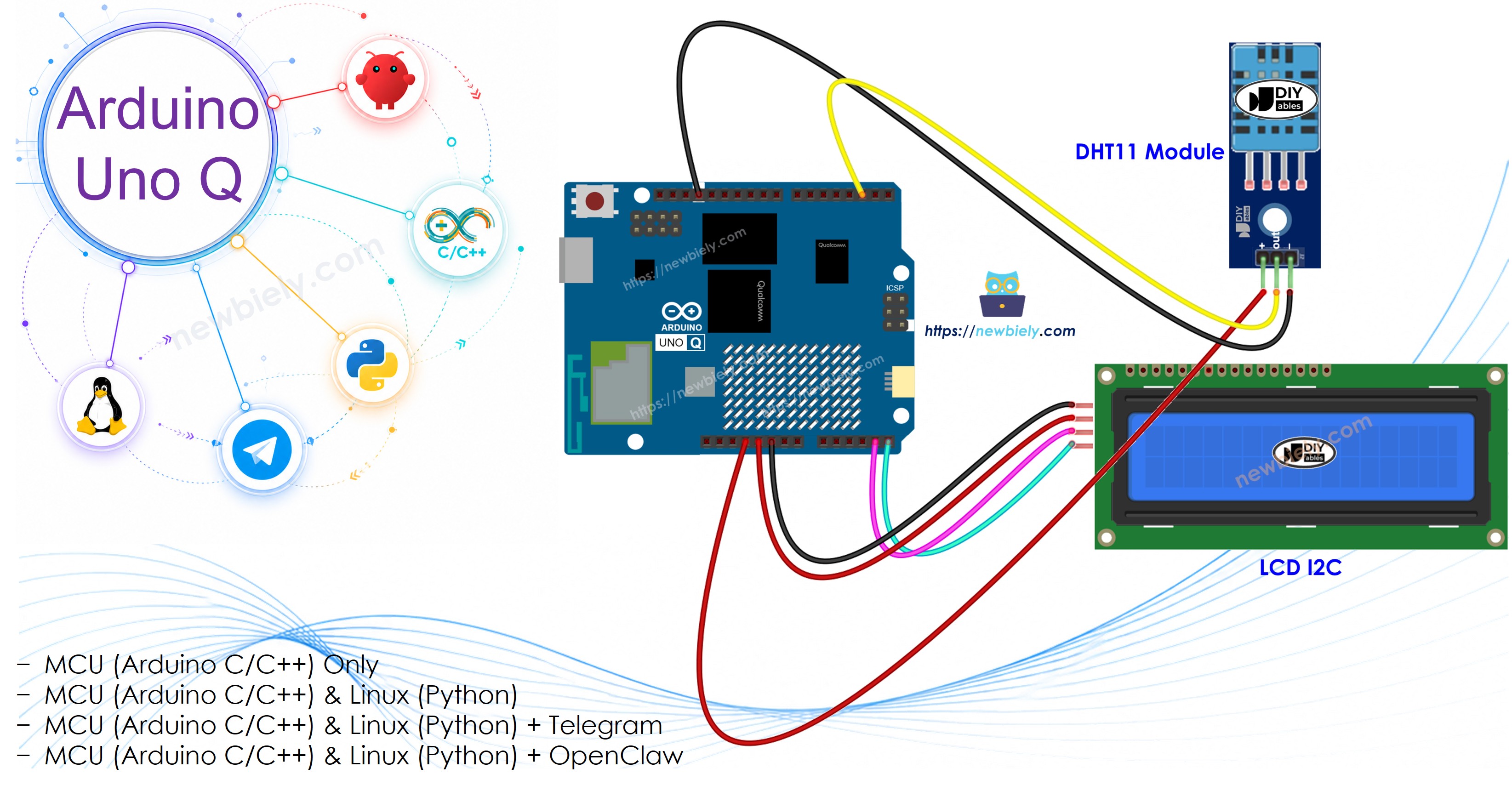
STM32 MCU는 DHT11 센서를 읽고 LCD를 제어합니다 — 모든 센서 및 디스플레이 로직이 MCU에서 실행됩니다
Qualcomm MPU는 Debian Linux를 실행하고 Wi-Fi, Python 및 클라우드 연결을 처리합니다
이 섹션에서는 MCU만 프로그래밍합니다 — Linux 측은 유휴 상태입니다. 나중 섹션에서는 두 프로세서가 Bridge를 통해 함께 작동하는 방식을 보여줍니다.
MCU는 3초마다 DHT11을 읽고 LCD에 온도 및 습도를 표시하며 Serial Monitor에 인쇄합니다.
/* * 이 Arduino UNO Q 코드는 newbiely.kr 에서 개발되었습니다 * 이 Arduino UNO Q 코드는 어떠한 제한 없이 공개 사용을 위해 제공됩니다. * 상세한 지침 및 연결도에 대해서는 다음을 방문하세요: * https://newbiely.kr/tutorials/arduino-uno-q/arduino-uno-q-dht11-lcd */#include <DHT.h>#include <DIYables_LCD_I2C.h>#define DHT11_PIN 2DHT dht11(DHT11_PIN, DHT11);DIYables_LCD_I2C lcd(0x27, 16, 2);voidsetup() {Serial.begin(9600); lcd.init(); lcd.backlight(); lcd.setCursor(0, 0); lcd.print("DHT11 Sensor"); lcd.setCursor(0, 1); lcd.print("Initializing..."); dht11.begin();delay(2000); // allow sensor to stabilizeSerial.println("Arduino UNO Q DHT11 + LCD ready");}voidloop() {float humidity = dht11.readHumidity();float tempC = dht11.readTemperature();float tempF = dht11.readTemperature(true);if (isnan(humidity) || isnan(tempC) || isnan(tempF)) {Serial.println("Failed to read from DHT11 sensor!"); lcd.setCursor(0, 0); lcd.print("Sensor Error! ");delay(3000);return; } lcd.setCursor(0, 0); lcd.print("T: "); lcd.print(tempC, 1); lcd.print((char)223); lcd.print("C "); lcd.print(tempF, 1); lcd.print((char)223); lcd.print("F "); lcd.setCursor(0, 1); lcd.print("Humidity: "); lcd.print(humidity, 1); lcd.print("% ");Serial.print("Humidity: ");Serial.print(humidity, 1);Serial.print("% Temp: ");Serial.print(tempC, 2);Serial.print("°C / ");Serial.print(tempF, 2);Serial.println("°F");delay(3000);}
빠른 단계
Arduino UNO Q를 처음 사용하시나요? 진행하기 전에 아두이노 우노 Q 시작하기 튜토리얼을 따르세요.
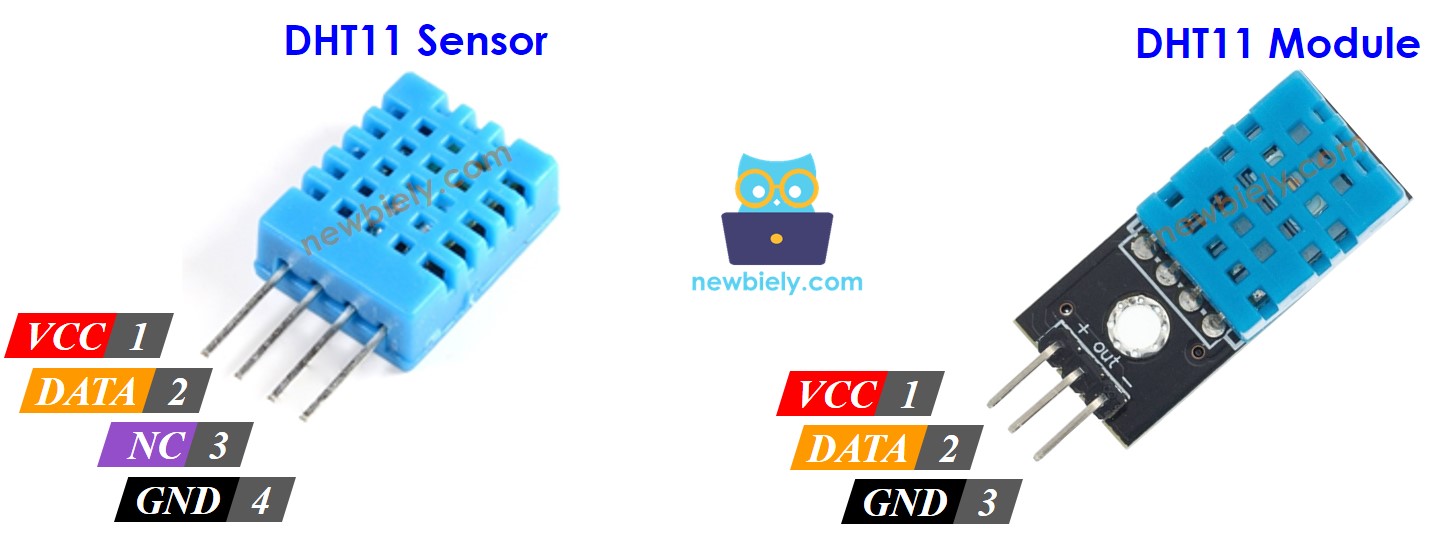
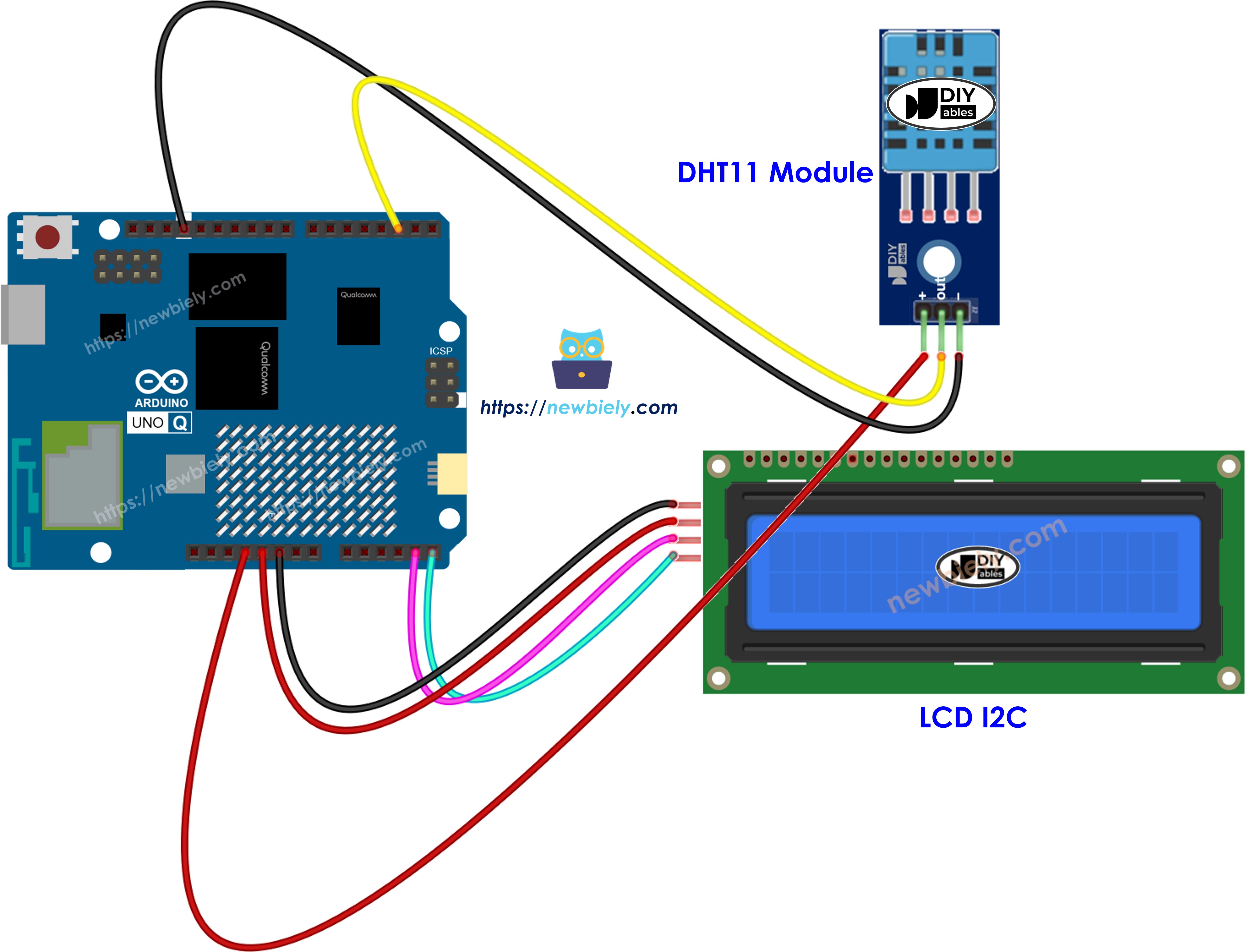
연결: 배선 다이어그램에 표시된 대로 DHT11 및 LCD를 Arduino UNO Q MCU에 연결합니다.
Arduino App Lab 열기: Arduino App Lab을 시작하고 Arduino UNO Q를 감지할 때까지 기다립니다.
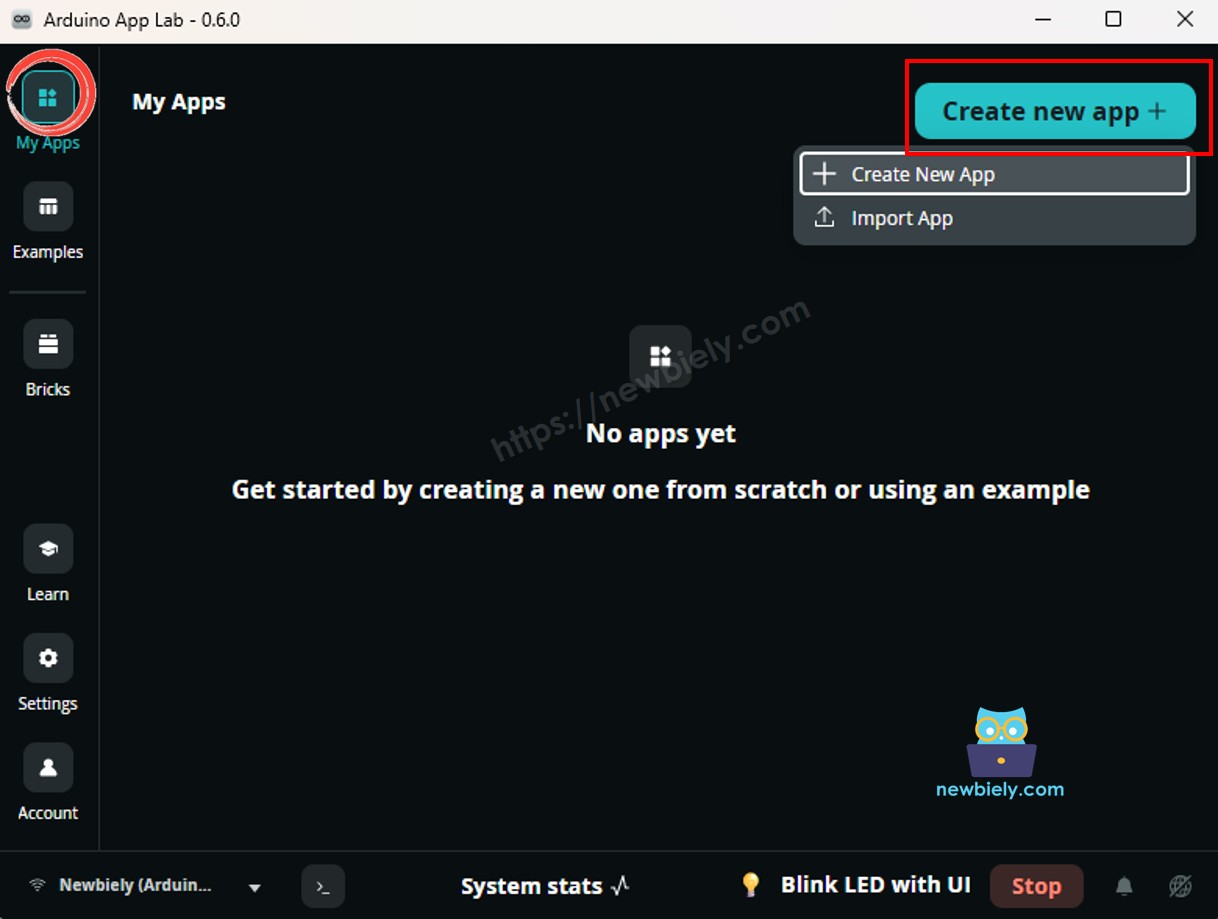
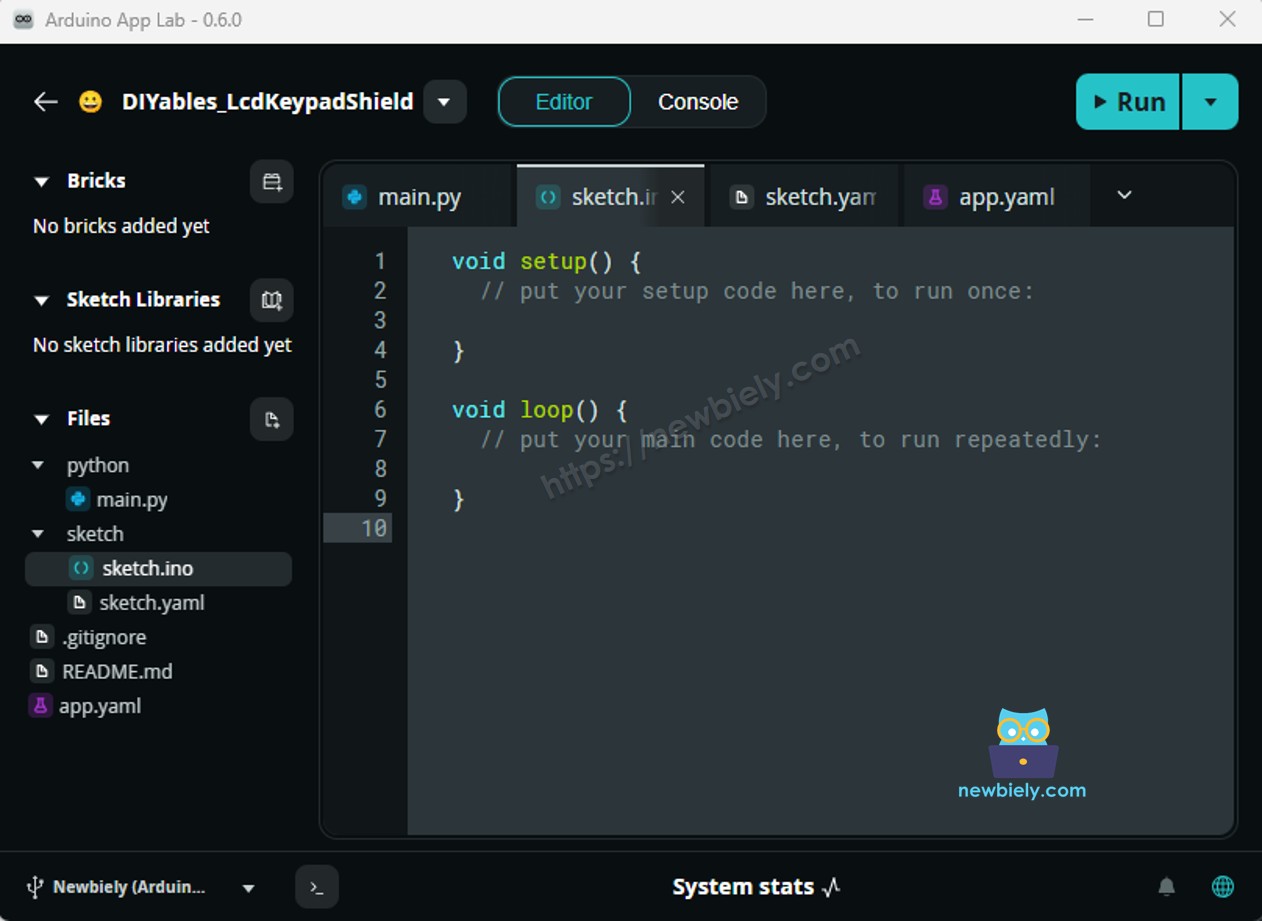
새 앱 만들기:새 앱 만들기 버튼을 클릭합니다.
앱에 이름을 지정합니다. 예: Dht11Lcd
만들기를 클릭하여 확인합니다.
스케치 붙여넣기: 위의 MCU 코드를 복사하여 sketch/sketch.ino에 붙여넣습니다. 다른 파일은 기본값으로 유지합니다.
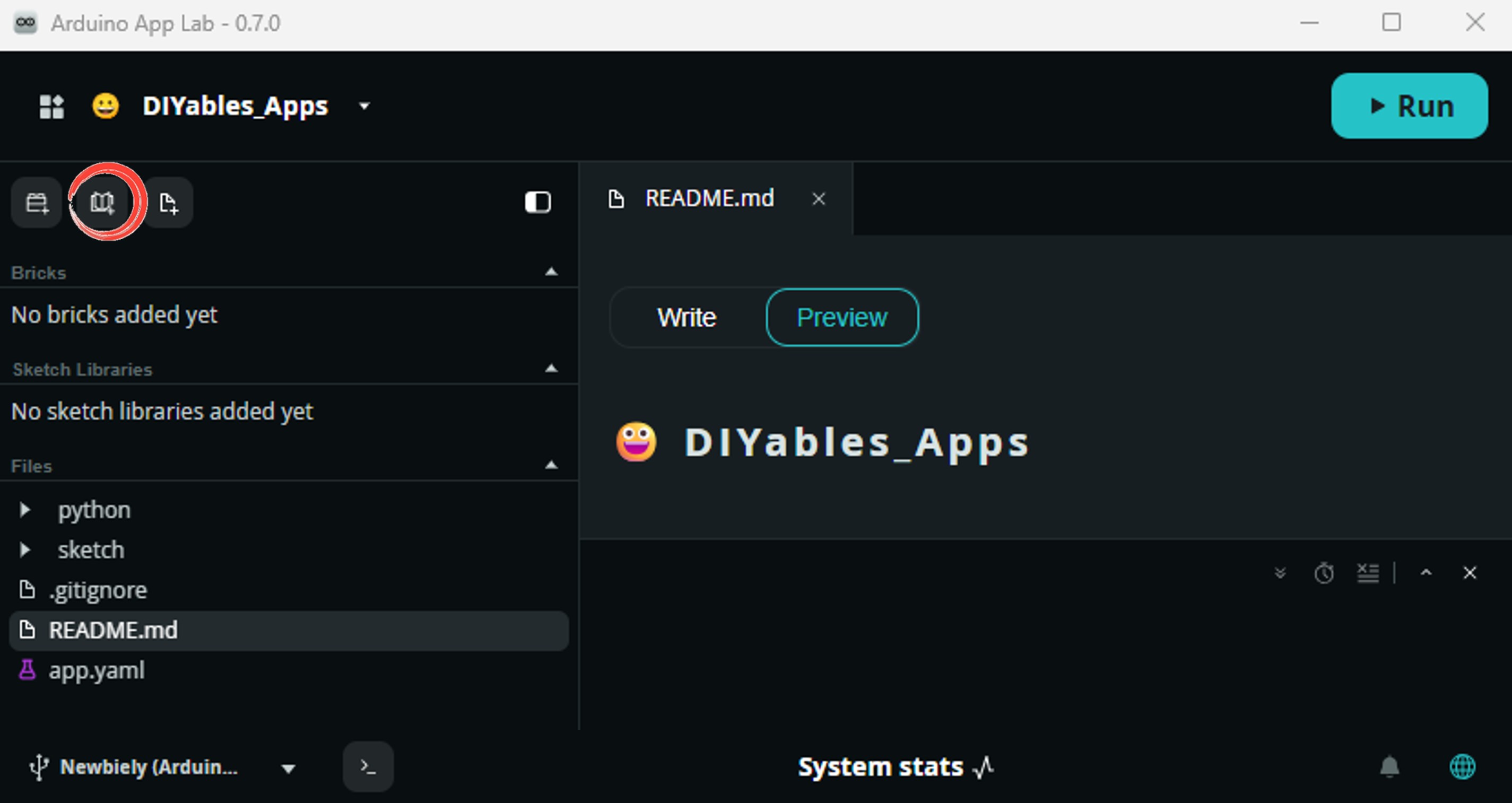
Install the library: Click the Add sketch library button (the open book icon with a + sign) in the left sidebar.
Search for DHT sensor library created by Adafruit and click the Install button.
My Apps/DIYables Apps
Run
Bricks
No bricks added...
Sketch Libraries
No sketch libra...
Files
python
sketch
.gitignore
README.md
app.yaml
sketch.ino
Add sketch library
DHT sensor library
DHT sensor libraryAdafruit
Arduino library for DHT11, DHT22, etc Temp & Humidity Sensors
1.4.6
Install
More Info
Search for DIYables LCD I2C created by DIYables.io and click the Install button.
My Apps/DIYables Apps
Run
Bricks
No bricks added...
Sketch Libraries
No sketch libra...
Files
python
sketch
.gitignore
README.md
app.yaml
sketch.ino
Add sketch library
DIYables LCD I2C
DIYables LCD I2CDIYables.io
This library is designed for HD44780-based I2C LCD displays. It provides LiquidCrystal-compatible API plus helper functions (text alignment, progress bars, predefined custom characters). Supports multiple I2C buses (Wire, Wire1, Wire2) for advanced boards like Arduino Giga, Due, and ESP32. Compatible with all Arduino-based platforms including Arduino Uno, Mega, Nano, ESP32, ESP8266, STM32, and Raspberry Pi Pico.
1.0.0
Install
More Info
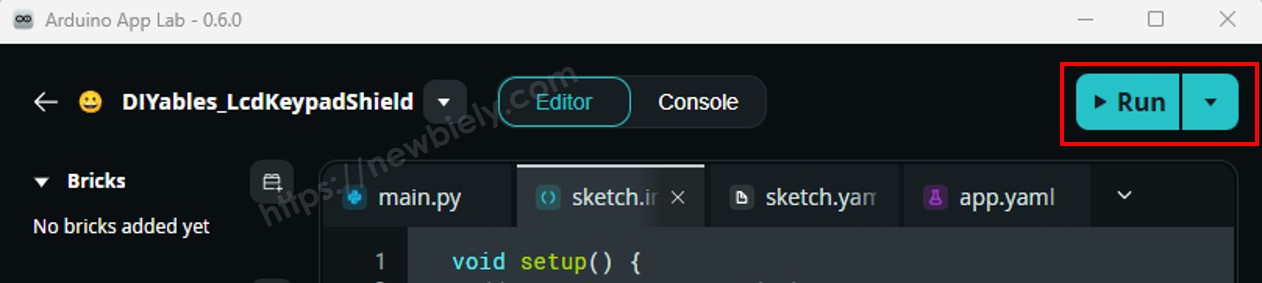
업로드: Arduino App Lab에서 실행 버튼을 클릭합니다.
3초마다 LCD 및 Serial Monitor에 온도 및 습도가 나타나는 것을 확인합니다.
App Lab 콘솔 출력
DIYables_Apps
Stop
sketch.ino
1#include"Arduino_RouterBridge.h"
Serial Monitor
Python
Message (Enter to send a message to "Newbiely" on usb(2820070321))
이 섹션에서는 Arduino UNO Q의 두 프로세서를 모두 프로그래밍하여 Linux 측이 Bridge를 통해 DHT11 데이터를 읽고 LCD를 제어하는 방법을 보여줍니다:
DHT11 센서 및 LCD는 MCU에 연결되어 있습니다 — 모든 읽기 및 디스플레이 로직은 MCU에서 3초마다 실행됩니다
MPU는 센서 또는 LCD에 직접 액세스할 수 없습니다 — Bridge 함수를 호출하여 읽기를 검색하거나 디스플레이를 지웁니다
MPU에는 Wi-Fi가 있습니다 — 전체 Debian Linux를 실행하므로 읽기를 로깅하거나 대시보드에 게시하거나 Telegram 경고를 보낼 수 있습니다
Arduino_RouterBridge는 두 프로세서 간의 RPC 통신을 활성화합니다
⚠️ /dev/ttyHS1(Linux) 및 Serial1(MCU)은 라우터로 예약되어 있습니다 — 사용자 코드에서 이들을 열지 마세요
요약: MCU는 3초마다 DHT11을 읽고 LCD를 업데이트 → MPU는 Bridge를 통해 읽기 → MPU는 Wi-Fi를 통해 경고 전송.
MCU 코드 (Bridge)
/* * 이 Arduino UNO Q 코드는 newbiely.kr 에서 개발되었습니다 * 이 Arduino UNO Q 코드는 어떠한 제한 없이 공개 사용을 위해 제공됩니다. * 상세한 지침 및 연결도에 대해서는 다음을 방문하세요: * https://newbiely.kr/tutorials/arduino-uno-q/arduino-uno-q-dht11-lcd */#include <DHT.h>#include <DIYables_LCD_I2C.h>#include"Arduino_RouterBridge.h"#define DHT11_PIN 2DHT dht11(DHT11_PIN, DHT11);DIYables_LCD_I2C lcd(0x27, 16, 2);float last_humidity = 0.0;float last_temp_c = 0.0;float last_temp_f = 0.0;unsignedlong last_read_ms = 0;void lcd_show(float tempC, float tempF, float humidity) { lcd.setCursor(0, 0); lcd.print("T: "); lcd.print(tempC, 1); lcd.print((char)223); lcd.print("C "); lcd.print(tempF, 1); lcd.print((char)223); lcd.print("F "); lcd.setCursor(0, 1); lcd.print("Humidity: "); lcd.print(humidity, 1); lcd.print("% ");}String get_humidity(String arg) {returnString(last_humidity, 1);}String get_temp_c(String arg) {returnString(last_temp_c, 2);}String get_temp_f(String arg) {returnString(last_temp_f, 2);}String clear_lcd(String arg) { lcd.clear(); Monitor.println("LCD cleared");return"OK";}String get_status(String arg) {return"Temp: " + String(last_temp_c, 2) + "°C / " + String(last_temp_f, 2) + "°F Humidity: " + String(last_humidity, 1) + "%";}voidsetup() {Bridge.begin(); Monitor.begin(); lcd.init(); lcd.backlight(); lcd.setCursor(0, 0); lcd.print("DHT11 Sensor"); lcd.setCursor(0, 1); lcd.print("Initializing..."); dht11.begin();delay(2000); // allow sensor to stabilizefloat h = dht11.readHumidity();float c = dht11.readTemperature();float f = dht11.readTemperature(true);if (!isnan(h) && !isnan(c) && !isnan(f)) { last_humidity = h; last_temp_c = c; last_temp_f = f; lcd_show(c, f, h); }Bridge.provide("get_humidity", get_humidity);Bridge.provide("get_temp_c", get_temp_c);Bridge.provide("get_temp_f", get_temp_f);Bridge.provide_safe("clear_lcd", clear_lcd);Bridge.provide("get_status", get_status); Monitor.println("Arduino UNO Q DHT11 + LCD Bridge ready");}voidloop() {unsignedlongnow = millis();if (now - last_read_ms >= 3000) { last_read_ms = now;float h = dht11.readHumidity();float c = dht11.readTemperature();float f = dht11.readTemperature(true);if (isnan(h) || isnan(c) || isnan(f)) { Monitor.println("Failed to read from DHT11 sensor!"); } else { last_humidity = h; last_temp_c = c; last_temp_f = f; lcd_show(c, f, h); Monitor.println("Humidity: " + String(h, 1) + "% Temp: " + String(c, 2) + "°C / " + String(f, 2) + "°F"); } }}
Python 코드 (Bridge)
/* * 이 Arduino UNO Q 코드는 newbiely.kr 에서 개발되었습니다 * 이 Arduino UNO Q 코드는 어떠한 제한 없이 공개 사용을 위해 제공됩니다. * 상세한 지침 및 연결도에 대해서는 다음을 방문하세요: * https://newbiely.kr/tutorials/arduino-uno-q/arduino-uno-q-dht11-lcd */from arduino.app_utils import *import timedef loop(): status = Bridge.call("get_status")print(status) time.sleep(3)App.run(user_loop=loop)
빠른 단계
연결: 배선 다이어그램에 표시된 대로 DHT11 및 LCD를 Arduino UNO Q에 연결합니다.
Arduino App Lab 열기: Arduino App Lab을 시작하고 보드가 감지될 때까지 기다립니다.
새 앱 만들기:새 앱 만들기를 클릭하고 이름을 Dht11LcdBridge로 지정한 후 만들기를 클릭합니다.
MCU 스케치 붙여넣기: 위의 MCU Bridge 코드를 복사하여 sketch/sketch.ino에 붙여넣습니다.
Python 코드 붙여넣기: 위의 Python Bridge 코드를 복사하여 앱의 Python 파일에 붙여넣습니다.
업로드: Arduino App Lab에서 실행 버튼을 클릭합니다.
LCD가 3초마다 업데이트되고 Python 콘솔에 읽기가 나타나는 것을 확인합니다.
App Lab 콘솔 출력
DIYables_Apps
Stop
sketch.ino
1#include"Arduino_RouterBridge.h"
Serial Monitor
Python
Message (Enter to send a message to "Newbiely" on usb(2820070321))