아두이노 우노 R4 멀티 기능 쉴드

멀티 기능 쉴드는 Arduino Uno R4(Minima 또는 WiFi)의 훌륭한 파트너입니다. 이 가이드에서 다음을 배울 수 있습니다:

Arduino Uno R4는 기존 Uno R3와 동일한 Uno 폼 팩터를 공유하므로 멀티 기능 쉴드가 추가 배선 없이 직접 장착됩니다. Uno R4는 기존 Uno보다 더 많은 메모리, 빠른 클록 속도, 14비트 ADC를 제공하는 Renesas RA4M1(Minima) 또는 RA4M1 + ESP32-S3(WiFi) 마이크로컨트롤러를 탑재하고 있습니다.
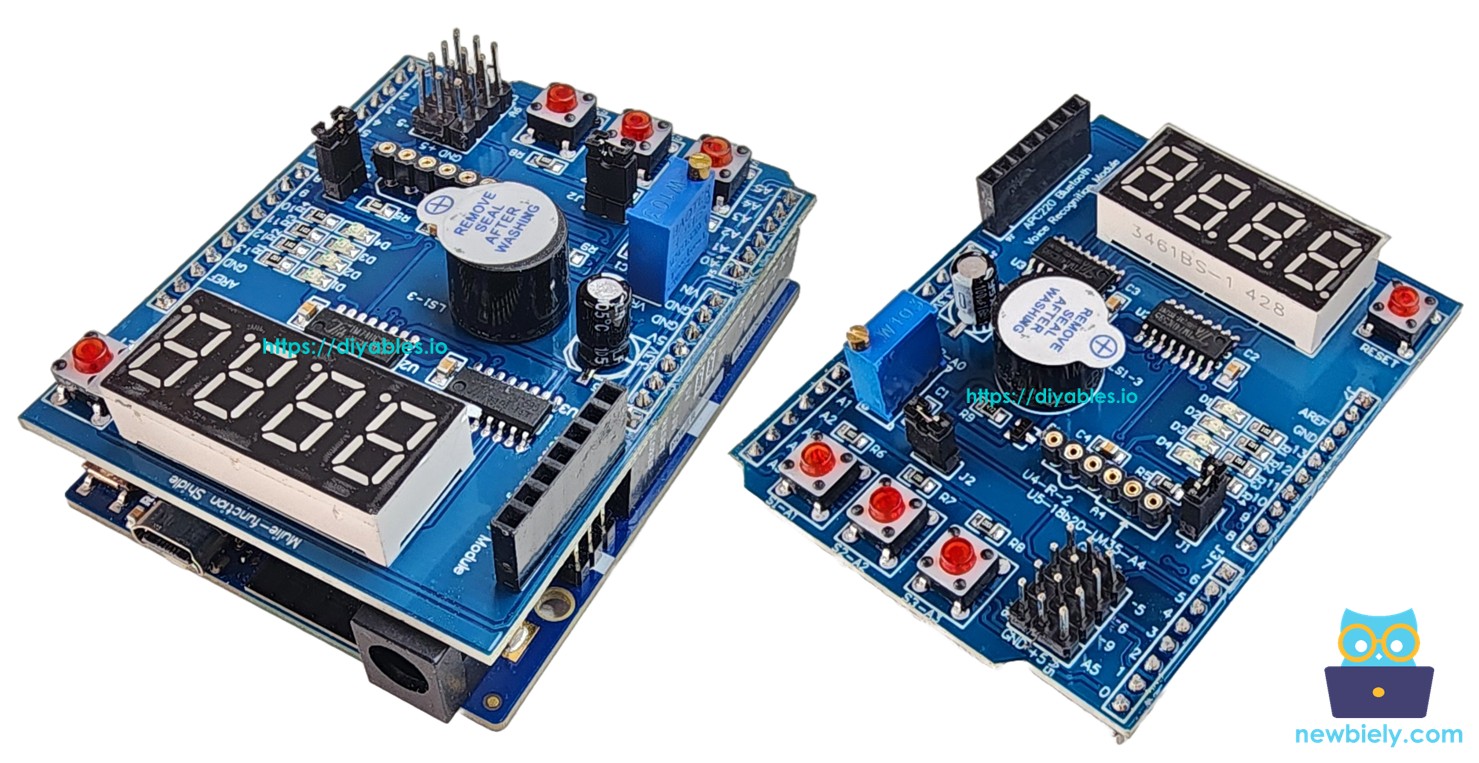
아두이노 우노 R4 멀티 기능 쉴드

멀티 기능 쉴드의 모든 예제를 시연하는 단계별 동영상 튜토리얼을 시청하세요:

필요한 하드웨어

1×Arduino UNO R4 WiFi or Arduino UNO R4 Minima
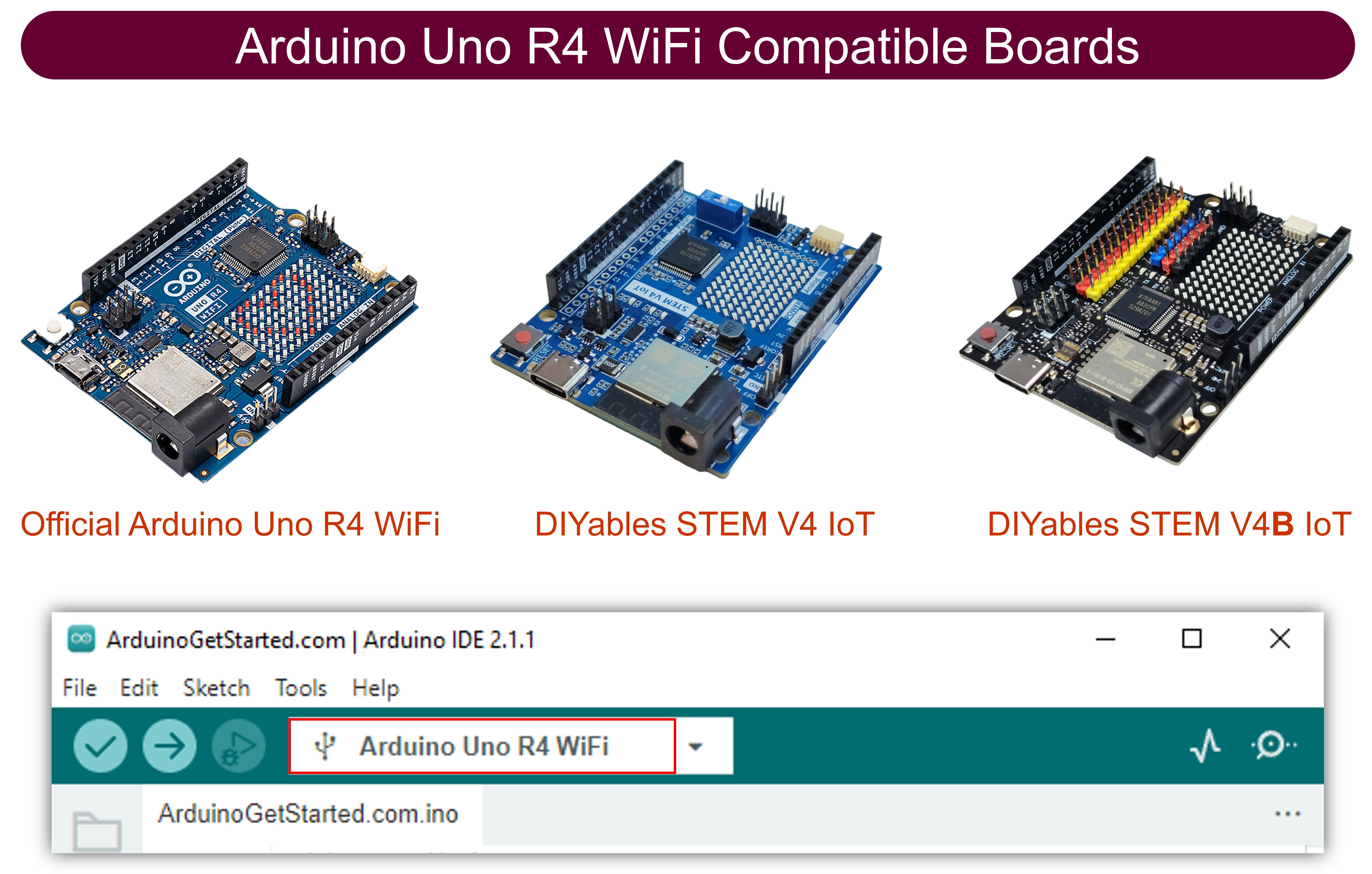
1×(또는) DIYables STEM V4 IoT, Compatible with Arduino Uno R4 WiFi 쿠팡 | 아마존
1×USB 케이블 타입-A to 타입-C (USB-A PC용) 쿠팡 | 아마존
1×USB 케이블 타입-C to 타입-C (USB-C PC용) 아마존
1×DIYables Multi-Function Shield 아마존
1×(추천) 아두이노 우노 R4용 스크루 터미널 블록 쉴드 쿠팡 | 아마존
1×(추천) Sensors/Servo Expansion Shield for Arduino UNO R4 아마존
1×(추천) 아두이노 우노 R4용 브레드보드 쉴드 쿠팡 | 아마존
1×(추천) 아두이노 우노 R4용 케이스 쿠팡 | 아마존
1×(추천) 아두이노 우노 R4용 전원 분배기 쿠팡 | 아마존
1×(추천) 아두이노 우노용 프로토타이핑 베이스 플레이트 & 브레드보드 키트 아마존
공개: 이 포스팅 에 제공된 일부 링크는 아마존 제휴 링크입니다. 이 포스팅은 쿠팡 파트너스 활동의 일환으로, 이에 따른 일정액의 수수료를 제공받습니다.
Arduino Uno R4 WiFi Compatible Boards

멀티 기능 쉴드에 대하여

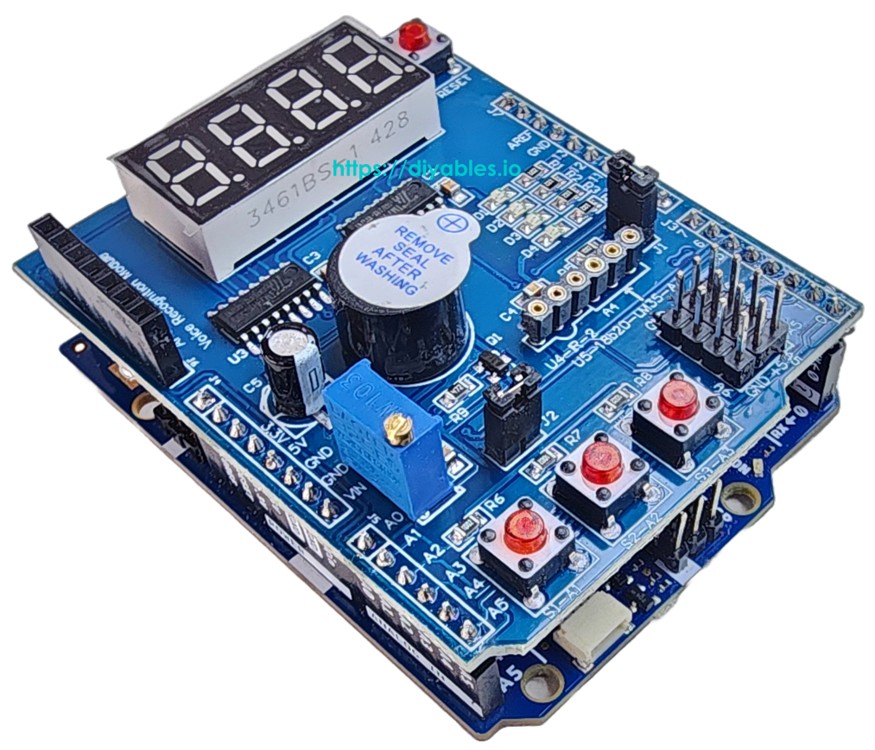
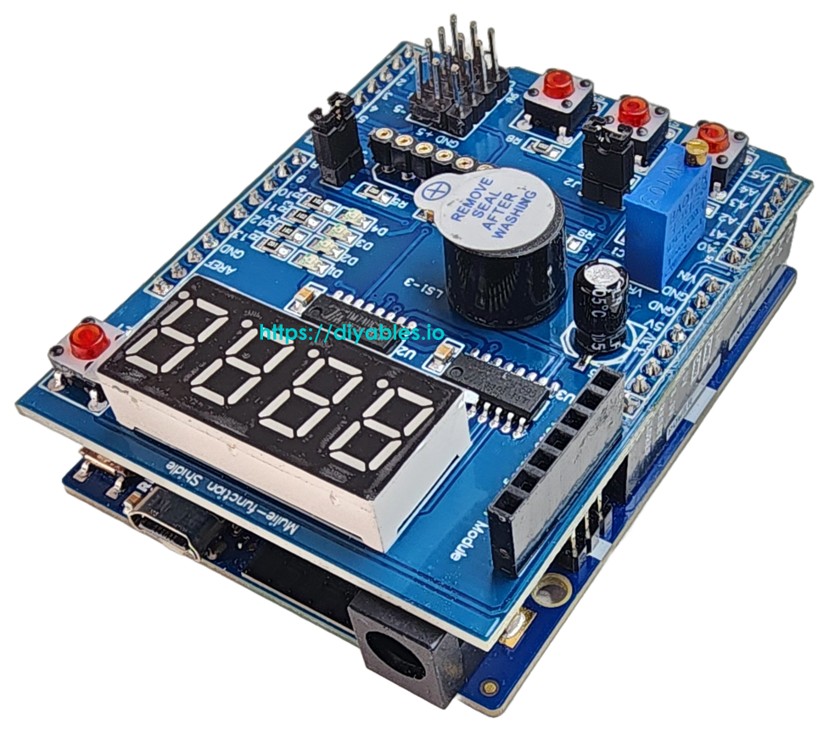
멀티 기능 쉴드는 Uno 호환 헤더에 직접 꽂히는 단일 보드에 여러 부품을 탑재합니다. 포함된 구성 요소:

  • 74HC595 시프트 레지스터를 통해 제어되는 4자리 7세그먼트 디스플레이 — 정수, 소수, A–Z 문자, 도(°) 기호 등의 특수 기호를 표시할 수 있습니다.
  • 내장 풀업 저항이 있는 액티브 LOW 방식의 세 개의 푸시 버튼(S1, S2, S3) — 디바운스와 함께 눌림 및 릴리스 감지에 사용합니다.
  • 네 개의 LED(D1–D4), 마찬가지로 액티브 LOW — 켜기/끄기/토글/깜빡이기를 개별 제어 가능하며, 한 번에 모두 깜빡이는 편의 기능도 있습니다.
  • 액티브 LOW 버저 — 단일 비프음 또는 시간 순서 프로그래밍이 가능합니다.
  • 아날로그 핀 A0의 가변저항 — 원시 ADC 카운트 또는 0~100% 판독값을 반환합니다.
  • 아날로그 핀 A4의 LM35 온도 센서 — 섭씨 판독값을 출력합니다(활성화하려면 점퍼 J1을 제거하세요).

Uno R4는 기존 Uno 핀 레이아웃을 유지하므로 모든 핀 매핑이 기존 Uno와 동일합니다:

기능 기능
LED D1 13 Button S1 A1
LED D2 12 Button S2 A2
LED D3 11 Button S3 A3
LED D4 10 Potentiometer A0
Buzzer 3 LM35 Temp Sensor A4
Display LATCH 4
Display CLOCK 7
Display DATA 8
멀티 기능 쉴드 핀아웃

배선도

점퍼 와이어나 브레드보드가 필요 없습니다 — 멀티 기능 쉴드를 Uno R4 헤더에 맞춰 눌러서 끼우기만 하면 됩니다. 쉴드는 기존 Uno R3에서처럼 보드에 정확히 장착됩니다.
아두이노 우노 R4 멀티 기능 쉴드 배선도

이 이미지는 Fritzing을 사용하여 만들어졌습니다. 이미지를 확대하려면 클릭하세요.

Arduino Uno R4와 기타 부품에 전원을 공급하는 가장 효과적인 방법을 확인하시려면, 아래 링크를 참조하세요: 아두이노 우노 R4 전원 공급 방법.

라이브러리 설치 방법

  1. USB Type-C 케이블을 사용하여 Arduino Uno R4를 컴퓨터에 연결합니다.
  2. Arduino IDE에서 올바른 보드(Arduino Uno R4 Minima 또는 WiFi)와 시리얼 포트가 선택되었는지 확인합니다.
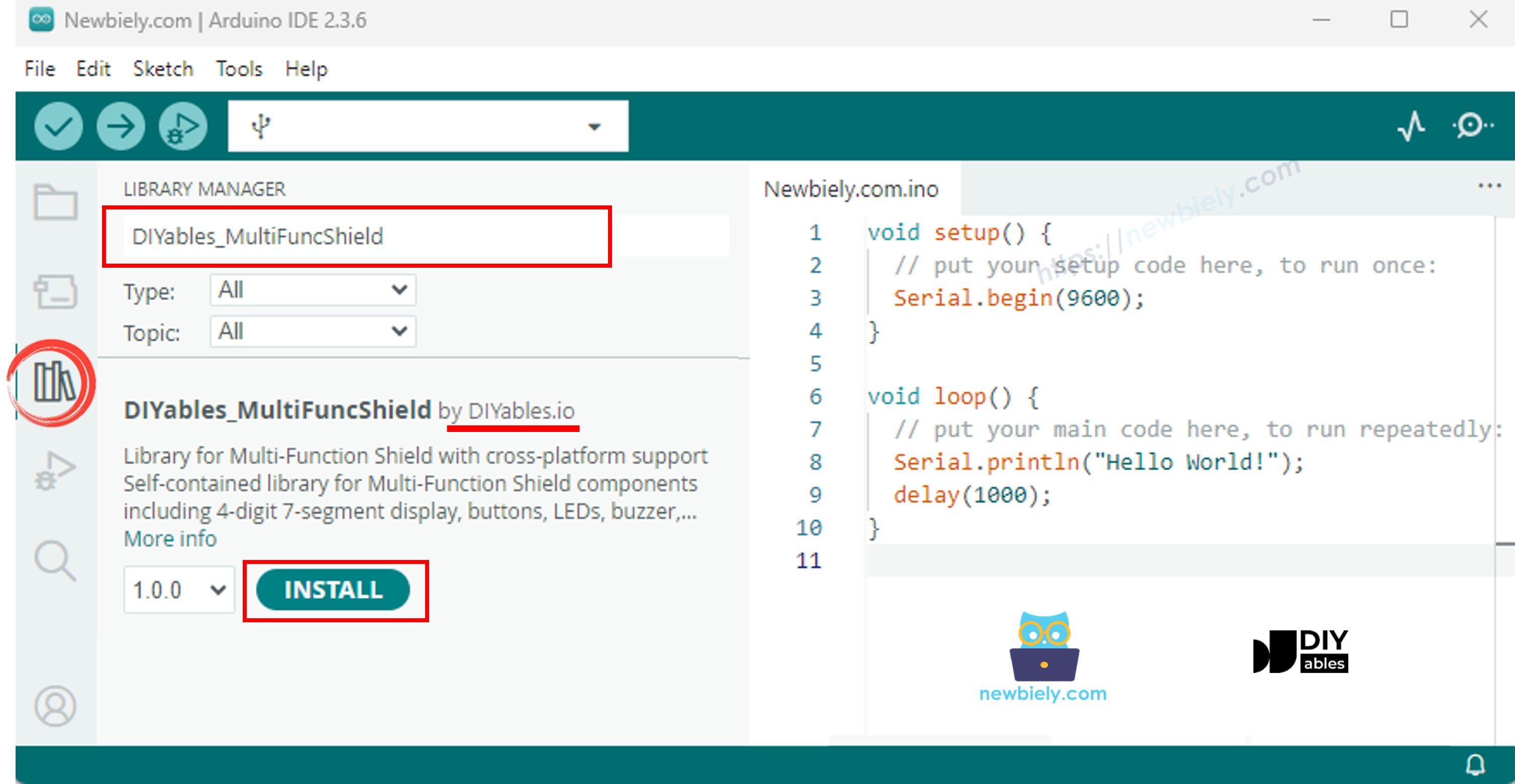
  3. 왼쪽 사이드바에서 Libraries 아이콘을 클릭합니다.
  4. 검색창에 "DIYables_MultiFuncShield"를 입력하고 DIYables에서 게시한 라이브러리를 찾습니다.
  5. Install을 클릭하여 라이브러리를 IDE에 추가합니다.
아두이노 멀티 기능 쉴드 라이브러리

추가 의존성이 필요 없습니다 — 라이브러리가 완전히 자급자족합니다.

최소 스케치 구조

멀티 기능 쉴드를 사용하는 모든 스케치는 다음 기본 구조를 공유합니다:

#include <DIYables_MultiFuncShield.h> void setup() { MFS.begin(); // Set up display, buttons, LEDs, buzzer } void loop() { MFS.loop(); // Refresh display, poll buttons, update LEDs & buzzer }

MFS.begin()을 호출하면 쉴드의 모든 구성 요소가 구성됩니다. 각 반복에서 MFS.loop()를 호출하면 디스플레이 멀티플렉싱, 버튼 디바운스, LED 깜빡임 타이밍, 버저 스케줄링이 원활하게 유지됩니다.

7세그먼트 디스플레이 예제

이 예제는 4자리 디스플레이에 숫자, 부동소수점, 텍스트 문자열, 특수 기호를 표시하는 방법을 보여줍니다.

/* * 이 아두이노 우노 R4 코드는 newbiely.kr 에서 개발되었습니다 * 이 아두이노 우노 R4 코드는 어떠한 제한 없이 공개 사용을 위해 제공됩니다. * 상세한 지침 및 연결도에 대해서는 다음을 방문하세요: * https://newbiely.kr/tutorials/arduino-uno-r4/arduino-uno-r4-multi-function-shield */ /* * Multi-Function Shield - Display Example * * Cycles through display features every 3 seconds: * 1. Integer number * 2. Integer with leading zeros * 3. Float number * 4. Text string with letters * 5. Text string with dot * 6. Degree symbol + C (special chars) * 7. Dashes * * Hardware: DIYables Multi-Function Shield * * COMPATIBLE Multi-Function Shield: * - https://diyables.io/products/multi-function-shield-for-arduino-uno-mega * * TESTED HARDWARE: * - Arduino Uno R3 * - Arduino Uno R4 WiFi * - Arduino Uno R4 Minima * - Arduino Mega * - Arduino Due * - Arduino Giga * - DIYables STEM V3: https://diyables.io/stem-v3 * - DIYables STEM V4 IoT: https://diyables.io/stem-v4-iot * - DIYables STEM V4B IoT: https://diyables.io/stem-v4b-iot * - DIYables STEM V4 Edu: https://diyables.io/stem-v4-edu * - DIYables MEGA2560 R3: https://diyables.io/atmega2560-board * - DIYables ESP32 S3, Uno-form factor: https://diyables.io/esp32-s3-uno * - It is expected to work with other boards */ #include <DIYables_MultiFuncShield.h> uint8_t step = 0; unsigned long lastUpdate = 0; void setup() { MFS.begin(); } void loop() { MFS.loop(); if (millis() - lastUpdate >= 3000) { lastUpdate = millis(); switch (step) { case 0: // Integer: " 42" MFS.display.print(42); break; case 1: // Integer with leading zeros: "0042" MFS.display.print(42, true); break; case 2: // Float with 2 decimals: "3.14" MFS.display.print(3.14, 2); break; case 3: // Text string: "HELP" MFS.display.print("HELP"); break; case 4: // Text with dot: "Ab.Cd" MFS.display.print("Ab.Cd"); break; case 5: // Degree + C using special chars: "25°C" MFS.display.clear(); MFS.display.setNumber(1, 2); MFS.display.setNumber(2, 5); MFS.display.setChar(3, SegChars::DEGREE); MFS.display.setChar(4, SegChars::C); MFS.display.show(); break; case 6: // Dashes: "----" MFS.display.print("----"); break; } step = (step + 1) % 7; } }

실행 방법

  • Arduino Uno R4 위에 멀티 기능 쉴드를 장착합니다.
  • USB Type-C 케이블로 보드를 PC에 연결합니다.
  • Arduino IDE를 열고 보드와 포트를 선택합니다.
  • 위의 코드를 편집기에 붙여넣습니다.
  • Upload를 누릅니다.

디스플레이가 7가지 다양한 표시를 순환합니다 — 정수, 앞자리 0이 채워진 정수, 부동소수점 수, 텍스트, 소수점이 있는 텍스트, 도 기호, 대시 — 3초마다 전환됩니다.

디스플레이 메서드 요약

메서드 설명 사용 예
print(int) 정수 값을 표시합니다 MFS.display.print(42)
print(int, true) 앞자리 0이 채워진 정수를 표시합니다 MFS.display.print(42, true) → 0042
print(float, dp) 부동소수점 수를 표시합니다 MFS.display.print(3.14, 2)
print(text) 문자열을 표시합니다(A-Z, 0-9, -, _) MFS.display.print("HELP")
setNumber(pos, val) 특정 위치(1~4)에 한 자리 숫자를 배치합니다 MFS.display.setNumber(1, 5)
setChar(pos, ch) 특정 위치에 문자를 배치합니다 MFS.display.setChar(2, 'A')
setChar(pos, SegChars) 특정 위치에 특수 기호를 배치합니다 MFS.display.setChar(3, SegCharsDEGREE)
setDot(pos) 특정 위치의 점을 켭니다 MFS.display.setDot(2)
clear() 전체 디스플레이를 지웁니다 MFS.display.clear()
show() 수동 변경 사항을 디스플레이에 적용합니다 MFS.display.show()

print() 오버로드는 내부적으로 show()를 호출합니다. setNumber(), setChar(), 또는 setDot()으로 디스플레이를 수동으로 구성할 때는 먼저 clear()를 호출하고 마지막에 show()를 호출합니다.

SegChars를 통해 지원되는 특수 문자: DASH, UNDERSCORE, C, E, F, DEGREE.

버튼 예제

각 버튼이 눌리거나 릴리스될 때 감지하고 시리얼로 이벤트를 출력합니다.

/* * 이 아두이노 우노 R4 코드는 newbiely.kr 에서 개발되었습니다 * 이 아두이노 우노 R4 코드는 어떠한 제한 없이 공개 사용을 위해 제공됩니다. * 상세한 지침 및 연결도에 대해서는 다음을 방문하세요: * https://newbiely.kr/tutorials/arduino-uno-r4/arduino-uno-r4-multi-function-shield */ /* * Multi-Function Shield - Buttons Example * * Detects button presses and releases, prints to Serial Monitor. * * Hardware: DIYables Multi-Function Shield * * COMPATIBLE Multi-Function Shield: * - https://diyables.io/products/multi-function-shield-for-arduino-uno-mega * * TESTED HARDWARE: * - Arduino Uno R3 * - Arduino Uno R4 WiFi * - Arduino Uno R4 Minima * - Arduino Mega * - Arduino Due * - Arduino Giga * - DIYables STEM V3: https://diyables.io/stem-v3 * - DIYables STEM V4 IoT: https://diyables.io/stem-v4-iot * - DIYables STEM V4B IoT: https://diyables.io/stem-v4b-iot * - DIYables STEM V4 Edu: https://diyables.io/stem-v4-edu * - DIYables MEGA2560 R3: https://diyables.io/atmega2560-board * - DIYables ESP32 S3, Uno-form factor: https://diyables.io/esp32-s3-uno * - It is expected to work with other boards */ #include <DIYables_MultiFuncShield.h> void setup() { Serial.begin(9600); MFS.begin(); } void loop() { MFS.loop(); if (MFS.button1.isPressed()) Serial.println("Button 1 pressed"); if (MFS.button1.isReleased()) Serial.println("Button 1 released"); if (MFS.button2.isPressed()) Serial.println("Button 2 pressed"); if (MFS.button2.isReleased()) Serial.println("Button 2 released"); if (MFS.button3.isPressed()) Serial.println("Button 3 pressed"); if (MFS.button3.isReleased()) Serial.println("Button 3 released"); }

실행 방법

  • 코드를 Arduino IDE에 붙여넣고 Upload를 누릅니다.
  • 시리얼 모니터를 엽니다.
  • S1, S2, S3를 눌렀다가 놓아보세요 — 각 이벤트가 발생할 때마다 출력됩니다.

버튼 메서드 요약

메서드 설명
isPressed() 버튼이 눌리는 순간 true를 반환합니다
isReleased() 버튼이 다시 올라오는 순간 true를 반환합니다
setDebounceTime(ms) 디바운스 창을 조정합니다(기본값 50ms)

각 버튼은 자동으로 디바운스되며 내부 풀업이 있는 액티브 LOW 로직을 사용합니다. MFS.button1 / MFS.button2 / MFS.button3으로 개별 버튼을 참조하거나, MFS.button(1)~MFS.button(3)의 인덱스 접근자를 사용합니다.

LED 예제

네 개의 LED를 순서대로 켜고, 그 다음 모두 함께 깜빡입니다.

/* * 이 아두이노 우노 R4 코드는 newbiely.kr 에서 개발되었습니다 * 이 아두이노 우노 R4 코드는 어떠한 제한 없이 공개 사용을 위해 제공됩니다. * 상세한 지침 및 연결도에 대해서는 다음을 방문하세요: * https://newbiely.kr/tutorials/arduino-uno-r4/arduino-uno-r4-multi-function-shield */ /* * Multi-Function Shield - LEDs Example * * Demonstrates turn on, turn off, and blink for each LED. * * Hardware: DIYables Multi-Function Shield * * COMPATIBLE Multi-Function Shield: * - https://diyables.io/products/multi-function-shield-for-arduino-uno-mega * * TESTED HARDWARE: * - Arduino Uno R3 * - Arduino Uno R4 WiFi * - Arduino Uno R4 Minima * - Arduino Mega * - Arduino Due * - Arduino Giga * - DIYables STEM V3: https://diyables.io/stem-v3 * - DIYables STEM V4 IoT: https://diyables.io/stem-v4-iot * - DIYables STEM V4B IoT: https://diyables.io/stem-v4b-iot * - DIYables STEM V4 Edu: https://diyables.io/stem-v4-edu * - DIYables MEGA2560 R3: https://diyables.io/atmega2560-board * - DIYables ESP32 S3, Uno-form factor: https://diyables.io/esp32-s3-uno * - It is expected to work with other boards */ #include <DIYables_MultiFuncShield.h> void setup() { Serial.begin(9600); MFS.begin(); // Turn on all LEDs one by one Serial.println("Turn ON LEDs one by one"); for (uint8_t i = 1; i <= 4; i++) { MFS.led(i).turnON(); delay(500); } delay(1000); // Turn off all LEDs one by one Serial.println("Turn OFF LEDs one by one"); for (uint8_t i = 1; i <= 4; i++) { MFS.led(i).turnOFF(); delay(500); } delay(1000); // Blink individual LED (LED 1 only) Serial.println("Blink LED 1 individually"); MFS.led(1).blink(300); unsigned long start = millis(); while (millis() - start < 3000) MFS.loop(); MFS.led(1).turnOFF(); delay(1000); // Blink all LEDs together Serial.println("Blink all LEDs together"); MFS.allLedsBlink(500); } void loop() { MFS.loop(); }

실행 방법

  • 코드를 Arduino IDE에 붙여넣고 Upload를 누릅니다.

LED가 0.5초 간격으로 하나씩 켜지고, 그 다음 네 개가 동시에 깜빡이기 시작합니다.

LED 메서드 요약

메서드 설명
turnON() LED를 켭니다
turnOFF() LED를 끕니다
toggle() 현재 상태를 반전합니다
blink(interval) 동일한 켜짐/꺼짐 시간으로 깜빡입니다
blink(onTime, offTime) 사용자 지정 켜짐/꺼짐 시간으로 깜빡입니다
isOn() LED가 켜져 있으면 true를 반환합니다

MFS에서 사용 가능한 전체 그룹 단축키:

메서드 설명
allLedsOn() 네 개의 LED를 모두 켭니다
allLedsOff() 네 개의 LED를 모두 끕니다
allLedsBlink(interval) 네 개의 LED를 모두 함께 깜빡입니다
allLedsBlink(onTime, offTime) 사용자 지정 타이밍으로 모두 깜빡입니다

LED는 액티브 LOW 모드로 작동합니다. MFS.led1~MFS.led4 또는 인덱스 형식 MFS.led(1)~MFS.led(4)를 사용합니다.

버저 예제

일정한 간격으로 짧은 비프음을 재생합니다.

/* * 이 아두이노 우노 R4 코드는 newbiely.kr 에서 개발되었습니다 * 이 아두이노 우노 R4 코드는 어떠한 제한 없이 공개 사용을 위해 제공됩니다. * 상세한 지침 및 연결도에 대해서는 다음을 방문하세요: * https://newbiely.kr/tutorials/arduino-uno-r4/arduino-uno-r4-multi-function-shield */ /* * Multi-Function Shield - Buzzer Example * * Beeps the buzzer every 2 seconds. * * Hardware: DIYables Multi-Function Shield * * COMPATIBLE Multi-Function Shield: * - https://diyables.io/products/multi-function-shield-for-arduino-uno-mega * * TESTED HARDWARE: * - Arduino Uno R3 * - Arduino Uno R4 WiFi * - Arduino Uno R4 Minima * - Arduino Mega * - Arduino Due * - Arduino Giga * - DIYables STEM V3: https://diyables.io/stem-v3 * - DIYables STEM V4 IoT: https://diyables.io/stem-v4-iot * - DIYables STEM V4B IoT: https://diyables.io/stem-v4b-iot * - DIYables STEM V4 Edu: https://diyables.io/stem-v4-edu * - DIYables MEGA2560 R3: https://diyables.io/atmega2560-board * - DIYables ESP32 S3, Uno-form factor: https://diyables.io/esp32-s3-uno * - It is expected to work with other boards */ #include <DIYables_MultiFuncShield.h> unsigned long lastBeep = 0; void setup() { MFS.begin(); } void loop() { MFS.loop(); if (millis() - lastBeep >= 2000) { lastBeep = millis(); MFS.buzzer.beep(100); } }

실행 방법

  • 코드를 Arduino IDE에 붙여넣고 Upload를 누릅니다.

2초마다 짧은 비프음이 울립니다.

버저 메서드 요약

메서드 설명
beep(ms) 지정된 밀리초 동안 비프음을 냅니다
beep(ms, delayMs) delayMs만큼 기다린 후 ms 동안 비프음을 냅니다
stop() 즉시 버저를 끕니다
isBeeping() 버저가 활성화되어 있는 동안 true를 반환합니다

가변저항 예제

가변저항을 읽어 값과 백분율을 시리얼로 출력합니다.

/* * 이 아두이노 우노 R4 코드는 newbiely.kr 에서 개발되었습니다 * 이 아두이노 우노 R4 코드는 어떠한 제한 없이 공개 사용을 위해 제공됩니다. * 상세한 지침 및 연결도에 대해서는 다음을 방문하세요: * https://newbiely.kr/tutorials/arduino-uno-r4/arduino-uno-r4-multi-function-shield */ /* * Multi-Function Shield - Potentiometer Example * * Reads the potentiometer and shows the percentage on the display. * * NOTE: The potentiometer on the shield is a multi-turn trimmer. * You need to rotate it MANY turns to go from 0% to 100%. * If the value stays at 0% or 100%, rotate in the opposite direction. * * Hardware: DIYables Multi-Function Shield * * COMPATIBLE Multi-Function Shield: * - https://diyables.io/products/multi-function-shield-for-arduino-uno-mega * * TESTED HARDWARE: * - Arduino Uno R3 * - Arduino Uno R4 WiFi * - Arduino Uno R4 Minima * - Arduino Mega * - Arduino Due * - Arduino Giga * - DIYables STEM V3: https://diyables.io/stem-v3 * - DIYables STEM V4 IoT: https://diyables.io/stem-v4-iot * - DIYables STEM V4B IoT: https://diyables.io/stem-v4b-iot * - DIYables STEM V4 Edu: https://diyables.io/stem-v4-edu * - DIYables MEGA2560 R3: https://diyables.io/atmega2560-board * - DIYables ESP32 S3, Uno-form factor: https://diyables.io/esp32-s3-uno * - It is expected to work with other boards */ #include <DIYables_MultiFuncShield.h> unsigned long lastUpdate = 0; float lastPct = -1; void setup() { Serial.begin(9600); MFS.begin(); Serial.println("Rotate potentiometer knob (multi-turn trimmer)."); Serial.println("It requires many turns to go from 0% to 100%."); } void loop() { MFS.loop(); if (millis() - lastUpdate >= 500) { lastUpdate = millis(); int raw = MFS.readPot(); float pct = MFS.readPotPercent(); Serial.print("Raw: "); Serial.print(raw); Serial.print(" Percent: "); Serial.print(pct, 1); Serial.print("%"); if (pct <= 0.1) Serial.print(" ← MIN (rotate clockwise to increase)"); else if (pct >= 99.9) Serial.print(" ← MAX (rotate counter-clockwise to decrease)"); Serial.println(); lastPct = pct; } }

실행 방법

  • 코드를 Arduino IDE에 붙여넣고 Upload를 누릅니다.
  • 시리얼 모니터를 엽니다.
  • 가변저항 노브를 돌리면서 모니터에서 값이 업데이트되는 것을 확인합니다.

가변저항 메서드 요약

메서드 반환 타입 설명
readPot() int 원시 ADC 판독값(Uno R4의 14비트 ADC에서 0~16383)
readPotPercent() float 0.0~100.0으로 스케일된 백분율

온도 센서(LM35) 예제

LM35 센서를 읽어 섭씨 온도를 디스플레이와 시리얼 모니터에 표시합니다.

기억하세요: LM35 센서를 사용하기 전에 쉴드에서 점퍼 J1을 제거해야 합니다. 핀 A4가 I2C SDA 라인과 공유되기 때문입니다.

/* * 이 아두이노 우노 R4 코드는 newbiely.kr 에서 개발되었습니다 * 이 아두이노 우노 R4 코드는 어떠한 제한 없이 공개 사용을 위해 제공됩니다. * 상세한 지침 및 연결도에 대해서는 다음을 방문하세요: * https://newbiely.kr/tutorials/arduino-uno-r4/arduino-uno-r4-multi-function-shield */ /* * Multi-Function Shield - Temperature Example * * Reads the LM35 temperature sensor and shows Celsius on the display. * Note: Requires jumper J1 removed (pin A4). * * Hardware: DIYables Multi-Function Shield * * COMPATIBLE Multi-Function Shield: * - https://diyables.io/products/multi-function-shield-for-arduino-uno-mega * * TESTED HARDWARE: * - Arduino Uno R3 * - Arduino Uno R4 WiFi * - Arduino Uno R4 Minima * - Arduino Mega * - Arduino Due * - Arduino Giga * - DIYables STEM V3: https://diyables.io/stem-v3 * - DIYables STEM V4 IoT: https://diyables.io/stem-v4-iot * - DIYables STEM V4B IoT: https://diyables.io/stem-v4b-iot * - DIYables STEM V4 Edu: https://diyables.io/stem-v4-edu * - DIYables MEGA2560 R3: https://diyables.io/atmega2560-board * - DIYables ESP32 S3, Uno-form factor: https://diyables.io/esp32-s3-uno * - It is expected to work with other boards */ #include <DIYables_MultiFuncShield.h> unsigned long lastUpdate = 0; void setup() { Serial.begin(9600); MFS.begin(); MFS.display.print(0); } void loop() { MFS.loop(); if (millis() - lastUpdate >= 500) { lastUpdate = millis(); float temp = MFS.readTemperature(); MFS.display.print(temp, 1); Serial.print("Temp: "); Serial.print(temp, 1); Serial.println(" C"); } }

실행 방법

  • 멀티 기능 쉴드에서 점퍼 J1을 뽑습니다.
  • 코드를 Arduino IDE에 붙여넣고 Upload를 누릅니다.
  • 시리얼 모니터를 엽니다.
  • 현재 온도가 디스플레이에 표시되고 시리얼로 출력됩니다.

온도 값은 4샘플 이동 평균으로 평활화됩니다. 첫 번째 판독 시 버퍼가 미리 채워져 즉시 안정된 값을 얻을 수 있습니다.

Arduino Uno R4 멀티 기능 쉴드 - 전체 데모

아래는 멀티 기능 쉴드의 모든 예제를 시연하는 단계별 동영상 튜토리얼입니다:

플랫폼 지원

이 라이브러리는 모든 Arduino 플랫폼(architectures=*)을 지원합니다.