
아두이노 나노 ESP32 블루투스 조이스틱 예제 BLE를 통한 2D 방향 제어 튜토리얼
개요
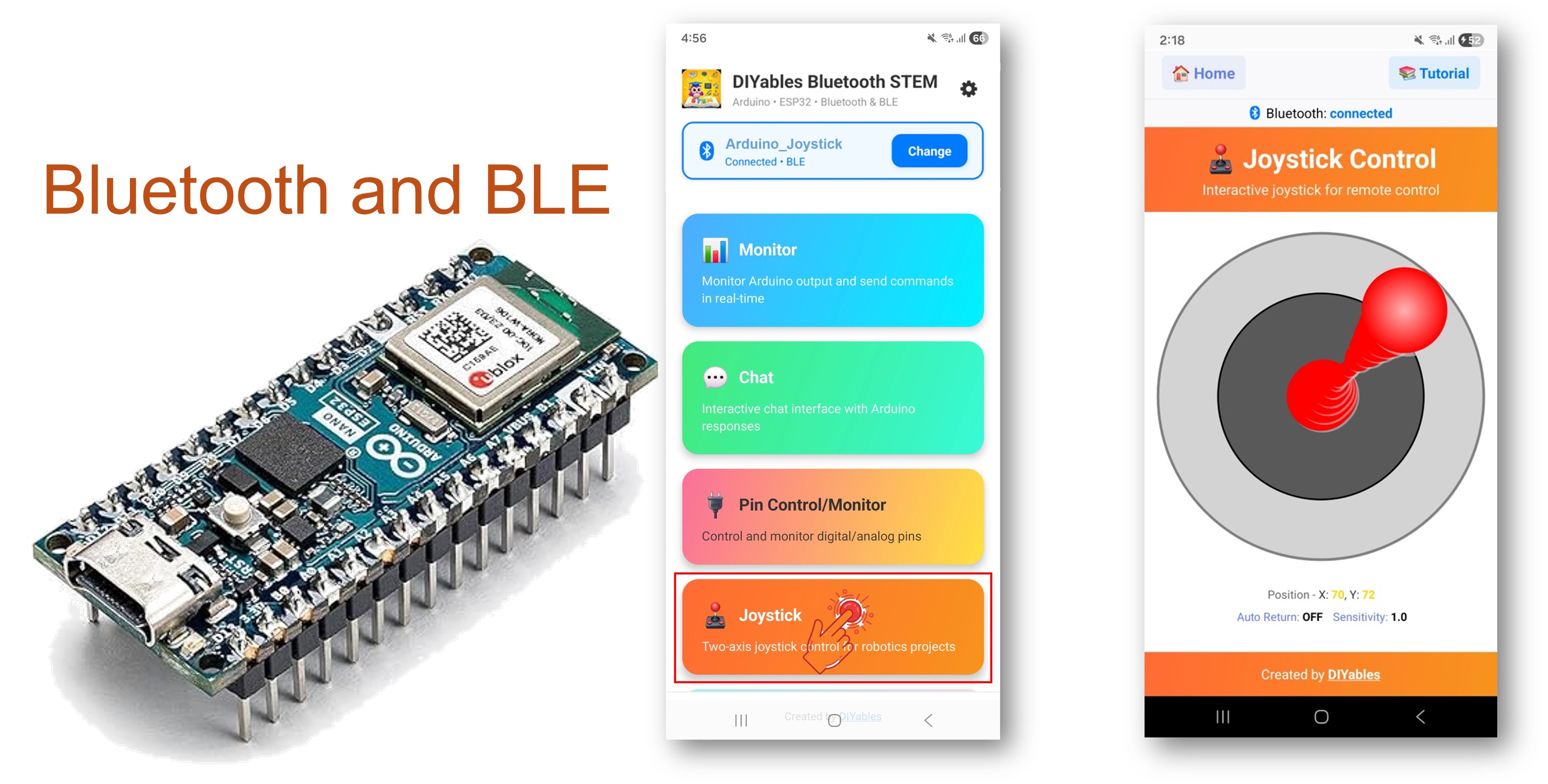
이 예제는 DIYables Bluetooth STEM 앱을 통한 BLE(블루투스 로우 에너지)를 사용하여 Arduino Nano ESP32에 대화형 2D 조이스틱 제어를 구현합니다. 방향 제어를 위한 실시간 X/Y 좌표(-100 ~ +100)를 수신하세요. 로봇 내비게이션, 팬-틸트 서보, 모터 제어, 게임 컨트롤러에 적합합니다.
참고: Arduino Nano ESP32는 BLE만 지원하며 클래식 블루투스는 지원하지 않습니다. DIYables 블루투스 앱은 BLE를 통해 Android와 iOS 모두에서 작동합니다.
기능
- 2D 제어: X 및 Y 축, 범위 −100 ~ +100
- 설정 가능한 감도: 업데이트를 트리거하기 전 최소 이동 임계값
- 자동 복귀 옵션: 놓았을 때 조이스틱이 자동으로 중앙으로 돌아옴
- 실시간 값: 드래그하는 동안 연속적인 위치 업데이트
- Android 및 iOS 지원: BLE는 두 플랫폼 모두 호환
- 페어링 불필요: BLE는 수동 페어링 없이 연결
- 저전력: BLE는 클래식 블루투스보다 적은 전력 소비
필요한 하드웨어
| 1 | × | 아두이노 나노 ESP32 | 쿠팡 | 아마존 | |
| 1 | × | USB 케이블 타입-A to 타입-C (USB-A PC용) | 쿠팡 | 아마존 | |
| 1 | × | USB 케이블 타입-C to 타입-C (USB-C PC용) | 아마존 | |
| 1 | × | 브레드보드 | 쿠팡 | 아마존 | |
| 1 | × | 점퍼케이블 | 쿠팡 | 아마존 | |
| 1 | × | (추천) 아두이노 나노용 스크루 터미널 확장 보드 | 쿠팡 | 아마존 | |
| 1 | × | (추천) 아두이노 나노용 브레이크아웃 확장 보드 | 쿠팡 | 아마존 | |
| 1 | × | (추천) 아두이노 나노 ESP32용 전원 분배기 | 쿠팡 | 아마존 |
공개: 이 포스팅 에 제공된 일부 링크는 아마존 제휴 링크입니다. 이 포스팅은 쿠팡 파트너스 활동의 일환으로, 이에 따른 일정액의 수수료를 제공받습니다.
Arduino Nano ESP32 코드
빠른 시작
- Arduino Nano ESP32가 처음이신가요? 아두이노 나노 ESP32 - 소프트웨어 설치를 참조하세요.
- USB로 Arduino Nano ESP32를 컴퓨터에 연결하세요.
- Arduino IDE를 열어주세요.
- Arduino Nano ESP32 보드와 올바른 COM 포트를 선택하세요.
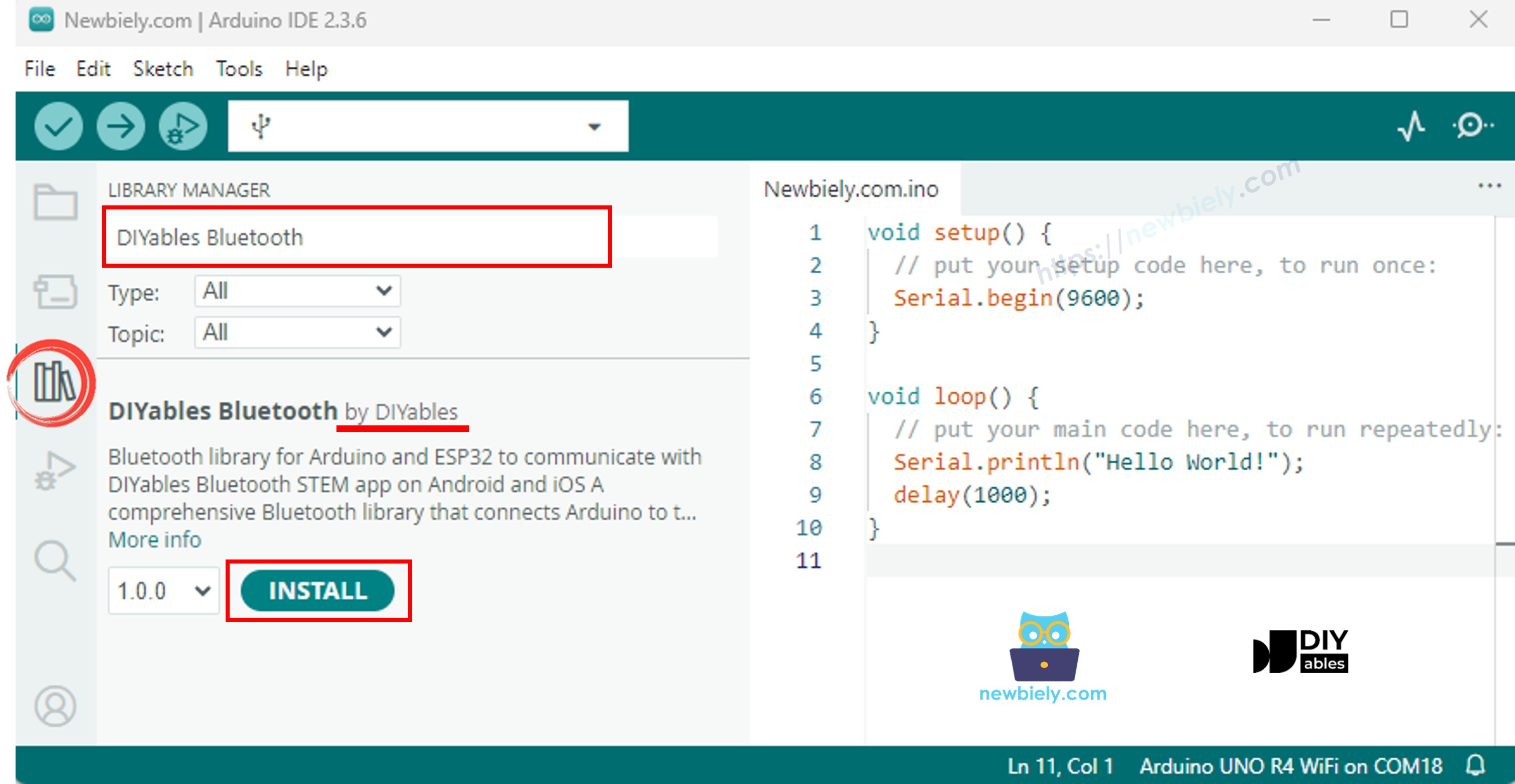
- 왼쪽 사이드바에서 라이브러리 아이콘을 클릭하세요.
- "DIYables Bluetooth"를 검색하고 DIYables의 DIYables Bluetooth 라이브러리를 선택하세요.
- 설치를 클릭하세요.
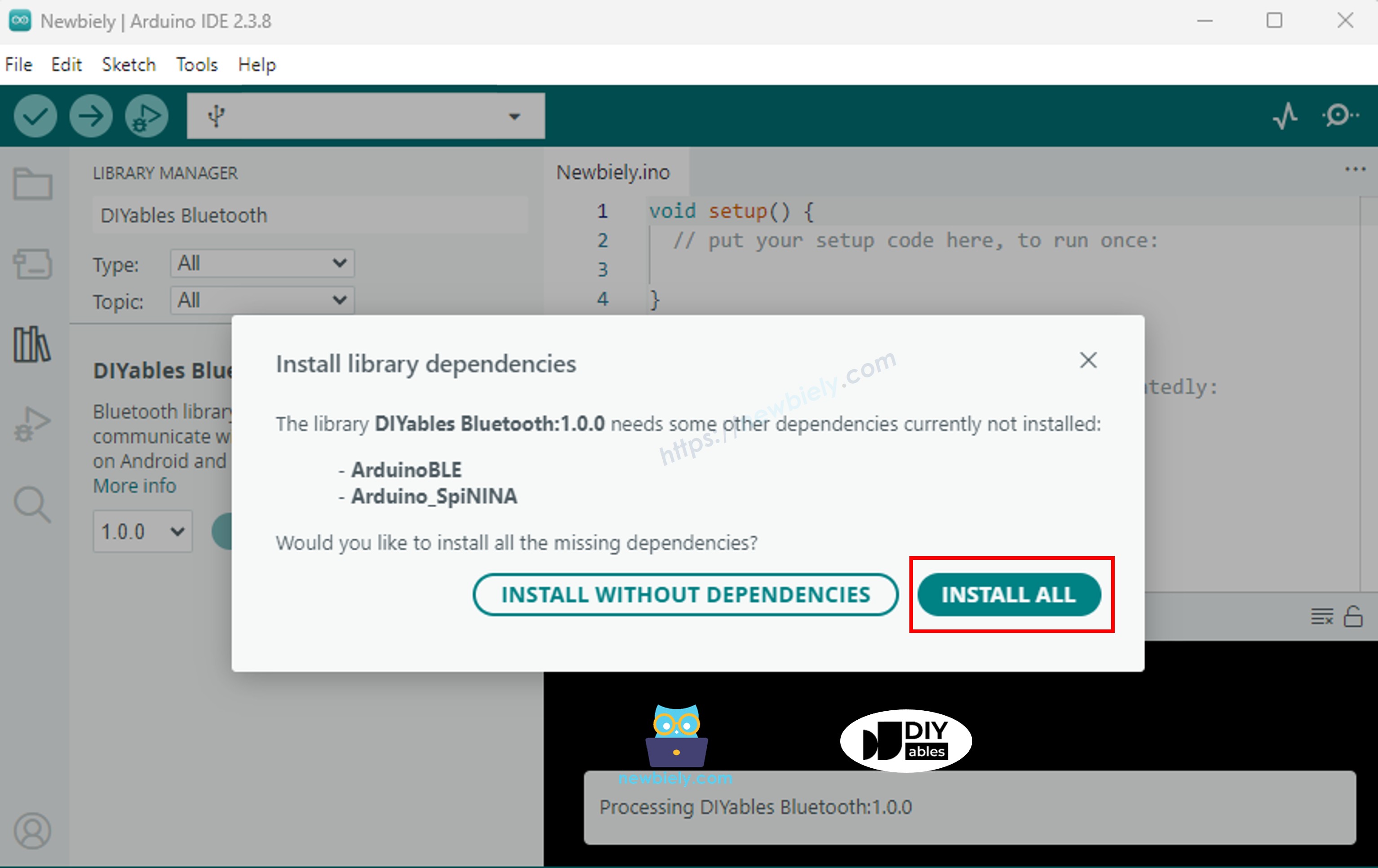
- 종속성 설치 메시지가 나타나면 모두 설치를 클릭하세요.
BLE 코드
- Arduino IDE에서 파일 예제 DIYables Bluetooth ArduinoBLE_Joystick을 열거나, 코드를 편집기에 붙여 넣으세요.
/*
* DIYables Bluetooth Library - ESP32 BLE Joystick Example
* Works with DIYables Bluetooth STEM app on Android and iOS
*
* This example demonstrates the Bluetooth Joystick feature:
* - Interactive joystick control via Bluetooth
* - Real-time X/Y coordinate values (-100 to +100)
* - Control pins based on joystick position
*
* Tutorial: https://diyables.io/bluetooth-app
* Author: DIYables
*/
#include <DIYables_BluetoothServer.h>
#include <DIYables_BluetoothJoystick.h>
#include <platforms/DIYables_Esp32BLE.h>
// BLE Configuration
const char* DEVICE_NAME = "ESP32BLE_Joystick";
const char* SERVICE_UUID = "19B10000-E8F2-537E-4F6C-D104768A1214";
const char* TX_UUID = "19B10001-E8F2-537E-4F6C-D104768A1214";
const char* RX_UUID = "19B10002-E8F2-537E-4F6C-D104768A1214";
// Create Bluetooth instances
DIYables_Esp32BLE bluetooth(DEVICE_NAME, SERVICE_UUID, TX_UUID, RX_UUID);
DIYables_BluetoothServer bluetoothServer(bluetooth);
// Create Joystick app instance
DIYables_BluetoothJoystick bluetoothJoystick(false, 5);
// Variables to store current joystick values
int currentJoystickX = 0;
int currentJoystickY = 0;
void setup() {
Serial.begin(115200);
delay(1000);
Serial.println("DIYables Bluetooth - ESP32 BLE Joystick Example");
// Initialize Bluetooth server with platform-specific implementation
bluetoothServer.begin();
// Add joystick app to server
bluetoothServer.addApp(&bluetoothJoystick);
// Set up connection event callbacks
bluetoothServer.setOnConnected([]() {
Serial.println("Bluetooth connected!");
});
bluetoothServer.setOnDisconnected([]() {
Serial.println("Bluetooth disconnected!");
});
// Set up joystick callback for position changes
bluetoothJoystick.onJoystickValue([](int x, int y) {
currentJoystickX = x;
currentJoystickY = y;
Serial.print("Joystick - X: ");
Serial.print(x);
Serial.print(", Y: ");
Serial.println(y);
// TODO: Add your control logic here based on joystick position
});
bluetoothJoystick.onGetConfig([]() {
bluetoothJoystick.send(currentJoystickX, currentJoystickY);
Serial.print("App requested values - Sent: X=");
Serial.print(currentJoystickX);
Serial.print(", Y=");
Serial.println(currentJoystickY);
});
Serial.println("Waiting for Bluetooth connection...");
}
void loop() {
bluetoothServer.loop();
delay(10);
}
- 업로드를 클릭하여 스케치를 보드에 플래시하세요.
- 시리얼 모니터를 열어주세요.
- 시리얼 모니터 출력은 다음과 같아야 합니다:
8
Serial.println("Hello World!");
Message (Enter to send message to 'Arduino Nano ESP32' on 'COM15')
New Line
9600 baud
DIYables Bluetooth - Joystick Example
Waiting for Bluetooth connection...
모바일 앱
참고: DIYables 블루투스 앱은 BLE를 통해 Android와 iOS 모두에서 작동합니다. 수동 페어링이 필요 없습니다.
- DIYables 블루투스 앱을 실행하세요.
- 처음 실행 시 다음 권한을 허용하세요:
- 근처 기기 (Android 12+) / 블루투스 (iOS) — 블루투스 기기 스캔 및 연결에 필요
- 위치 (Android 11 이하에만 해당) — 구형 Android 버전에서 BLE 스캔에 필요
- 기기에서 블루투스가 활성화되어 있는지 확인하세요.
- 홈 화면에서 연결을 탭하세요. 앱이 BLE 기기를 스캔합니다.
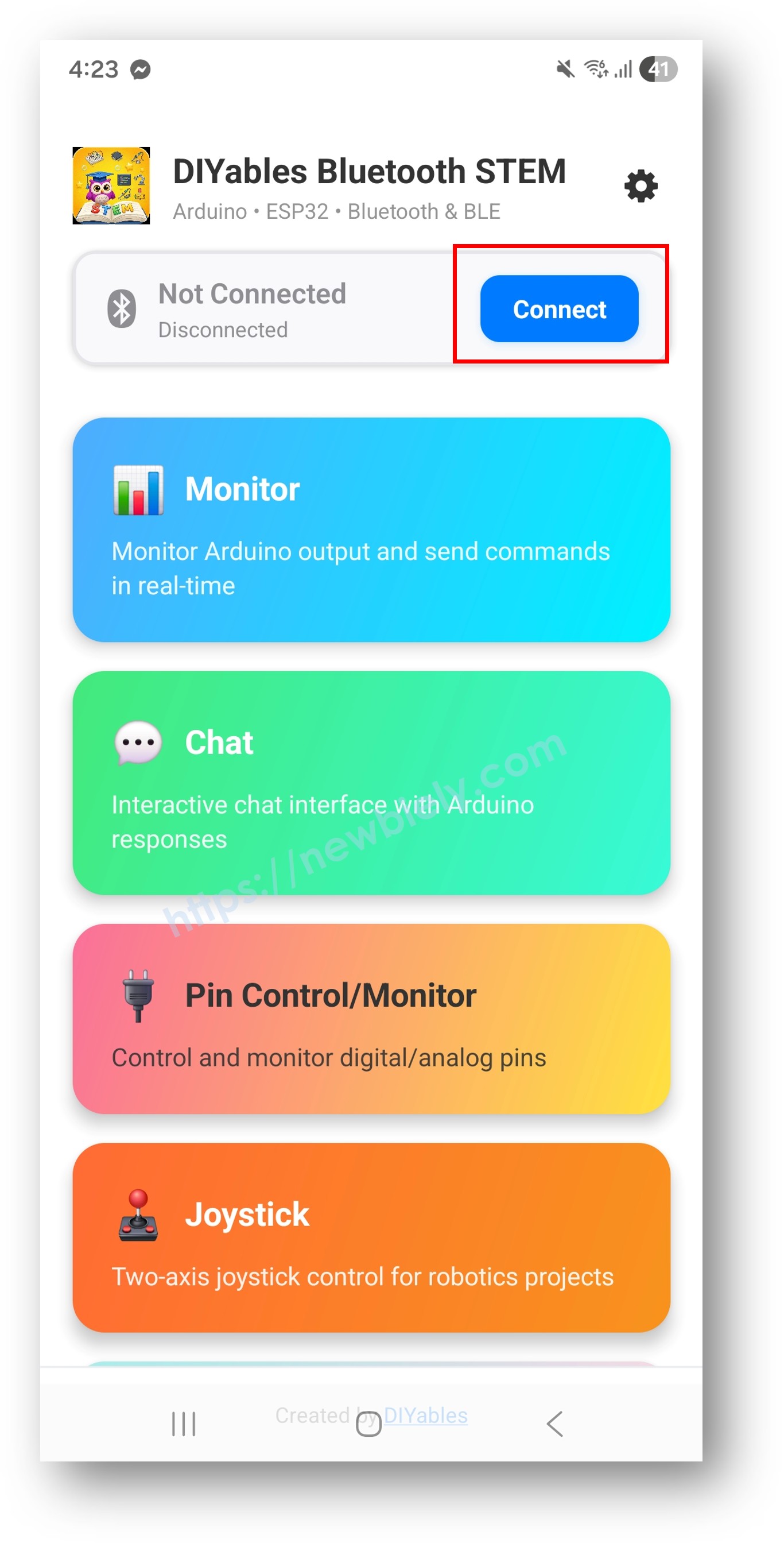
- 스캔 결과에서 "Arduino_Joystick"을 탭하세요.
- 연결 후 홈 화면으로 돌아가 조이스틱 앱을 여세요.
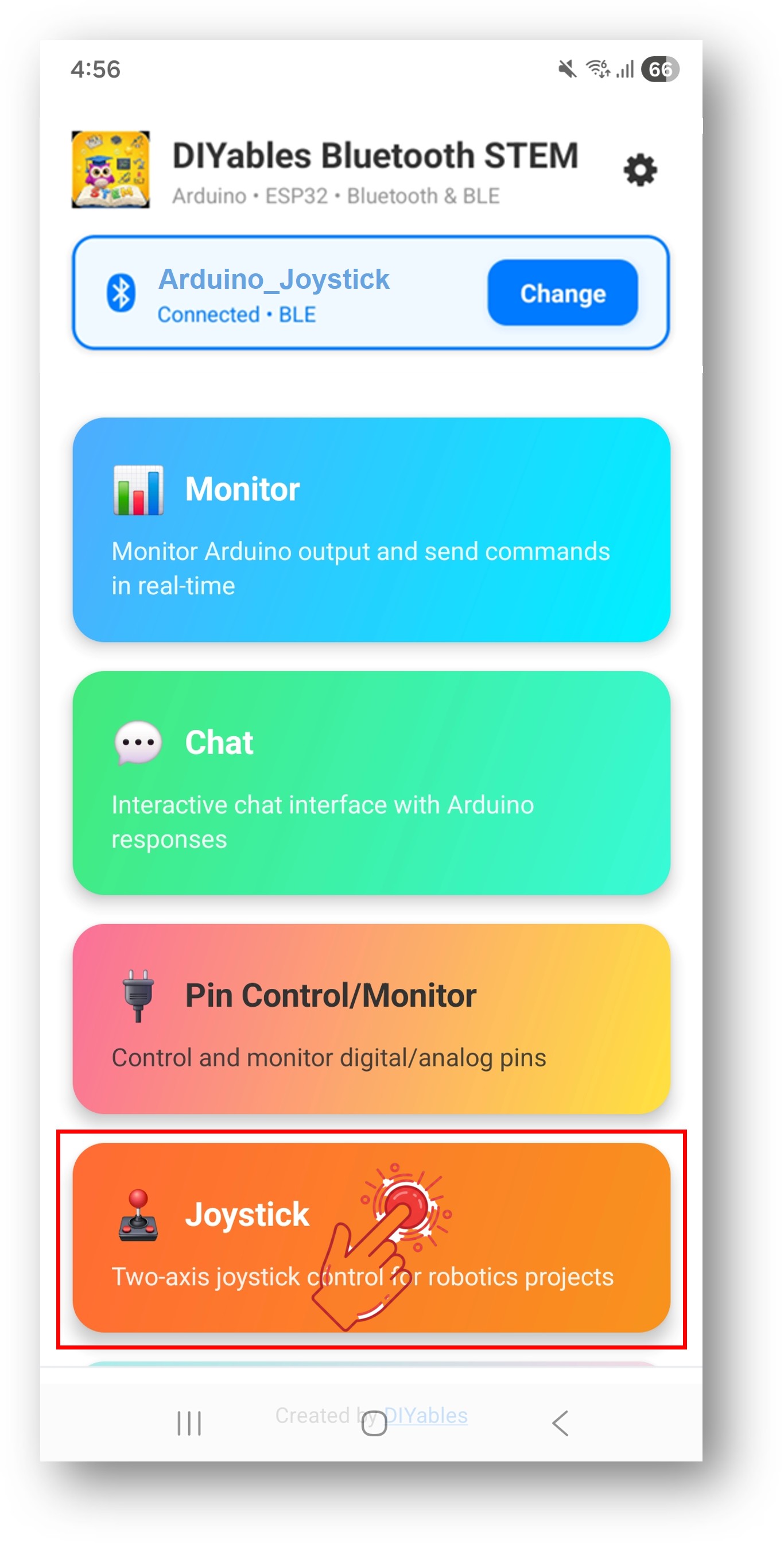
홈 화면의 설정 아이콘을 탭하여 앱을 표시하거나 숨길 수 있습니다. 자세한 내용은 DIYables 블루투스 앱 사용 설명서를 참조하세요.
- 조이스틱을 원하는 방향으로 드래그하세요.
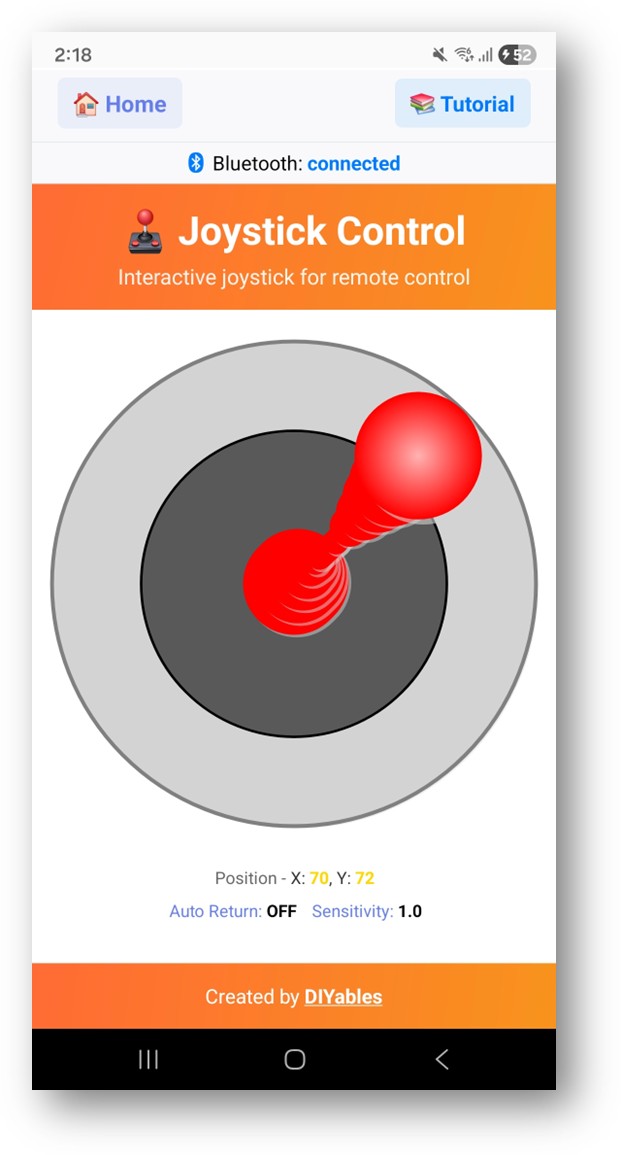
Arduino IDE의 시리얼 모니터를 다시 확인하면 다음과 같이 표시됩니다:
8
Serial.println("Hello World!");
Message (Enter to send message to 'Arduino Nano ESP32' on 'COM15')
New Line
9600 baud
Bluetooth connected!
Joystick - X: 50, Y: 0
Joystick - X: 100, Y: 50
Joystick - X: 0, Y: -75
Joystick - X: 0, Y: 0
창의적인 커스터마이징 - 프로젝트에 코드 적용하기
조이스틱 값 처리
bluetoothJoystick.onJoystickValue([](int x, int y) {
currentJoystickX = x;
currentJoystickY = y;
Serial.print("Joystick - X: ");
Serial.print(x);
Serial.print(", Y: ");
Serial.println(y);
// TODO: Add your control logic here
});
조이스틱 설정 구성
// Constructor: DIYables_BluetoothJoystick(autoReturn, sensitivity)
DIYables_BluetoothJoystick bluetoothJoystick(false, 5);
// Change settings at runtime
bluetoothJoystick.setAutoReturn(true); // Auto-center when released
bluetoothJoystick.setSensitivity(10.0); // Only update when moved >10%
설정 요청 처리
bluetoothJoystick.onGetConfig([]() {
bluetoothJoystick.send(currentJoystickX, currentJoystickY);
});
프로그래밍 예제
차동 구동 로봇
const int LEFT_MOTOR_PIN = 9;
const int RIGHT_MOTOR_PIN = 10;
const int LEFT_DIR_PIN = 7;
const int RIGHT_DIR_PIN = 8;
bluetoothJoystick.onJoystickValue([](int x, int y) {
// Differential drive: mix X and Y
int leftSpeed = constrain(y + x, -100, 100);
int rightSpeed = constrain(y - x, -100, 100);
// Set direction
digitalWrite(LEFT_DIR_PIN, leftSpeed >= 0 ? HIGH : LOW);
digitalWrite(RIGHT_DIR_PIN, rightSpeed >= 0 ? HIGH : LOW);
// Set speed (PWM)
analogWrite(LEFT_MOTOR_PIN, map(abs(leftSpeed), 0, 100, 0, 255));
analogWrite(RIGHT_MOTOR_PIN, map(abs(rightSpeed), 0, 100, 0, 255));
});
팬-틸트 서보
#include <Servo.h>
Servo panServo, tiltServo;
void setup() {
panServo.attach(9);
tiltServo.attach(10);
bluetoothJoystick.onJoystickValue([](int x, int y) {
int panAngle = map(x, -100, 100, 0, 180);
int tiltAngle = map(y, -100, 100, 0, 180);
panServo.write(panAngle);
tiltServo.write(tiltAngle);
});
}
데드존이 있는 방향 제어
const int DEAD_ZONE = 15;
bluetoothJoystick.onJoystickValue([](int x, int y) {
if (abs(x) < DEAD_ZONE && abs(y) < DEAD_ZONE) {
Serial.println("STOPPED");
return;
}
if (abs(y) > abs(x)) {
Serial.println(y > 0 ? "FORWARD" : "BACKWARD");
} else {
Serial.println(x > 0 ? "RIGHT" : "LEFT");
}
});
문제 해결
일반적인 문제
1. 앱에서 기기가 보이지 않음
- 보드에 전원이 공급되고 스케치가 업로드되었는지 확인하세요
- 스마트폰에서 블루투스가 활성화되어 있는지 확인하세요
- Android 11 이하에서는 위치 서비스도 활성화하세요
2. 조이스틱이 반응하지 않음
- 앱의 블루투스 연결 상태를 확인하세요
- onJoystickValue 콜백이 올바르게 등록되었는지 확인하세요
- 연결 메시지를 시리얼 모니터에서 확인하세요
3. 동작이 느리게 느껴짐
- 더 자주 업데이트하려면 감도 값을 낮추세요
- bluetoothServer.loop()가 긴 지연 없이 실행되는지 확인하세요
4. 값이 갑자기 변하거나 일관성이 없음
- 작은 움직임에 데드존 필터를 추가하세요
- 감도 설정을 확인하세요
5. 연결이 자주 끊김
- 아두이노와의 거리를 줄이세요
- 안정적인 USB 전원 공급을 확보하세요
6. 업로드 실패 또는 보드 인식 불가
- 보드 매니저를 통해 최신 Arduino Nano ESP32 보드 패키지를 설치하세요
- 다른 USB 케이블이나 포트를 시도해 보세요
프로젝트 아이디어
- 무선 로봇 컨트롤러
- 카메라 팬-틸트 마운트
- 로봇 팔 2축 제어
- LED 매트릭스 위치 컨트롤러
- 아두이노 게임용 게임 컨트롤러
다음 단계
블루투스 조이스틱 예제를 완료한 후 다음을 살펴보세요:
- 블루투스 슬라이더 — 선형 값 제어
- 블루투스 로테이터 — 각도 제어
- 블루투스 모니터 — 상태 피드백
- 블루투스 다중 앱 — 조이스틱과 다른 제어 결합


