아두이노 나노 ESP32 블루투스 채팅 예제 BLE를 통한 양방향 메시징 튜토리얼
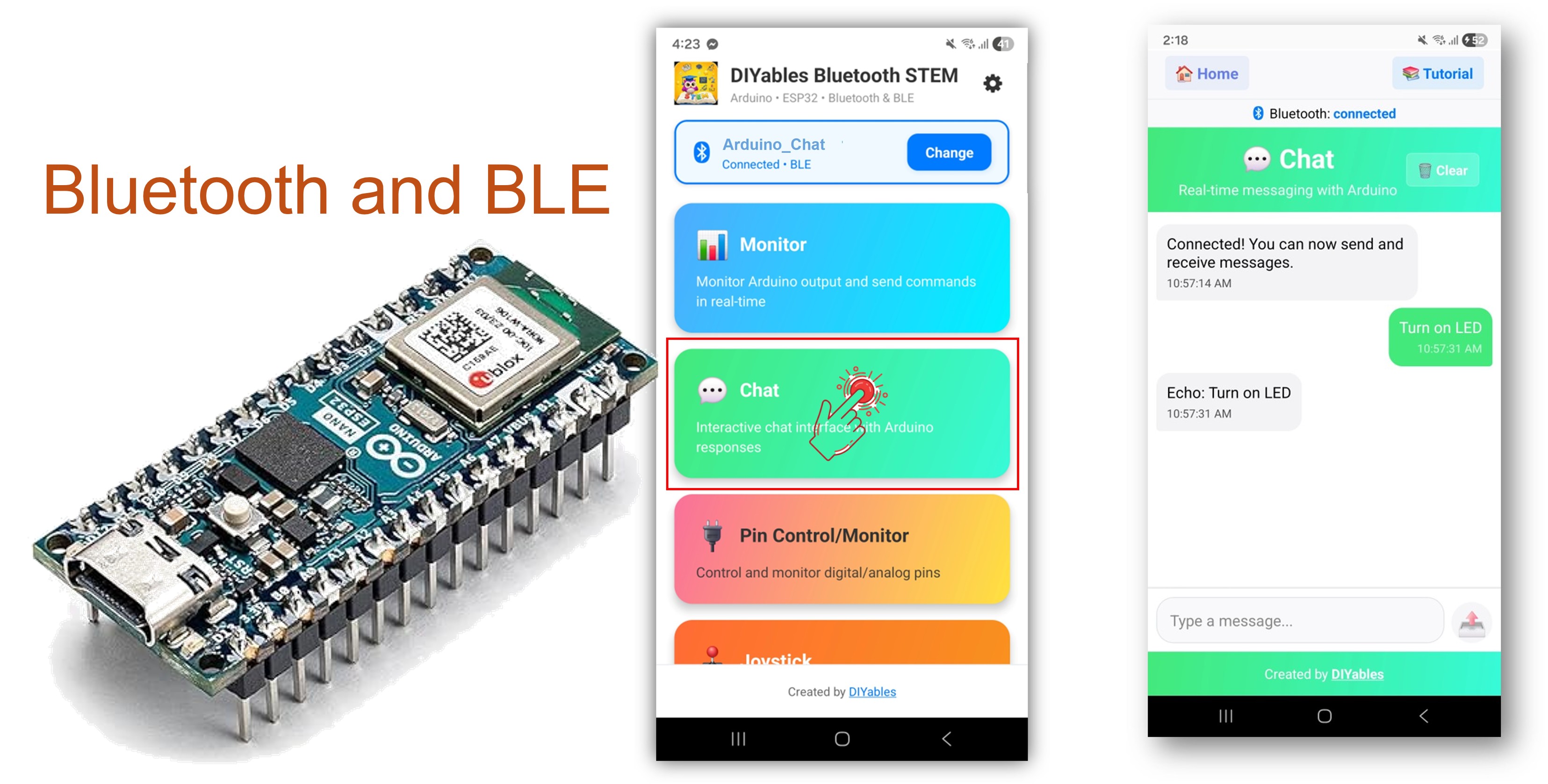
이 예제는 DIYables Bluetooth STEM 앱을 통한 BLE(블루투스 로우 에너지) 를 사용하여 Arduino Nano ESP32에 양방향 텍스트 메시징 인터페이스를 구현합니다. 실시간으로 아두이노와 스마트폰 간에 텍스트 메시지를 주고받으세요. 명령줄 인터페이스, 텍스트를 통한 원격 제어, 시리얼 브리지, 대화형 디버깅에 적합합니다.
참고: Arduino Nano ESP32는 BLE만 지원하며 클래식 블루투스는 지원하지 않습니다. DIYables 블루투스 앱은 BLE를 통해 Android와 iOS 모두 에서 작동합니다.
양방향 메시징 : 실시간으로 텍스트 메시지 송수신
명령 처리 : 앱에서 수신한 텍스트 명령 처리
시리얼 브리지 : 시리얼 모니터와 블루투스 간 메시지 전달
커스텀 응답 : 에코 또는 처리된 데이터로 자동 응답
Android 및 iOS 지원 : BLE는 두 플랫폼 모두 호환
페어링 불필요 : BLE는 수동 페어링 없이 연결
저전력 : BLE는 클래식 블루투스보다 적은 전력 소비
1 × 아두이노 나노 ESP32 쿠팡 | 아마존 1 × USB 케이블 타입-A to 타입-C (USB-A PC용) 쿠팡 | 아마존 1 × USB 케이블 타입-C to 타입-C (USB-C PC용) 아마존 1 × (추천 ) 아두이노 나노용 스크루 터미널 확장 보드 쿠팡 | 아마존 1 × (추천 ) 아두이노 나노용 브레이크아웃 확장 보드 쿠팡 | 아마존 1 × (추천 ) 아두이노 나노 ESP32용 전원 분배기 쿠팡 | 아마존
공개: 이 포스팅 에 제공된 일부 링크는 아마존 제휴 링크입니다. 이 포스팅은 쿠팡 파트너스 활동의 일환으로, 이에 따른 일정액의 수수료를 제공받습니다.
USB로 Arduino Nano ESP32를 컴퓨터에 연결하세요.
Arduino IDE를 열어주세요.
Arduino Nano ESP32 보드와 올바른 COM 포트를 선택하세요.
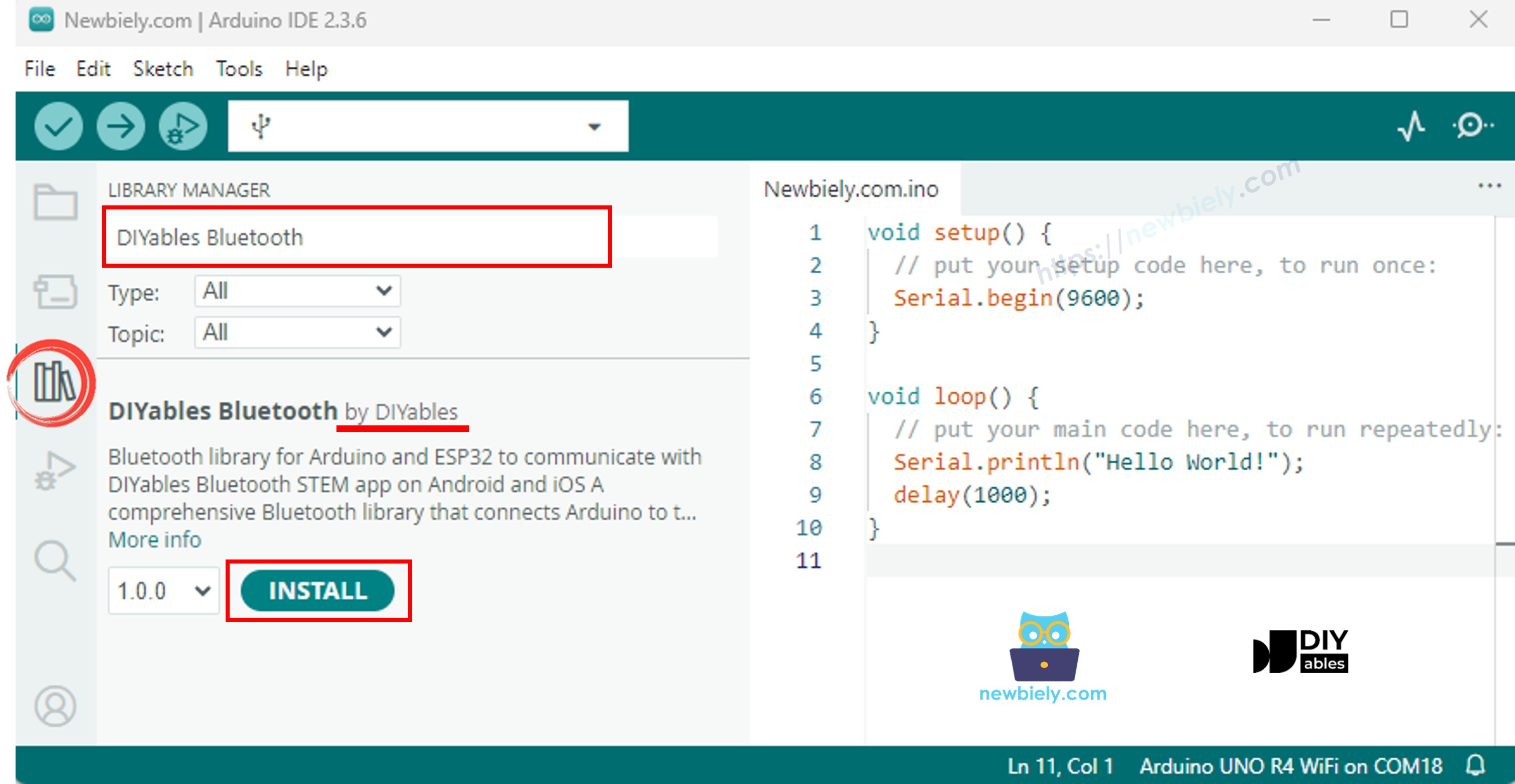
왼쪽 사이드바에서 라이브러리 아이콘을 클릭하세요.
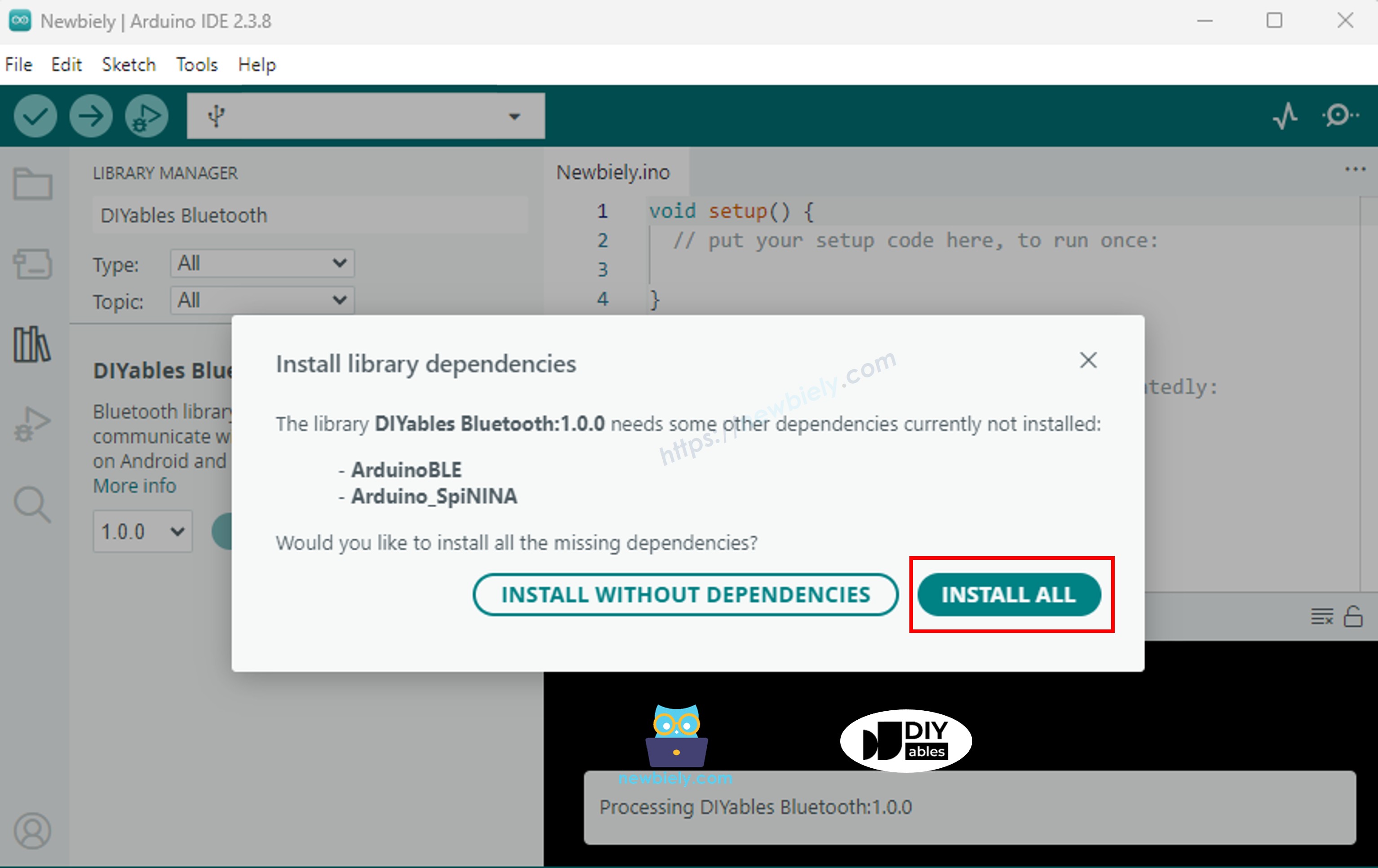
"DIYables Bluetooth" 를 검색하고 DIYables의 DIYables Bluetooth 라이브러리를 선택하세요.
설치 를 클릭하세요.
#include <DIYables_BluetoothServer .h>
#include <DIYables_BluetoothChat .h>
#include <platforms/DIYables_Esp32BLE.h>
const char* DEVICE_NAME = "ESP32BLE_Chat" ;const char* SERVICE_UUID = "19B10000-E8F2-537E-4F6C-D104768A1214" ;const char* TX_UUID = "19B10001-E8F2-537E-4F6C-D104768A1214" ;const char* RX_UUID = "19B10002-E8F2-537E-4F6C-D104768A1214" ;DIYables_Esp32BLE bluetooth(DEVICE_NAME, SERVICE_UUID, TX_UUID, RX_UUID);DIYables_BluetoothServer bluetoothServer(bluetooth);DIYables_BluetoothChat bluetoothChat;unsigned long lastMessageTime = 0;const unsigned long MESSAGE_INTERVAL = 10000; int messageCount = 0;void setup () { Serial .begin (115200);
delay (1000);
Serial .println ("DIYables Bluetooth - ESP32 BLE Chat Example" );
bluetoothServer.begin ();
bluetoothServer.addApp (&bluetoothChat);
bluetoothServer.setOnConnected ([]() {
Serial .println ("Bluetooth connected!" );
bluetoothChat.send ("Hello! ESP32 BLE is ready to chat." );
});
bluetoothServer.setOnDisconnected ([]() {
Serial .println ("Bluetooth disconnected!" );
messageCount = 0;
});
bluetoothChat.onChatMessage ([](const String& message) {
Serial .print ("Received: " );
Serial .println (message);
String response = "Echo: " ;
response += message;
bluetoothChat.send (response);
if (message.equalsIgnoreCase ("ping" )) {
bluetoothChat.send ("pong!" );
} else if (message.equalsIgnoreCase ("status" )) {
bluetoothChat.send ("ESP32 BLE is running normally" );
} else if (message.equalsIgnoreCase ("time" )) {
String timeMsg = "Uptime: " ;
timeMsg += String (millis () / 1000);
timeMsg += " seconds" ;
bluetoothChat.send (timeMsg);
} else if (message.equalsIgnoreCase ("heap" )) {
String heapMsg = "Free heap: " ;
heapMsg += String (ESP.getFreeHeap());
heapMsg += " bytes" ;
bluetoothChat.send (heapMsg);
}
});
Serial .println ("Waiting for Bluetooth connection..." );
Serial.println("Type 'ping' , 'status' , 'time' , or 'heap' in the app to test commands");
}
void loop() {
bluetoothServer.loop();
if (bluetooth.isConnected() && millis() - lastMessageTime >= MESSAGE_INTERVAL) {
lastMessageTime = millis();
messageCount++;
String statusMsg = " Status update #";
statusMsg += String(messageCount);
statusMsg += " - All systems operational";
bluetoothChat.send(statusMsg);
Serial.print(" Sent: ");
Serial.println(statusMsg);
}
if (Serial.available()) {
String serialMsg = Serial.readStringUntil('\n' );
serialMsg.trim ();
if (serialMsg.length () > 0 && bluetooth.isConnected ()) {
bluetoothChat.send (serialMsg);
Serial .print ("Sent from Serial: " );
Serial .println (serialMsg);
}
}
delay (10);
}
∞
Newbiely | Arduino IDE 2.3.8
8
Serial .println ("Hello World!" );
Message (Enter to send message to 'Arduino Nano ESP32' on 'COM15')
DIYables Bluetooth - Chat Example
Waiting for Bluetooth connection...
Ln 11, Col 1
Arduino Nano ESP32 on COM15
2
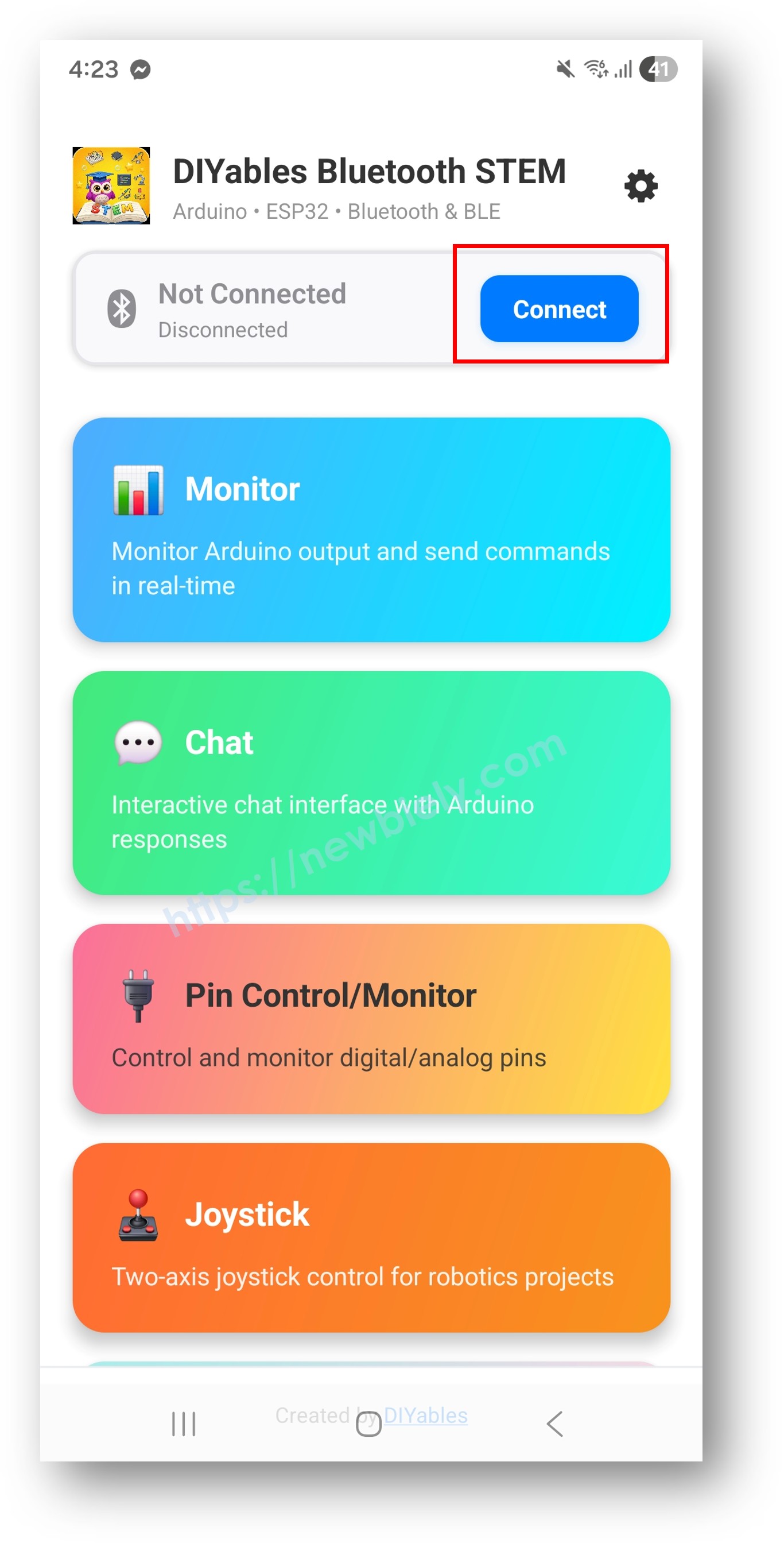
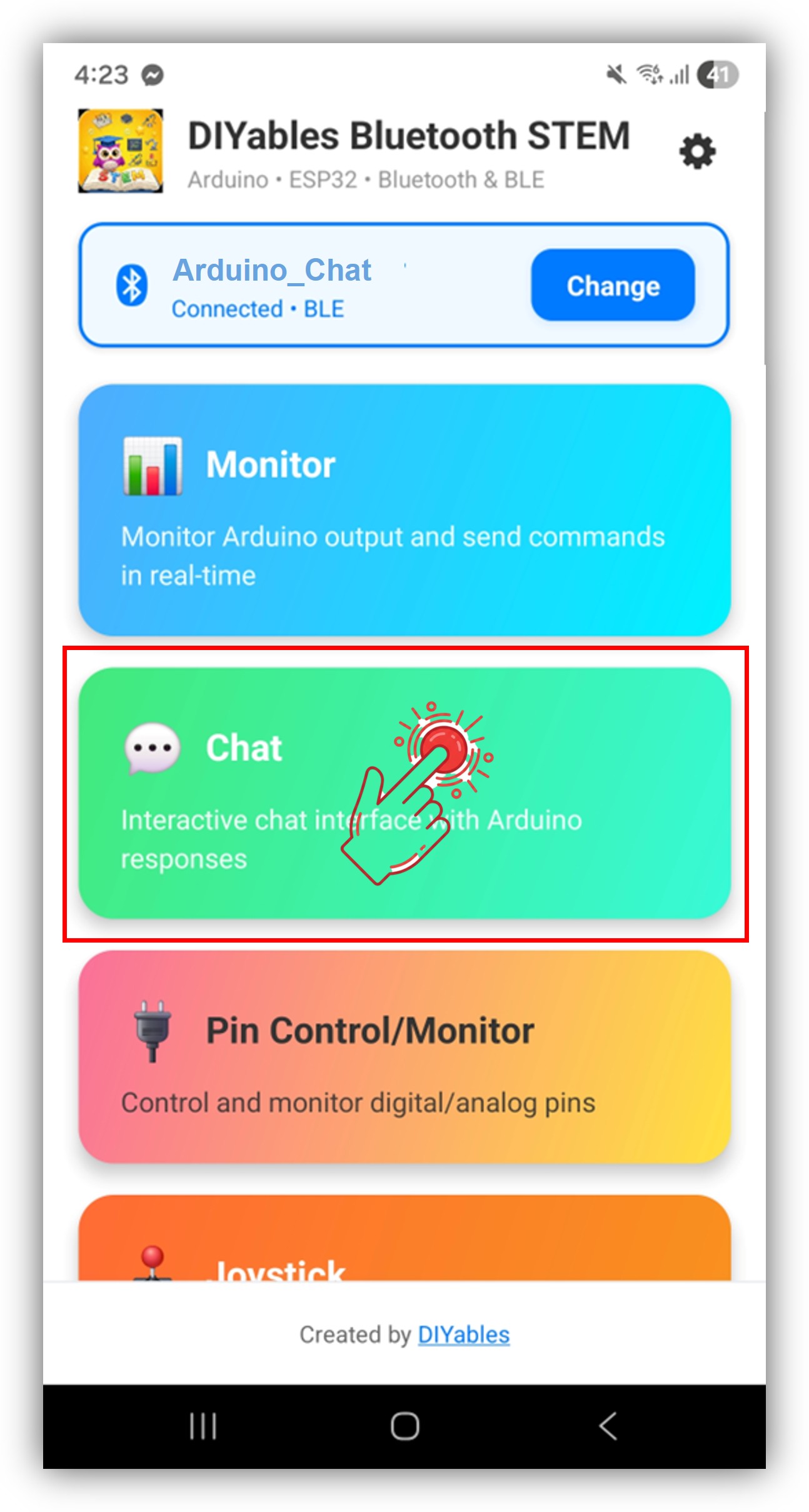
참고: DIYables 블루투스 앱은 BLE를 통해 Android와 iOS 모두 에서 작동합니다. 수동 페어링이 필요 없습니다.
홈 화면의 설정 아이콘을 탭하여 앱을 표시하거나 숨길 수 있습니다. 자세한 내용은 DIYables 블루투스 앱 사용 설명서 를 참조하세요.
Arduino IDE의 시리얼 모니터를 다시 확인하면 다음과 같이 표시됩니다:
∞
Newbiely | Arduino IDE 2.3.8
8
Serial .println ("Hello World!" );
Message (Enter to send message to 'Arduino Nano ESP32' on 'COM15')
Bluetooth connected!
Received: Hello
Ln 11, Col 1
Arduino Nano ESP32 on COM15
2
onChatMessage ()
bluetoothChat.onChatMessage ([](const String& message) {
Serial .print ("Received: " );
Serial .println (message);
String response = "Echo: " ;
response += message;
bluetoothChat.send (response);
if (message.equalsIgnoreCase ("ping" )) {
bluetoothChat.send ("pong!" );
} else if (message.equalsIgnoreCase ("status" )) {
bluetoothChat.send ("Arduino is running normally" );
} else if (message.equalsIgnoreCase ("time" )) {
String timeMsg = "Uptime: " + String (millis () / 1000) + " seconds" ;
bluetoothChat.send (timeMsg);
} else {
bluetoothChat.send ("Unknown command: " + message);
}
});
각 명령에 대해 추가 else if LED_ON LED_OFF READ 를 사용하세요.
bluetoothChat.send ("Hello from Arduino!" );
float temp = readTemperature ();bluetoothChat.send ("Temperature: " + String (temp, 1) + " °C" );
시리얼 모니터와 블루투스 간에 메시지를 전달합니다:
if (Serial .available ()) { String serialMsg = Serial .readStringUntil ('\n' );
serialMsg.trim ();
if (serialMsg.length () > 0 && bluetooth.isConnected ()) {
bluetoothChat.send (serialMsg);
Serial .print ("Sent from Serial: " );
Serial .println (serialMsg);
}
}
bluetoothServer.setOnConnected ([]() {
Serial .println ("Bluetooth connected!" );
bluetoothChat.send ("Hello! Arduino is ready to chat." );
});
bluetoothServer.setOnDisconnected ([]() {
Serial .println ("Bluetooth disconnected!" );
});
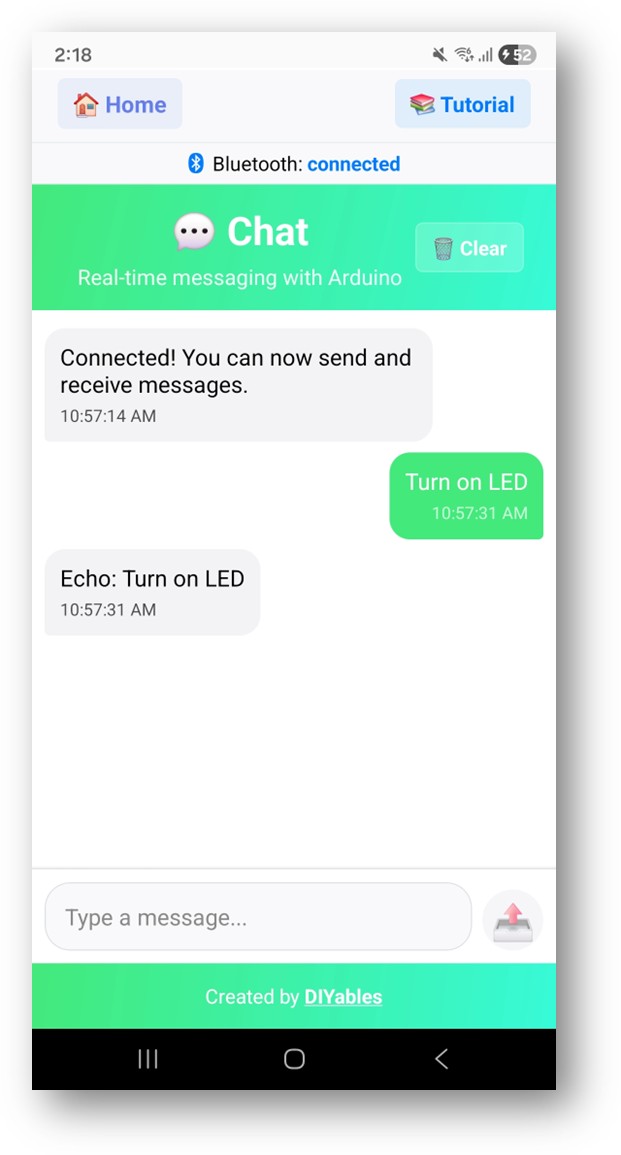
DIYables 블루투스 앱의 채팅 앱은 다음을 제공합니다:
앱에서 메시지 입력 → 아두이노가 onChatMessage ()
아두이노가 메시지를 처리하고 필요 시 bluetoothChat.send () 로 응답
응답이 앱 채팅 창에 표시됨
const int RELAY_PIN = 7;bluetoothChat.onChatMessage ([](const String & message) {
String cmd = message;
cmd.toUpperCase ();
if (cmd == "ON" ) {
digitalWrite (RELAY_PIN, HIGH );
bluetoothChat.send ("Relay turned ON" );
} else if (cmd == "OFF" ) {
digitalWrite (RELAY_PIN, LOW );
bluetoothChat.send ("Relay turned OFF" );
} else if (cmd == "STATUS" ) {
int state = digitalRead (RELAY_PIN);
bluetoothChat.send ("Relay is " + String (state ? "ON" : "OFF" ));
} else {
bluetoothChat.send ("Commands: ON, OFF, STATUS" );
}
});
bluetoothChat.onChatMessage ([](const String & message) {
String cmd = message;
cmd.toUpperCase ();
if (cmd == "TEMP" ) {
float temp = readTemperature ();
bluetoothChat.send ("Temperature: " + String (temp, 1) + " °C" );
} else if (cmd == "LIGHT" ) {
int light = analogRead (A0);
int percent = map (light, 0, 1023, 0, 100);
bluetoothChat.send ("Light level: " + String (percent) + "%" );
} else if (cmd == "ALL" ) {
bluetoothChat.send ("=== Sensor Report ===" );
bluetoothChat.send ("Temp: " + String (readTemperature (), 1) + " °C" );
bluetoothChat.send ("Light: " + String (map (analogRead (A0), 0, 1023, 0, 100)) + "%" );
bluetoothChat.send ("Uptime: " + String (millis () / 1000) + "s" );
} else {
bluetoothChat.send ("Commands: TEMP, LIGHT, ALL" );
}
});
unsigned long lastMessageTime = 0;const unsigned long MESSAGE_INTERVAL = 10000; int messageCount = 0;void loop () { bluetoothServer.loop ();
if (bluetooth.isConnected () && millis () - lastMessageTime >= MESSAGE_INTERVAL) {
lastMessageTime = millis ();
messageCount++;
String statusMsg = "Status #" + String (messageCount) + " - All systems OK" ;
bluetoothChat.send (statusMsg);
}
delay (10);
}
bluetoothChat.onChatMessage ([](const String& message) {
if (message.startsWith ("SET PIN " )) {
String rest = message.substring (8);
int spaceIdx = rest.indexOf (' ' );
if (spaceIdx > 0) {
int pin = rest.substring (0, spaceIdx).toInt ();
String state = rest.substring (spaceIdx + 1);
state.toUpperCase ();
pinMode (pin, OUTPUT );
if (state == "HIGH" ) {
digitalWrite (pin, HIGH );
bluetoothChat.send ("Pin " + String (pin) + " set HIGH" );
} else if (state == "LOW" ) {
digitalWrite (pin, LOW );
bluetoothChat.send ("Pin " + String (pin) + " set LOW" );
}
}
}
});
bluetoothChat.onChatMessage ([](const String & message) {
unsigned long seconds = millis () / 1000;
String timestamp = "[" + String (seconds / 3600) + ":" +
String ((seconds % 3600) / 60) + ":" +
String (seconds % 60) + "] " ;
Serial .println (timestamp + "RX: " + message);
bluetoothChat.send (timestamp + "Received: " + message);
});
1. 앱에서 기기가 보이지 않음
보드에 전원이 공급되고 스케치가 업로드되었는지 확인하세요
스마트폰에서 블루투스가 활성화되어 있는지 확인하세요
Android 11 이하에서는 위치 서비스도 활성화하세요
스마트폰의 블루투스를 재시작해 보세요
2. 아두이노가 메시지를 수신하지 못함
3. 앱에 아두이노 응답이 표시되지 않음
bluetoothChat.send () 가 호출되고 있는지 확인하세요
메인 루프에 bluetoothServer.loop () 가 있는지 확인하세요
bluetooth.isConnected () 로 연결 상태를 확인하세요
4. 시리얼 모니터에 깨진 텍스트가 표시됨
5. 연결이 자주 끊김
아두이노와의 거리를 줄이세요
다른 BLE 기기의 간섭을 확인하세요
안정적인 USB 전원 공급을 확보하세요
6. 업로드 실패 또는 보드 인식 불가
홈 자동화를 위한 텍스트 명령 인터페이스
무선 디버깅을 위한 시리얼-블루투스 브리지
원격 센서 쿼리 시스템
대화형 퀴즈 또는 게임
음성-텍스트 릴레이 제어
다중 기기 명령 라우터
채팅 명령을 통한 설정 관리자
펌웨어 버전 보고기
타임스탬프가 있는 이벤트 로거
알람 알림 시스템
상태 보고서 생성기
진단 챗봇
채팅으로 명령을, 모니터로 연속 출력을 처리:
bluetoothChat.onChatMessage ([](const String& message) {
if (message == "START" ) {
monitoring = true ;
bluetoothChat.send ("Monitoring started" );
} else if (message == "STOP" ) {
monitoring = false ;
bluetoothChat.send ("Monitoring stopped" );
}
});
if (monitoring) { bluetoothMonitor.send ("Sensor: " + String (analogRead (A0)));
}
채팅 명령으로 테이블에 표시할 데이터를 제어:
bluetoothChat.onChatMessage ([](const String& message) {
if (message == "REFRESH" ) {
updateTableValues();
bluetoothChat.send ("Table refreshed" );
}
});
블루투스 채팅 예제를 완료한 후 다음을 살펴보세요:
블루투스 모니터 — 단방향 상태 메시지 스트리밍
블루투스 슬라이더 — 아날로그 값 제어
블루투스 테이블 — 구조화된 데이터 표시
블루투스 다중 앱 — 채팅과 다른 앱 위젯 결합
추가 도움이 필요하시면:
API 레퍼런스 문서를 확인하세요
아두이노 커뮤니티 포럼