
DIYables ESP32 WebApps 라이브러리를 사용한 아두이노 나노 ESP32 웹 온도계
개요
이 튜토리얼은 DIYables ESP32 WebApps 라이브러리의 DIYablesWebTemperaturePage 클래스를 다룹니다. 브라우저 페이지는 WebSocket을 통해 Arduino Nano ESP32에서 수신된 실시간 온도 값을 표시하는 수은 스타일 온도계를 렌더링합니다. 온도 범위, 단위, 눈금은 생성자에서 구성되어 연결 시 브라우저로 전송됩니다.
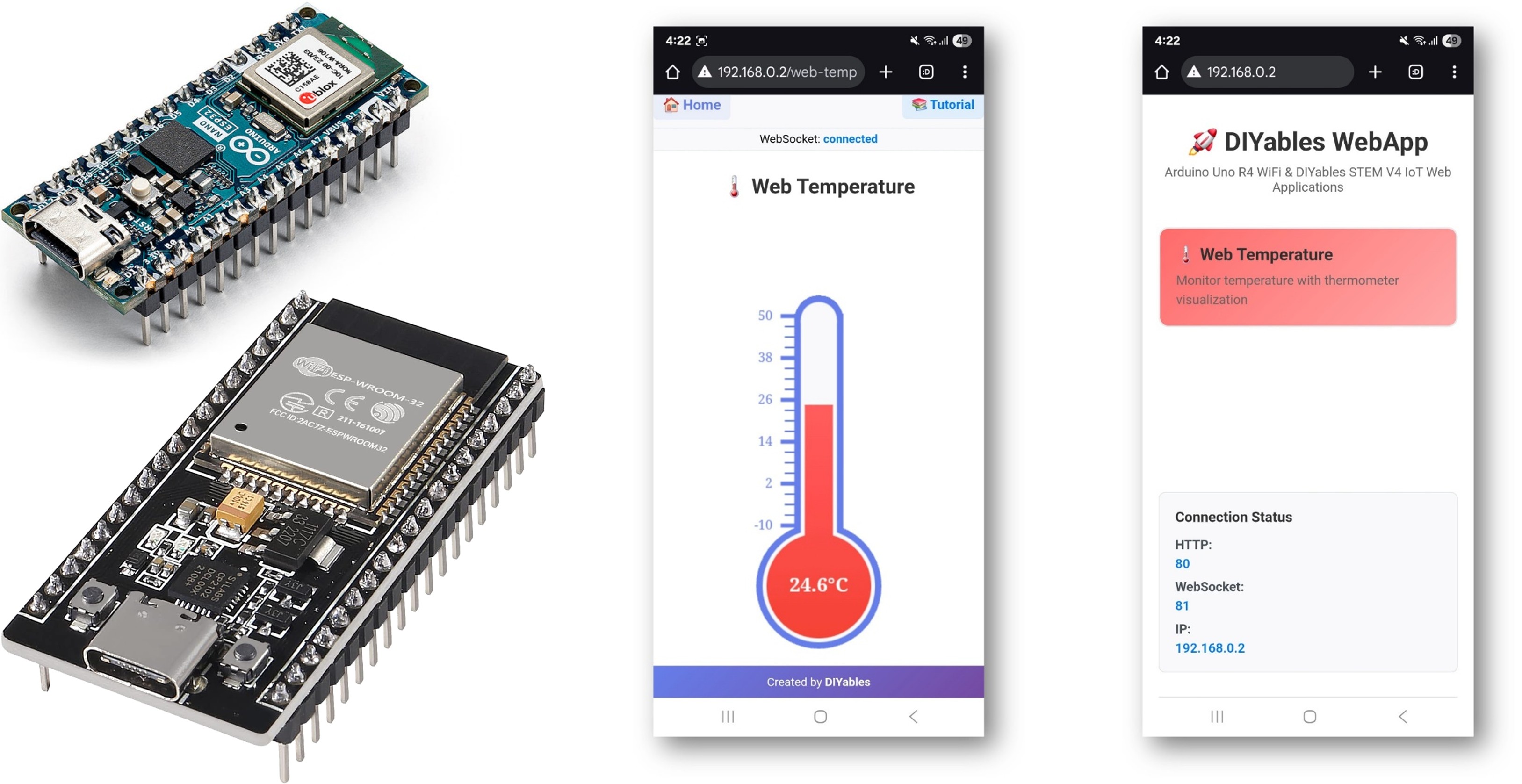
DS18B20 센서와 웹 온도 앱의 데모를 시청하세요:
이 튜토리얼에서 다루는 내용
- 생성자에서 온도계 범위 및 단위 구성하기
- 콜백을 통해 온도 읽음값 제공하기
- 실제 센서(DS18B20, DHT22)에서 업데이트된 값 보내기
- 브라우저에서 온도계 페이지 접근하기
준비물
| 1 | × | 아두이노 나노 ESP32 | 쿠팡 | 아마존 | |
| 1 | × | USB 케이블 타입-A to 타입-C (USB-A PC용) | 쿠팡 | 아마존 | |
| 1 | × | USB 케이블 타입-C to 타입-C (USB-C PC용) | 아마존 | |
| 1 | × | DS18B20 Temperature Sensor (optional) | 쿠팡 | 아마존 | |
| 1 | × | DHT22 Temperature/Humidity Sensor (optional) | 쿠팡 | 아마존 | |
| 1 | × | (또는) DHT22 Sensor | 아마존 | |
| 1 | × | 브레드보드 | 쿠팡 | 아마존 | |
| 1 | × | 점퍼케이블 | 쿠팡 | 아마존 | |
| 1 | × | (추천) 아두이노 나노용 스크루 터미널 확장 보드 | 쿠팡 | 아마존 | |
| 1 | × | (추천) 아두이노 나노용 브레이크아웃 확장 보드 | 쿠팡 | 아마존 | |
| 1 | × | (추천) 아두이노 나노 ESP32용 전원 분배기 | 쿠팡 | 아마존 |
공개: 이 포스팅 에 제공된 일부 링크는 아마존 제휴 링크입니다. 이 포스팅은 쿠팡 파트너스 활동의 일환으로, 이에 따른 일정액의 수수료를 제공받습니다.
단계
다음 지침을 단계별로 따르세요:
- Arduino Nano ESP32가 처음이라면, 아두이노 나노 ESP32 - 소프트웨어 설치 튜토리얼을 참조하세요.
- USB 케이블을 사용하여 Arduino Nano ESP32 보드를 컴퓨터에 연결합니다.
- 컴퓨터에서 Arduino IDE를 실행합니다.
- 적절한 보드(예: Arduino Nano ESP32)와 COM 포트를 선택합니다.
- Arduino IDE 왼쪽 바의 Libraries 아이콘으로 이동합니다.
- "DIYables ESP32 WebApps"를 검색하여 DIYables의 DIYables ESP32 WebApps 라이브러리를 찾습니다
- Install 버튼을 클릭하여 라이브러리를 설치합니다.
- Search for DIYables ESP32 WebApps created by DIYables and click the Install button.
1
void setup() {
- 다른 라이브러리 의존성 설치 요청을 받게 됩니다
- Install All 버튼을 클릭하여 모든 라이브러리 의존성을 설치합니다.
- Arduino IDE에서 File Examples DIYables ESP32 WebApps WebTemperature 예제로 이동하거나, 위의 코드를 복사하여 Arduino IDE 편집기에 붙여넣습니다
/*
* This example demonstrates how to create a web-base Serial.println("Starting Web Temperature Server...");
// Add web apps to server
server.addApp(&homePage);
server.addApp(&temperaturePage);
// Set 404 Not Found page (optional - for better user experience)
server.setNotFoundPage(DIYablesNotFoundPage());re display
* using the DIYables ESP32 WebApps Library with ESP32.
*
* The library automatically detects the ESP32 platform and
* includes the appropriate abstraction layer for seamless operation.
*
* The web page displays a thermometer visualization that shows temperature
* readings in real-time through WebSocket communication.
*
* Features:
* - Real-time temperature display with thermometer visualization
* - Configurable temperature range and units
* - Auto-connecting WebSocket for seamless communication
* - Mobile-responsive design with professional UI
* - Automatic platform detection and abstraction
* - Compatible with both WiFi and Ethernet connections
* Hardware: ESP32 Boards
*/
#include <DIYables_ESP32_Platform.h>
#include <DIYablesWebApps.h>
// WiFi credentials - UPDATE THESE WITH YOUR NETWORK
const char WIFI_SSID[] = "YOUR_WIFI_SSID";
const char WIFI_PASSWORD[] = "YOUR_WIFI_PASSWORD";
// Create web app instances
ESP32ServerFactory serverFactory;
DIYablesWebAppServer server(serverFactory, 80, 81); // HTTP port 80, WebSocket port 81
DIYablesHomePage homePage;
DIYablesWebTemperaturePage temperaturePage(-10.0, 50.0, "°C"); // Min: -10°C, Max: 50°C
// Temperature simulation variables
float currentTemp = 25.0; // Starting temperature
unsigned long lastUpdate = 0;
void setup() {
Serial.begin(9600);
Serial.println("Starting Web Temperature Server...");
// Add web apps to server
server.addApp(&homePage);
server.addApp(&temperaturePage);
// Set 404 Not Found page (optional - for better user experience)
server.setNotFoundPage(DIYablesNotFoundPage());
// Set up temperature callback for value requests
temperaturePage.onTemperatureValueRequested(onTemperatureValueRequested);
// Start the server
server.begin(WIFI_SSID, WIFI_PASSWORD);
}
void loop() {
// Handle web server and WebSocket communications
server.loop();
// Simulate temperature readings
simulateTemperature();
// Send temperature update every 2 seconds
if (millis() - lastUpdate >= 2000) {
temperaturePage.sendTemperature(currentTemp);
// Print temperature to Serial Monitor
Serial.println("Temperature: " + String(currentTemp, 1) + "°C");
lastUpdate = millis();
}
delay(10); // Small delay for stability
}
void simulateTemperature() {
// Simple temperature simulation - slowly increases and decreases
static bool increasing = true;
if (increasing) {
currentTemp += 0.1; // Increase temperature slowly
if (currentTemp >= 35.0) {
increasing = false; // Start decreasing when it reaches 35°C
}
} else {
currentTemp -= 0.1; // Decrease temperature slowly
if (currentTemp <= 15.0) {
increasing = true; // Start increasing when it reaches 15°C
}
}
}
/**
* Callback function called when web interface requests temperature value
* Send current temperature value to web interface
*/
void onTemperatureValueRequested() {
Serial.println("Temperature value requested from web interface");
// Send current temperature value (config is automatically sent by the library)
temperaturePage.sendTemperature(currentTemp);
}
/*
* Alternative setup for real temperature sensor (DS18B20 example):
*
* #include <OneWire.h>
* #include <DallasTemperature.h>
*
* #define ONE_WIRE_BUS 2
* OneWire oneWire(ONE_WIRE_BUS);
* DallasTemperature sensors(&oneWire);
*
* void setup() {
* // ... existing setup code ...
* sensors.begin();
* }
*
* float readTemperature() {
* sensors.requestTemperatures();
* return sensors.getTempCByIndex(0);
* }
*
* // In loop(), replace simulateTemperature() with:
* // currentTemp = readTemperature();
*/
- 스케치의 WiFi 자격 증명을 업데이트합니다:
const char WIFI_SSID[] = "YOUR_WIFI_NETWORK";
const char WIFI_PASSWORD[] = "YOUR_WIFI_PASSWORD";
- Arduino IDE의 Upload 버튼을 클릭하여 코드를 Arduino Nano ESP32에 업로드합니다
- 시리얼 모니터를 엽니다
- 시리얼 모니터 출력은 다음과 유사해야 합니다:
8
Serial.println("Hello World!");
Message (Enter to send message to 'Arduino Nano ESP32' on 'COM15')
New Line
9600 baud
Starting Web Temperature Server...
INFO: Added app /
INFO: Added app /web-temperature
DIYables WebApp Library
Platform: Arduino Nano ESP32
Network connected!
IP address: 192.168.0.2
HTTP server started on port 80
Configuring WebSocket server callbacks...
WebSocket server started on port 81
WebSocket URL: ws://192.168.0.2:81
WebSocket server started on port 81
==========================================
DIYables WebApp Ready!
==========================================
Web Interface: http://192.168.0.2
WebSocket: ws://192.168.0.2:81
Available Applications:
Home Page: http://192.168.0.2/
Web Temperature: http://192.168.0.2/web-temperature
==========================================
- 아무것도 표시되지 않으면 보드의 리셋 버튼을 누르세요.
- 시리얼 모니터의 IP 주소를 동일한 네트워크의 브라우저에 입력합니다.
- 예: http://192.168.0.2
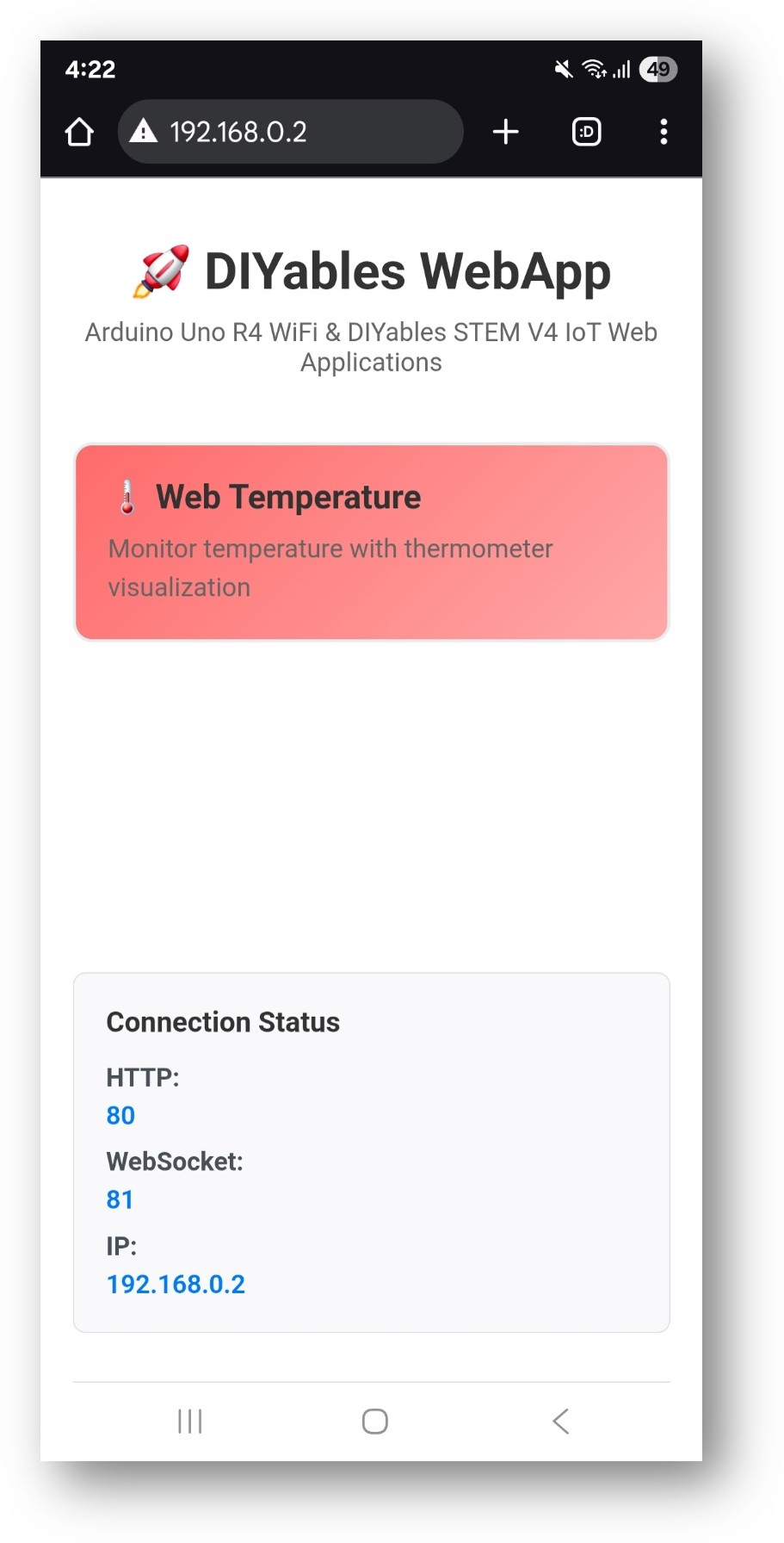
- 홈 페이지에 온도 애플리케이션 카드가 표시됩니다:
- 웹 온도 카드를 선택하여 온도계 페이지를 엽니다:
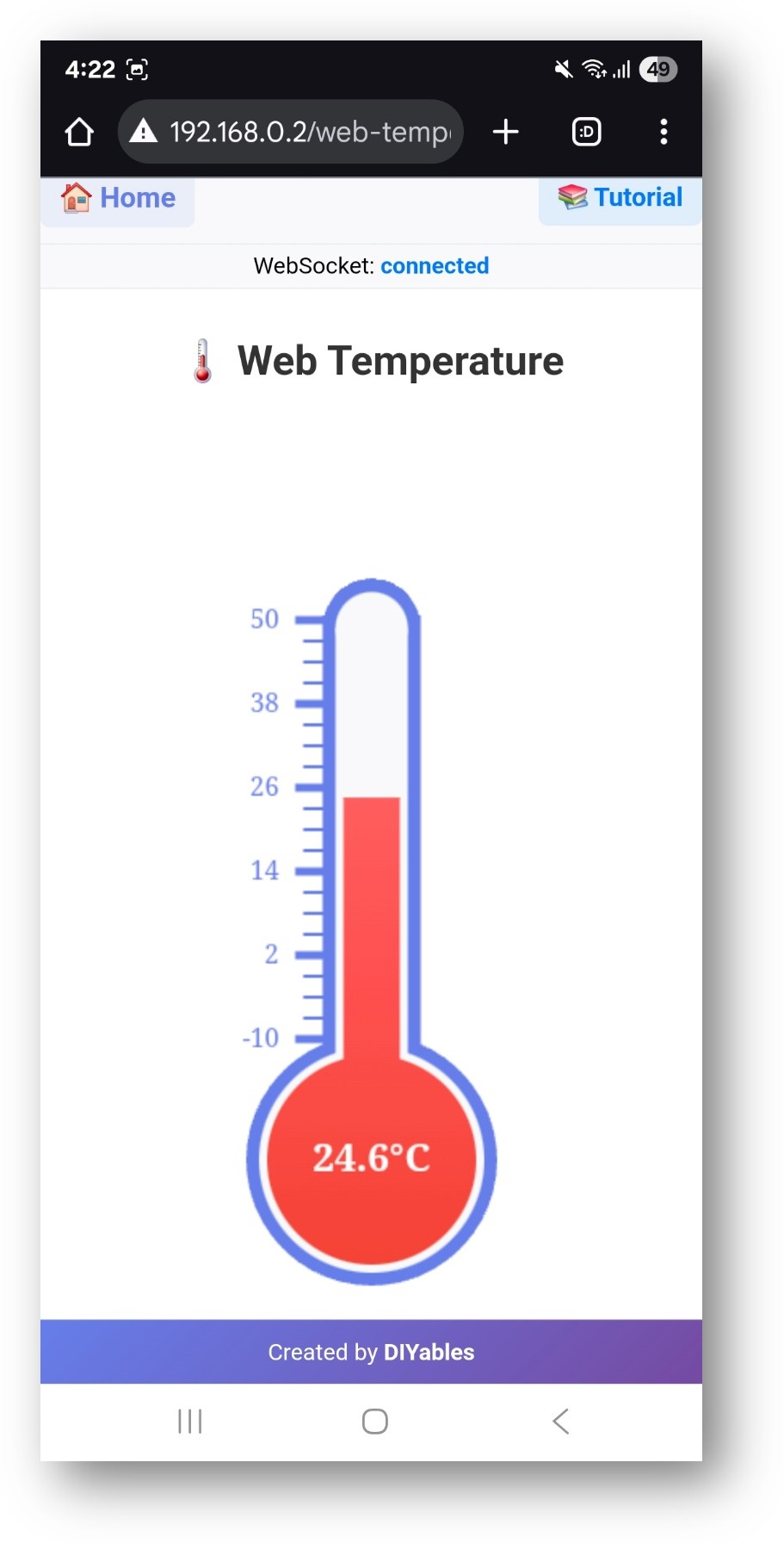
- 페이지는 http://192.168.0.2/web-temperature에서 직접 접근할 수도 있습니다.
온도계 구성
생성자
생성자에서 최소 온도, 최대 온도, 단위 문자열을 설정합니다. 이 값들은 연결 시 브라우저로 전송되어 온도계의 눈금을 결정합니다.
// Range: -10 to 50 degrees Celsius
DIYablesWebTemperaturePage temperaturePage(-10.0, 50.0, "°C");
일반적인 구성:
| 최소값 | 최대값 | 단위 |
|---|---|---|
| -10.0 | 50.0 | °C |
| 32.0 | 122.0 | °F |
| 263.15 | 323.15 | K |
콜백
브라우저가 업데이트를 요청할 때마다 읽음값을 제공하기 위해 onTemperatureValueRequested를 등록합니다:
temperaturePage.onTemperatureValueRequested(onTemperatureValueRequested);
값 보내기
콜백 함수 내부에서 센서를 읽고 sendTemperatureValue()를 호출합니다:
void onTemperatureValueRequested() {
float temp = readSensor(); // returns float in configured units
temperaturePage.sendTemperatureValue(temp);
}
실제 센서에서 읽기
DS18B20 (1-Wire)
#include <OneWire.h>
#include <DallasTemperature.h>
OneWire oneWire(4);
DallasTemperature sensors(&oneWire);
float readSensor() {
sensors.requestTemperatures();
return sensors.getTempCByIndex(0);
}
DHT22 (Single-Wire)
#include <DHT.h>
DHT dht(5, DHT22);
float readSensor() {
return dht.readTemperature(); // returns °C; use readTemperature(true) for °F
}
문제 해결
온도계에 값이 표시되지 않음
- webAppsServer.begin() 전에 onTemperatureValueRequested가 등록되었는지 확인합니다
- 콜백 내부에서 sendTemperatureValue()가 호출되는지 확인합니다
센서가 NaN을 반환함
- DS18B20의 경우: OneWire 데이터 핀과 풀업 저항(데이터와 3.3V 사이의 4.7kΩ)을 확인합니다
- DHT22의 경우: 데이터 라인에 10kΩ 풀업을 추가합니다. 최소 읽기 간격은 2초입니다
수은 수준이 예상 값과 일치하지 않음
- 보고된 값이 구성된 최소/최대 범위 내에 있는지 확인합니다
- 범위를 벗어난 값은 온도계 경계에서 클램핑됩니다
페이지에 접근할 수 없음
- 시리얼 모니터의 IP 주소를 확인합니다
- 보드와 브라우저 기기가 동일한 WiFi 네트워크에 있는지 확인합니다


