
DIYables ESP32 WebApps 라이브러리를 사용한 아두이노 나노 ESP32 웹 RTC
개요
이 튜토리얼은 DIYables ESP32 WebApps 라이브러리의 DIYablesWebRTCPage 클래스를 다룹니다. 브라우저 페이지는 Arduino Nano ESP32의 현재 RTC 시간을 브라우저의 로컬 시간과 함께 표시하고 두 시간의 편차를 계산합니다. 버튼 하나로 브라우저의 로컬 시간을 보드로 전송하여 RTC 모듈을 업데이트합니다.
보드에는 I2C로 연결된 DS3231 하드웨어 RTC 모듈이 필요합니다. Adafruit의 RTClib 라이브러리가 보드 측에서 시간 읽기/쓰기를 처리합니다.
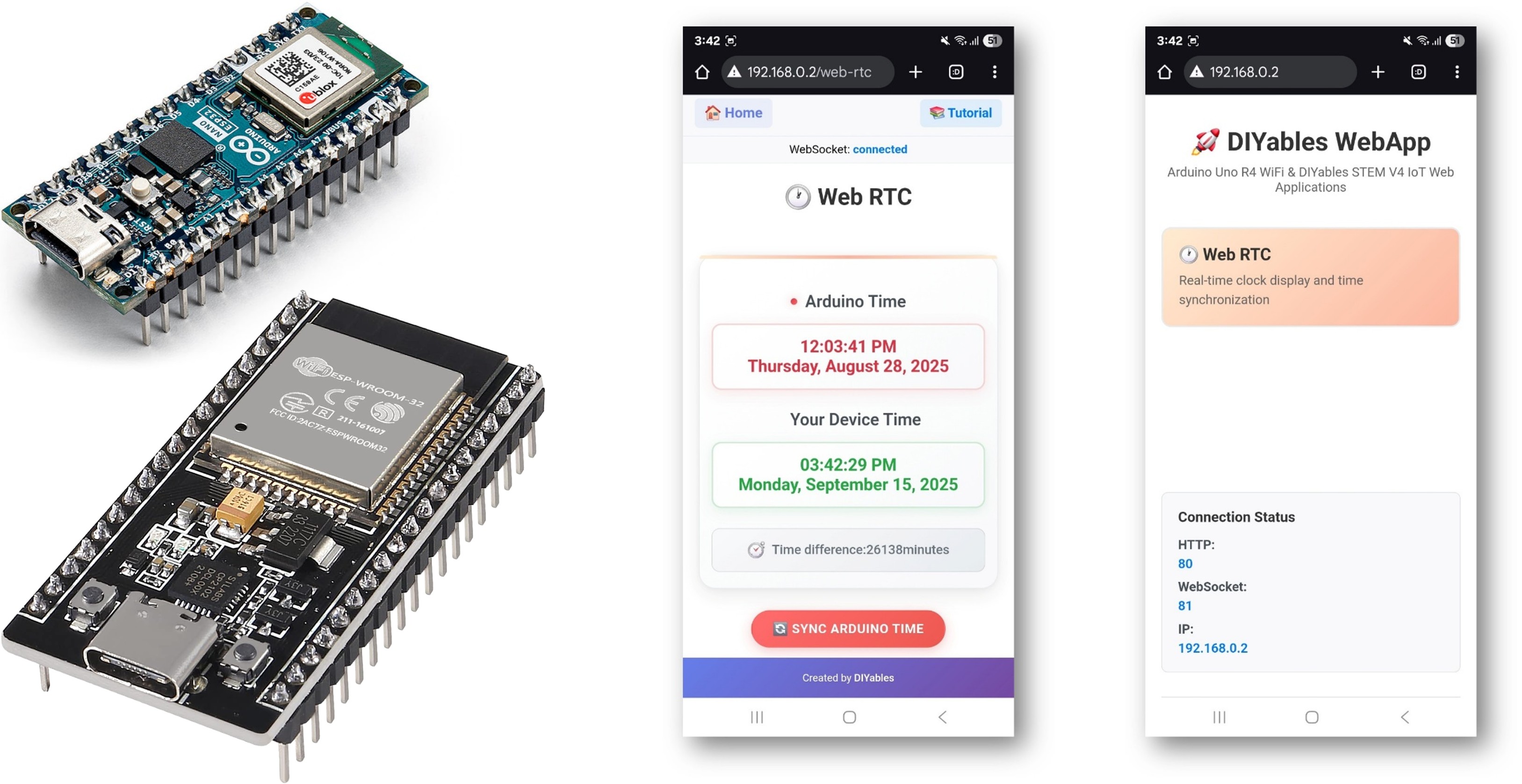
이 튜토리얼에서 다루는 내용
- DS3231 RTC 모듈을 Arduino Nano ESP32에 연결하기
- RTClib 의존성 설치하기
- 브라우저에서 RTC 시간 읽기 및 표시하기
- 버튼 한 번으로 브라우저에서 보드 RTC 동기화하기
준비물
| 1 | × | 아두이노 나노 ESP32 | 쿠팡 | 아마존 | |
| 1 | × | USB 케이블 타입-A to 타입-C (USB-A PC용) | 쿠팡 | 아마존 | |
| 1 | × | USB 케이블 타입-C to 타입-C (USB-C PC용) | 아마존 | |
| 1 | × | DS3231 실시간 클록(RTC) 모듈 | 아마존 | |
| 1 | × | CR2032 배터리 | 아마존 | |
| 1 | × | 점퍼케이블 | 쿠팡 | 아마존 | |
| 1 | × | 브레드보드 | 쿠팡 | 아마존 | |
| 1 | × | (추천) 아두이노 나노용 스크루 터미널 확장 보드 | 쿠팡 | 아마존 | |
| 1 | × | (추천) 아두이노 나노용 브레이크아웃 확장 보드 | 쿠팡 | 아마존 | |
| 1 | × | (추천) 아두이노 나노 ESP32용 전원 분배기 | 쿠팡 | 아마존 |
공개: 이 포스팅 에 제공된 일부 링크는 아마존 제휴 링크입니다. 이 포스팅은 쿠팡 파트너스 활동의 일환으로, 이에 따른 일정액의 수수료를 제공받습니다.
배선도
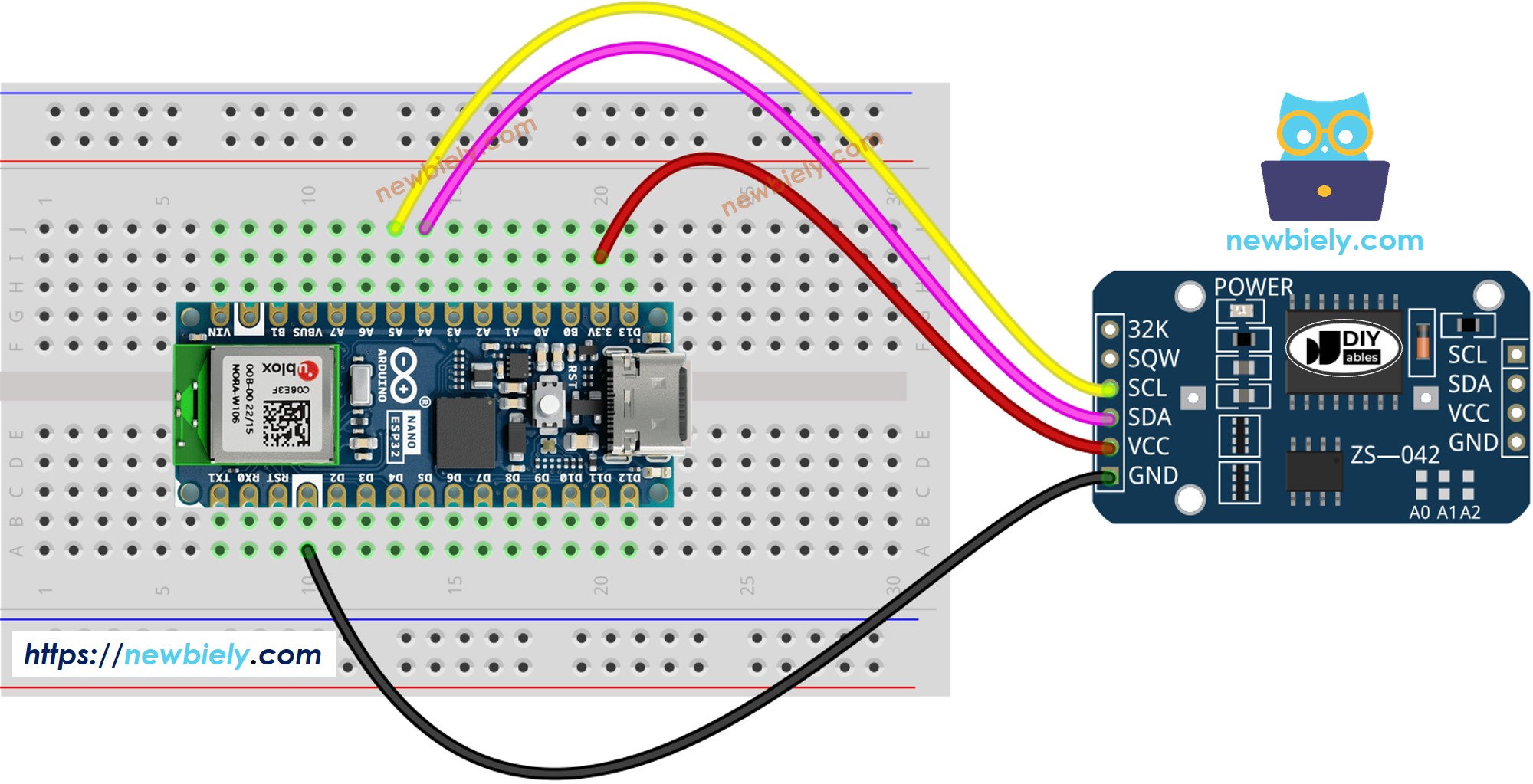
이 이미지는 Fritzing을 사용하여 만들어졌습니다. 이미지를 확대하려면 클릭하세요.
Arduino Nano ESP32 - DS3231 RTC 모듈
| DS1307 RTC Module | Arduino Nano ESP32 |
|---|---|
| Vin | 3.3V |
| GND | GND |
| SDA | GPIO21 |
| SCL | GPIO22 |
단계
다음 지침을 단계별로 따르세요:
- Arduino Nano ESP32가 처음이라면, 아두이노 나노 ESP32 - 소프트웨어 설치 튜토리얼을 참조하세요.
- USB 케이블을 사용하여 Arduino Nano ESP32 보드를 컴퓨터에 연결합니다.
- 컴퓨터에서 Arduino IDE를 실행합니다.
- 적절한 보드(예: Arduino Nano ESP32)와 COM 포트를 선택합니다.
- Arduino IDE 왼쪽 바의 Libraries 아이콘으로 이동합니다.
- "DIYables ESP32 WebApps"를 검색하여 DIYables의 DIYables ESP32 WebApps 라이브러리를 찾습니다
- Install 버튼을 클릭하여 라이브러리를 설치합니다.
- Search for DIYables ESP32 WebApps created by DIYables and click the Install button.
1
void setup() {
- 다른 라이브러리 의존성 설치 요청을 받게 됩니다
- Install All 버튼을 클릭하여 모든 라이브러리 의존성을 설치합니다.
- "RTClib"를 검색하여 Adafruit의 RTC 라이브러리를 찾습니다
- Install 버튼을 클릭하여 RTC 라이브러리를 설치합니다.
- Search for RTClib created by Adafruit and click the Install button.
1
void setup() {
- 라이브러리 의존성 설치 요청을 받을 수 있습니다
- Install All 버튼을 클릭하여 모든 의존성을 설치합니다.
- Arduino IDE에서 File Examples DIYables ESP32 WebApps WebRTC 예제로 이동하거나, 위의 코드를 복사하여 Arduino IDE 편집기에 붙여넣습니다
/*
* DIYables WebApp Library - Web RTC Example
*
* This example demonstrates the Web RTC feature:
* - Real-time clock display for both ESP32 and client device
* - One-click time synchronization from web browser to ESP32
* - Hardware RTC integration for persistent timekeeping
* - Visual time difference monitoring
*
* Hardware Required:
* - ESP32 development board
* - DS3231 RTC module (connected via I2C)
*
* Required Libraries:
* - RTClib library (install via Library Manager)
*
* Setup:
* 1. Connect DS3231 RTC module to ESP32 I2C pins (SDA/SCL)
* 2. Install RTClib library in Arduino IDE
* 3. Update WiFi credentials below
* 4. Upload the sketch to your ESP32
* 5. Open Serial Monitor to see the IP address
* 6. Navigate to http://[IP_ADDRESS]/web-rtc
*/
#include <DIYables_ESP32_Platform.h>
#include <DIYablesWebApps.h>
#include <RTClib.h>
// RTC object
RTC_DS3231 rtc;
char daysOfWeek[7][12] = {
"Sunday",
"Monday",
"Tuesday",
"Wednesday",
"Thursday",
"Friday",
"Saturday"
};
// WiFi credentials - UPDATE THESE WITH YOUR NETWORK
const char WIFI_SSID[] = "YOUR_WIFI_SSID";
const char WIFI_PASSWORD[] = "YOUR_WIFI_PASSWORD";
// Create WebApp server and page instances
ESP32ServerFactory serverFactory;
DIYablesWebAppServer webAppsServer(serverFactory, 80, 81);
DIYablesHomePage homePage;
DIYablesWebRTCPage webRTCPage;
void setup() {
Serial.begin(9600);
delay(1000);
Serial.println("DIYables ESP32 WebApp - Web RTC Example");
// Initialize RTC
if (!rtc.begin()) {
Serial.println("RTC module is NOT found");
Serial.flush();
while (1);
}
// Check if RTC lost power and if so, set the time
if (rtc.lostPower()) {
Serial.println("RTC lost power, setting time!");
// When time needs to be set on a new device, or after a power loss, the
// following line sets the RTC to the date & time this sketch was compiled
rtc.adjust(DateTime(F(__DATE__), F(__TIME__)));
// This line sets the RTC with an explicit date & time, for example to set
// January 21, 2021 at 3am you would call:
// rtc.adjust(DateTime(2021, 1, 21, 3, 0, 0));
}
// Print initial RTC time
DateTime initialTime = rtc.now();
Serial.print("Initial RTC Time: ");
Serial.print(initialTime.year(), DEC);
Serial.print("/");
Serial.print(initialTime.month(), DEC);
Serial.print("/");
Serial.print(initialTime.day(), DEC);
Serial.print(" (");
Serial.print(daysOfWeek[initialTime.dayOfTheWeek()]);
Serial.print(") ");
if (initialTime.hour() < 10) Serial.print("0");
Serial.print(initialTime.hour(), DEC);
Serial.print(":");
if (initialTime.minute() < 10) Serial.print("0");
Serial.print(initialTime.minute(), DEC);
Serial.print(":");
if (initialTime.second() < 10) Serial.print("0");
Serial.print(initialTime.second(), DEC);
Serial.println();
// Add pages to server
webAppsServer.addApp(&homePage);
webAppsServer.addApp(&webRTCPage);
// Optional: Add 404 page for better user experience
webAppsServer.setNotFoundPage(DIYablesNotFoundPage());
// Set callback for time sync from web
webRTCPage.onTimeSyncFromWeb(onTimeSyncReceived);
// Set callback for time request from web
webRTCPage.onTimeRequestToWeb(onTimeRequested);
// Start the WebApp server
if (!webAppsServer.begin(WIFI_SSID, WIFI_PASSWORD)) {
while (1) {
Serial.println("Failed to connect to WiFi");
delay(1000);
}
}
}
void loop() {
// Handle web server
webAppsServer.loop();
// Send current time to web clients and print to Serial every 1 second
static unsigned long lastUpdate = 0;
if (millis() - lastUpdate >= 1000) {
lastUpdate = millis();
// Get current RTC time
DateTime currentTime = rtc.now();
// Send time to web clients in human readable format
webRTCPage.sendTimeToWeb(currentTime.year(), currentTime.month(),
currentTime.day(), currentTime.hour(),
currentTime.minute(), currentTime.second());
// Print time to Serial Monitor
Serial.print("RTC Time: ");
Serial.print(currentTime.year(), DEC);
Serial.print("/");
Serial.print(currentTime.month(), DEC);
Serial.print("/");
Serial.print(currentTime.day(), DEC);
Serial.print(" (");
Serial.print(daysOfWeek[currentTime.dayOfTheWeek()]);
Serial.print(") ");
if (currentTime.hour() < 10) Serial.print("0");
Serial.print(currentTime.hour(), DEC);
Serial.print(":");
if (currentTime.minute() < 10) Serial.print("0");
Serial.print(currentTime.minute(), DEC);
Serial.print(":");
if (currentTime.second() < 10) Serial.print("0");
Serial.print(currentTime.second(), DEC);
Serial.println();
}
delay(10);
}
// Callback function called when web client sends time sync command
void onTimeSyncReceived(unsigned long unixTimestamp) {
Serial.print("Time sync received: ");
Serial.println(unixTimestamp);
// Convert Unix timestamp to DateTime and set RTC time
DateTime newTime(unixTimestamp);
rtc.adjust(newTime);
Serial.println("ESP32 RTC synchronized!");
}
// Callback function called when web client requests current ESP32 time
void onTimeRequested() {
// Get current RTC time and send to web in human readable format
DateTime currentTime = rtc.now();
webRTCPage.sendTimeToWeb(currentTime.year(), currentTime.month(),
currentTime.day(), currentTime.hour(),
currentTime.minute(), currentTime.second());
}
- 스케치의 WiFi 자격 증명을 업데이트합니다:
const char WIFI_SSID[] = "YOUR_WIFI_NETWORK";
const char WIFI_PASSWORD[] = "YOUR_WIFI_PASSWORD";
- Arduino IDE의 Upload 버튼을 클릭하여 코드를 Arduino Nano ESP32에 업로드합니다
- 시리얼 모니터를 엽니다
- 시리얼 모니터 출력은 다음과 유사해야 합니다:
8
Serial.println("Hello World!");
Message (Enter to send message to 'Arduino Nano ESP32' on 'COM15')
New Line
9600 baud
DIYables ESP32 WebApp - Web RTC Example
Initial RTC Time: 2025/8/28 (Thursday) 12:00:08
INFO: Added app /
INFO: Added app /web-rtc
DIYables WebApp Library
Platform: Arduino Nano ESP32
Network connected!
IP address: 192.168.0.2
HTTP server started on port 80
Configuring WebSocket server callbacks...
WebSocket server started on port 81
WebSocket URL: ws://192.168.0.2:81
WebSocket server started on port 81
==========================================
DIYables WebApp Ready!
==========================================
Web Interface: http://192.168.0.2
WebSocket: ws://192.168.0.2:81
Available Applications:
Home Page: http://192.168.0.2/
Web RTC: http://192.168.0.2/web-rtc
==========================================
- 아무것도 표시되지 않으면 보드의 리셋 버튼을 누르세요.
- 시리얼 모니터의 IP 주소를 동일한 네트워크의 브라우저에 입력합니다.
- 예: http://192.168.0.2
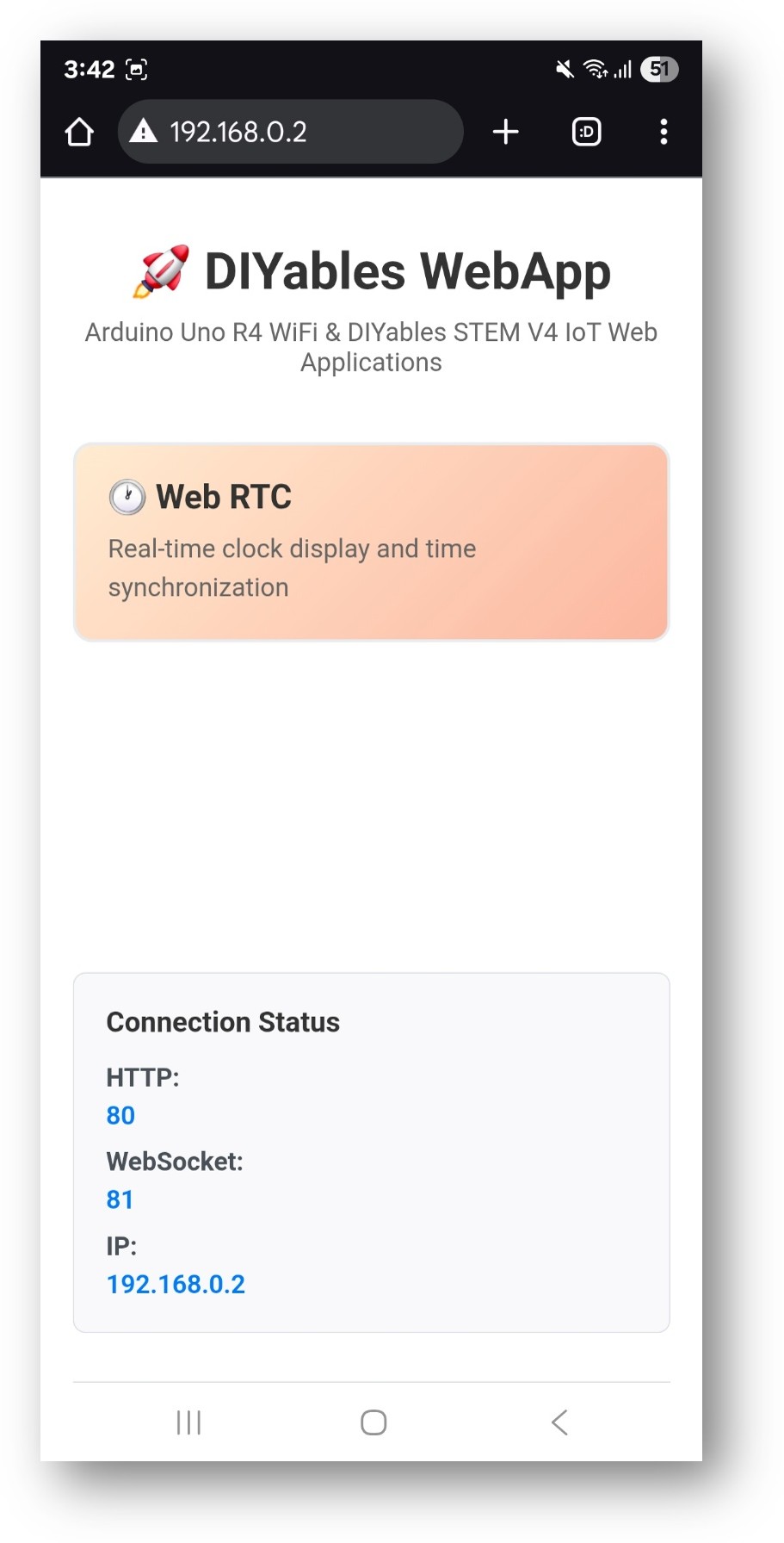
- 홈 페이지에 RTC 애플리케이션 카드가 표시됩니다:
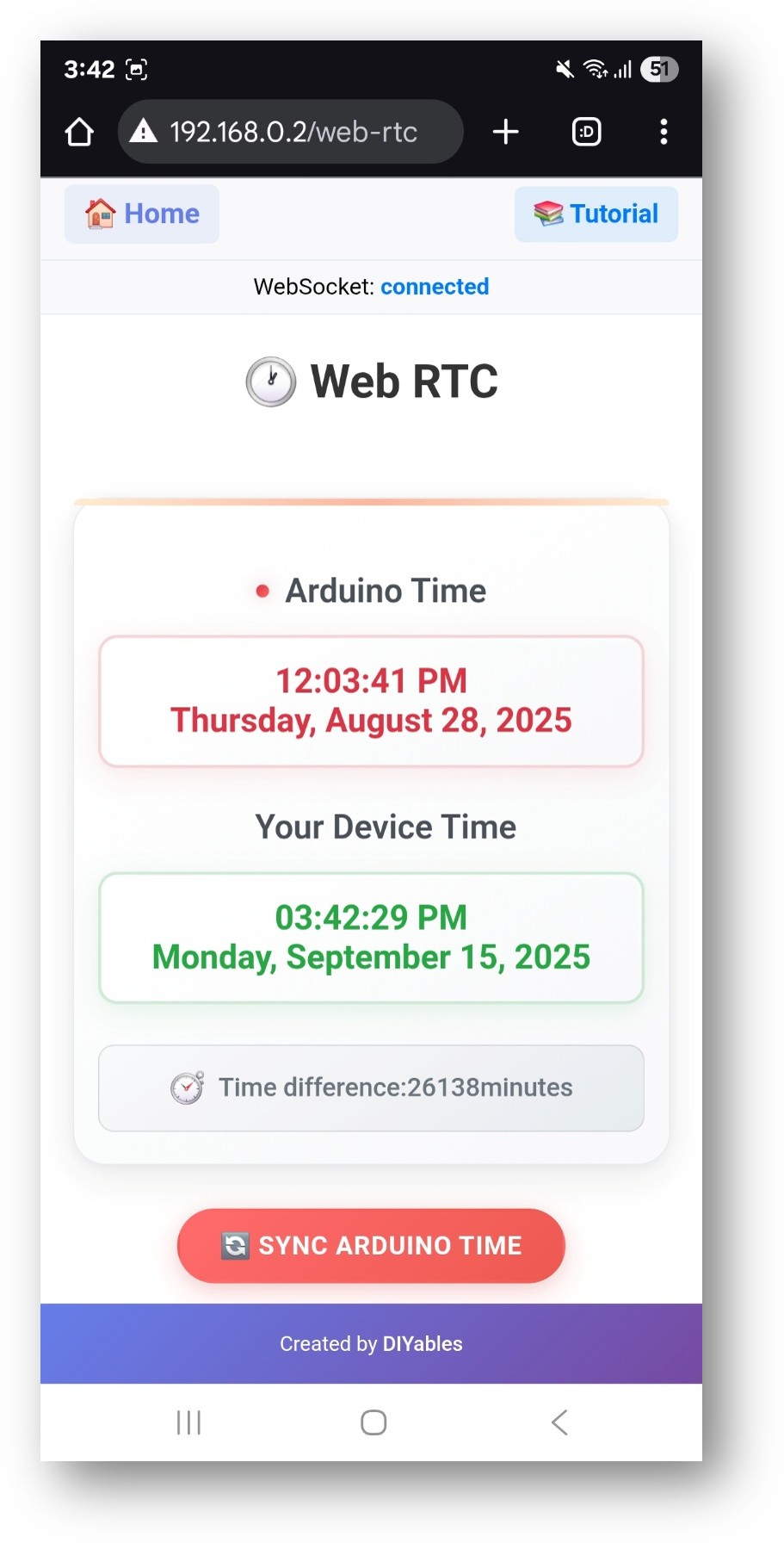
- 웹 RTC 카드를 선택하여 시계 인터페이스를 엽니다:
- 페이지는 http://192.168.0.2/web-rtc에서 직접 접근할 수도 있습니다.
웹 인터페이스 사용하기
RTC 페이지는 세 가지 섹션을 표시합니다:
- Arduino 시간 — 보드의 DS3231 모듈의 현재 시간
- 기기 시간 — 브라우저가 보고하는 현재 로컬 시간
- 시간 차이 — 두 시간의 차이(분 단위)
시간 동기화
Sync ESP32 Time 버튼을 클릭하여 브라우저의 로컬 시간을 보드로 전송합니다:
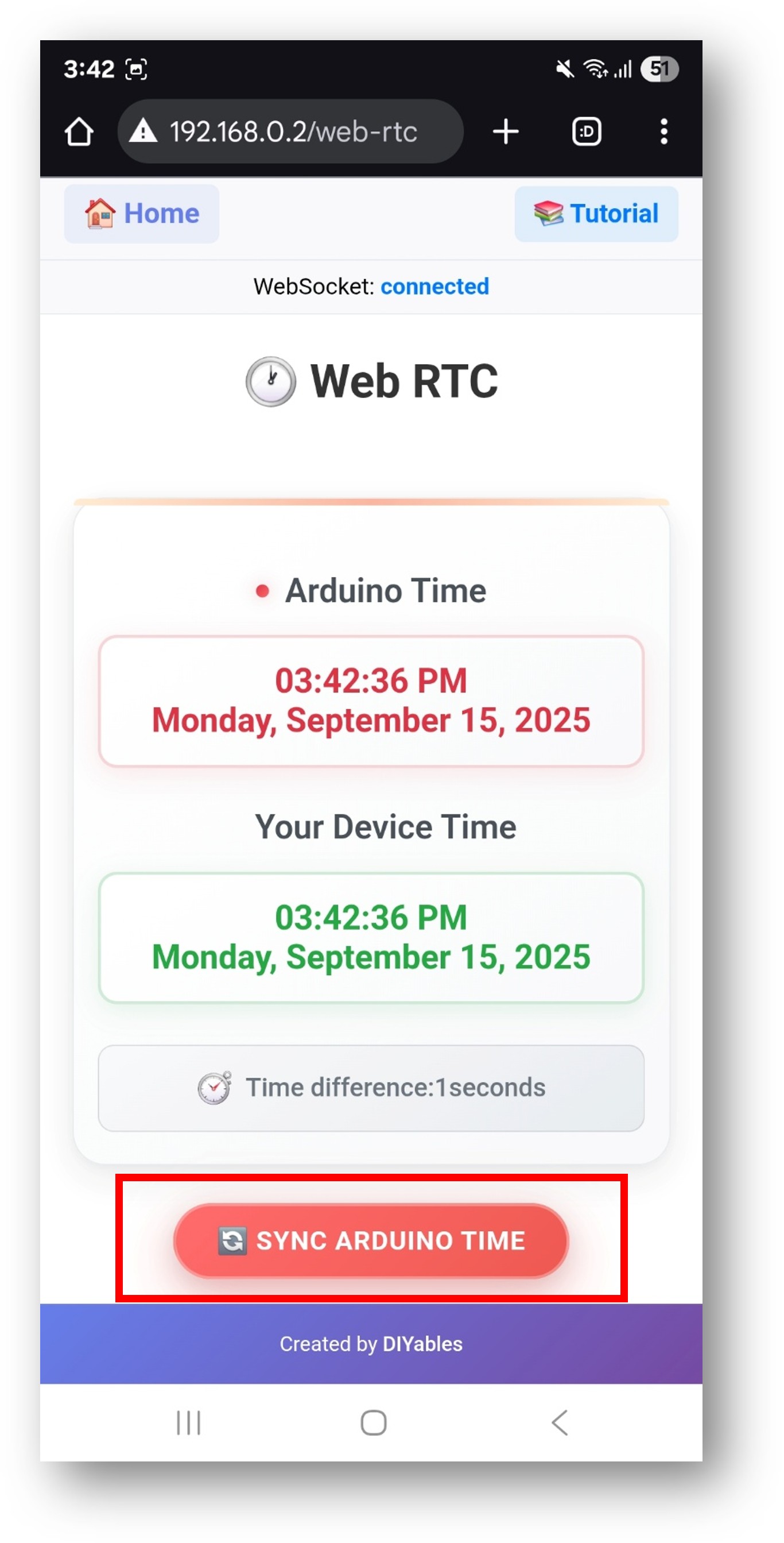
동기화 프로세스:
- 브라우저가 로컬 시간을 읽습니다 (로컬 시간대 오프셋 포함)
- 타임스탬프가 WebSocket을 통해 보드로 전송됩니다
- 스케치가 수신된 시간을 DS3231에 씁니다
- 페이지가 새로 고침되어 업데이트된 보드 시간을 표시합니다
동기화 후 시간 차이는 일반적으로 0~1분입니다.
문제 해결
RTC 시간이 잘못된 값을 표시함
- DS3231은 보드 전원이 꺼져도 배터리에서 시간을 유지합니다
- 브라우저에서 동기화를 수행하여 올바른 시간을 설정합니다
- RTC 모듈에 CR2032 배터리가 설치되어 있는지 확인합니다
I2C가 감지되지 않음
- SDA 및 SCL 배선이 위의 표와 일치하는지 확인합니다
- DS3231 VCC가 5V가 아닌 3.3V에 연결되어 있는지 확인합니다
- Setup에 Serial.println(rtc.isrunning()) 확인을 추가합니다
WebSocket이 자주 끊김
- webAppsServer.loop()가 loop()의 모든 반복에서 호출되는지 확인합니다
- 서버 시작 후 긴 블로킹 지연을 피합니다
페이지에 접근할 수 없음
- 시리얼 모니터의 IP 주소를 확인합니다
- 브라우저 기기와 보드가 동일한 2.4GHz WiFi 네트워크에 있는지 확인합니다


