공개: 이 포스팅 에 제공된 일부 링크는 아마존 제휴 링크입니다. 이 포스팅은 쿠팡 파트너스 활동의 일환으로, 이에 따른 일정액의 수수료를 제공받습니다.
TCS3200D/TCS230 컬러 센서에 대하여
TCS3200D/TCS230은 광학적 색상 감지를 위해 8×8 구성의 64개 포토다이오드 구조 배열을 사용합니다. 배열은 빨간색 광학 필터가 있는 16개 포토다이오드, 녹색 필터가 있는 16개, 파란색 필터가 있는 16개, 그리고 필터 없는(투명) 16개로 구성됩니다. 색상 감지는 지정된 필터 그룹을 활성화하고 출력 파형의 주파수를 분석하여 작동합니다.
표준 TCS3200D 센서 모듈에는 측정 대상에 일정한 조명을 제공하는 흰색 LED 배열이 내장되어 있어, 다양한 조명 환경에서도 안정적인 측정값을 제공하고 어두운 환경에서도 작동할 수 있습니다.
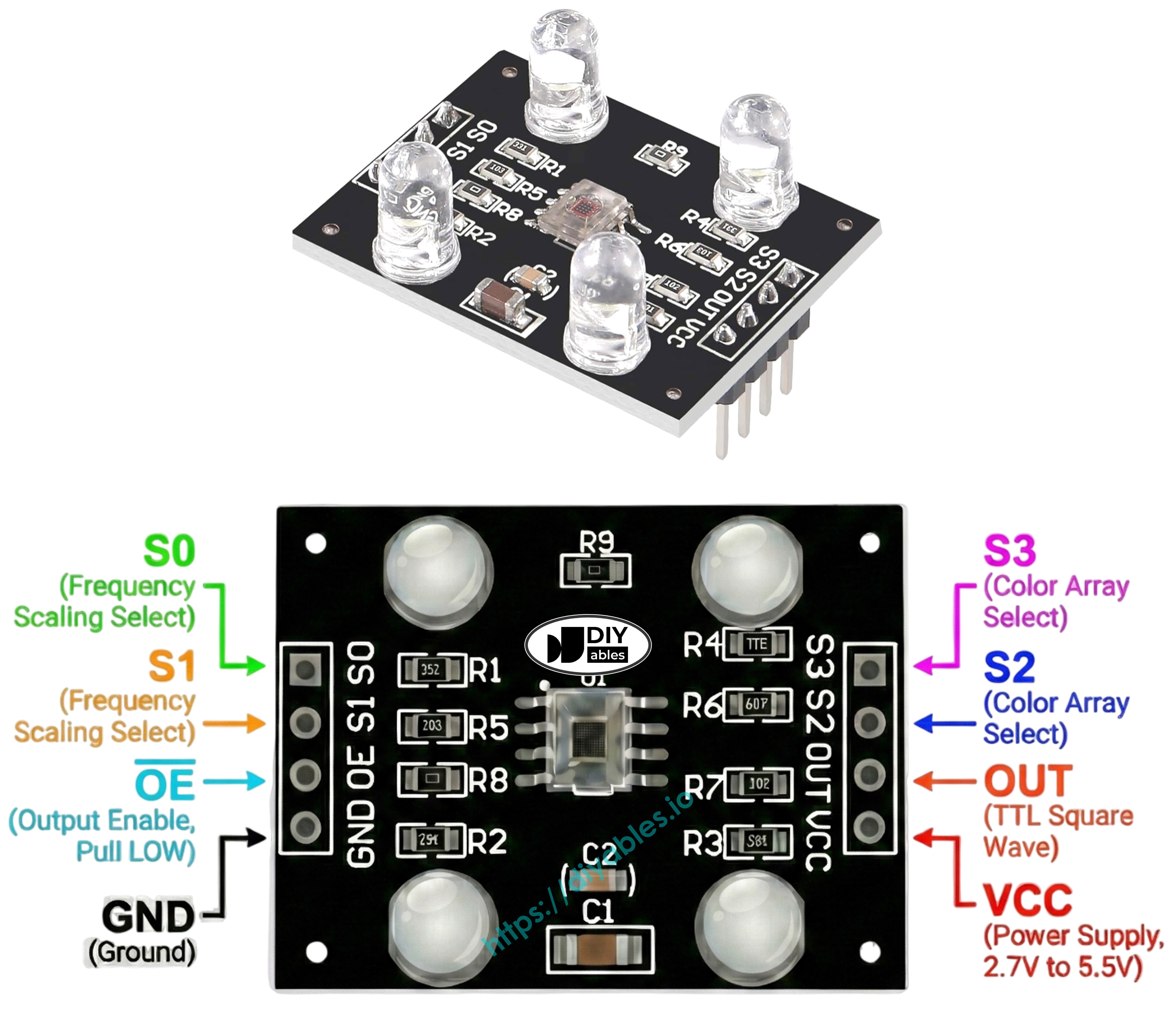
핀아웃
TCS3200D/TCS230 센서 모듈의 연결 단자:
VCC 핀: 양극 전원 공급 (+5V).
GND 핀: 접지 기준 (0V).
S0, S1 핀: 주파수 스케일링 설정 핀.
S2, S3 핀: 컬러 필터 활성화 핀.
OUT 핀: 주파수 인코딩된 구형파 출력.
OE 핀: 출력 활성화 핀(LOW일 때 활성). 표준 모듈은 내부적으로 GND에 하드와이어링됩니다. 플로팅 상태인 경우 수동으로 GND에 연결하세요.
작동 원리
센서 기능은 두 가지 구성 가능한 매개변수에 의존합니다: 어떤 컬러 필터를 사용할지와 어떤 출력 주파수 범위를 사용할지. 두 쌍의 제어 핀이 이러한 설정을 관리합니다:
주파수 스케일링 설정 (S0 및 S1 핀):
S0=LOW, S1=LOW: 센서 전원 꺼짐
S0=LOW, S1=HIGH: 2% 출력 스케일링
S0=HIGH, S1=LOW: 20% 출력 스케일링
S0=HIGH, S1=HIGH: 100% 출력 스케일링(전체 주파수)
컬러 필터 활성화 (S2 및 S3 핀):
S2=LOW, S3=LOW: 빨간색 포토다이오드 배열 활성
S2=LOW, S3=HIGH: 파란색 포토다이오드 배열 활성
S2=HIGH, S3=LOW: 투명 포토다이오드 배열 활성(필터 없음)
S2=HIGH, S3=HIGH: 녹색 포토다이오드 배열 활성
OUT 핀은 약 2 Hz에서 500 kHz 범위의 구형파 주파수를 생성합니다. 빛의 강도가 증가하면 주파수 출력이 높아집니다. Arduino의 pulseIn()은 펄스 지속 시간을 측정하며, 이는 반대 동작을 나타냅니다 — 밝은 조명은 짧은 펄스 지속 시간을 생성합니다. 캘리브레이션을 통해 이러한 펄스 측정값은 익숙한 0-255 RGB 표기법으로 변환됩니다.
측정 정밀도 극대화
고정된 센서-대상 거리(최적: 1-3 cm)와 안정적인 각도 위치를 유지합니다.
재현 가능한 결과를 위해 내장된 흰색 LED 조명을 활성화합니다.
정확도 향상을 위해 변동하는 외부 광원을 차폐합니다.
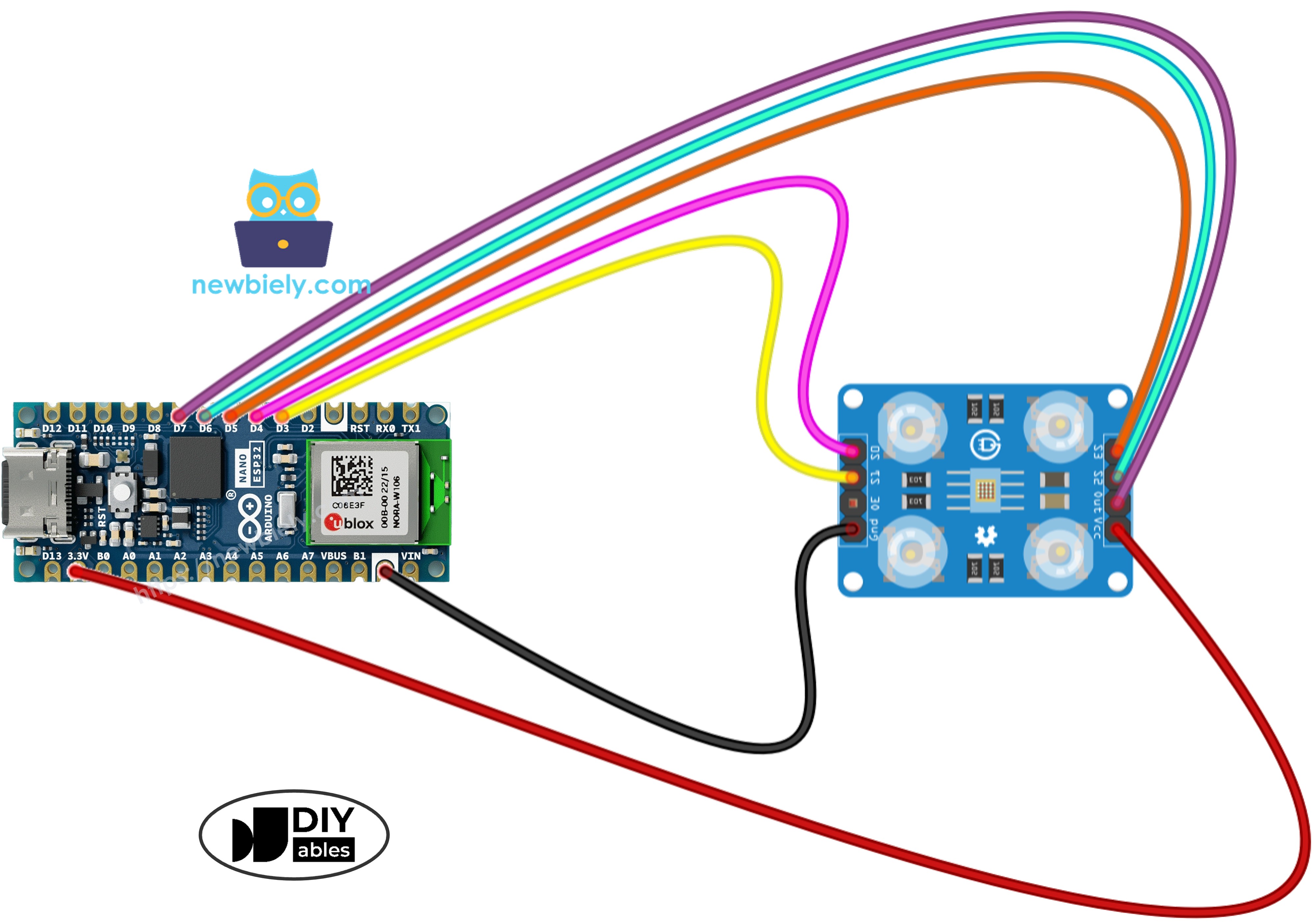
배선 다이어그램
이 구성에 따라 TCS3200 컬러 센서를 Arduino Nano ESP32에 연결합니다:
캘리브레이션은 센서 성능에 영향을 미치는 환경적 요인을 중화합니다. LED 강도, 대상 근접성, 표면 특성, 주변 조명 등의 변수가 모두 원시 측정값에 영향을 미칩니다. 이 캘리브레이션 워크플로우는 각 색상 채널의 최소 및 최대 펄스 지속 시간을 결정하여, 원시 센서 출력을 배포 환경에 최적화된 표준 0–255 RGB 값으로 변환하는 기준 경계를 만듭니다.
/* * 이 아두이노 나노 esp32 코드는 newbiely.kr 에서 개발되었습니다 * 이 아두이노 나노 esp32 코드는 어떠한 제한 없이 공개 사용을 위해 제공됩니다. * 상세한 지침 및 연결도에 대해서는 다음을 방문하세요: * https://newbiely.kr/tutorials/arduino-nano-esp32/arduino-nano-esp32-tcs3200d-tcs230-color-sensor */// Define color sensor pins#define PIN_S0 D4 // The Arduino Nano ESP32 pin connected to the S0 of the color module#define PIN_S1 D3 // The Arduino Nano ESP32 pin connected to the S1 of the color module#define PIN_S2 D6 // The Arduino Nano ESP32 pin connected to the S2 of the color module#define PIN_S3 D5 // The Arduino Nano ESP32 pin connected to the S3 of the color module#define PIN_sensorOut D7 // The Arduino Nano ESP32 pin connected to the OUT of the color module// Variables for Color Pulse Width Measurementsint redPW = 0;int greenPW = 0;int bluePW = 0;// Variables to track min and max pulse widths for calibrationint redMin = 10000, redMax = 0;int greenMin = 10000, greenMax = 0;int blueMin = 10000, blueMax = 0;voidsetup() {// Set S0 - S3 as outputspinMode(PIN_S0, OUTPUT);pinMode(PIN_S1, OUTPUT);pinMode(PIN_S2, OUTPUT);pinMode(PIN_S3, OUTPUT);// Set Pulse Width scaling to 20%digitalWrite(PIN_S0, HIGH);digitalWrite(PIN_S1, LOW);// Set Sensor output as inputpinMode(PIN_sensorOut, INPUT);// Setup Serial MonitorSerial.begin(9600);Serial.println("=== TCS3200 Calibration ===");Serial.println("Point the sensor at different objects (white, black, colors).");Serial.println("Min and Max values are tracked automatically.");Serial.println("When values look stable, note them down for the next code.");Serial.println("------------------------------------------");}voidloop() {// Read Red Pulse Width redPW = getRedPW();// Delay to stabilize sensordelay(200);// Read Green Pulse Width greenPW = getGreenPW();// Delay to stabilize sensordelay(200);// Read Blue Pulse Width bluePW = getBluePW();// Delay to stabilize sensordelay(200);// Update min and max valuesif (redPW < redMin) redMin = redPW;if (redPW > redMax) redMax = redPW;if (greenPW < greenMin) greenMin = greenPW;if (greenPW > greenMax) greenMax = greenPW;if (bluePW < blueMin) blueMin = bluePW;if (bluePW > blueMax) blueMax = bluePW;// Print the pulse width values with min/maxSerial.print("Red PW = ");Serial.print(redPW);Serial.print(" - Green PW = ");Serial.print(greenPW);Serial.print(" - Blue PW = ");Serial.println(bluePW);Serial.print(" Min -> R:");Serial.print(redMin);Serial.print(" G:");Serial.print(greenMin);Serial.print(" B:");Serial.println(blueMin);Serial.print(" Max -> R:");Serial.print(redMax);Serial.print(" G:");Serial.print(greenMax);Serial.print(" B:");Serial.println(blueMax);Serial.println("------------------------------------------");delay(1000);}// Function to read Red Pulse Widthsint getRedPW() {// Set sensor to read Red onlydigitalWrite(PIN_S2, LOW);digitalWrite(PIN_S3, LOW);// Read the Pulse Widthint PW = pulseIn(PIN_sensorOut, LOW);// Return the valuereturn PW;}// Function to read Green Pulse Widthsint getGreenPW() {// Set sensor to read Green onlydigitalWrite(PIN_S2, HIGH);digitalWrite(PIN_S3, HIGH);// Read the Pulse Widthint PW = pulseIn(PIN_sensorOut, LOW);// Return the valuereturn PW;}// Function to read Blue Pulse Widthsint getBluePW() {// Set sensor to read Blue onlydigitalWrite(PIN_S2, LOW);digitalWrite(PIN_S3, HIGH);// Read the Pulse Widthint PW = pulseIn(PIN_sensorOut, LOW);// Return the valuereturn PW;}
센서를 다양한 색상의 표면을 향하게 합니다: 흰색 재료(종이), 검은색 표면, 다양한 색상 물체.
Min/Max 파라미터가 실시간으로 업데이트되는 것을 모니터링합니다.
값이 안정화되면(보통 10-20초), 여섯 개의 캘리브레이션 숫자를 모두 기록합니다.
Newbiely | Arduino IDE 2.3.8
──
☐
✕
File
Edit
Sketch
Tools
Help
Arduino Nano ESP32
Newbiely.ino
···
8Serial.println("Hello World!");
Output
Serial Monitor
Message (Enter to send message to 'Arduino Nano ESP32' on 'COM15')
New Line
9600 baud
=== TCS3200 Calibration ===
Point the sensor at different objects (white, black, colors).
Min and Max values are tracked automatically.
When values look stable, note them down for the next code.
------------------------------------------
Red PW = 42 - Green PW = 55 - Blue PW = 60
Min -> R:42 G:55 B:60
Max -> R:42 G:55 B:60
------------------------------------------
Red PW = 210 - Green PW = 185 - Blue PW = 172
Min -> R:42 G:55 B:60
Max -> R:210 G:185 B:172
------------------------------------------
Red PW = 44 - Green PW = 57 - Blue PW = 61
Min -> R:42 G:55 B:60
Max -> R:210 G:185 B:172
------------------------------------------
Ln 11, Col 1
Arduino Nano ESP32 on COM15
2
예제 출력에서 추출한 캘리브레이션 파라미터:
RedMin = 42, redMax = 210
GreenMin = 55, greenMax = 185
BlueMin = 60, blueMax = 172
Arduino Nano ESP32 코드 - RGB 색상 읽기
/* * 이 아두이노 나노 esp32 코드는 newbiely.kr 에서 개발되었습니다 * 이 아두이노 나노 esp32 코드는 어떠한 제한 없이 공개 사용을 위해 제공됩니다. * 상세한 지침 및 연결도에 대해서는 다음을 방문하세요: * https://newbiely.kr/tutorials/arduino-nano-esp32/arduino-nano-esp32-tcs3200d-tcs230-color-sensor */// Define color sensor pins#define PIN_S0 D4 // The Arduino Nano ESP32 pin connected to the S0 of the color module#define PIN_S1 D3 // The Arduino Nano ESP32 pin connected to the S1 of the color module#define PIN_S2 D6 // The Arduino Nano ESP32 pin connected to the S2 of the color module#define PIN_S3 D5 // The Arduino Nano ESP32 pin connected to the S3 of the color module#define PIN_sensorOut D7 // The Arduino Nano ESP32 pin connected to the OUT of the color module// Calibration Values// Replace these values with your actual calibration data from the previous stepint redMin = 0; // Red minimum pulse widthint redMax = 0; // Red maximum pulse widthint greenMin = 0; // Green minimum pulse widthint greenMax = 0; // Green maximum pulse widthint blueMin = 0; // Blue minimum pulse widthint blueMax = 0; // Blue maximum pulse width// Variables for Color Pulse Width Measurementsint redPW = 0;int greenPW = 0;int bluePW = 0;// Variables for final Color valuesint redValue;int greenValue;int blueValue;voidsetup() {// Set S0 - S3 as outputspinMode(PIN_S0, OUTPUT);pinMode(PIN_S1, OUTPUT);pinMode(PIN_S2, OUTPUT);pinMode(PIN_S3, OUTPUT);// Set Pulse Width scaling to 20%digitalWrite(PIN_S0, HIGH);digitalWrite(PIN_S1, LOW);// Set Sensor output as inputpinMode(PIN_sensorOut, INPUT);// Setup Serial MonitorSerial.begin(9600);}voidloop() {// Read Red value redPW = getRedPW();// Map to value from 0-255 redValue = map(redPW, redMin, redMax, 255, 0);// Delay to stabilize sensordelay(200);// Read Green value greenPW = getGreenPW();// Map to value from 0-255 greenValue = map(greenPW, greenMin, greenMax, 255, 0);// Delay to stabilize sensordelay(200);// Read Blue value bluePW = getBluePW();// Map to value from 0-255 blueValue = map(bluePW, blueMin, blueMax, 255, 0);// Delay to stabilize sensordelay(200);// Print output to Serial MonitorSerial.print("Red = ");Serial.print(redValue);Serial.print(" - Green = ");Serial.print(greenValue);Serial.print(" - Blue = ");Serial.println(blueValue);}// Function to read Red Pulse Widthsint getRedPW() {// Set sensor to read Red onlydigitalWrite(PIN_S2, LOW);digitalWrite(PIN_S3, LOW);// Read the Pulse Widthint PW = pulseIn(PIN_sensorOut, LOW);// Return the valuereturn PW;}// Function to read Green Pulse Widthsint getGreenPW() {// Set sensor to read Green onlydigitalWrite(PIN_S2, HIGH);digitalWrite(PIN_S3, HIGH);// Read the Pulse Widthint PW = pulseIn(PIN_sensorOut, LOW);// Return the valuereturn PW;}// Function to read Blue Pulse Widthsint getBluePW() {// Set sensor to read Blue onlydigitalWrite(PIN_S2, LOW);digitalWrite(PIN_S3, HIGH);// Read the Pulse Widthint PW = pulseIn(PIN_sensorOut, LOW);// Return the valuereturn PW;}
빠른 시작 단계
코드 시작 부분 근처에서 캘리브레이션 변수 선언을 찾습니다:
int redMin = 0; // Red minimum pulse widthint redMax = 0; // Red maximum pulse widthint greenMin = 0; // Green minimum pulse widthint greenMax = 0; // Green maximum pulse widthint blueMin = 0; // Blue minimum pulse widthint blueMax = 0; // Blue maximum pulse width
0 대신 기록한 캘리브레이션 값을 입력합니다. redMin = 42, redMax = 210, greenMin = 55, greenMax = 185, blueMin = 60, blueMax = 172인 경우 예시: