ESP32 웹을 통한 컬러 센서

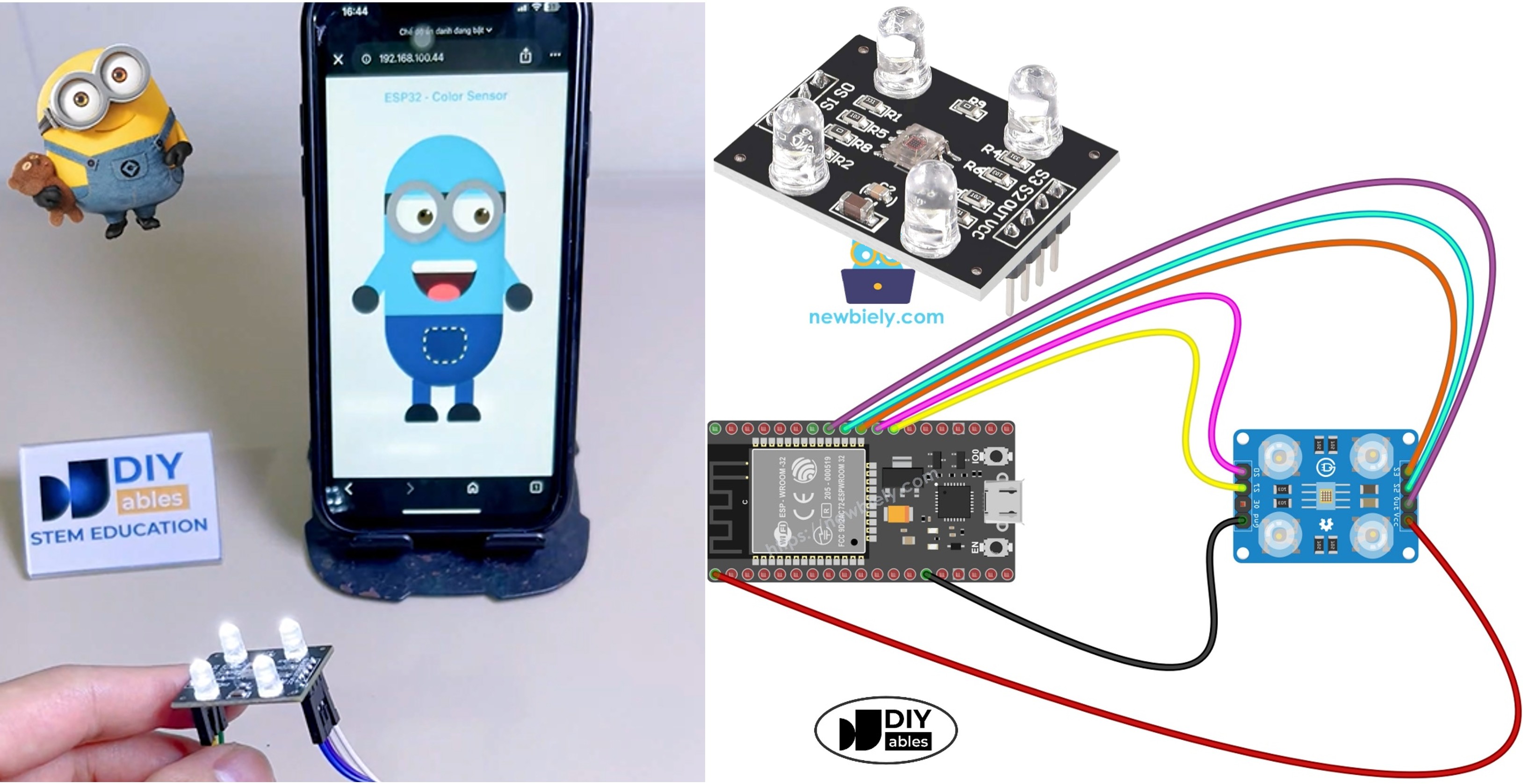
이 재미있는 프로젝트에서는 TCS3200D/TCS230 컬러 센서를 ESP32에 연결하고 감지된 색상을 실시간으로 웹 브라우저에 스트리밍합니다. 웹 페이지에는 장난스러운 애니메이션 미니언 캐릭터가 있으며 센서가 감지하는 내용에 따라 피부 색상이 라이브로 업데이트됩니다. 웹 인터페이스 구축과 WebSocket 통신 관리를 간소화하기 위해 이 프로젝트는 ESP32 맞춤형 웹앱 예제 - 초보자를 위한 간단한 웹 인터페이스 튜토리얼를 사용합니다.

ESP32 tcs3200 tcs230 컬러 센서 웹 미니언

다음은 동작 방식을 요약한 것입니다:

단계별 동영상 안내도 이 튜토리얼 하단에서 확인할 수 있습니다.

필요한 하드웨어

1×38-pin ESP32 ESP-WROOM-32 Dev Module - Narrow 쿠팡 | 아마존
1×(또는) 38-pin ESP32 ESP-WROOM-32 Dev Module - Wide 쿠팡 | 아마존
1×(또는) 30-pin ESP32 ESP-WROOM-32 Dev Module - Wide 아마존
1×(또는) ESP32 Uno-form board 아마존
1×(또는) ESP32 S3 Uno-form board 아마존
1×USB 케이블 타입-A to 타입-C (USB-A PC용) 쿠팡 | 아마존
1×USB 케이블 타입-C to 타입-C (USB-C PC용) 아마존
1×TCS3200D/TCS230 Color Recognition Sensor Module 아마존
1×점퍼케이블 쿠팡 | 아마존
1×(추천) ESP32용 스크루 터미널 확장 보드 쿠팡 | 아마존
1×(추천) Breakout Expansion Board for ESP32 쿠팡 | 아마존
1×(추천) ESP32용 전원 분배기 쿠팡 | 아마존
공개: 이 포스팅 에 제공된 일부 링크는 아마존 제휴 링크입니다. 이 포스팅은 쿠팡 파트너스 활동의 일환으로, 이에 따른 일정액의 수수료를 제공받습니다.

사전 준비 사항

TCS3200D/TCS230 컬러 센서 또는 DIYables ESP32 WebApps가 처음이라면 다음 튜토리얼이 빠른 시작에 도움이 됩니다:

배선 다이어그램

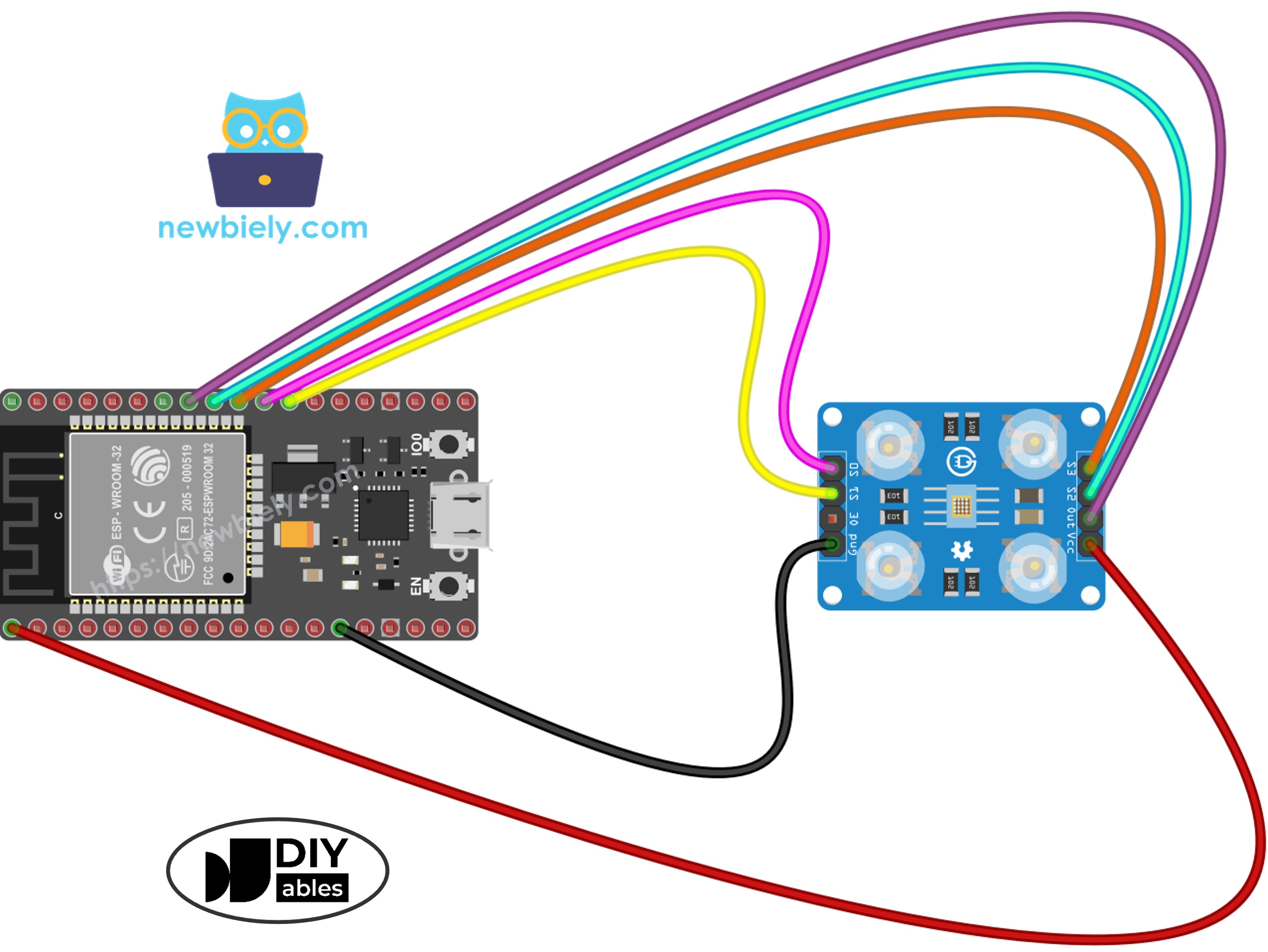
아래 다이어그램은 TCS3200 컬러 센서를 ESP32에 연결하는 방법을 보여줍니다:

TCS3200 Color SensorESP32
VCC5V (VIN)
GNDGND
S0GPIO 17
S1GPIO 16
S2GPIO 18
S3GPIO 5
OUTGPIO 19
ESP32와 tcs3200 컬러 센서 배선 다이어그램

이 이미지는 Fritzing을 사용하여 만들어졌습니다. 이미지를 확대하려면 클릭하세요.

ESP32 및 다른 구성 요소에 전원을 공급하는 방법에 대해 잘 알지 못하는 경우, 다음 튜토리얼에서 안내를 찾을 수 있습니다: ESP32 전원 공급 방법.

동작 원리

이 프로젝트의 단계별 흐름은 다음과 같습니다:

  1. 매초, ESP32는 S2/S3 제어 핀을 사용하여 빨강, 초록, 파랑 필터 사이를 전환하고 OUT 핀의 펄스 폭을 측정하여 컬러 센서를 읽습니다.
  2. 원시 펄스 폭 값은 캘리브레이션 데이터(ESP32 - TCS3200D/TCS230 컬러 센서에서 획득)를 사용하여 0~255 RGB 값으로 변환됩니다.
  3. RGB 값은 #FF8000과 같은 HEX 색상 문자열로 포맷됩니다.
  4. 이 색상 문자열은 DIYables ESP32 WebApps 라이브러리를 통해 WebSocket으로 연결된 모든 웹 브라우저에 브로드캐스트됩니다.
  5. 웹 페이지에서 JavaScript가 색상을 받아 미니언 캐릭터의 몸통, 팔, 눈꺼풀에 즉시 적용합니다.

ESP32 코드 - 컬러 센서 미니언 웹 앱

이 프로젝트는 4개의 파일로 구성됩니다:

  • ColorSensorESP32.ino - 메인 스케치: 센서를 초기화하고, 색상을 읽어 웹 페이지로 전송합니다
  • CustomWebApp.h - 헤더 파일: 커스텀 웹 앱 페이지 클래스를 선언합니다
  • CustomWebApp.cpp - 구현 파일: "Color sensor:" 식별자를 사용하여 WebSocket 메시지를 관리합니다
  • custom_page_html.h - 웹 페이지: 들어오는 색상에 반응하는 HTML/CSS/JavaScript로 만든 애니메이션 미니언

ColorSensorESP32.ino

/* * 이 ESP32 코드는 newbiely.kr 에서 개발되었습니다 * 이 ESP32 코드는 어떠한 제한 없이 공개 사용을 위해 제공됩니다. * 상세한 지침 및 연결도에 대해서는 다음을 방문하세요: * https://newbiely.kr/tutorials/esp32/esp32-color-sensor-via-web */ #include <DIYables_ESP32_Platform.h> #include <DIYablesWebApps.h> #include "CustomWebApp.h" // CHANGE THESE TO YOUR WIFI DETAILS const char WIFI_SSID[] = "YOUR_WIFI_SSID"; const char WIFI_PASSWORD[] = "YOUR_WIFI_PASSWORD"; // Configure TCS3200 pins for ESP32 const int S0 = 17; const int S1 = 16; const int S2 = 18; const int S3 = 5; const int sensorOut = 19; // Create server and pages ESP32ServerFactory serverFactory; DIYablesWebAppServer webAppsServer(serverFactory, 80, 81); DIYablesHomePage homePage; CustomWebAppPage customPage; unsigned long lastColorRead = 0; void setup() { Serial.begin(9600); delay(1000); Serial.println("Starting Custom WebApp..."); // Initialize TCS3200 pins pinMode(S0, OUTPUT); pinMode(S1, OUTPUT); pinMode(S2, OUTPUT); pinMode(S3, OUTPUT); pinMode(sensorOut, INPUT); // Set frequency scaling to 20% digitalWrite(S0, HIGH); digitalWrite(S1, LOW); // Add pages to server webAppsServer.addApp(&homePage); webAppsServer.addApp(&customPage); // Start WiFi and web server if (!webAppsServer.begin(WIFI_SSID, WIFI_PASSWORD)) { while (1) { Serial.println("Failed to connect to WiFi!"); delay(1000); } } Serial.println("Custom WebApp ready!"); customPage.sendToWeb("Arduino is ready!"); } void loop() { // Handle web server webAppsServer.loop(); // Send sensor data every 1 second if (millis() - lastColorRead > 1000) { // Read Red color digitalWrite(S2, LOW); digitalWrite(S3, LOW); int r = map(pulseIn(sensorOut, LOW), 31, 150, 255, 0); // Read Green color digitalWrite(S2, HIGH); digitalWrite(S3, HIGH); int g = map(pulseIn(sensorOut, LOW), 35, 180, 255, 0); // Read Blue color digitalWrite(S2, LOW); digitalWrite(S3, HIGH); int b = map(pulseIn(sensorOut, LOW), 30, 150, 255, 0); // Convert to HEX color and send to Web char hexColor[8]; sprintf(hexColor, "#%02X%02X%02X", constrain(r, 0, 255), constrain(g, 0, 255), constrain(b, 0, 255)); customPage.sendToWeb(String(hexColor)); Serial.println("Sent to Minion: " + String(hexColor)); lastColorRead = millis(); } }

CustomWebApp.h

/* * 이 ESP32 코드는 newbiely.kr 에서 개발되었습니다 * 이 ESP32 코드는 어떠한 제한 없이 공개 사용을 위해 제공됩니다. * 상세한 지침 및 연결도에 대해서는 다음을 방문하세요: * https://newbiely.kr/tutorials/esp32/esp32-color-sensor-via-web */ #ifndef CUSTOM_WEBAPP_H #define CUSTOM_WEBAPP_H #include <DIYablesWebApps.h> /** * Simple Custom WebApp Page * * This is a template for creating your own custom web applications. * It provides basic controls like buttons and sliders that communicate * with your Arduino in real-time. */ class CustomWebAppPage : public DIYablesWebAppPageBase { private: // WebSocket message identifier for this custom app static const String APP_IDENTIFIER; public: CustomWebAppPage(); // ======================================== // REQUIRED METHODS - USED BY LIBRARY - DON'T CHANGE THESE! // ======================================== void handleHTTPRequest(IWebClient& client) override; void handleWebSocketMessage(IWebSocket& ws, const char* message, uint16_t length) override; const char* getPageInfo() const override; String getNavigationInfo() const override; // ======================================== // YOUR METHODS - USE THESE IN YOUR CODE! // ======================================== void onCustomMessageReceived(void (*callback)(const String& payload)); void sendToWeb(const String& message); }; #endif

CustomWebApp.cpp

/* * 이 ESP32 코드는 newbiely.kr 에서 개발되었습니다 * 이 ESP32 코드는 어떠한 제한 없이 공개 사용을 위해 제공됩니다. * 상세한 지침 및 연결도에 대해서는 다음을 방문하세요: * https://newbiely.kr/tutorials/esp32/esp32-color-sensor-via-web */ #include "CustomWebApp.h" #include "custom_page_html.h" // Define the static member - WebSocket message identifier for this custom app const String CustomWebAppPage::APP_IDENTIFIER = "Color sensor:"; // Callback function for handling messages from web browser void (*customMessageCallback)(const String& payload) = nullptr; CustomWebAppPage::CustomWebAppPage() : DIYablesWebAppPageBase("/custom") { } void CustomWebAppPage::handleHTTPRequest(IWebClient& client) { // Send the HTML page to web browser sendHTTPHeader(client); client.print(CUSTOM_PAGE_HTML); } void CustomWebAppPage::handleWebSocketMessage(IWebSocket& ws, const char* message, uint16_t length) { String messageStr = String(message, length); Serial.print("Color sensor WebApp received: "); Serial.println(messageStr); // Only handle messages that start with our app identifier if (messageStr.startsWith(APP_IDENTIFIER)) { String payload = messageStr.substring(APP_IDENTIFIER.length()); // Remove identifier // Call your callback function with the payload if (customMessageCallback) { customMessageCallback(payload); } } } void CustomWebAppPage::onCustomMessageReceived(void (*callback)(const String& payload)) { customMessageCallback = callback; } void CustomWebAppPage::sendToWeb(const String& message) { // Send message to web browser with app identifier String fullMessage = APP_IDENTIFIER + message; broadcastToAllClients(fullMessage.c_str()); } const char* CustomWebAppPage::getPageInfo() const { return "🔧 Color sensor WebApp"; } String CustomWebAppPage::getNavigationInfo() const { String result = "<a href=\""; result += getPagePath(); result += "\" class=\"app-card custom\" style=\"background: linear-gradient(135deg, #007bff 0%, #0056b3 100%);\">"; result += "<h3>🔧 Color sensor WebApp</h3>"; result += "<p>Simple template for your own apps</p>"; result += "</a>"; return result; }

custom_page_html.h

/* * 이 ESP32 코드는 newbiely.kr 에서 개발되었습니다 * 이 ESP32 코드는 어떠한 제한 없이 공개 사용을 위해 제공됩니다. * 상세한 지침 및 연결도에 대해서는 다음을 방문하세요: * https://newbiely.kr/tutorials/esp32/esp32-color-sensor-via-web */ #ifndef CUSTOM_PAGE_HTML_H #define CUSTOM_PAGE_HTML_H const char CUSTOM_PAGE_HTML[] PROGMEM = R"HTML_WRAPPER( <!DOCTYPE html> <html lang="en"> <head> <meta charset="UTF-8"> <meta name="viewport" content="width=device-width, initial-scale=1.0, maximum-scale=1.0, user-scalable=no"> <title>Mobile Laughing Minion</title> <style> /* GIỮ NGUYÊN TOÀN BỘ CSS GỐC CỦA BẠN */ body { margin: 0; padding: 20px; box-sizing: border-box; display: flex; flex-direction: column; justify-content: flex-start; align-items: center; background-color: #f0f8ff; font-family: sans-serif; overflow-x: hidden; } .text { font-size: clamp(16px, 5vw, 24px); font-weight: bold; color: #333; margin-bottom: 20px; text-align: center; z-index: 10; } .scale-wrapper { transform-origin: top center; display: flex; justify-content: center; align-items: flex-start; } .minion-container { position: relative; width: 200px; height: 400px; } .body { position: absolute; top: 20px; left: 25px; width: 150px; height: 300px; background-color: #FFD90F; border-radius: 75px; box-shadow: inset -10px -10px 20px rgba(0,0,0,0.1); overflow: hidden; z-index: 2; transition: background-color 0.5s; } .overalls { position: absolute; bottom: 0; width: 100%; height: 90px; background-color: #225A94; border-radius: 0 0 75px 75px; box-shadow: inset -10px -10px 20px rgba(0,0,0,0.2); } .pocket { position: absolute; bottom: 30px; left: 50px; width: 50px; height: 40px; background-color: #1A4674; border-radius: 10px 10px 20px 20px; border: 2px dashed #fce144; } .strap { position: absolute; top: 65px; left: 0; width: 100%; height: 25px; background-color: #333; z-index: 1; } .goggles-wrapper { position: absolute; top: 50px; left: -5px; width: 160px; display: flex; justify-content: center; z-index: 3; } .goggle { position: relative; width: 50px; height: 50px; background-color: white; border: 12px solid #999; border-radius: 50%; box-shadow: 3px 3px 8px rgba(0,0,0,0.2), inset 3px 3px 8px rgba(0,0,0,0.1); margin: 0 -2px; overflow: hidden; } .pupil { position: absolute; top: 50%; left: 50%; width: 20px; height: 20px; background-color: #4B3621; border-radius: 50%; transform: translate(-50%, -50%); transition: transform 0.2s ease-out; } .pupil::after { content: ''; position: absolute; top: 4px; left: 4px; width: 6px; height: 6px; background-color: black; border-radius: 50%; } .catchlight { position: absolute; top: 2px; right: 4px; width: 4px; height: 4px; background-color: white; border-radius: 50%; z-index: 4; } .eyelid { position: absolute; top: 0; left: 0; width: 100%; height: 100%; background-color: #FFD90F; border-bottom: 3px solid #D4B200; transform-origin: top; transform: scaleY(0); z-index: 5; animation: blink 4s infinite; } .mouth { position: absolute; top: 145px; left: 35px; width: 80px; height: 45px; background-color: #3E2723; border-radius: 10px 10px 60px 60px; overflow: hidden; z-index: 3; box-shadow: inset 0 5px 10px rgba(0,0,0,0.5); animation: laugh 0.2s infinite alternate ease-in-out; } .teeth { position: absolute; top: 0; left: 0; width: 100%; height: 14px; background-color: #fff; border-radius: 0 0 5px 5px; } .tongue { position: absolute; bottom: -5px; left: 20px; width: 40px; height: 25px; background-color: #FF5252; border-radius: 50%; animation: wag 0.2s infinite alternate ease-in-out; } .arm { position: absolute; top: 140px; width: 25px; height: 80px; background-color: #FFD90F; border-radius: 12px; z-index: 1; transition: background-color 0.5s; } .arm.left { left: 10px; transform: rotate(35deg); } .arm.right { right: 15px; transform: rotate(-35deg); } .glove { position: absolute; bottom: -15px; left: -5px; width: 35px; height: 35px; background-color: #333; border-radius: 50%; } .leg { position: absolute; bottom: 50px; width: 25px; height: 40px; background-color: #225A94; z-index: 1; } .leg.left { left: 60px; } .leg.right { left: 115px; } .shoe { position: absolute; bottom: -15px; left: -10px; width: 45px; height: 20px; background-color: #222; border-radius: 20px 20px 5px 5px; border-bottom: 5px solid #111; } @keyframes blink { 0%, 94%, 100% { transform: scaleY(0); } 97% { transform: scaleY(1); } } @keyframes laugh { 0% { height: 40px; transform: scaleX(1); } 100% { height: 55px; transform: scaleX(1.05); } } @keyframes wag { 0% { transform: translateY(0); } 100% { transform: translateY(-3px); } } </style> </head> <body> <div class="text" id="status-text">Just watch him look around! 👀</div> <div class="scale-wrapper" id="minionWrapper"> <div class="minion-container"> <div class="arm left" id="armL"><div class="glove"></div></div> <div class="arm right" id="armR"><div class="glove"></div></div> <div class="leg left"><div class="shoe"></div></div> <div class="leg right"><div class="shoe"></div></div> <div class="body" id="minionBody"> <div class="overalls"> <div class="pocket"></div> </div> <div class="strap"></div> <div class="goggles-wrapper"> <div class="goggle"><div class="pupil"><div class="catchlight"></div></div><div class="eyelid" id="eyelidL"></div></div> <div class="goggle"><div class="pupil"><div class="catchlight"></div></div><div class="eyelid" id="eyelidR"></div></div> </div> <div class="mouth"> <div class="teeth"></div> <div class="tongue"></div> </div> </div> </div> </div> <script> // LOGIC KẾT NỐI WEBSOCKET const APP_IDENTIFIER = 'Color sensor:'; let ws = null; function connectWebSocket() { ws = new WebSocket('ws://' + location.hostname + ':81'); ws.onopen = () => document.getElementById('status-text').textContent = "ESP32 - Color Sensor"; ws.onclose = () => setTimeout(connectWebSocket, 2000); ws.onmessage = (event) => { if (event.data.startsWith(APP_IDENTIFIER)) { let color = event.data.substring(APP_IDENTIFIER.length); // Cập nhật màu cho thân, tay và mí mắt document.getElementById('minionBody').style.backgroundColor = color; document.getElementById('armL').style.backgroundColor = color; document.getElementById('armR').style.backgroundColor = color; document.getElementById('eyelidL').style.backgroundColor = color; document.getElementById('eyelidR').style.backgroundColor = color; document.getElementById('status-text').style.color = color; } }; } // GIỮ NGUYÊN LOGIC RESIZE & MẮT GỐC function resizeMinion() { const wrapper = document.getElementById('minionWrapper'); const availableWidth = window.innerWidth - 40; const minionTrueWidth = 260; const minionHeight = 400; let scaleFactor = availableWidth / minionTrueWidth; if (scaleFactor > 1.5) scaleFactor = 1.5; wrapper.style.transform = `scale(${scaleFactor})`; wrapper.style.height = `${minionHeight * scaleFactor}px`; } window.addEventListener('resize', resizeMinion); resizeMinion(); connectWebSocket(); const pupils = document.querySelectorAll('.pupil'); function moveEyesAutomatically() { const angle = Math.random() * Math.PI * 2; const distance = Math.random() * 15; const pupilX = Math.cos(angle) * distance; const pupilY = Math.sin(angle) * distance; pupils.forEach(pupil => { pupil.style.transform = `translate(calc(-50% + ${pupilX}px), calc(-50% + ${pupilY}px))`; }); } setInterval(moveEyesAutomatically, 600); </script> </body> </html> )HTML_WRAPPER"; #endif

빠른 시작

프로젝트를 실행하려면 다음 단계를 따르세요:

  • ESP32가 처음이라면 ESP32 - 소프트웨어 설치 튜토리얼을 확인하세요.
  • 먼저 캘리브레이션을 실행합니다 ESP32 - TCS3200D/TCS230 컬러 센서를 사용하세요. 캘리브레이션 결과(redMin, redMax, greenMin, greenMax, blueMin, blueMax)를 기록해 두세요.
  • 위의 배선 다이어그램에 따라 하드웨어를 연결합니다.
  • USB 케이블로 ESP32 보드를 컴퓨터에 연결합니다.
  • Arduino IDE를 엽니다.
  • 올바른 ESP32 보드(예: ESP32 Dev Module)와 올바른 COM 포트를 선택합니다.
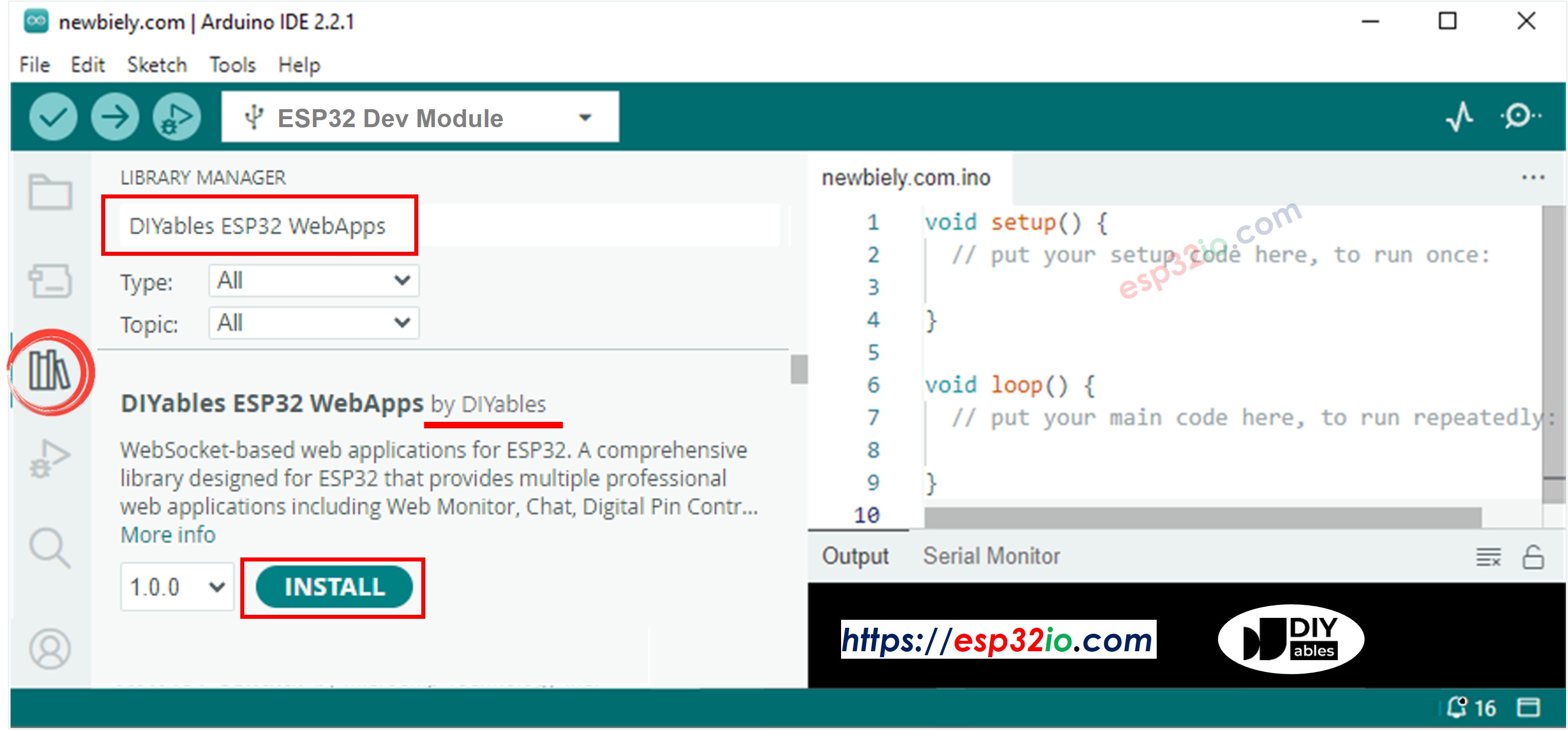
  • Arduino IDE 왼쪽 사이드바의 라이브러리 아이콘으로 이동합니다.
  • "DIYables ESP32 WebApps"를 검색하여 DIYables의 라이브러리를 찾습니다.
  • 설치를 클릭하여 설치합니다.
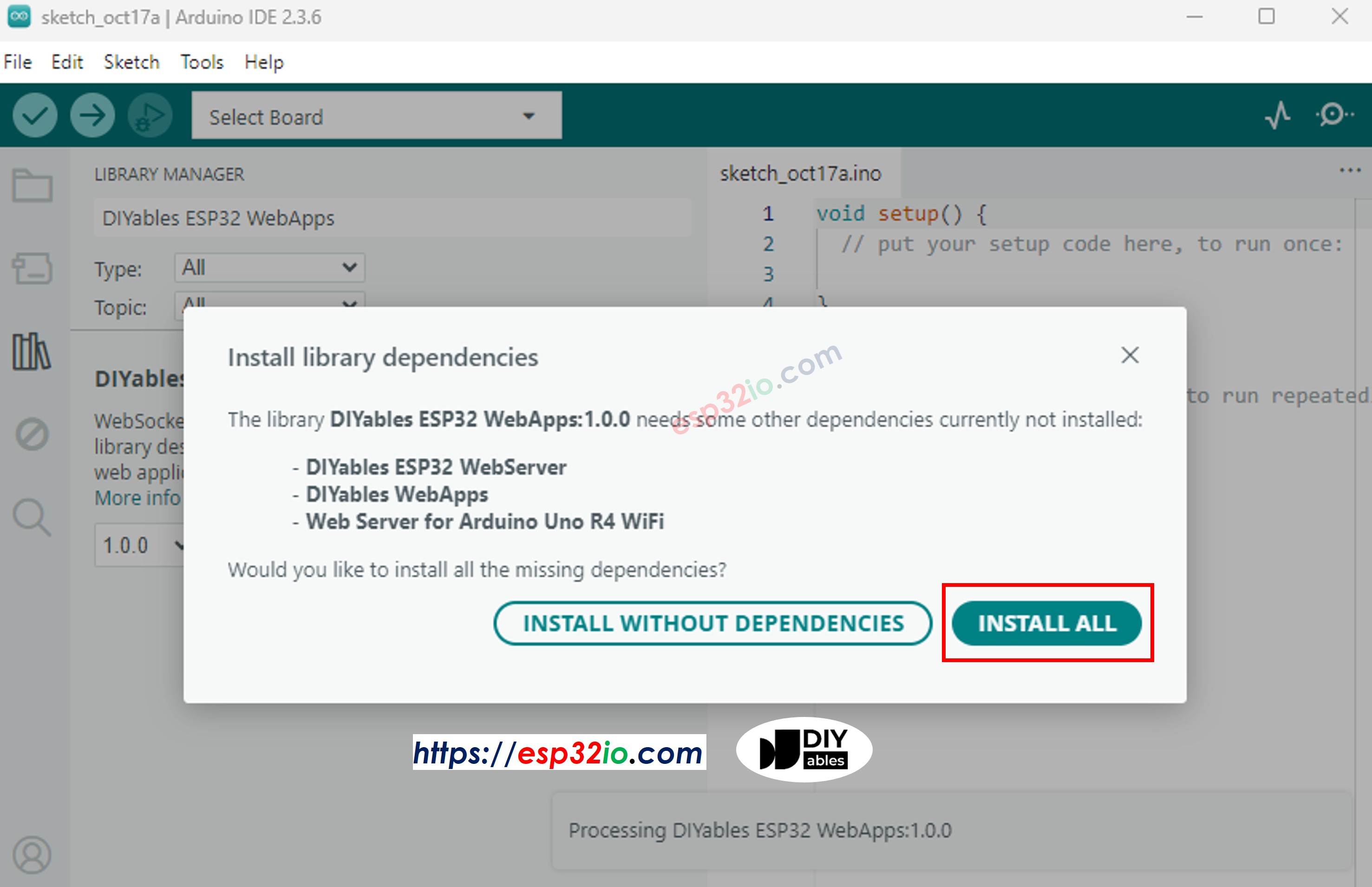
  • 추가 종속성에 대한 메시지가 나타나면 모두 설치를 클릭합니다.
diyaBLEs ESP32 webapps 라이브러리
diyaBLEs ESP32 webapps 종속 라이브러리
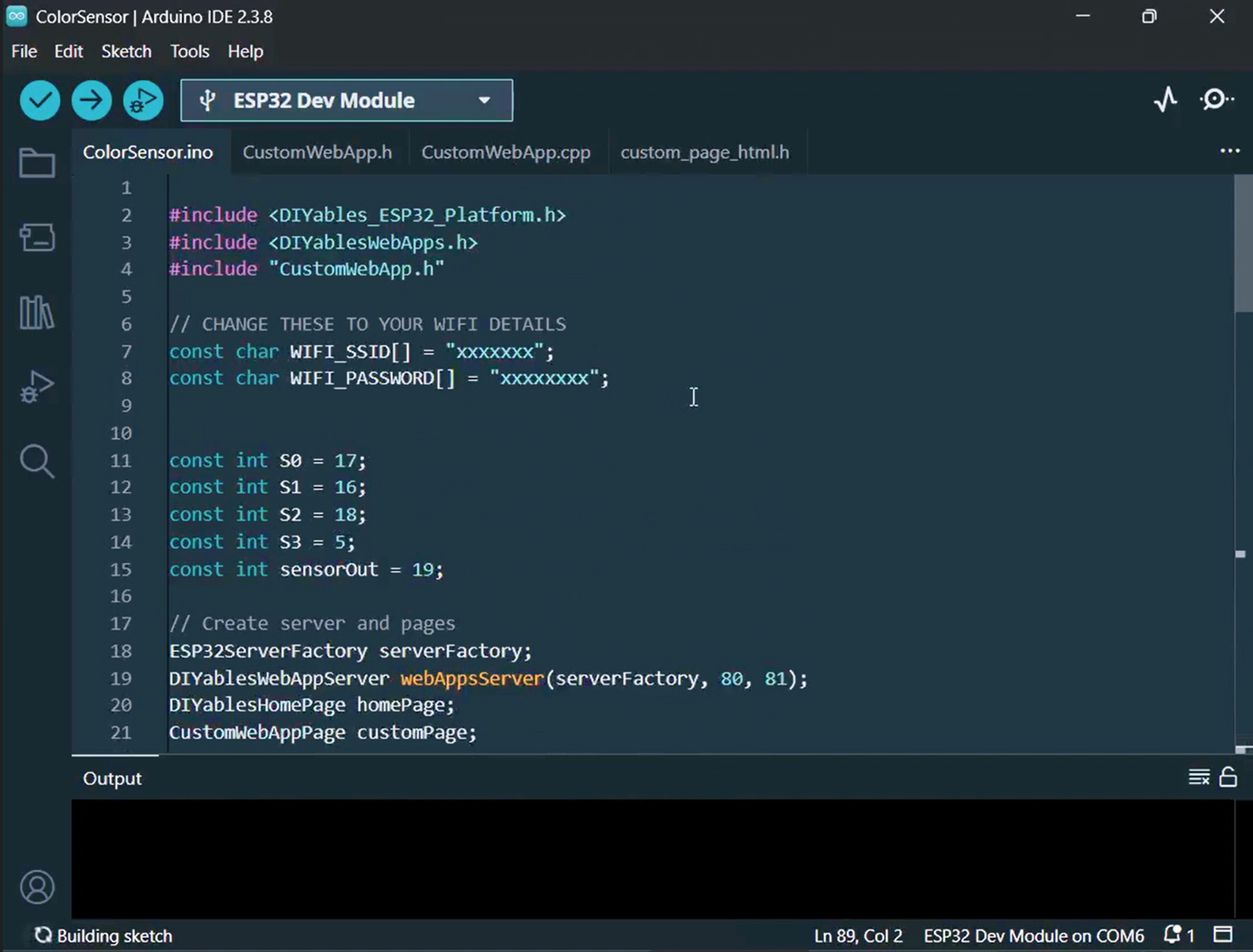
  • Arduino IDE에서 새 스케치를 만들고 ColorSensorESP32로 이름을 지정합니다.
  • 위에 나열된 4개 파일을 모두 프로젝트에 복사합니다. Arduino IDE에 다음과 같이 4개의 탭이 표시됩니다:
아두이노 ide에서 ESP32 컬러 센서 웹 앱 프로젝트 파일
  • ColorSensorESP32.ino에서 Wi-Fi 자격 증명을 자신의 네트워크 정보로 교체합니다:
const char WIFI_SSID[] = "YOUR_WIFI_NAME"; const char WIFI_PASSWORD[] = "YOUR_WIFI_PASSWORD";
  • loop() 내부의 map() 호출에서 캘리브레이션 값을 캘리브레이션 중에 기록한 숫자로 교체합니다. 예를 들어, 캘리브레이션 결과가 redMin = 42, redMax = 210, greenMin = 55, greenMax = 185, blueMin = 60, blueMax = 172라면 해당 줄을 다음과 같이 업데이트합니다:
int r = map(pulseIn(sensorOut, LOW), 42, 210, 255, 0); int g = map(pulseIn(sensorOut, LOW), 55, 185, 255, 0); int b = map(pulseIn(sensorOut, LOW), 60, 172, 255, 0);
  • 업로드 버튼을 클릭하여 ESP32에 코드를 플래시합니다.
  • 시리얼 모니터를 엽니다. 다음과 같은 내용이 표시됩니다:
Newbiely | Arduino IDE 2.3.8
──
File
Edit
Sketch
Tools
Help
ESP32 Dev Module
Newbiely.ino
···
8 Serial.println("Hello World!");
Output
Serial Monitor
Message (Enter to send message to 'ESP32 Dev Module' on 'COM15')
New Line
9600 baud
Starting Custom WebApp... Custom WebApp ready! INFO: Added app / INFO: Added app /custom DIYables ESP32 WebApp Library Network connected! IP address: 192.168.0.5 HTTP server started on port 80 WebSocket server started on port 81 ========================================== DIYables WebApp Ready! ========================================== 📱 Web Interface: http://192.168.0.5 🔗 WebSocket: ws://192.168.0.5:81 📋 Available Applications: 🏠 Home Page: http://192.168.0.5/ 🔧 Color sensor WebApp: http://192.168.0.5/custom ========================================== Sent to Minion: #FFD200 Sent to Minion: #00C832 Sent to Minion: #0028FF
Ln 11, Col 1
ESP32 Dev Module on COM15
2
  • 아무것도 표시되지 않으면 ESP32의 리셋 버튼을 눌러보세요.
  • 시리얼 모니터에 표시된 IP 주소를 복사하여 스마트폰이나 컴퓨터의 웹 브라우저에서 열어보세요.
  • 예를 들어: http://192.168.0.5
  • 홈 페이지에서 컬러 센서 WebApp 카드를 탭하여 미니언 페이지를 엽니다.
  • 또는 http://[IP_ADDRESS]/custom으로 직접 이동합니다.
  • 화면에 웃고 있는 애니메이션 미니언이 표시됩니다.
  • TCS3200 센서 근처에 색깔 있는 물체를 가져다 대면 미니언의 피부 색상이 감지된 색상과 일치하도록 즉시 업데이트됩니다!

단계별 동영상 가이드를 참조할 수 있습니다.

코드 이해하기

ESP32 측 (ColorSensorESP32.ino)

메인 스케치는 다음 작업을 수행합니다:

  • TCS3200 센서 설정: S0/S1을 20% 주파수 스케일링으로 구성하고 S2/S3를 필터 선택을 위해 준비합니다.
  • 매초 색상 샘플링: loop() 내부에서 ESP32가 빨강, 초록, 파랑 색상 필터를 순환하면서 pulseIn()으로 펄스 폭을 측정하고 캘리브레이션 데이터와 map()을 사용하여 각 값을 0~255로 변환합니다.
  • HEX로 포맷: 세 RGB 값을 sprintf()constrain()을 사용하여 HEX 문자열(예: #FF8000)로 결합합니다.
  • 브라우저로 브로드캐스트: HEX 색상이 customPage.sendToWeb()을 통해 연결된 모든 웹 클라이언트에 전송됩니다.

웹 페이지 측 (custom_page_html.h)

HTML 파일에는 다음이 포함됩니다:

  • CSS만으로 만든 애니메이션 미니언: 깜빡이는 눈, 혀가 흔들리는 웃음 입, CSS 애니메이션과 작은 JavaScript 인터벌로 구동되는 무작위로 움직이는 동공이 있습니다.
  • WebSocket 리스너: JavaScript가 포트 81에서 ESP32의 WebSocket 서버에 지속적으로 연결하여 들어오는 색상 메시지를 처리합니다.
  • 라이브 색상 적용: 수신된 HEX 색상이 미니언의 몸통, 팔, 눈꺼풀에 CSS transition을 사용하여 부드럽게 적용됩니다.
  • 자동 재연결: WebSocket 연결이 끊어지면 사용자 개입 없이 2초마다 연결을 재시도합니다.
  • 반응형 레이아웃: 미니언이 스마트폰부터 데스크톱까지 모든 화면 크기에 자동으로 맞게 조정됩니다.

메시지 프로토콜

이 프로젝트는 DIYables ESP32 WebApps 커스텀 앱 프레임워크를 따릅니다. 메시지는 "Color sensor:" 식별자로 태그됩니다:

  • ESP32 전송: Color sensor:#FF8000 (식별자 접두사 + HEX 색상 값)
  • 브라우저 수신: JavaScript가 Color sensor: 접두사를 제거하고 나머지 #FF8000을 미니언에 적용합니다

이 통신 패턴과 커스텀 앱 구축 방법에 대해 더 자세히 알아보려면 ESP32 맞춤형 웹앱 예제 - 초보자를 위한 간단한 웹 인터페이스 튜토리얼을 방문하세요.