
ESP32 블루투스 온도 예제 온도 게이지 표시 튜토리얼
개요
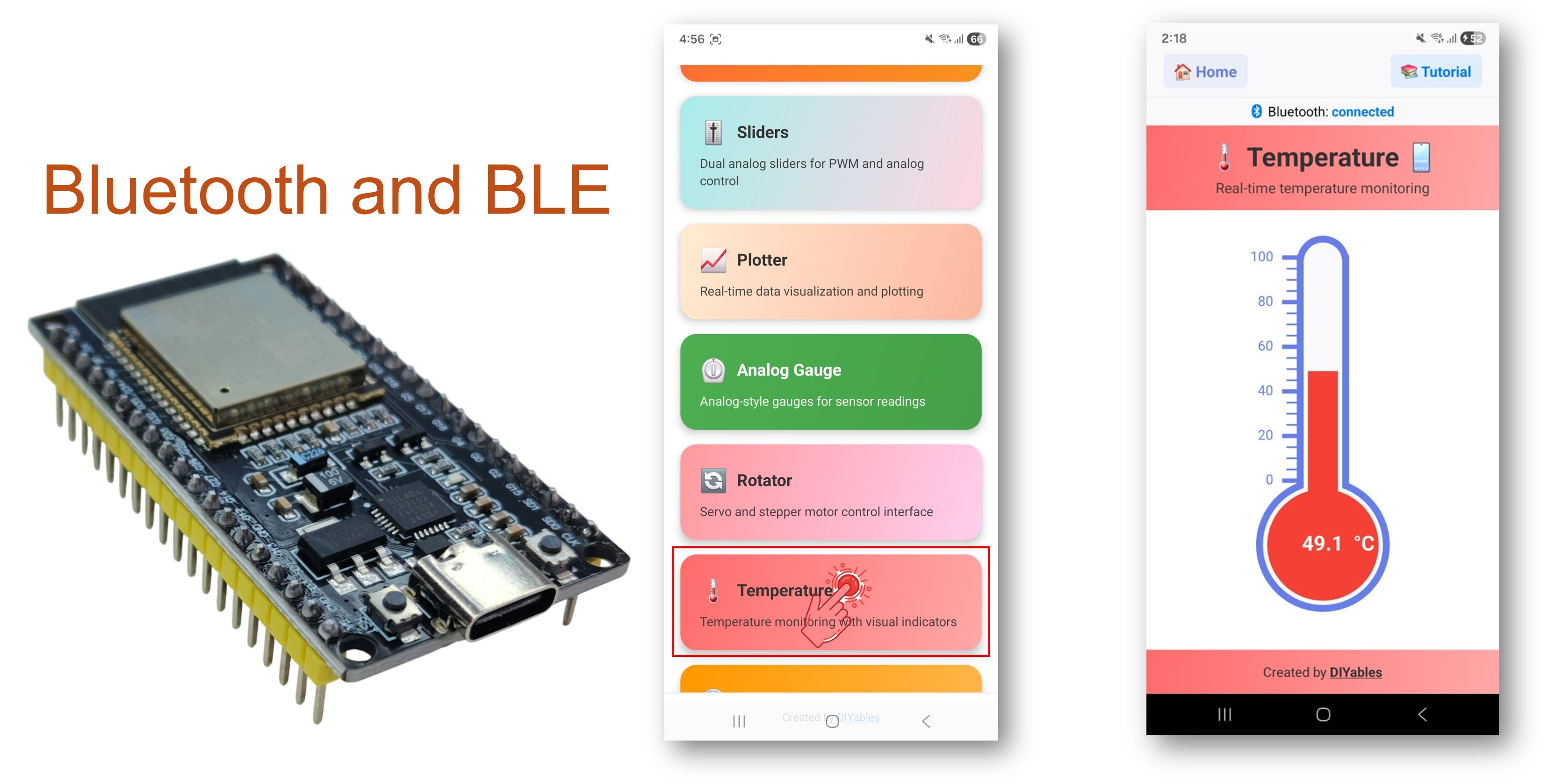
블루투스 온도 예제는 DIYables Bluetooth STEM 앱을 통해 접근할 수 있는 전용 온도 게이지 표시를 제공합니다. ESP32 보드용으로 설계되었으며 BLE(블루투스 저에너지)와 클래식 블루투스 연결을 모두 지원합니다. 설정 가능한 최솟값/최댓값 범위와 단위 레이블로 온도 수치를 전송하세요 — 온도계, 기상 관측소, HVAC 모니터링, 모든 온도 감지 애플리케이션에 적합합니다.
이 예제는 두 가지 블루투스 모드를 지원합니다:
- ESP32 BLE (블루투스 저에너지): Android와 iOS 모두에서 작동
- ESP32 클래식 블루투스: Android에서만 작동. iOS는 클래식 블루투스를 지원하지 않습니다. iOS 지원이 필요한 경우 BLE를 사용하세요.
기능
- 온도 게이지: 시각적 온도계 스타일 표시
- 설정 가능한 범위: 최소 및 최대 온도 값 설정
- 커스텀 단위: °C, °F, K, 또는 임의의 커스텀 단위 문자열 표시
- 실시간 업데이트: 라이브 온도 수치 전송
- 요청 콜백: 앱이 필요 시 현재 온도를 요청할 수 있음
- BLE & 클래식 블루투스: 프로젝트에 맞는 블루투스 모드 선택
- 크로스 플랫폼: BLE 모드는 Android와 iOS 모두에서 작동; 클래식 블루투스는 Android에서만 작동
- 저전력 옵션: BLE 모드는 클래식 블루투스보다 전력 소모가 적음
필요한 하드웨어
| 1 | × | 38-pin ESP32 ESP-WROOM-32 Dev Module - Narrow | 쿠팡 | 아마존 | |
| 1 | × | (또는) 38-pin ESP32 ESP-WROOM-32 Dev Module - Wide | 쿠팡 | 아마존 | |
| 1 | × | (또는) 30-pin ESP32 ESP-WROOM-32 Dev Module - Wide | 아마존 | |
| 1 | × | (또는) ESP32 Uno-form board | 아마존 | |
| 1 | × | (또는) ESP32 S3 Uno-form board | 아마존 | |
| 1 | × | USB 케이블 타입-A to 타입-C (USB-A PC용) | 쿠팡 | 아마존 | |
| 1 | × | USB 케이블 타입-C to 타입-C (USB-C PC용) | 아마존 | |
| 1 | × | 브레드보드 | 쿠팡 | 아마존 | |
| 1 | × | 점퍼케이블 | 쿠팡 | 아마존 | |
| 1 | × | (추천) ESP32용 스크루 터미널 확장 보드 | 쿠팡 | 아마존 | |
| 1 | × | (추천) Breakout Expansion Board for ESP32 | 쿠팡 | 아마존 | |
| 1 | × | (추천) ESP32용 전원 분배기 | 쿠팡 | 아마존 |
공개: 이 포스팅 에 제공된 일부 링크는 아마존 제휴 링크입니다. 이 포스팅은 쿠팡 파트너스 활동의 일환으로, 이에 따른 일정액의 수수료를 제공받습니다.
ESP32 코드
빠른 시작
다음 지침을 단계별로 따르세요:
- ESP32가 처음이라면 ESP32 - 소프트웨어 설치 튜토리얼을 참조하세요.
- USB 케이블로 ESP32 보드를 컴퓨터에 연결합니다.
- 컴퓨터에서 Arduino IDE를 실행합니다.
- 적절한 ESP32 보드와 COM 포트를 선택합니다.
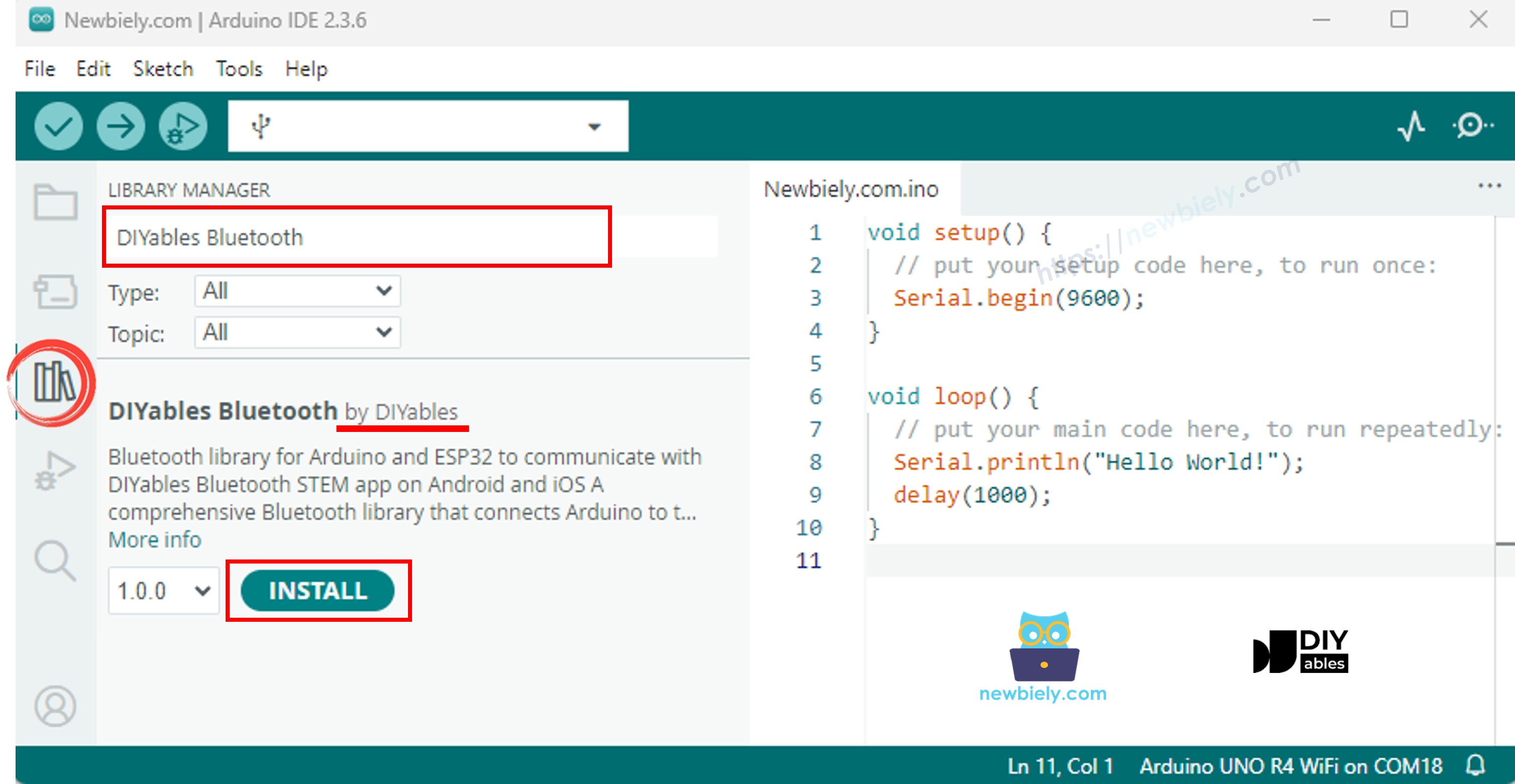
- Arduino IDE 왼쪽 바의 라이브러리 아이콘으로 이동합니다.
- "DIYables Bluetooth"를 검색한 다음 DIYables의 DIYables Bluetooth 라이브러리를 찾습니다.
- 설치 버튼을 클릭하여 라이브러리를 설치합니다.
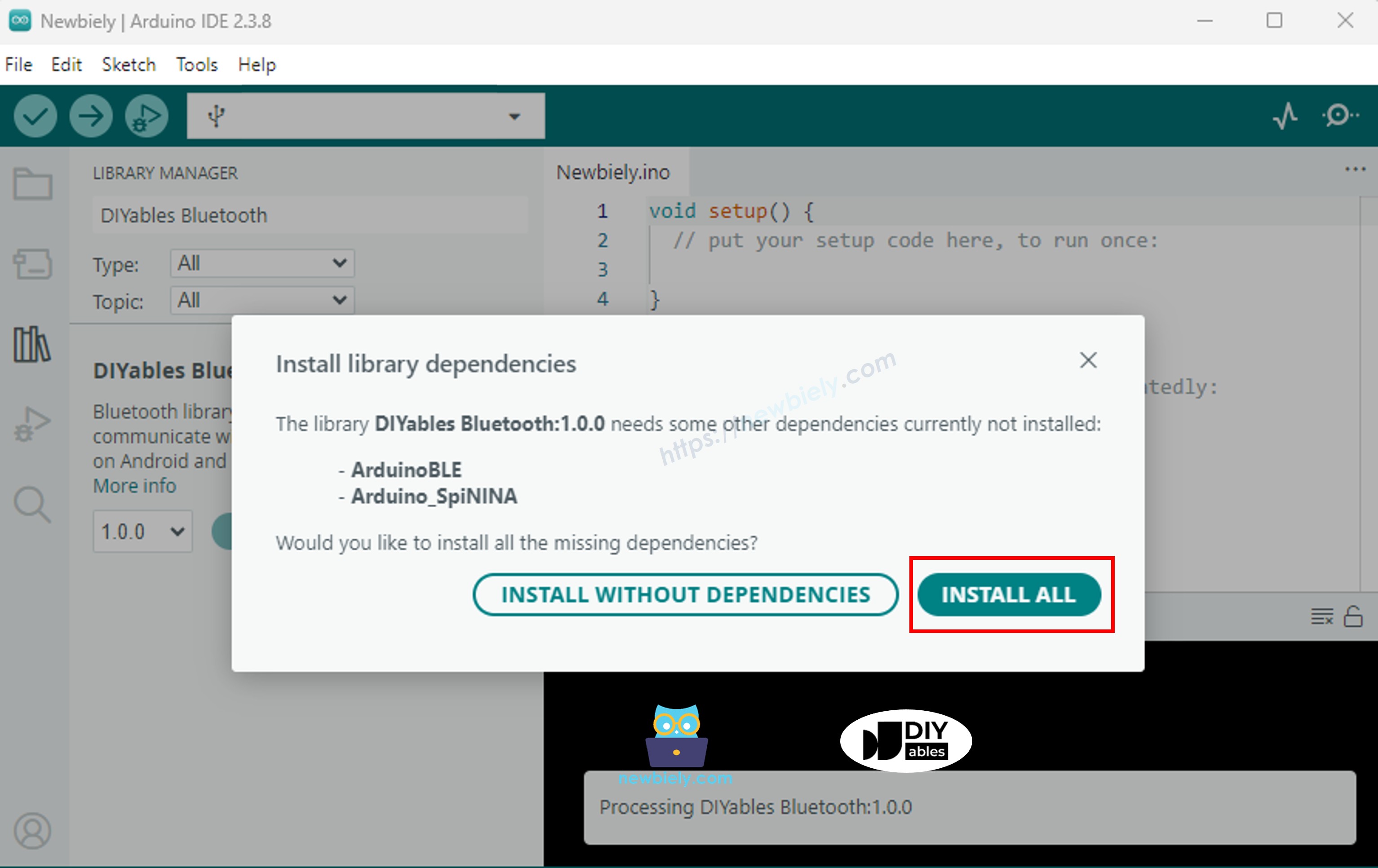
- 다른 라이브러리 종속성 설치 여부를 묻는 메시지가 표시됩니다.
- 모두 설치 버튼을 클릭하여 모든 라이브러리 종속성을 설치합니다.
필요에 따라 아래 두 가지 블루투스 모드 중 하나를 선택하세요:
ESP32 클래식 블루투스 코드 (Android의 앱에서만 작동)
참고: 클래식 블루투스는 iOS에서 지원되지 않습니다. iOS 지원이 필요한 경우 아래 BLE 코드를 사용하세요.
- Arduino IDE에서 파일 예제 DIYables Bluetooth Esp32Bluetooth_Temperature 예제로 이동하거나, 위의 코드를 복사하여 Arduino IDE 편집기에 붙여넣습니다.
/*
* DIYables Bluetooth Library - ESP32 Classic Bluetooth Temperature Example
* Works with DIYables Bluetooth STEM app on Android
* Note: Classic Bluetooth is NOT supported on iOS. Use BLE examples for iOS support.
*
* This example demonstrates the Bluetooth Temperature feature:
* - Display temperature sensor readings
* - Configurable temperature range and unit
* - Real-time temperature updates
*
* Compatible Boards:
* - ESP32 (all variants with Classic Bluetooth)
* - ESP32-WROOM-32
* - ESP32-DevKitC
* - ESP32-WROVER
*
* Note: Select "Huge APP (3MB No OTA/1MB SPIFFS)" partition scheme
* in Arduino IDE: Tools > Partition Scheme
*
* Optional: Temperature sensor (DHT22, DS18B20, or analog thermistor)
*
* Setup:
* 1. Upload the sketch to your ESP32
* 2. Open Serial Monitor (115200 baud) to see connection status
* 3. Use DIYables Bluetooth App to connect and view temperature
*
* Tutorial: https://diyables.io/bluetooth-app
* Author: DIYables
*/
#include <DIYables_BluetoothServer.h>
#include <DIYables_BluetoothTemperature.h>
#include <platforms/DIYables_Esp32Bluetooth.h>
// Create Bluetooth instances
DIYables_Esp32Bluetooth bluetooth("ESP32_Temp");
DIYables_BluetoothServer bluetoothServer(bluetooth);
// Create Temperature app instance (min=-10°C, max=50°C, unit="°C")
DIYables_BluetoothTemperature bluetoothTemperature(-10.0, 50.0, "°C");
// Variables for temperature simulation
float currentTemperature = 25.0;
unsigned long lastTempUpdate = 0;
const unsigned long TEMP_UPDATE_INTERVAL = 2000; // Update every 2 seconds
// Simulated temperature sensor reading
float readTemperature() {
// TODO: Replace with actual sensor reading
// Examples:
// - DHT22: dht.readTemperature()
// - DS18B20: sensors.getTempCByIndex(0)
// - Analog thermistor: analogToTemperature(analogRead(34))
// - ESP32 internal temp: temperatureRead() (approximate)
// Simulate temperature changes
static float offset = 0;
offset += random(-10, 11) / 10.0; // Random walk
if (offset > 5.0) offset = 5.0;
if (offset < -5.0) offset = -5.0;
return 25.0 + offset; // Base temperature 25°C with variation
}
void setup() {
Serial.begin(115200);
delay(1000);
Serial.println("DIYables Bluetooth - ESP32 Temperature Example");
// TODO: Initialize your temperature sensor here
// Examples:
// dht.begin();
// sensors.begin();
// Initialize Bluetooth server with platform-specific implementation
bluetoothServer.begin();
// Add temperature app to server
bluetoothServer.addApp(&bluetoothTemperature);
// Set up connection event callbacks
bluetoothServer.setOnConnected([]() {
Serial.println("Bluetooth connected!");
// Send initial temperature reading
float temp = readTemperature();
bluetoothTemperature.send(temp);
Serial.print("Initial temperature sent: ");
Serial.print(temp);
Serial.println("°C");
});
bluetoothServer.setOnDisconnected([]() {
Serial.println("Bluetooth disconnected!");
});
// Optional: Handle requests for temperature value
bluetoothTemperature.onTemperatureRequest([]() {
float temp = readTemperature();
bluetoothTemperature.send(temp);
Serial.print("Temperature requested - Sent: ");
Serial.print(temp);
Serial.println("°C");
});
// You can change temperature configuration at runtime:
// bluetoothTemperature.setRange(-40.0, 125.0); // Wide range for industrial sensors
// bluetoothTemperature.setUnit("°F"); // Change to Fahrenheit
Serial.println("Waiting for Bluetooth connection...");
}
void loop() {
// Handle Bluetooth server communications
bluetoothServer.loop();
// Send temperature updates periodically (only when connected)
if (bluetooth.isConnected() && millis() - lastTempUpdate >= TEMP_UPDATE_INTERVAL) {
lastTempUpdate = millis();
// Read temperature from sensor
currentTemperature = readTemperature();
// Send to Bluetooth app
bluetoothTemperature.send(currentTemperature);
// Print to Serial Monitor
Serial.print("Temperature: ");
Serial.print(currentTemperature);
Serial.println("°C");
}
delay(10);
}
- Arduino IDE에서 업로드 버튼을 클릭하여 ESP32에 코드를 업로드합니다.
- 시리얼 모니터를 엽니다.
- 시리얼 모니터에서 결과를 확인합니다. 다음과 같이 표시됩니다:
8
Serial.println("Hello World!");
Message (Enter to send message to 'ESP32 Dev Module' on 'COM15')
New Line
9600 baud
DIYables Bluetooth - ESP32 Temperature Example
Waiting for Bluetooth connection...
ESP32 BLE 코드 (Android과 iOS 앱 모두에서 작동)
- Arduino IDE에서 파일 예제 DIYables Bluetooth Esp32BLE_Temperature 예제로 이동하거나, 위의 코드를 복사하여 Arduino IDE 편집기에 붙여넣습니다.
/*
* DIYables Bluetooth Library - ESP32 BLE Temperature Example
* Works with DIYables Bluetooth STEM app on Android and iOS
*
* This example demonstrates the Bluetooth Temperature feature:
* - Display temperature sensor readings
* - Configurable temperature range and unit
* - Real-time temperature updates
*
* Compatible Boards:
* - ESP32-WROOM-32
* - ESP32-DevKitC
* - ESP32-WROVER
* - ESP32-S3
* - ESP32-C3
* - Any ESP32 board supporting BLE
*
* Note: Select "Huge APP (3MB No OTA/1MB SPIFFS)" partition scheme
* in Arduino IDE: Tools > Partition Scheme
*
* Optional: Temperature sensor (DHT22, DS18B20, or analog thermistor)
*
* Setup:
* 1. Upload the sketch to your ESP32
* 2. Open Serial Monitor (115200 baud) to see connection status
* 3. Use DIYables Bluetooth App to connect and view temperature
*
* Tutorial: https://diyables.io/bluetooth-app
* Author: DIYables
*/
#include <DIYables_BluetoothServer.h>
#include <DIYables_BluetoothTemperature.h>
#include <platforms/DIYables_Esp32BLE.h>
// BLE Configuration
const char* DEVICE_NAME = "ESP32BLE_Temp";
const char* SERVICE_UUID = "19B10000-E8F2-537E-4F6C-D104768A1214";
const char* TX_UUID = "19B10001-E8F2-537E-4F6C-D104768A1214";
const char* RX_UUID = "19B10002-E8F2-537E-4F6C-D104768A1214";
// Create Bluetooth instances
DIYables_Esp32BLE bluetooth(DEVICE_NAME, SERVICE_UUID, TX_UUID, RX_UUID);
DIYables_BluetoothServer bluetoothServer(bluetooth);
// Create Temperature app instance (min=-10°C, max=50°C, unit="°C")
DIYables_BluetoothTemperature bluetoothTemperature(-10.0, 50.0, "°C");
// Variables for temperature simulation
float currentTemperature = 25.0;
unsigned long lastTempUpdate = 0;
const unsigned long TEMP_UPDATE_INTERVAL = 2000;
// Simulated temperature sensor reading
float readTemperature() {
// TODO: Replace with actual sensor reading
static float offset = 0;
offset += random(-10, 11) / 10.0;
if (offset > 5.0) offset = 5.0;
if (offset < -5.0) offset = -5.0;
return 25.0 + offset;
}
void setup() {
Serial.begin(115200);
delay(1000);
Serial.println("DIYables Bluetooth - ESP32 BLE Temperature Example");
// Initialize Bluetooth server with platform-specific implementation
bluetoothServer.begin();
// Add temperature app to server
bluetoothServer.addApp(&bluetoothTemperature);
// Set up connection event callbacks
bluetoothServer.setOnConnected([]() {
Serial.println("Bluetooth connected!");
float temp = readTemperature();
bluetoothTemperature.send(temp);
Serial.print("Initial temperature sent: ");
Serial.print(temp);
Serial.println("°C");
});
bluetoothServer.setOnDisconnected([]() {
Serial.println("Bluetooth disconnected!");
});
bluetoothTemperature.onTemperatureRequest([]() {
float temp = readTemperature();
bluetoothTemperature.send(temp);
Serial.print("Temperature requested - Sent: ");
Serial.print(temp);
Serial.println("°C");
});
Serial.println("Waiting for Bluetooth connection...");
}
void loop() {
bluetoothServer.loop();
if (bluetooth.isConnected() && millis() - lastTempUpdate >= TEMP_UPDATE_INTERVAL) {
lastTempUpdate = millis();
currentTemperature = readTemperature();
bluetoothTemperature.send(currentTemperature);
Serial.print("Temperature: ");
Serial.print(currentTemperature);
Serial.println("°C");
}
delay(10);
}
- Arduino IDE에서 업로드 버튼을 클릭하여 ESP32에 코드를 업로드합니다.
- 시리얼 모니터를 엽니다.
- 시리얼 모니터에서 결과를 확인합니다. 다음과 같이 표시됩니다:
8
Serial.println("Hello World!");
Message (Enter to send message to 'ESP32 Dev Module' on 'COM15')
New Line
9600 baud
DIYables Bluetooth - ESP32 BLE Temperature Example
Waiting for Bluetooth connection...
모바일 앱
- ESP32 클래식 블루투스 코드를 사용하는 경우, 앱을 열기 전에 Android 폰과 ESP32를 페어링해야 합니다:
- 폰의 설정 > 블루투스로 이동합니다.
- 블루투스가 켜져 있는지 확인합니다.
- 폰이 사용 가능한 기기를 검색합니다.
- 사용 가능한 기기 목록에서 "ESP32_Temp"를 찾아 탭합니다.
- 페어링 요청을 확인합니다(PIN 필요 없음).
- 기기 이름 아래에 "페어링됨"이 표시될 때까지 기다립니다.
- ESP32 BLE 코드를 사용하는 경우, 페어링이 필요 없습니다. 다음 단계로 진행하면 됩니다.
- DIYables 블루투스 앱을 엽니다.
- 앱을 처음 열 때 권한을 요청합니다. 다음을 허용해 주세요:
- 주변 기기 권한 (Android 12+) / 블루투스 권한 (iOS) - 블루투스 기기를 검색하고 연결하는 데 필요
- 위치 권한 (Android 11 이하만 해당) - BLE 기기 검색을 위해 이전 Android 버전에서 필요
- 폰에서 블루투스가 켜져 있는지 확인합니다.
- 홈 화면에서 연결 버튼을 탭합니다. 앱이 BLE 및 클래식 블루투스 기기를 모두 검색합니다.
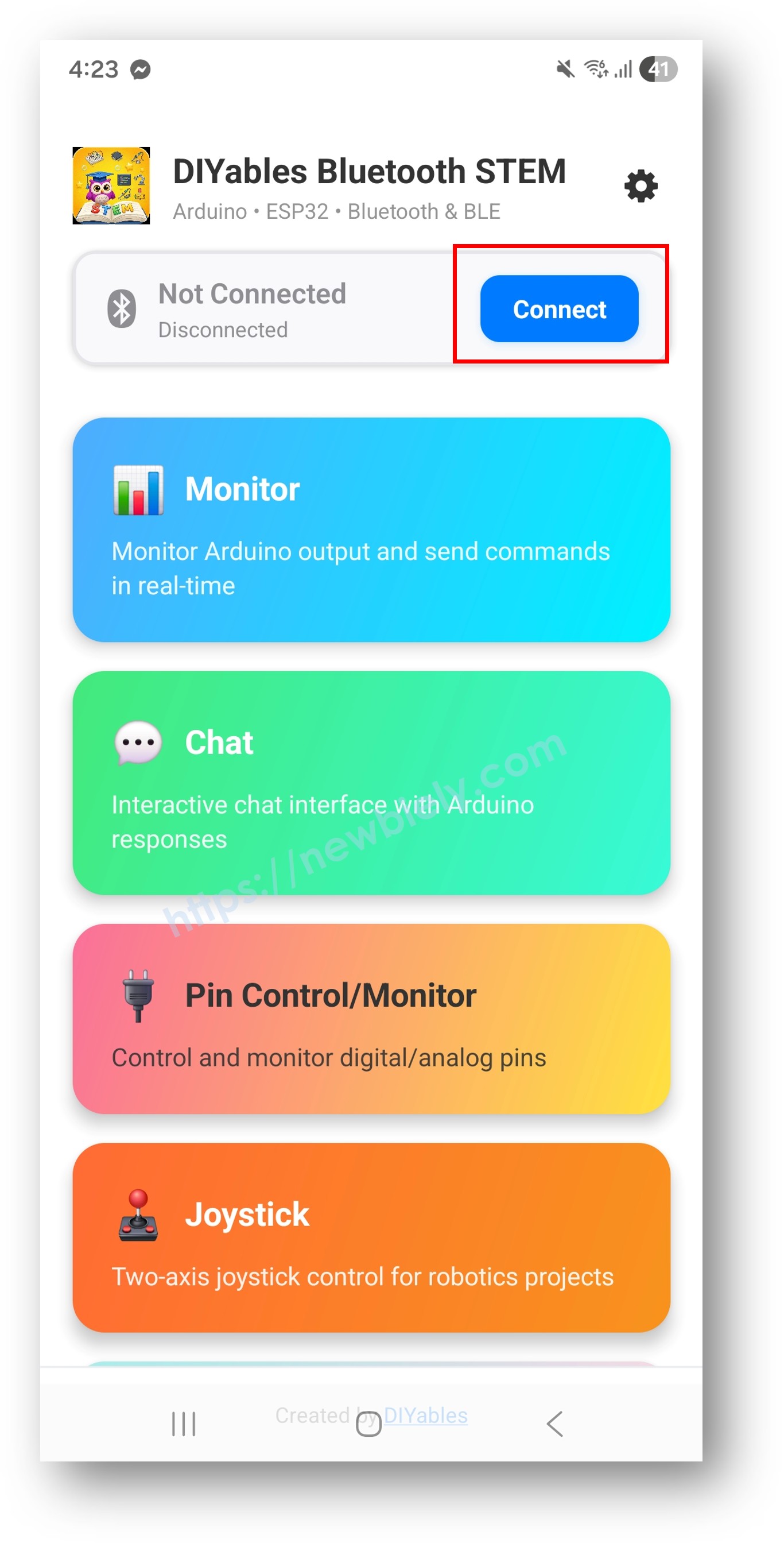
- 검색 결과에서 기기를 찾아 탭하여 연결합니다:
- 클래식 블루투스의 경우: "ESP32_Temp" 탭
- BLE의 경우: "ESP32BLE_Temp" 탭
- 연결되면 앱이 자동으로 홈 화면으로 돌아갑니다. 앱 메뉴에서 Temperature 앱을 선택합니다.
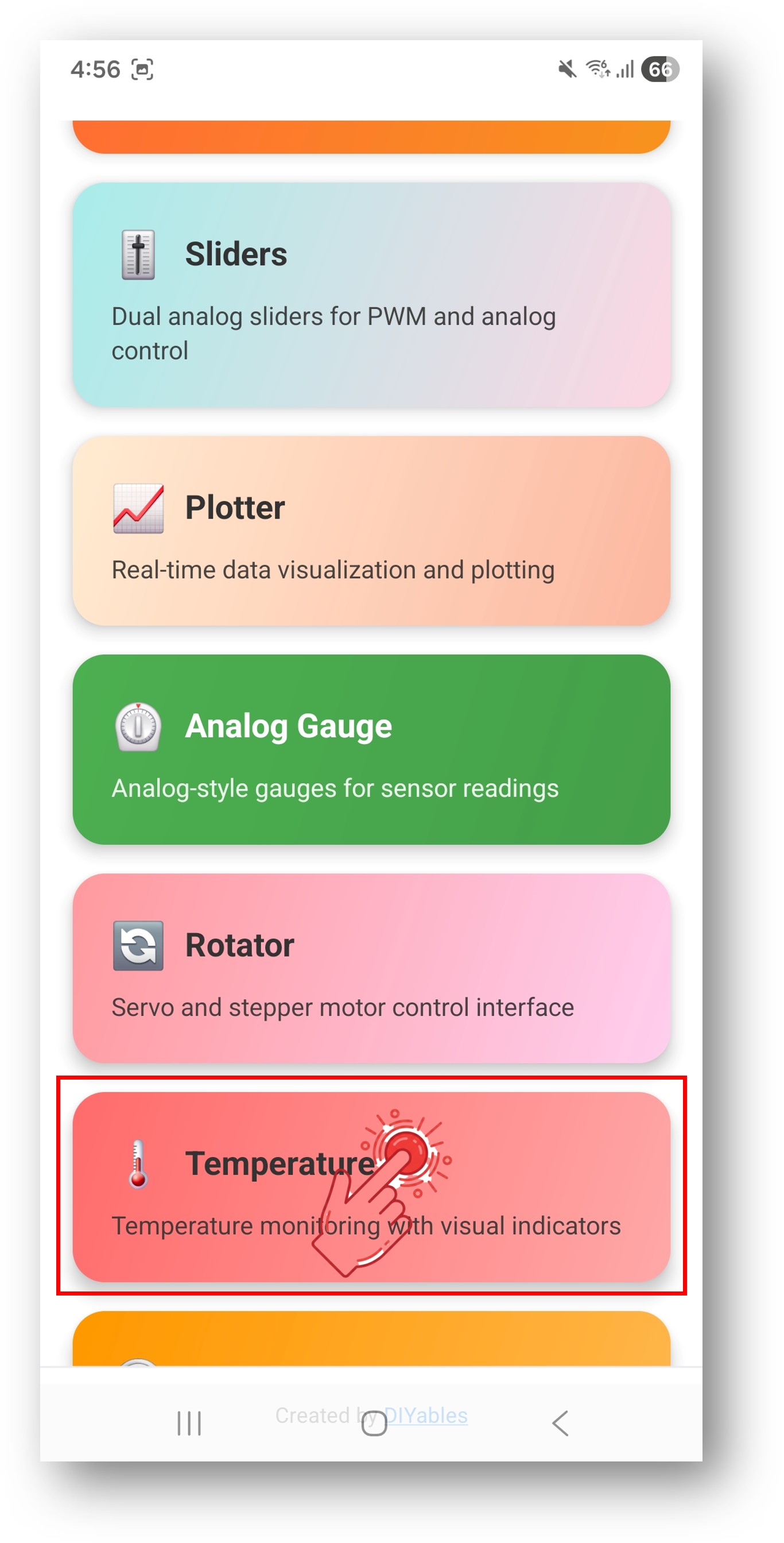
참고: 홈 화면에서 설정 아이콘을 탭하여 홈 화면에서 앱을 숨기거나 표시할 수 있습니다. 자세한 내용은 DIYables 블루투스 앱 사용 설명서를 참조하세요.
- 온도 게이지가 현재 온도 수치를 표시합니다.
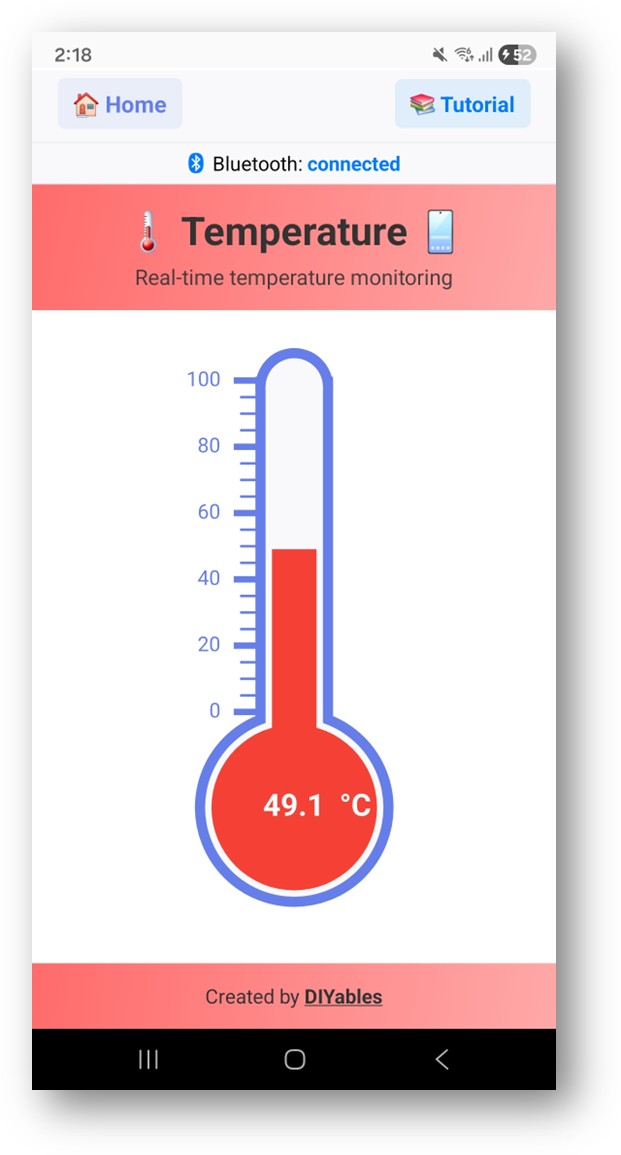
Arduino IDE의 시리얼 모니터를 다시 보면 다음과 같이 표시됩니다:
8
Serial.println("Hello World!");
Message (Enter to send message to 'ESP32 Dev Module' on 'COM15')
New Line
9600 baud
Bluetooth connected!
Temperature: 24.5 °C
Temperature: 24.8 °C
Temperature: 25.1 °C
Temperature: 24.9 °C
- 앱에서 온도 게이지가 실시간으로 업데이트되는 것을 확인하세요.
창의적인 커스터마이징 - 프로젝트에 맞게 코드 조정하기
온도 범위와 단위 설정
디스플레이 범위와 단위를 설정합니다:
// Constructor: DIYables_BluetoothTemperature(min, max, unit)
DIYables_BluetoothTemperature bluetoothTemperature(-10.0, 50.0, "°C");
// Change range at runtime
bluetoothTemperature.setRange(-20.0, 60.0);
// Change unit
bluetoothTemperature.setUnit("°F");
// Read current configuration
float minTemp = bluetoothTemperature.getMin(); // Returns -10.0
float maxTemp = bluetoothTemperature.getMax(); // Returns 50.0
String unit = bluetoothTemperature.getUnit(); // Returns "°C"
온도 값 전송
// Send current temperature reading
float temperature = readSensor();
bluetoothTemperature.send(temperature);
// Send text message
bluetoothTemperature.send("Calibrating...");
연결 이벤트 처리
bluetoothServer.setOnConnected([]() {
Serial.println("Bluetooth connected!");
float temp = readTemperature();
bluetoothTemperature.send(temp);
});
bluetoothServer.setOnDisconnected([]() {
Serial.println("Bluetooth disconnected!");
});


