ESP32 ILI9341 ILI9488 ST7789 TFT LCD 터치 디스플레이 SPI 인터페이스
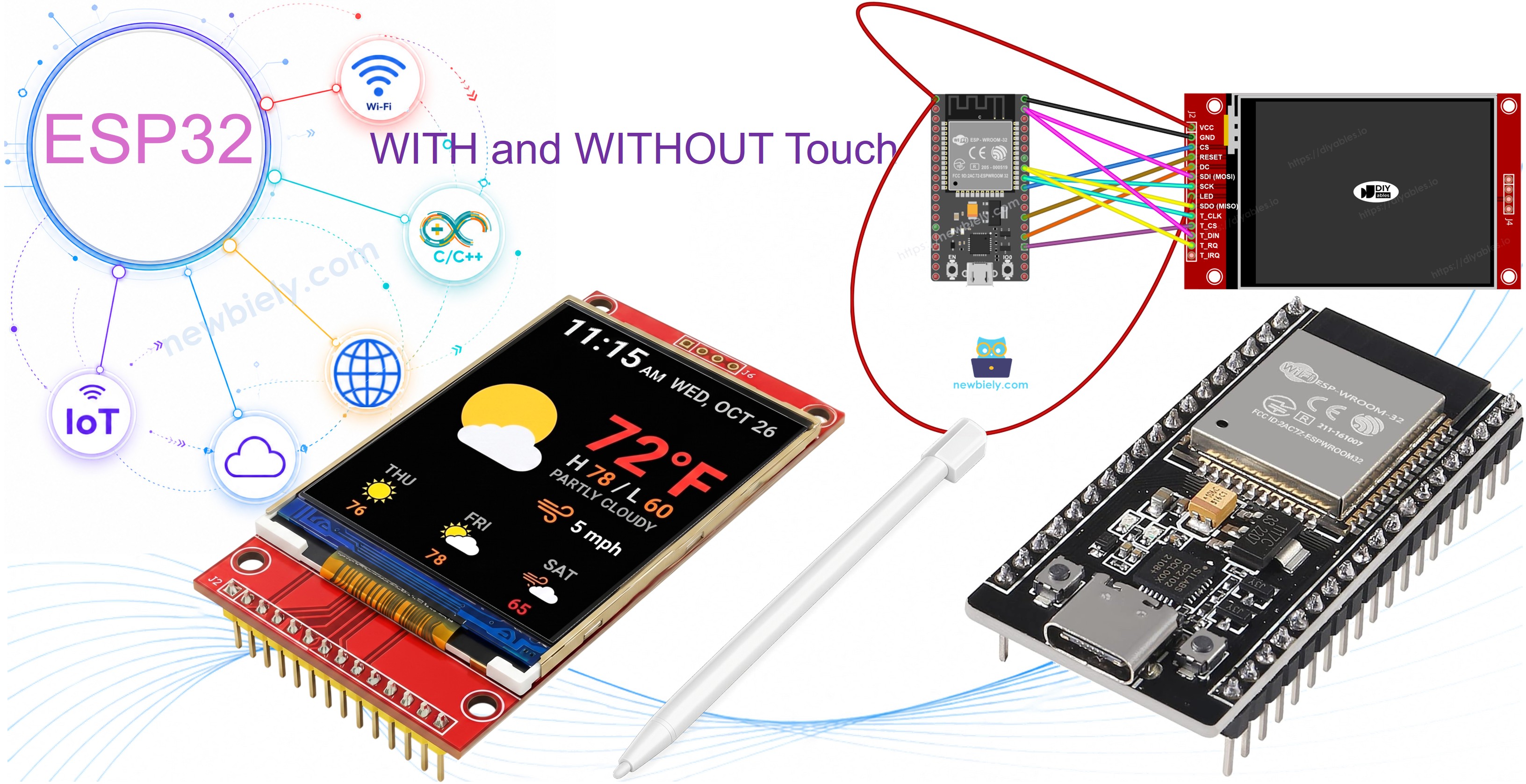
ESP32에서 풀컬러 SPI TFT 디스플레이를 구현하는 프로젝트를 만들어봅시다. ESP32는 Wi-Fi, 블루투스, 충분한 GPIO를 갖춘 강력한 이중 코어 마이크로컨트롤러입니다. VSPI 하드웨어 SPI 버스를 통해 패널이 지원하는 속도로 TFT 디스플레이를 간편하게 운영할 수 있습니다.
제작할 내용:
ESP32와 SPI TFT 디스플레이 간의 배선 연결.
Adafruit GFX 드로잉 API를 사용한 도형 데모.
텍스트 및 숫자 표시 예제.
프로그램 메모리(PROGMEM)에서 비트맵 이미지 뷰어.
SD 카드에서 이미지를 읽는 비트맵 이미지 뷰어.
커스텀 외부 폰트 데모.
XPT2046 컨트롤러를 사용한 터치 좌표 읽기.
터치 드로우 애플리케이션(화면에 손가락으로 그리기).
인터랙티브 터치 버튼 인터페이스.
터치스크린 보정 도구.
ESP32 HSPI를 사용한 커스텀 SPI 버스 예제.
이 프로젝트는 터치 및 비터치 SPI TFT LCD 디스플레이를 모두 다룹니다. ILI9341, ILI9488 또는 ST7789 컨트롤러 칩으로 구동되는 1.3, 1.54, 2.2, 2.4, 2.8, 3.2, 3.5인치 패널과 호환됩니다.
공개: 이 포스팅 에 제공된 일부 링크는 아마존 제휴 링크입니다. 이 포스팅은 쿠팡 파트너스 활동의 일환으로, 이에 따른 일정액의 수수료를 제공받습니다.
SPI TFT 디스플레이란?
SPI TFT 모듈은 4선 SPI 버스를 통해 드로잉 명령을 받는 드라이버 IC와 컬러 LCD를 결합합니다. 라이브러리는 세 가지 일반적인 칩을 지원합니다:
ILI9341 - 16비트 RGB565 색상, 최대 40 MHz SPI.
ILI9488 - SPI를 통한 18비트 RGB666 색상, 최대 24 MHz.
ST7789 - 16비트 RGB565 색상, 최대 40 MHz SPI.
추천: 아직 디스플레이를 구입하지 않았다면 ST7789 드라이버를 권장합니다. 널리 사용 가능하고, 최대 40 MHz SPI 속도로 실행되며, 새 프로젝트에 가장 간단한 선택입니다.
드로잉은 도형, 텍스트, 커스텀 폰트, 비트맵 출력을 포함하는 Adafruit GFX API를 통해 처리됩니다.
참고: ESP32는 3.3V 로직을 사용합니다. 대부분의 SPI TFT 모듈은 3.3V로 동작합니다. 배선 전에 모듈의 전압 사양을 확인하세요.
핀아웃
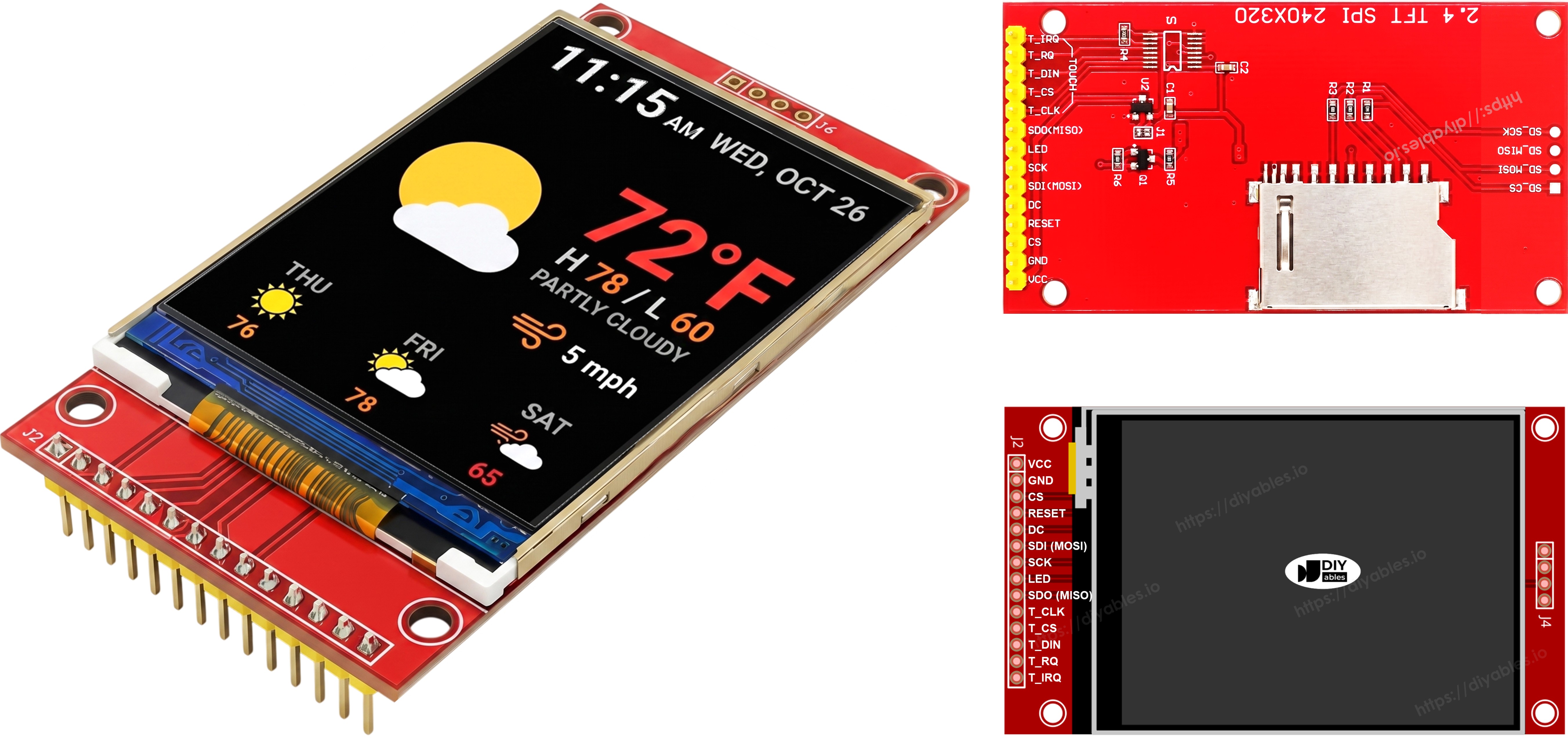
대부분의 SPI TFT LCD 디스플레이는 다음과 같은 핀을 갖추고 있습니다:
디스플레이 핀:
핀
기능
VCC
전원 공급
GND
접지
CS
칩 선택 — LOW로 당겨 SPI 버스에서 디스플레이 선택
DC / RS
데이터/명령 선택 — 픽셀 데이터는 HIGH, 명령은 LOW
RST
하드웨어 리셋 — 선택 사항; 미사용 시 3.3V에 연결
MOSI / SDI / SDA
SPI 데이터 입력 (MCU → 디스플레이)
SCK / CLK
SPI 클록
MISO / SDO
SPI 데이터 출력 (디스플레이 → MCU) — 디스플레이 전용 사용 시 선택 사항
LED / BL / BLK
백라이트 전원 — 3.3V에 연결하거나 디밍을 위해 PWM 핀에 연결
SD 카드 핀 (애플리케이션이 SD 카드에 접근해야 하는 경우):
핀
기능
SD_CS / TF_CS
SD 카드 칩 선택
MOSI / SDI
MOSI — MCU에서 SD 카드로의 데이터
SCK / CLK
SCK — SPI 클록
MISO / SDO
MISO — SD 카드에서 MCU로의 데이터
터치를 지원하는 TFT 디스플레이의 경우 추가 터치 핀이 있습니다(애플리케이션이 터치 기능을 사용하고 디스플레이가 지원하는 경우):
핀
기능
T_CS
터치 컨트롤러 칩 선택
T_CLK
SCK — SPI 클록
T_DIN
MOSI — MCU에서 터치 컨트롤러로의 데이터
T_DO
MISO — 터치 컨트롤러에서 MCU로의 데이터
T_IRQ
터치 인터럽트 — 선택 사항; 화면이 터치될 때 신호 전달
참고: 일부 비터치 디스플레이 모듈도 T_CS, T_CLK, T_DIN, T_DO, T_IRQ 핀을 노출합니다. 이 보드에서는 터치 컨트롤러 IC가 장착되지 않아 비활성 상태입니다. PCB가 제조 변형을 줄이기 위해 터치 지원 버전과 동일한 레이아웃을 재사용하기 때문에 표시됩니다.
배선 다이어그램
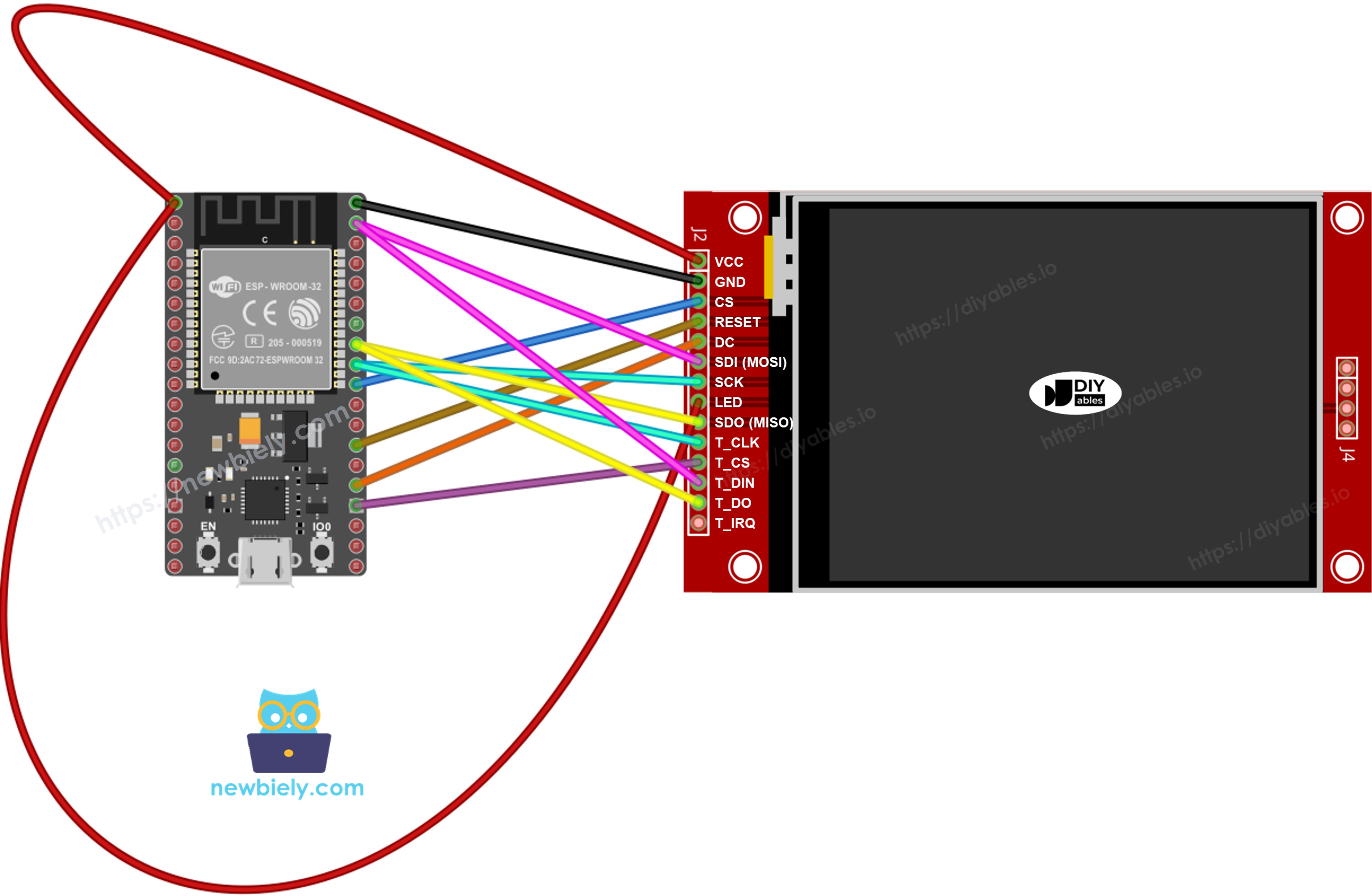
터치 없음
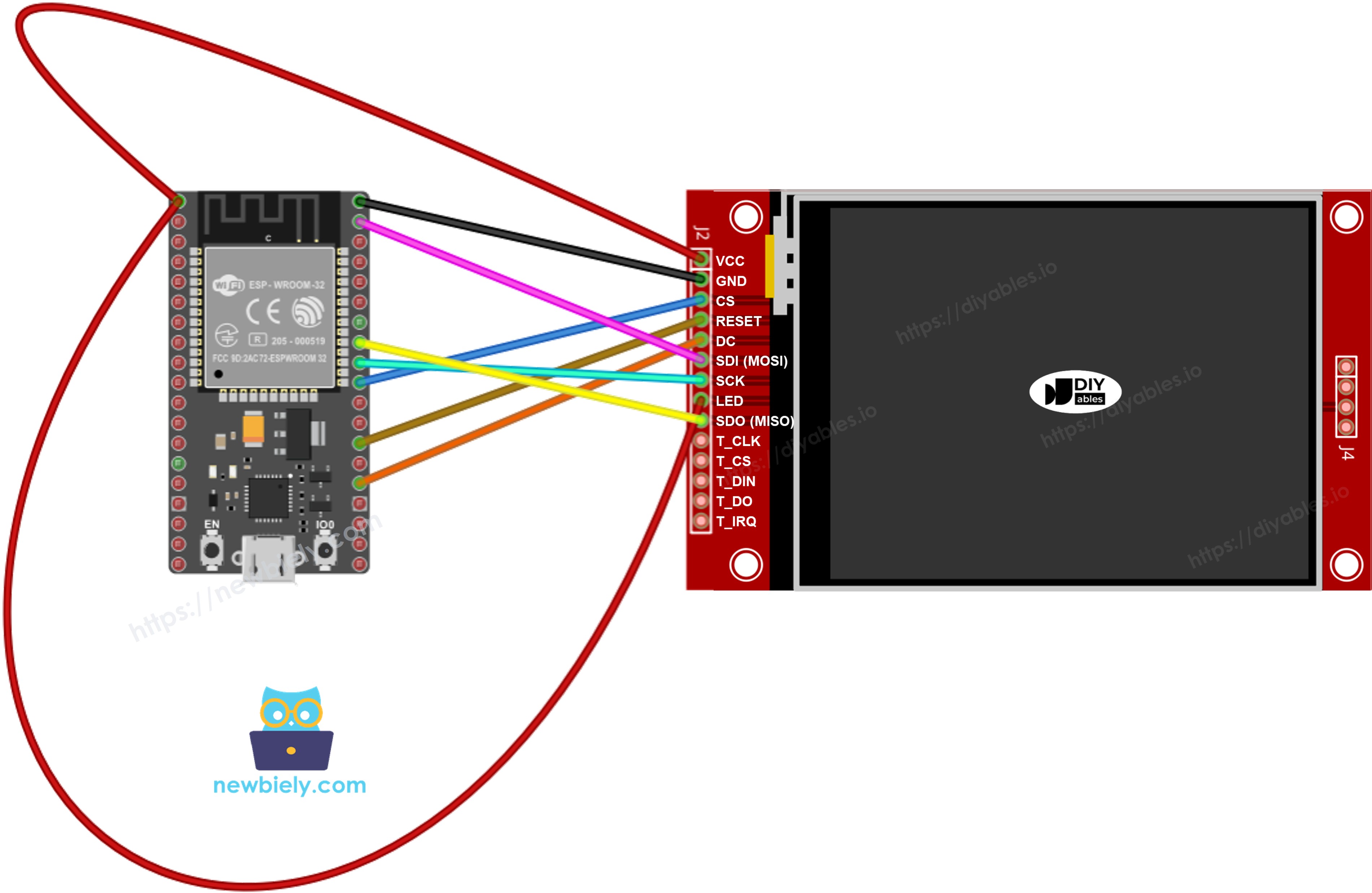
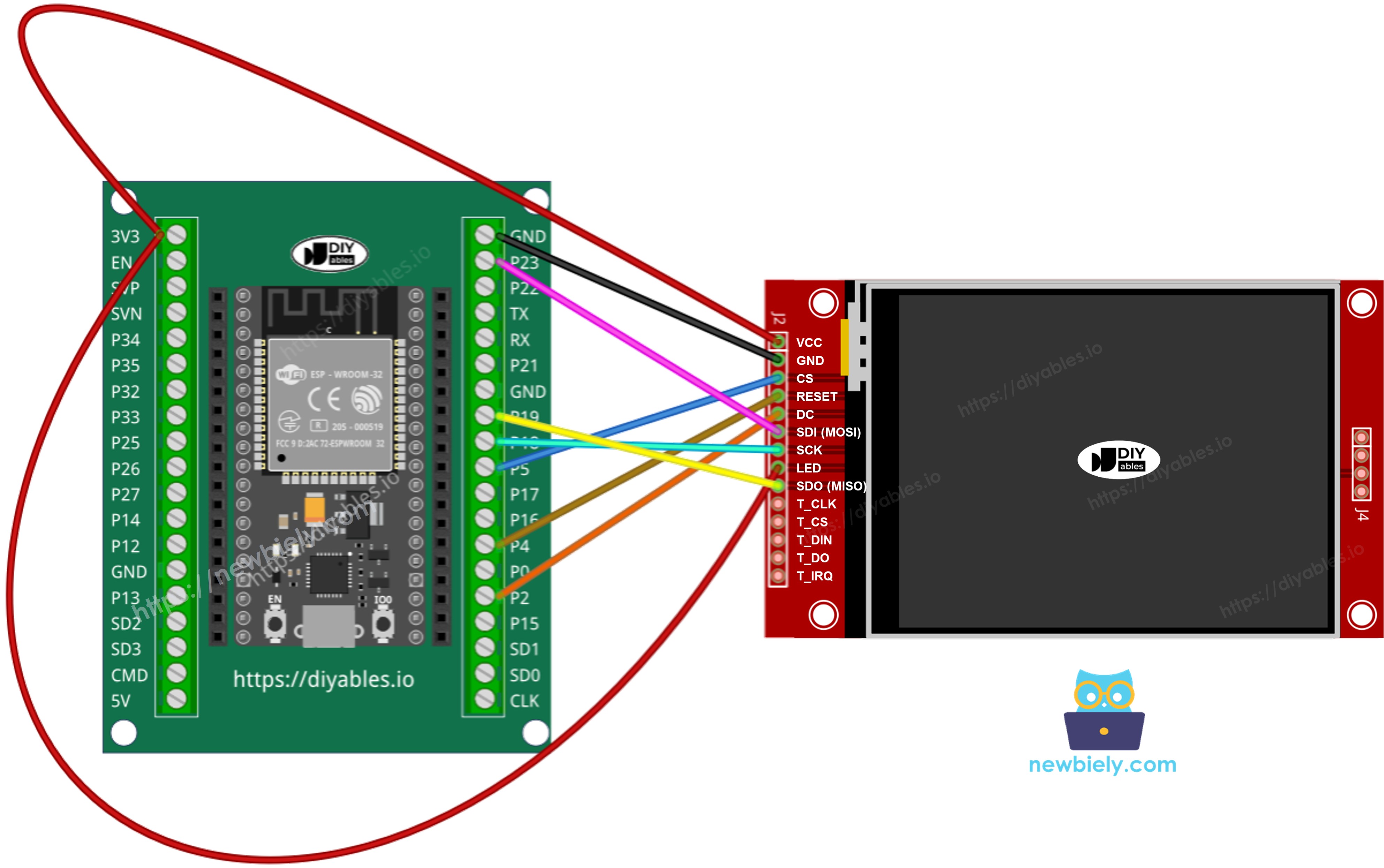
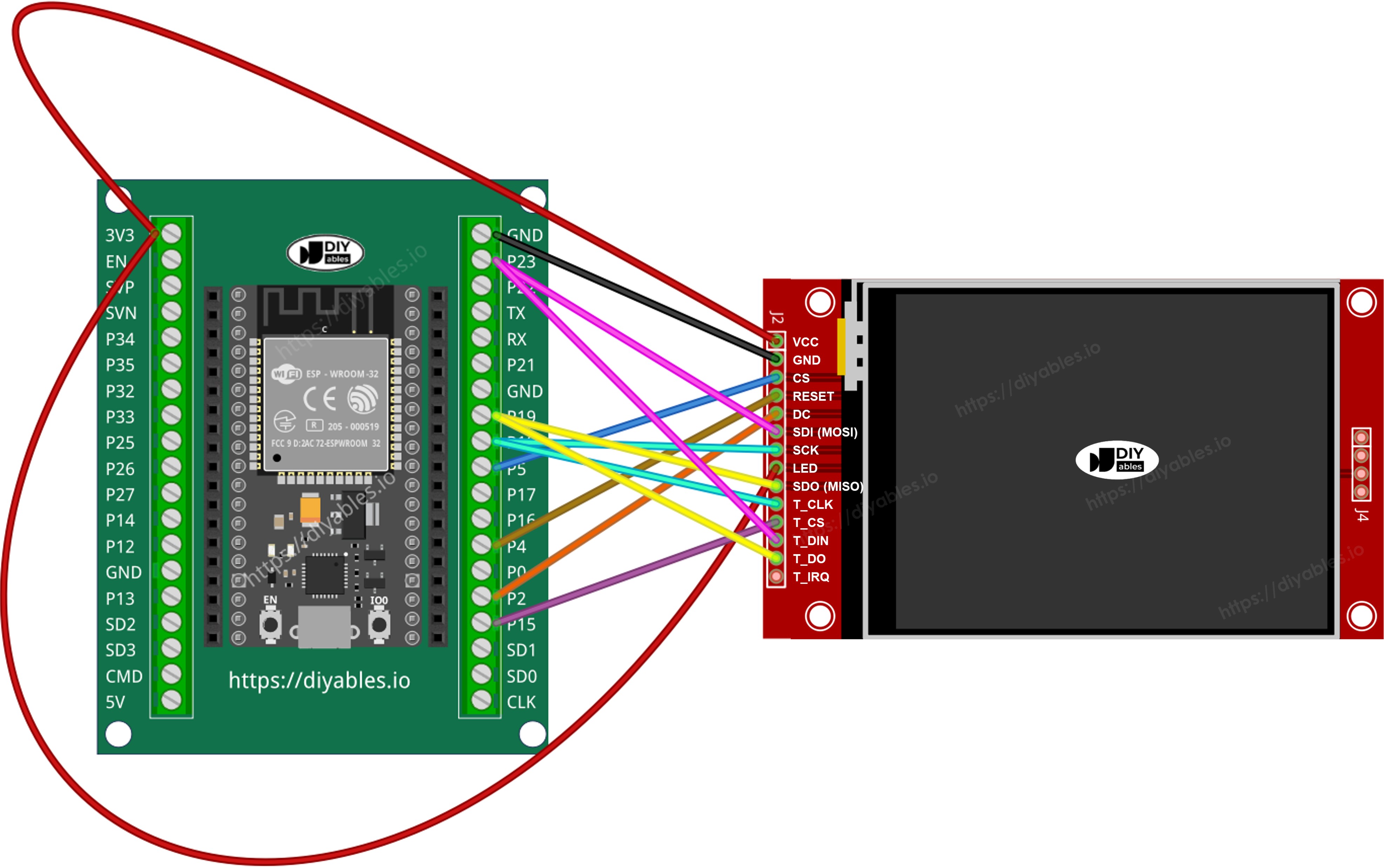
ESP32에서 MOSI를 GPIO23, SCK를 GPIO18, MISO를 GPIO19에 연결합니다. CS, DC, RST는 사용 가능한 모든 GPIO가 될 수 있습니다 — GPIO5, GPIO2, GPIO4가 예제에서 사용됩니다.
ESP32 및 다른 구성 요소에 전원을 공급하는 방법에 대해 잘 알지 못하는 경우, 다음 튜토리얼에서 안내를 찾을 수 있습니다: ESP32 전원 공급 방법.
참고: 위의 다이어그램은 올바른 배선을 보여줍니다. 실제로는 동일한 ESP32 핀 헤더 구멍에 두 개의 와이어를 꽂기 어렵습니다. 편리한 해결책은 ESP32용 스크류 터미널 블록 브레이크아웃 보드를 사용하는 것입니다 — 두 개의 와이어를 동일한 스크류 터미널에 고정하거나, 하나는 스크류에 다른 하나는 인접한 헤더 핀에 꽂을 수 있습니다.
MCU에 두 개 이상의 하드웨어 SPI 인터페이스가 있는 경우 각 주변 장치(디스플레이, SD 카드, 터치 컨트롤러)를 자체 전용 SPI 버스에 할당할 수 있습니다. MCU에 하드웨어 SPI 인터페이스가 하나만 있는 경우 세 개의 주변 장치 모두 동일한 세 개의 데이터 라인(MOSI, SCK, MISO)을 공유합니다 — ESP32에서는 GPIO23, GPIO18, GPIO19입니다. 각 주변 장치에는 자체 CS 핀이 있으므로 한 번에 하나만 활성화됩니다. DIYables_TFT_SPI 라이브러리는 단일 API를 통해 디스플레이와 XPT2046 터치 컨트롤러를 모두 관리합니다 — 터치 측에 별도의 SPI 라이브러리가 필요 없습니다.
라이브러리 설치
USB-C 포트를 통해 ESP32 보드를 컴퓨터에 연결합니다.
Arduino IDE를 엽니다. 보드 메뉴에서 ESP32 보드 변형을 선택하고 올바른 COM 포트를 선택합니다.
라이브러리 패널을 엽니다.
"DIYables_TFT_SPI"를 검색합니다. DIYables 항목을 찾습니다.
설치를 클릭하고 모든 종속성 설치를 수락합니다.
Search for DIYables TFTSPI created by DIYables.io and click the Install button.
Newbiely | Arduino IDE 2.3.8
──
☐
✕
File
Edit
Sketch
Tools
Help
ESP32 Dev Module
Library Manager
DIYables TFT SPI
Type:
All
Topic:
All
DIYables TFT SPIby DIYables.io
Works with both touch and non-touch versions of the same SPI TFT modules. Supports ILI9341 (240x320, 16-bit RGB565), ILI9488 (320x480, 18-bit RGB666), and ST7789 (240x320, 16-bit RGB565) displays over SPI. Includes built-in driver for XPT2046 / HR2046 / ADS7843 SPI touch controllers and 4-wire resistive touch panels - no separate touch library required. Use the display-only API for non-touch panels, or add initTouchSPI() to enable touch on modules that include a touch controller. Extends Adafruit GFX for full graphics support. Works with any Arduino-compatible board that has SPI.
More info
1.0.3
INSTALL
Newbiely.ino
···
1
voidsetup() {
Output
Serial Monitor
Ln 1, Col 1
ESP32 Dev Module on COM15
1
프로젝트 기반
이 라이브러리를 사용하는 모든 ESP32 TFT 프로젝트의 기본 스케치:
#include <DIYables_TFT_SPI.h>#define TFT_CS_PIN 5#define TFT_DC_PIN 2#define TFT_RST_PIN 4// Uncomment the line that matches your driver chip:// DIYables_ILI9341_SPI TFT_display(240, 320, TFT_CS_PIN, TFT_DC_PIN, TFT_RST_PIN);// DIYables_ILI9488_SPI TFT_display(320, 480, TFT_CS_PIN, TFT_DC_PIN, TFT_RST_PIN);DIYables_ST7789_SPI TFT_display(240, 320, TFT_CS_PIN, TFT_DC_PIN, TFT_RST_PIN);voidsetup() {TFT_display.begin();TFT_display.setRotation(1);}voidloop() {// drawing code here}
제작하기 - 도형 그리기
DrawShapes 예제는 원, 삼각형, 직사각형, 둥근 직사각형, 선 등 Adafruit GFX 기본 요소의 전체 범위를 그립니다.
/* * 이 ESP32 코드는 newbiely.kr 에서 개발되었습니다 * 이 ESP32 코드는 어떠한 제한 없이 공개 사용을 위해 제공됩니다. * 상세한 지침 및 연결도에 대해서는 다음을 방문하세요: * https://newbiely.kr/tutorials/esp32/esp32-tft-lcd-touch-display-spi *//* Created by DIYables This example code is in the public domain Product page: https://diyables.io*/// =============================================// Single include brings in the base class plus all driver classes.// =============================================#include <DIYables_TFT_SPI.h>// =============================================// Wiring (ESP32)// =============================================// TFT pins (always required)// TFT module ESP32// ------------ ---------------------------------// VCC -> 3.3V (NOT 5V!)// GND -> GND// CS -> GPIO5 (TFT_CS_PIN)// RESET -> GPIO4 (TFT_RST_PIN)// DC / RS -> GPIO2 (TFT_DC_PIN)// SDI / MOSI -> GPIO23 (hardware SPI MOSI / VSPI)// SCK -> GPIO18 (hardware SPI SCK / VSPI)// SDO / MISO -> GPIO19 (only needed when reading from display / VSPI)// LED -> 3.3V (or any GPIO via initBacklight)// =============================================// =============================================// SPI pin definitions (adjust for your board)// =============================================#define TFT_CS_PIN 5#define TFT_DC_PIN 2#define TFT_RST_PIN 4// Panel resolution in native (portrait) orientation - change to match your module#define TFT_WIDTH 240#define TFT_HEIGHT 320// MOSI and SCK use default hardware SPI pins// =============================================// Create display object (uncomment matching driver)// =============================================// DIYables_ILI9341_SPI TFT_display(TFT_WIDTH, TFT_HEIGHT, TFT_CS_PIN, TFT_DC_PIN, TFT_RST_PIN);// DIYables_ILI9488_SPI TFT_display(TFT_WIDTH, TFT_HEIGHT, TFT_CS_PIN, TFT_DC_PIN, TFT_RST_PIN);DIYables_ST7789_SPI TFT_display(TFT_WIDTH, TFT_HEIGHT, TFT_CS_PIN, TFT_DC_PIN, TFT_RST_PIN);#define BLACK DIYables_TFT_SPI::colorRGB(0, 0, 0)#define BLUE DIYables_TFT_SPI::colorRGB(0, 0, 255)#define RED DIYables_TFT_SPI::colorRGB(255, 0, 0)#define GREEN DIYables_TFT_SPI::colorRGB(0, 255, 0)#define ORANGE DIYables_TFT_SPI::colorRGB(255, 165, 0)#define PINK DIYables_TFT_SPI::colorRGB(255, 192, 203)#define VIOLET DIYables_TFT_SPI::colorRGB(148, 0, 211)#define TURQUOISE DIYables_TFT_SPI::colorRGB(64, 224, 208)#define WHITE DIYables_TFT_SPI::colorRGB(255, 255, 255)// Helper to draw a filled diamondvoid fillDiamond(int cx, int cy, int h, int v, uint16_t color) {int x0 = cx, y0 = cy - v;int x1 = cx + h, y1 = cy;int x2 = cx, y2 = cy + v;int x3 = cx - h, y3 = cy;TFT_display.fillTriangle(x0, y0, x1, y1, x2, y2, color);TFT_display.fillTriangle(x0, y0, x2, y2, x3, y3, color);}voidsetup() {TFT_display.begin();TFT_display.setRotation(1); // Landscape}voidloop() {TFT_display.fillScreen(WHITE);uint16_t w = TFT_display.width();uint16_t h = TFT_display.height();// Scale positions relative to screen size with better spacingint col1 = w / 8;int col2 = w * 3 / 8;int col3 = w * 5 / 8;int col4 = w * 7 / 8;int row1 = h / 4;int row2 = h / 2;int row3 = h * 3 / 4;// Outlined circleTFT_display.drawCircle(col1, row1, 30, RED);// Filled circleTFT_display.fillCircle(col2, row1, 30, RED);// Outlined triangleTFT_display.drawTriangle(col3 - 30, row1 + 25, col3 + 30, row1 + 25, col3, row1 - 25, BLUE);// Filled triangleTFT_display.fillTriangle(col4 - 30, row1 + 25, col4 + 30, row1 + 25, col4, row1 - 25, GREEN);// Outlined rectangleTFT_display.drawRect(col1 - 35, row2 - 20, 70, 40, ORANGE);// Filled rectangleTFT_display.fillRect(col2 - 35, row2 - 20, 70, 40, TURQUOISE);// Outlined round rectangleTFT_display.drawRoundRect(col3 - 35, row2 - 20, 70, 40, 10, VIOLET);// Filled round rectangleTFT_display.fillRoundRect(col4 - 35, row2 - 20, 70, 40, 10, PINK);// Outlined diamond (centered between col1 and col2)int diamond1_x = (col1 + col2) / 2;TFT_display.drawLine(diamond1_x, row3 - 30, diamond1_x + 25, row3, GREEN);TFT_display.drawLine(diamond1_x + 25, row3, diamond1_x, row3 + 30, GREEN);TFT_display.drawLine(diamond1_x, row3 + 30, diamond1_x - 25, row3, GREEN);TFT_display.drawLine(diamond1_x - 25, row3, diamond1_x, row3 - 30, GREEN);// Filled diamond (centered between col3 and col4)int diamond2_x = (col3 + col4) / 2; fillDiamond(diamond2_x, row3, 25, 30, BLUE);delay(10000);}
업로드 및 테스트
위의 표를 사용하여 TFT 모듈을 ESP32에 연결합니다.
USB-C 케이블을 연결합니다.
Arduino IDE에서 보드와 포트를 선택하고 코드를 붙여넣은 다음 업로드를 누릅니다.
업로드 후 디스플레이에 색상 도형의 루프가 표시됩니다.
드로잉 API 참조
메서드
목적
사용법
begin()
디스플레이 초기화.
TFT_display.begin();
setRotation(r)
화면 방향 0-3 설정.
TFT_display.setRotation(1);
fillScreen(color)
전체 화면을 하나의 색상으로 채웁니다.
TFT_display.fillScreen(BLACK);
colorRGB(r,g,b)
16비트 색상 값을 생성합니다.
colorRGB(255,128,0)
fillCircle(x,y,r,color)
채워진 원.
TFT_display.fillCircle(120,160,60,RED);
fillRect(x,y,w,h,color)
채워진 직사각형.
TFT_display.fillRect(0,0,100,50,BLUE);
drawLine(x0,y0,x1,y1,color)
두 점 사이의 직선.
TFT_display.drawLine(0,0,320,240,WHITE);
제작하기 - 텍스트 및 숫자 표시
ShowTextAndNumber 예제는 Adafruit GFX 텍스트 엔진을 사용하여 조절 가능한 크기와 색상으로 문자열과 숫자 값을 출력합니다.
/* * 이 ESP32 코드는 newbiely.kr 에서 개발되었습니다 * 이 ESP32 코드는 어떠한 제한 없이 공개 사용을 위해 제공됩니다. * 상세한 지침 및 연결도에 대해서는 다음을 방문하세요: * https://newbiely.kr/tutorials/esp32/esp32-tft-lcd-touch-display-spi *//* Created by DIYables This example code is in the public domain Product page: https://diyables.io*/// =============================================// Single include brings in the base class plus all driver classes.// =============================================#include <DIYables_TFT_SPI.h>// =============================================// Wiring (ESP32)// =============================================// TFT pins (always required)// TFT module ESP32// ------------ ---------------------------------// VCC -> 3.3V (NOT 5V!)// GND -> GND// CS -> GPIO5 (TFT_CS_PIN)// RESET -> GPIO4 (TFT_RST_PIN)// DC / RS -> GPIO2 (TFT_DC_PIN)// SDI / MOSI -> GPIO23 (hardware SPI MOSI / VSPI)// SCK -> GPIO18 (hardware SPI SCK / VSPI)// SDO / MISO -> GPIO19 (only needed when reading from display / VSPI)// LED -> 3.3V (or any GPIO via initBacklight)// =============================================// =============================================// SPI pin definitions (adjust for your board)// =============================================#define TFT_CS_PIN 5#define TFT_DC_PIN 2#define TFT_RST_PIN 4// Panel resolution in native (portrait) orientation - change to match your module#define TFT_WIDTH 240#define TFT_HEIGHT 320// =============================================// Create display object (uncomment matching driver)// =============================================// DIYables_ILI9341_SPI TFT_display(TFT_WIDTH, TFT_HEIGHT, TFT_CS_PIN, TFT_DC_PIN, TFT_RST_PIN);// DIYables_ILI9488_SPI TFT_display(TFT_WIDTH, TFT_HEIGHT, TFT_CS_PIN, TFT_DC_PIN, TFT_RST_PIN);DIYables_ST7789_SPI TFT_display(TFT_WIDTH, TFT_HEIGHT, TFT_CS_PIN, TFT_DC_PIN, TFT_RST_PIN);#define MAGENTA DIYables_TFT_SPI::colorRGB(255, 0, 255)#define WHITE DIYables_TFT_SPI::colorRGB(255, 255, 255)voidsetup() {Serial.begin(9600);Serial.println(F("TFT SPI Display - Show text and numbers"));TFT_display.begin();TFT_display.setRotation(1); // LandscapeTFT_display.fillScreen(WHITE);// Set text color and sizeTFT_display.setTextColor(MAGENTA);TFT_display.setTextSize(3);// Sample valuesfloat temperature = 23.5;float humidity = 78.6;// Display temperatureTFT_display.setCursor(20, 20);TFT_display.print("Temperature: ");TFT_display.print(temperature, 1);TFT_display.print(char(247));TFT_display.println("C");// Display humidityTFT_display.setCursor(20, 60);TFT_display.print("Humidity: ");TFT_display.print(humidity, 1);TFT_display.print("%");}voidloop() {}
업로드 및 테스트
위와 같이 배선하고 업로드합니다.
디스플레이에 다양한 색상과 크기의 여러 줄의 텍스트와 숫자가 표시됩니다.
드로잉 API 참조
메서드
목적
사용법
setTextColor(color)
텍스트 전경색을 설정합니다.
TFT_display.setTextColor(WHITE);
setTextSize(size)
텍스트를 스케일링합니다. 크기 1 = 6×8 px, 크기 2 = 12×16 px.
TFT_display.setTextSize(2);
setCursor(x, y)
텍스트 커서를 픽셀 (x, y)에 배치합니다.
TFT_display.setCursor(10, 20);
print(value)
커서 위치에 문자열이나 숫자를 출력합니다.
TFT_display.print("ESP32!");
println(value)
출력하고 커서를 다음 줄로 이동합니다.
TFT_display.println(42);
제작하기 - 이미지 그리기
이미지 뷰어를 만들어봅시다. DrawImage 예제는 ESP32의 프로그램 플래시에서 풀컬러 RGB565 비트맵을 로드하여 디스플레이에 렌더링합니다. 픽셀 데이터는 bitmap.h에 PROGMEM이 있는 constuint16_t 배열로 선언됩니다. ESP32에서 PROGMEM 데이터는 플래시에서 가상 주소 공간으로 매핑되므로 이미지는 힙 RAM을 소비하지 않고 그려집니다.
컴파일 전에 bitmap.h를 스케치 폴더에 복사합니다.
/* * 이 ESP32 코드는 newbiely.kr 에서 개발되었습니다 * 이 ESP32 코드는 어떠한 제한 없이 공개 사용을 위해 제공됩니다. * 상세한 지침 및 연결도에 대해서는 다음을 방문하세요: * https://newbiely.kr/tutorials/esp32/esp32-tft-lcd-touch-display-spi *//* Created by DIYables This example code is in the public domain Product page: https://diyables.io*/// =============================================// Single include brings in the base class plus all driver classes.// =============================================#include <DIYables_TFT_SPI.h>#include"bitmap.h"// =============================================// Wiring (ESP32)// =============================================// TFT pins (always required)// TFT module ESP32// ------------ ---------------------------------// VCC -> 3.3V (NOT 5V!)// GND -> GND// CS -> GPIO5 (TFT_CS_PIN)// RESET -> GPIO4 (TFT_RST_PIN)// DC / RS -> GPIO2 (TFT_DC_PIN)// SDI / MOSI -> GPIO23 (hardware SPI MOSI / VSPI)// SCK -> GPIO18 (hardware SPI SCK / VSPI)// SDO / MISO -> GPIO19 (only needed when reading from display / VSPI)// LED -> 3.3V (or any GPIO via initBacklight)// =============================================// =============================================// SPI pin definitions (adjust for your board)// =============================================#define TFT_CS_PIN 5#define TFT_DC_PIN 2#define TFT_RST_PIN 4// Panel resolution in native (portrait) orientation - change to match your module#define TFT_WIDTH 240#define TFT_HEIGHT 320// =============================================// Create display object (uncomment matching driver)// =============================================// DIYables_ILI9341_SPI TFT_display(TFT_WIDTH, TFT_HEIGHT, TFT_CS_PIN, TFT_DC_PIN, TFT_RST_PIN);// DIYables_ILI9488_SPI TFT_display(TFT_WIDTH, TFT_HEIGHT, TFT_CS_PIN, TFT_DC_PIN, TFT_RST_PIN);DIYables_ST7789_SPI TFT_display(TFT_WIDTH, TFT_HEIGHT, TFT_CS_PIN, TFT_DC_PIN, TFT_RST_PIN);#define WHITE DIYables_TFT_SPI::colorRGB(255, 255, 255)int img_width = 120;int img_height = 53;voidsetup() {Serial.begin(9600);Serial.println(F("TFT SPI Display - Draw Image"));TFT_display.begin();uint16_t SCREEN_WIDTH = TFT_display.width();uint16_t SCREEN_HEIGHT = TFT_display.height();int x = (SCREEN_WIDTH - img_width) / 2;int y = (SCREEN_HEIGHT - img_height) / 2;TFT_display.fillScreen(WHITE);TFT_display.drawRGBBitmap(x, y, myBitmap, img_width, img_height);}voidloop() {delay(2000);TFT_display.invertDisplay(true);delay(2000);TFT_display.invertDisplay(false);}
SD 카드 이미지 뷰어를 만들어봅시다. DrawImageSDcard 예제는 마이크로 SD 카드에서 원시 RGB565 이진 이미지를 읽고 픽셀 데이터를 청크로 디스플레이에 스트리밍합니다. ESP32는 동일한 VSPI 버스에서 SD 카드와 디스플레이를 모두 처리하며 CS 라인을 전환하여 중재합니다.
/* * 이 ESP32 코드는 newbiely.kr 에서 개발되었습니다 * 이 ESP32 코드는 어떠한 제한 없이 공개 사용을 위해 제공됩니다. * 상세한 지침 및 연결도에 대해서는 다음을 방문하세요: * https://newbiely.kr/tutorials/esp32/esp32-tft-lcd-touch-display-spi *//* Created by DIYables This example code is in the public domain Product page: https://diyables.io*/// =============================================// Single include brings in the base class plus all driver classes.// =============================================#include <DIYables_TFT_SPI.h>#include <SD.h>// =============================================// Wiring (ESP32)// =============================================// TFT + SD module pins// TFT + SD module ESP32// ----------------------- ---------------------------------// VCC -> 3.3V (NOT 5V!)// GND -> GND// TFT CS -> GPIO5 (TFT_CS_PIN)// TFT RESET -> GPIO4 (TFT_RST_PIN)// TFT DC / RS -> GPIO2 (TFT_DC_PIN)// SD CS -> GPIO14 (SD_CS)// SDI / MOSI (shared) -> GPIO23 (hardware SPI MOSI / VSPI)// SDO / MISO (shared) -> GPIO19 (hardware SPI MISO / VSPI)// SCK (shared) -> GPIO18 (hardware SPI SCK / VSPI)// LED -> 3.3V (or any GPIO via initBacklight)// =============================================// =============================================// SPI pin definitions (adjust for your board)// =============================================#define TFT_CS_PIN 5#define TFT_DC_PIN 2#define TFT_RST_PIN 4// Panel resolution in native (portrait) orientation - change to match your module#define TFT_WIDTH 240#define TFT_HEIGHT 320#define SD_CS 14 // SD card chip select (must differ from TFT_CS_PIN)// =============================================// Create display object (uncomment matching driver)// =============================================// DIYables_ILI9341_SPI TFT_display(TFT_WIDTH, TFT_HEIGHT, TFT_CS_PIN, TFT_DC_PIN, TFT_RST_PIN);// DIYables_ILI9488_SPI TFT_display(TFT_WIDTH, TFT_HEIGHT, TFT_CS_PIN, TFT_DC_PIN, TFT_RST_PIN);DIYables_ST7789_SPI TFT_display(TFT_WIDTH, TFT_HEIGHT, TFT_CS_PIN, TFT_DC_PIN, TFT_RST_PIN);#define WHITE DIYables_TFT_SPI::colorRGB(255, 255, 255)#define BUFFPIXEL 20File bmpFile;uint16_t SCREEN_WIDTH;uint16_t SCREEN_HEIGHT;// Helper functions to read BMP file headeruint16_t read16(File &f) {uint16_t result; result = f.read(); result |= (f.read() << 8);return result;}uint32_t read32(File &f) {uint32_t result; result = f.read(); result |= ((uint32_t)f.read() << 8); result |= ((uint32_t)f.read() << 16); result |= ((uint32_t)f.read() << 24);return result;}int32_t readS32(File &f) {int32_t result; result = f.read(); result |= ((uint32_t)f.read() << 8); result |= ((uint32_t)f.read() << 16); result |= ((uint32_t)f.read() << 24);return result;}bool getBMPDimensions(constchar *filename, uint32_t &w, uint32_t &h) {File f = SD.open(filename);if (!f) returnfalse;if (read16(f) != 0x4D42) { f.close(); returnfalse; } read32(f); // file size read32(f); // reserved read32(f); // image offset read32(f); // DIB header size w = read32(f);int32_t sh = readS32(f); h = (sh < 0) ? -sh : sh; f.close();returntrue;}void drawBMP(constchar *filename, int x, int y) { bmpFile = SD.open(filename);if (!bmpFile) {Serial.println("File not found");return; }if (read16(bmpFile) != 0x4D42) {Serial.println("Not a BMP file"); bmpFile.close();return; }uint32_t fileSize = read32(bmpFile); read32(bmpFile); // Reserveduint32_t imageOffset = read32(bmpFile);uint32_t dibHeaderSize = read32(bmpFile);uint32_t bmpWidth = read32(bmpFile);int32_t bmpHeight = readS32(bmpFile);bool topDown = false;if (bmpHeight < 0) { bmpHeight = -bmpHeight; topDown = true; }if (read16(bmpFile) != 1) {Serial.println("Invalid BMP file"); bmpFile.close();return; }uint16_t depth = read16(bmpFile);if (depth != 24) {Serial.println("Only 24-bit BMP is supported"); bmpFile.close();return; }if (read32(bmpFile) != 0) {Serial.println("Unsupported BMP compression"); bmpFile.close();return; } bmpFile.seek(imageOffset);uint8_t sdbuffer[3 * BUFFPIXEL];uint16_t color;uint32_t rowSize = (bmpWidth * 3 + 3) & ~3;if (x >= SCREEN_WIDTH || y >= SCREEN_HEIGHT) return;uint32_t maxRow = min((uint32_t)bmpHeight, (uint32_t)(SCREEN_HEIGHT - y));uint32_t maxCol = min(bmpWidth, (uint32_t)(SCREEN_WIDTH - x));for (uint32_t row = 0; row < maxRow; row++) {int32_t rowPos = topDown ? row : bmpHeight - 1 - row;uint32_t filePosition = imageOffset + rowPos * rowSize; bmpFile.seek(filePosition);for (uint32_t col = 0; col < maxCol; col += BUFFPIXEL) {uint32_t pixelsToRead = min((uint32_t)BUFFPIXEL, maxCol - col); bmpFile.read(sdbuffer, 3 * pixelsToRead);for (uint32_t i = 0; i < pixelsToRead; i++) {uint8_t b = sdbuffer[i * 3];uint8_t g = sdbuffer[i * 3 + 1];uint8_t r = sdbuffer[i * 3 + 2]; color = DIYables_TFT_SPI::colorRGB(r, g, b);if ((x + col + i) < SCREEN_WIDTH && (y + row) < SCREEN_HEIGHT) {TFT_display.drawPixel(x + col + i, y + row, color); } } } } bmpFile.close();Serial.println("BMP drawn");}voidsetup() {Serial.begin(9600);if (!SD.begin(SD_CS)) {Serial.println("SD card initialization failed!");return; }Serial.println("SD card initialized.");TFT_display.begin();TFT_display.setRotation(1); // Landscape SCREEN_WIDTH = TFT_display.width(); SCREEN_HEIGHT = TFT_display.height();TFT_display.fillScreen(WHITE);uint32_t imgWidth, imgHeight;if (getBMPDimensions("diyables.bmp", imgWidth, imgHeight)) {int x = (SCREEN_WIDTH - imgWidth) / 2;int y = (SCREEN_HEIGHT - imgHeight) / 2; drawBMP("diyables.bmp", x, y); } else {Serial.println("Failed to get BMP dimensions"); }}voidloop() {}
제작하기 - 외부 폰트 사용
커스텀 텍스트 디스플레이를 만들어봅시다. UseExternalFont 예제는 기본 5×7 픽셀 폰트를 더 선명한 Adafruit GFX 호환 외곽선 폰트로 교체합니다. setFont()를 한 번 호출하면 타이포그래피를 업그레이드할 수 있습니다. setFont(NULL)을 호출하면 언제든지 원래 내장 폰트로 복원됩니다.
/* * 이 ESP32 코드는 newbiely.kr 에서 개발되었습니다 * 이 ESP32 코드는 어떠한 제한 없이 공개 사용을 위해 제공됩니다. * 상세한 지침 및 연결도에 대해서는 다음을 방문하세요: * https://newbiely.kr/tutorials/esp32/esp32-tft-lcd-touch-display-spi *//* Created by DIYables This example code is in the public domain Product page: https://diyables.io*/// =============================================// Single include brings in the base class plus all driver classes.// =============================================#include <DIYables_TFT_SPI.h>#include <Fonts/FreeSansBold12pt7b.h>// =============================================// Wiring (ESP32)// =============================================// TFT pins (always required)// TFT module ESP32// ------------ ---------------------------------// VCC -> 3.3V (NOT 5V!)// GND -> GND// CS -> GPIO5 (TFT_CS_PIN)// RESET -> GPIO4 (TFT_RST_PIN)// DC / RS -> GPIO2 (TFT_DC_PIN)// SDI / MOSI -> GPIO23 (hardware SPI MOSI / VSPI)// SCK -> GPIO18 (hardware SPI SCK / VSPI)// SDO / MISO -> GPIO19 (only needed when reading from display / VSPI)// LED -> 3.3V (or any GPIO via initBacklight)// =============================================// =============================================// SPI pin definitions (adjust for your board)// =============================================#define TFT_CS_PIN 5#define TFT_DC_PIN 2#define TFT_RST_PIN 4// Panel resolution in native (portrait) orientation - change to match your module#define TFT_WIDTH 240#define TFT_HEIGHT 320// =============================================// Create display object (uncomment matching driver)// =============================================// DIYables_ILI9341_SPI TFT_display(TFT_WIDTH, TFT_HEIGHT, TFT_CS_PIN, TFT_DC_PIN, TFT_RST_PIN);// DIYables_ILI9488_SPI TFT_display(TFT_WIDTH, TFT_HEIGHT, TFT_CS_PIN, TFT_DC_PIN, TFT_RST_PIN);DIYables_ST7789_SPI TFT_display(TFT_WIDTH, TFT_HEIGHT, TFT_CS_PIN, TFT_DC_PIN, TFT_RST_PIN);#define MAGENTA DIYables_TFT_SPI::colorRGB(255, 0, 255)#define WHITE DIYables_TFT_SPI::colorRGB(255, 255, 255)voidsetup() {Serial.begin(9600);Serial.println(F("TFT SPI Display - Use external font"));TFT_display.begin();TFT_display.setFont(&FreeSansBold12pt7b);TFT_display.setRotation(1); // LandscapeTFT_display.fillScreen(WHITE);TFT_display.setTextColor(MAGENTA);TFT_display.setTextSize(1);float temperature = 23.5;float humidity = 78.6;TFT_display.setCursor(20, 30);TFT_display.print("Temperature: ");TFT_display.print(temperature, 1);TFT_display.print(char(247));TFT_display.println("C");TFT_display.setCursor(20, 70);TFT_display.print("Humidity: ");TFT_display.print(humidity, 1);TFT_display.print("%");}voidloop() {}
드로잉 API 참조
메서드
목적
사용법
setFont(&FontName)
GFX 호환 커스텀 폰트를 활성화합니다. NULL을 전달하면 내장 5×7 폰트로 복원됩니다.
TFT_display.setFont(&FreeSans12pt7b);
setCursor(x, y)
텍스트 커서를 지정된 픽셀 좌표에 배치합니다.
TFT_display.setCursor(10, 40);
setTextColor(color)
이후 텍스트의 전경색을 설정합니다.
TFT_display.setTextColor(WHITE);
print(text)
활성 폰트를 사용하여 커서 위치에 문자열을 출력합니다.
TFT_display.print("ESP32 Project");
제작하기 - 터치 포인트 가져오기
터치 좌표 리더를 만들어봅시다. TouchGetPoint 예제는 ESP32의 VSPI 버스에서 XPT2046을 초기화하고 화면이 눌릴 때마다 시리얼 모니터에 원시 ADC 값을 출력합니다. 이것은 터치 인식 프로젝트의 첫 번째 단계입니다: 패널이 생성하는 원시 값 범위를 이해하는 것입니다.
배선(모든 신호 3.3V):
터치 핀
ESP32 핀
설명
T_CLK
GPIO18
SCK — 디스플레이와 공유
T_DIN
GPIO23
MOSI — 디스플레이와 공유
T_DO
GPIO19
MISO — 디스플레이와 공유
T_CS
GPIO15
터치 칩 선택
T_IRQ
GPIO27
터치 인터럽트 (선택 사항)
/* * 이 ESP32 코드는 newbiely.kr 에서 개발되었습니다 * 이 ESP32 코드는 어떠한 제한 없이 공개 사용을 위해 제공됩니다. * 상세한 지침 및 연결도에 대해서는 다음을 방문하세요: * https://newbiely.kr/tutorials/esp32/esp32-tft-lcd-touch-display-spi *//* Touch Get Point Example ----------------------- This example demonstrates how to read and display touch coordinates using a DIYables SPI TFT display with a 4-wire resistive touch panel. When you touch the screen, the sketch prints the mapped (screen) X and Y coordinates to the Serial Monitor and draws a red dot at the touched location. NOTE: Run the TouchCalibration example first and paste the calibration values into setTouchCalibration() below if the touch coordinates are inaccurate. Created by DIYables This example code is in the public domain Product page: https://diyables.io*/// =============================================// Single include brings in the base class plus all driver classes.// =============================================#include <DIYables_TFT_SPI.h>// =============================================// Wiring (ESP32)// =============================================// TFT pins (always required)// TFT module ESP32// ------------ ---------------------------------// VCC -> 3.3V (NOT 5V!)// GND -> GND// CS -> GPIO5 (TFT_CS_PIN)// RESET -> GPIO4 (TFT_RST_PIN)// DC / RS -> GPIO2 (TFT_DC_PIN)// SDI / MOSI -> GPIO23 (hardware SPI MOSI / VSPI)// SCK -> GPIO18 (hardware SPI SCK / VSPI)// SDO / MISO -> GPIO19 (only needed when reading from display / VSPI)// LED -> 3.3V (or any GPIO via initBacklight)//// XPT2046 / HR2046 / ADS7843 SPI touch controller// (modules with pins: T_CS, T_CLK, T_DIN, T_DO, T_IRQ)// Touch pin ESP32// ------------ ---------------------------------// T_CS -> GPIO15 (TOUCH_CS_PIN)// T_IRQ -> GPIO27 (TOUCH_IRQ_PIN, optional - use -1 to skip)// T_CLK -> GPIO18 (shared with display SCK / VSPI)// T_DIN -> GPIO23 (shared with display MOSI / VSPI)// T_DO -> GPIO19 (shared with display MISO / VSPI)// =============================================// =============================================// SPI pin definitions (adjust for your board)// =============================================#define TFT_CS_PIN 5#define TFT_DC_PIN 2#define TFT_RST_PIN 4// Panel resolution in native (portrait) orientation - change to match your module#define TFT_WIDTH 240#define TFT_HEIGHT 320// MOSI and SCK use default hardware SPI pins// =============================================// Touch pin definitions (XPT2046 / HR2046 SPI touch controller)// =============================================#define TOUCH_CS_PIN 15 // T_CS (any GPIO)#define TOUCH_IRQ_PIN -1 // T_IRQ (any GPIO, or -1 if not connected)// =============================================// =============================================// Calibration values.// Run the TouchCalibration example and update these if touch is inaccurate.// Typical raw ranges:// - XPT2046 / HR2046 : ~200..3900 (default below)// - 4-wire resistive : ~100..900// =============================================#define TOUCH_LEFT_X 300#define TOUCH_RIGHT_X 3700#define TOUCH_TOP_Y 300#define TOUCH_BOT_Y 3700// =============================================// Create display object (uncomment matching driver)// =============================================// DIYables_ILI9341_SPI TFT_display(TFT_WIDTH, TFT_HEIGHT, TFT_CS_PIN, TFT_DC_PIN, TFT_RST_PIN);// DIYables_ILI9488_SPI TFT_display(TFT_WIDTH, TFT_HEIGHT, TFT_CS_PIN, TFT_DC_PIN, TFT_RST_PIN);DIYables_ST7789_SPI TFT_display(TFT_WIDTH, TFT_HEIGHT, TFT_CS_PIN, TFT_DC_PIN, TFT_RST_PIN);#define RED DIYables_TFT_SPI::colorRGB(255, 0, 0)#define WHITE DIYables_TFT_SPI::colorRGB(255, 255, 255)voidsetup() {Serial.begin(9600);TFT_display.begin();TFT_display.setRotation(0);TFT_display.fillScreen(WHITE);TFT_display.initTouchSPI(TOUCH_CS_PIN, TOUCH_IRQ_PIN);// If touch X is mirrored on your board, uncomment://TFT_display.setTouchInvertX(true);// If touch Y is mirrored on your board, uncomment://TFT_display.setTouchInvertY(false);TFT_display.setTouchCalibration(TOUCH_LEFT_X, TOUCH_RIGHT_X, TOUCH_TOP_Y, TOUCH_BOT_Y);Serial.println("Touch the screen to see coordinates.");}voidloop() {int x, y;if (TFT_display.getTouch(x, y)) {Serial.print("Touch at: ");Serial.print(x);Serial.print(", ");Serial.println(y);TFT_display.fillCircle(x, y, 4, RED);delay(200); }}
드로잉 API 참조
메서드
목적
사용법
initTouchSPI(cs, irq)
공유 SPI 버스에서 XPT2046을 초기화합니다. 인터럽트 핀이 연결되지 않은 경우 irq에 -1을 전달합니다.
TFT_display.initTouchSPI(14, 27);
readTouchRaw(x, y, z)
보정 없이 컨트롤러에서 원시 ADC 값을 반환합니다. 눌릴 때 true를 반환합니다.
TFT_display.readTouchRaw(x, y, z);
제작하기 - 터치 드로우
손가락 그림 앱을 만들어봅시다. TouchDraw 예제는 XPT2046 터치 컨트롤러와 디스플레이의 드로잉 API를 결합합니다. 각 터치 위치는 보정된 픽셀 좌표에 매핑되고 작은 채워진 원이 그려져 손가락이 움직이면서 획이 만들어집니다.
/* * 이 ESP32 코드는 newbiely.kr 에서 개발되었습니다 * 이 ESP32 코드는 어떠한 제한 없이 공개 사용을 위해 제공됩니다. * 상세한 지침 및 연결도에 대해서는 다음을 방문하세요: * https://newbiely.kr/tutorials/esp32/esp32-tft-lcd-touch-display-spi *//* Touch Draw Lines Example ------------------------- Draws lines on the screen following the pen. - Touch and drag on the screen to draw. - Lift the pen to stop drawing. - Touch again to start a new line from the last point. NOTE: Run the TouchCalibration example and update setTouchCalibration() below if the touch coordinates are inaccurate. Created by DIYables This example code is in the public domain Product page: https://diyables.io*/// =============================================// Single include brings in the base class plus all driver classes.// =============================================#include <DIYables_TFT_SPI.h>// =============================================// Wiring (ESP32)// =============================================// TFT pins (always required)// TFT module ESP32// ------------ ---------------------------------// VCC -> 3.3V (NOT 5V!)// GND -> GND// CS -> GPIO5 (TFT_CS_PIN)// RESET -> GPIO4 (TFT_RST_PIN)// DC / RS -> GPIO2 (TFT_DC_PIN)// SDI / MOSI -> GPIO23 (hardware SPI MOSI / VSPI)// SCK -> GPIO18 (hardware SPI SCK / VSPI)// SDO / MISO -> GPIO19 (only needed when reading from display / VSPI)// LED -> 3.3V (or any GPIO via initBacklight)//// XPT2046 / HR2046 / ADS7843 SPI touch controller// (modules with pins: T_CS, T_CLK, T_DIN, T_DO, T_IRQ)// Touch pin ESP32// ------------ ---------------------------------// T_CS -> GPIO15 (TOUCH_CS_PIN)// T_IRQ -> GPIO27 (TOUCH_IRQ_PIN, optional - use -1 to skip)// T_CLK -> GPIO18 (shared with display SCK / VSPI)// T_DIN -> GPIO23 (shared with display MOSI / VSPI)// T_DO -> GPIO19 (shared with display MISO / VSPI)// =============================================// =============================================// SPI pin definitions (adjust for your board)// =============================================#define TFT_CS_PIN 5#define TFT_DC_PIN 2#define TFT_RST_PIN 4// Panel resolution in native (portrait) orientation - change to match your module#define TFT_WIDTH 240#define TFT_HEIGHT 320// =============================================// Touch pin definitions (XPT2046 / HR2046 SPI touch controller)// =============================================#define TOUCH_CS_PIN 15 // T_CS (any GPIO)#define TOUCH_IRQ_PIN -1 // T_IRQ (any GPIO, or -1 if not connected)// =============================================// =============================================// Calibration values.// Run the TouchCalibration example and update these if touch is inaccurate.// Typical raw ranges:// - XPT2046 / HR2046 : ~200..3900 (default below)// - 4-wire resistive : ~100..900// =============================================#define TOUCH_LEFT_X 300#define TOUCH_RIGHT_X 3700#define TOUCH_TOP_Y 300#define TOUCH_BOT_Y 3700// =============================================// Create display object (uncomment matching driver)// =============================================// DIYables_ILI9341_SPI TFT_display(TFT_WIDTH, TFT_HEIGHT, TFT_CS_PIN, TFT_DC_PIN, TFT_RST_PIN);// DIYables_ILI9488_SPI TFT_display(TFT_WIDTH, TFT_HEIGHT, TFT_CS_PIN, TFT_DC_PIN, TFT_RST_PIN);DIYables_ST7789_SPI TFT_display(TFT_WIDTH, TFT_HEIGHT, TFT_CS_PIN, TFT_DC_PIN, TFT_RST_PIN);#define RED DIYables_TFT_SPI::colorRGB(255, 0, 0)#define WHITE DIYables_TFT_SPI::colorRGB(255, 255, 255)#define PEN_RADIUS 3voidsetup() {TFT_display.begin();TFT_display.setRotation(0);TFT_display.fillScreen(WHITE);TFT_display.initTouchSPI(TOUCH_CS_PIN, TOUCH_IRQ_PIN);// If touch X is mirrored on your board, uncomment://TFT_display.setTouchInvertX(true);// If touch Y is mirrored on your board, uncomment://TFT_display.setTouchInvertY(false);TFT_display.setTouchCalibration(TOUCH_LEFT_X, TOUCH_RIGHT_X, TOUCH_TOP_Y, TOUCH_BOT_Y);}voidloop() {int x, y;if (TFT_display.getTouch(x, y)) {TFT_display.fillCircle(x, y, PEN_RADIUS, RED); }}
특정 패널에서 X 또는 Y가 미러링된 경우 터치 축을 뒤집습니다. setTouchCalibration() 전에 호출하세요.
TFT_display.setTouchInvertY(true);
getTouch(x, y)
현재 보정된 터치 위치를 가져옵니다. 눌리는 동안 true를 반환합니다.
if (TFT_display.getTouch(x, y)) { ... }
fillRect(x, y, w, h, color)
버튼을 채워진 직사각형으로 그립니다.
TFT_display.fillRect(10, 10, 120, 60, BLUE);
제작하기 - 터치 보정
보정 도구를 만들어봅시다. TouchCalibration 예제는 XPT2046 패널의 원시 ADC 극값을 측정하는 과정을 안내합니다. 프롬프트에 따라 디스플레이의 각 모서리를 터치하고 출력된 최솟값과 최댓값 X 및 Y 값을 기록합니다. 이 네 개의 숫자가 다른 모든 터치 프로젝트의 setTouchCalibration() 상수입니다.
/* * 이 ESP32 코드는 newbiely.kr 에서 개발되었습니다 * 이 ESP32 코드는 어떠한 제한 없이 공개 사용을 위해 제공됩니다. * 상세한 지침 및 연결도에 대해서는 다음을 방문하세요: * https://newbiely.kr/tutorials/esp32/esp32-tft-lcd-touch-display-spi *//* Touch Screen Calibration Example --------------------------------- This example measures the raw touch coordinates at all four screen corners and prints ready-to-use calibration values to the Serial Monitor. It uses readTouchRaw() directly â€" it does NOT rely on getTouch() or any existing calibration values, so it works even when touch is completely broken. INSTRUCTIONS: 1. Upload this sketch to your board. 2. Open the Serial Monitor (Ctrl+Shift+M) and set baud rate to 9600. 3. The screen shows a blinking red dot in each corner, numbered 1â€"4: 1 = Top-left 2 = Top-right 3 = Bottom-right 4 = Bottom-left 4. Press and HOLD firmly on the blinking dot. Keep holding until the Serial Monitor prints "Captured!" for that corner. 5. Release, then wait for the next dot to appear and repeat. 6. After all 4 corners, the Serial Monitor prints the calibration values and a ready-to-use setTouchCalibration() call. Copy it into your sketch. NOTE: While waiting, the Serial Monitor continuously prints the live raw Z/X/Y readings so you can confirm that touch is being detected. Created by DIYables This example code is in the public domain Product page: https://diyables.io*/// =============================================// Single include brings in the base class plus all driver classes.// =============================================#include <DIYables_TFT_SPI.h>// =============================================// Wiring (ESP32)// =============================================// TFT pins (always required)// TFT module ESP32// ------------ ---------------------------------// VCC -> 3.3V (NOT 5V!)// GND -> GND// CS -> GPIO5 (TFT_CS_PIN)// RESET -> GPIO4 (TFT_RST_PIN)// DC / RS -> GPIO2 (TFT_DC_PIN)// SDI / MOSI -> GPIO23 (hardware SPI MOSI / VSPI)// SCK -> GPIO18 (hardware SPI SCK / VSPI)// SDO / MISO -> GPIO19 (only needed when reading from display / VSPI)// LED -> 3.3V (or any GPIO via initBacklight)//// XPT2046 / HR2046 / ADS7843 SPI touch controller// (modules with pins: T_CS, T_CLK, T_DIN, T_DO, T_IRQ)// Touch pin ESP32// ------------ ---------------------------------// T_CS -> GPIO15 (TOUCH_CS_PIN)// T_IRQ -> GPIO27 (TOUCH_IRQ_PIN, optional - use -1 to skip)// T_CLK -> GPIO18 (shared with display SCK / VSPI)// T_DIN -> GPIO23 (shared with display MOSI / VSPI)// T_DO -> GPIO19 (shared with display MISO / VSPI)// =============================================// =============================================// SPI pin definitions (adjust for your board)// =============================================#define TFT_CS_PIN 5#define TFT_DC_PIN 2#define TFT_RST_PIN 4// Panel resolution in native (portrait) orientation - change to match your module#define TFT_WIDTH 240#define TFT_HEIGHT 320// =============================================// Touch pin definitions (XPT2046 / HR2046 SPI touch controller)// =============================================#define TOUCH_CS_PIN 15 // T_CS (any GPIO)#define TOUCH_IRQ_PIN -1 // T_IRQ (any GPIO, or -1 if not connected)// =============================================// =============================================// Create display object (uncomment matching driver)// =============================================// DIYables_ILI9341_SPI TFT_display(TFT_WIDTH, TFT_HEIGHT, TFT_CS_PIN, TFT_DC_PIN, TFT_RST_PIN);// DIYables_ILI9488_SPI TFT_display(TFT_WIDTH, TFT_HEIGHT, TFT_CS_PIN, TFT_DC_PIN, TFT_RST_PIN);DIYables_ST7789_SPI TFT_display(TFT_WIDTH, TFT_HEIGHT, TFT_CS_PIN, TFT_DC_PIN, TFT_RST_PIN);// Minimum pressure to count as a valid touch.#define TOUCH_Z_MIN 10// How many consecutive valid samples required before a corner is accepted.#define SAMPLES_NEEDED 10// Delay between samples (ms).#define SAMPLE_DELAY_MS 30#define DOT_RADIUS 12#define BLACK DIYables_TFT_SPI::colorRGB( 0, 0, 0)#define WHITE DIYables_TFT_SPI::colorRGB(255, 255, 255)#define RED DIYables_TFT_SPI::colorRGB(255, 0, 0)// Corner pixel positions â€" filled in setup() once display size is known.// Order: 0=top-left, 1=top-right, 2=bottom-right, 3=bottom-leftint cx[4], cy[4];// Captured averaged raw values per corner.int cap_x[4], cap_y[4];// -----------------------------------------------------------------------void drawDot(int corner, boolon) {uint16_t color = on ? RED : WHITE;TFT_display.fillCircle(cx[corner], cy[corner], DOT_RADIUS, color);TFT_display.setTextSize(2);TFT_display.setTextColor(BLACK, color);TFT_display.setCursor(cx[corner] - 6, cy[corner] - 8);TFT_display.print(corner + 1);}void captureCorner(int corner) {const char* names[] = { "Top-left", "Top-right", "Bottom-right", "Bottom-left" };Serial.println();Serial.print("Corner "); Serial.print(corner + 1);Serial.print(" ("); Serial.print(names[corner]); Serial.println(")");Serial.println(" Press and HOLD firmly on the blinking dot."); Serial.println(" Keep holding until you see 'Captured!'"); unsigned long lastBlink = 0; unsigned long lastPrint = 0; bool dotOn = false; int goodSamples = 0; long sumX = 0, sumY = 0; while (true) {// Blink the dotif (millis() - lastBlink > 400) { lastBlink = millis(); dotOn = !dotOn; drawDot(corner, dotOn); }int raw_x, raw_y, z;TFT_display.readTouchRaw(raw_x, raw_y, z);// Print live readings every 500 msif (millis() - lastPrint > 500) { lastPrint = millis();Serial.print(" Z="); Serial.print(z);Serial.print(" X="); Serial.print(raw_x);Serial.print(" Y="); Serial.println(raw_y); }if (z >= TOUCH_Z_MIN) { sumX += raw_x; sumY += raw_y; goodSamples++;if (goodSamples >= SAMPLES_NEEDED) { cap_x[corner] = sumX / goodSamples; cap_y[corner] = sumY / goodSamples;Serial.print(" Captured! raw_x="); Serial.print(cap_x[corner]);Serial.print(" raw_y="); Serial.println(cap_y[corner]); drawDot(corner, false);delay(500);return; } } else { goodSamples = 0; sumX = 0; sumY = 0; }delay(SAMPLE_DELAY_MS); }}// -----------------------------------------------------------------------voidsetup() {Serial.begin(9600);TFT_display.begin();TFT_display.setRotation(0); // Always calibrate in rotation 0TFT_display.fillScreen(WHITE);TFT_display.initTouchSPI(TOUCH_CS_PIN, TOUCH_IRQ_PIN);// If touch X is mirrored on your board, uncomment the line below// BEFORE calibrating (so the printed values match your panel)://TFT_display.setTouchInvertX(true);// If touch Y is mirrored on your board, uncomment://TFT_display.setTouchInvertY(false);int w = TFT_display.width();int h = TFT_display.height();int m = DOT_RADIUS + 4; cx[0] = m; cy[0] = m; cx[1] = w - m; cy[1] = m; cx[2] = w - m; cy[2] = h - m; cx[3] = m; cy[3] = h - m;Serial.println("=== Touch Calibration ===");for (int i = 0; i < 4; i++) { captureCorner(i); }// Derive calibration values from the four cornersint min_x = (cap_x[0] + cap_x[3]) / 2; // left edgeint max_x = (cap_x[1] + cap_x[2]) / 2; // right edgeint min_y = (cap_y[0] + cap_y[1]) / 2; // top edgeint max_y = (cap_y[2] + cap_y[3]) / 2; // bottom edgeSerial.println();Serial.println("=== Calibration Results ===");Serial.print(" Left X (min_x): "); Serial.println(min_x);Serial.print(" Right X (max_x): "); Serial.println(max_x);Serial.print(" Top Y (min_y): "); Serial.println(min_y);Serial.print(" Bot Y (max_y): "); Serial.println(max_y);Serial.println();Serial.println("Copy this line into your sketch:");Serial.print(" TFT_display.setTouchCalibration(");Serial.print(min_x); Serial.print(", ");Serial.print(max_x); Serial.print(", ");Serial.print(min_y); Serial.print(", ");Serial.print(max_y); Serial.println(");");TFT_display.fillScreen(WHITE);TFT_display.setTextColor(BLACK);TFT_display.setTextSize(2);TFT_display.setCursor(10, 10);TFT_display.println("Done! Check");TFT_display.setCursor(10, 35);TFT_display.println("Serial Monitor");}voidloop() {}
특정 패널에서 X 또는 Y가 미러링된 경우 터치 축을 뒤집습니다. 저장된 값이 패널과 일치하도록 보정을 실행하기 전에 호출하세요.
TFT_display.setTouchInvertY(true);
제작하기 - 커스텀 SPI
커스텀 SPI 버스로 제작해봅시다. ESP32에는 두 개의 하드웨어 SPI 컨트롤러가 있습니다: VSPI와 HSPI. CustomSPI 예제는 HSPI 버스에 대한 SPIClass 인스턴스를 생성하고 디스플레이 생성자에 전달하는 방법을 보여줍니다. 이를 통해 SD 카드나 SPI를 공유하는 센서 모듈과 같은 다른 주변 장치를 위해 VSPI 버스를 확보합니다.
/* * 이 ESP32 코드는 newbiely.kr 에서 개발되었습니다 * 이 ESP32 코드는 어떠한 제한 없이 공개 사용을 위해 제공됩니다. * 상세한 지침 및 연결도에 대해서는 다음을 방문하세요: * https://newbiely.kr/tutorials/esp32/esp32-tft-lcd-touch-display-spi *//* Created by DIYables This example code is in the public domain Product page: https://diyables.io This example demonstrates how to use a custom (non-default) SPI bus with the DIYables TFT SPI library. This is useful on boards that have multiple SPI interfaces, such as: - ESP32: HSPI / VSPI - Arduino Giga / Portenta: SPI1 - Raspberry Pi Pico: SPI1*/// =============================================// Single include brings in the base class plus all driver classes.// =============================================#include <DIYables_TFT_SPI.h>// =============================================// Wiring (ESP32 - VSPI by default)// =============================================// TFT pins using VSPI (default SPI on ESP32)// TFT module ESP32 VSPI// ------------ ---------------------------------// VCC -> 3.3V (NOT 5V!)// GND -> GND// CS -> GPIO5 (TFT_CS_PIN)// RESET -> GPIO4 (TFT_RST_PIN)// DC / RS -> GPIO2 (TFT_DC_PIN)// SDI / MOSI -> GPIO23 (VSPI MOSI)// SCK -> GPIO18 (VSPI SCK)// SDO / MISO -> GPIO19 (VSPI MISO)// LED -> 3.3V (or any GPIO via initBacklight)//// To use HSPI instead, uncomment the HSPI section below and wire:// MOSI -> GPIO13, SCK -> GPIO14, MISO -> GPIO12// =============================================// =============================================// SPI pin definitions (adjust for your board)// =============================================#define TFT_CS_PIN 5#define TFT_DC_PIN 2#define TFT_RST_PIN 4// Panel resolution in native (portrait) orientation - change to match your module#define TFT_WIDTH 240#define TFT_HEIGHT 320// =============================================// Select alternate SPI bus (uncomment for your board)// =============================================// --- ESP32: use HSPI ---// SPIClass hspi(HSPI);// #define MY_SPI &hspi// --- ESP32: use VSPI (default) ---#define MY_SPI &SPI// --- Arduino Giga / Portenta / RP2040: use SPI1 ---// #define MY_SPI &SPI1// =============================================// Create display object with custom SPI bus// (uncomment matching driver)// =============================================// DIYables_ILI9341_SPI TFT_display(TFT_WIDTH, TFT_HEIGHT, TFT_CS_PIN, TFT_DC_PIN, TFT_RST_PIN, MY_SPI);// DIYables_ILI9488_SPI TFT_display(TFT_WIDTH, TFT_HEIGHT, TFT_CS_PIN, TFT_DC_PIN, TFT_RST_PIN, MY_SPI);DIYables_ST7789_SPI TFT_display(TFT_WIDTH, TFT_HEIGHT, TFT_CS_PIN, TFT_DC_PIN, TFT_RST_PIN, MY_SPI);#define BLACK DIYables_TFT_SPI::colorRGB(0, 0, 0)#define WHITE DIYables_TFT_SPI::colorRGB(255, 255, 255)#define RED DIYables_TFT_SPI::colorRGB(255, 0, 0)#define GREEN DIYables_TFT_SPI::colorRGB(0, 255, 0)#define BLUE DIYables_TFT_SPI::colorRGB(0, 0, 255)voidsetup() {Serial.begin(9600);// For ESP32 HSPI: optionally remap pins before begin()// hspi.begin(14, 12, 13, -1); // SCK, MISO, MOSI, SSTFT_display.begin();TFT_display.setRotation(1); // LandscapeTFT_display.fillScreen(BLACK);uint16_t w = TFT_display.width();uint16_t h = TFT_display.height();// Draw a simple test patternTFT_display.fillRect(0, 0, w / 3, h, RED);TFT_display.fillRect(w / 3, 0, w / 3, h, GREEN);TFT_display.fillRect(w * 2 / 3, 0, w / 3, h, BLUE);TFT_display.setTextColor(WHITE);TFT_display.setTextSize(2);TFT_display.setCursor(10, h / 2 - 10);TFT_display.print("Custom SPI bus OK");}voidloop() {// Nothing to do}