
ESP32 블루투스 플로터 예제 실시간 데이터 플로팅 인터페이스 튜토리얼
개요
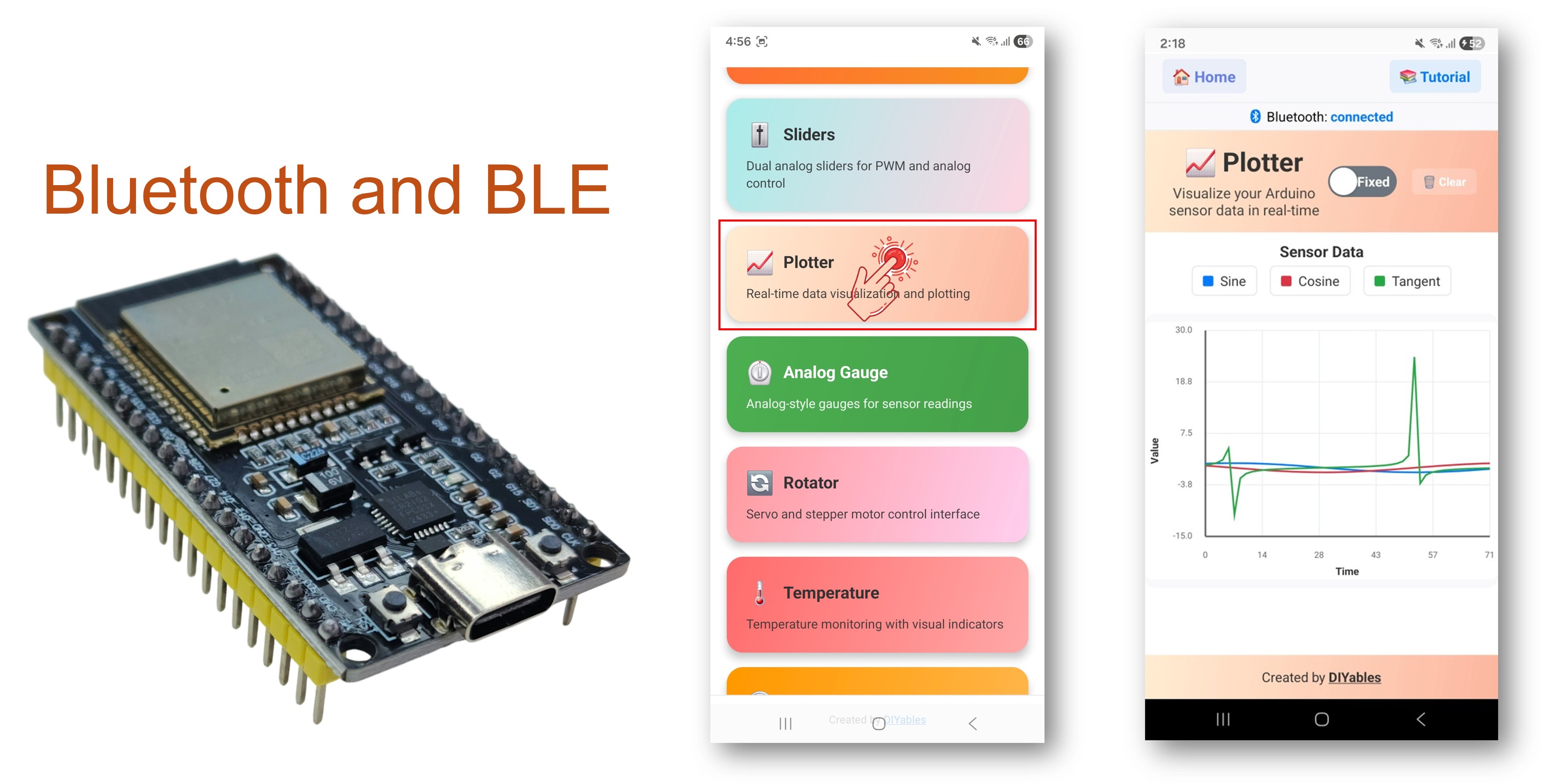
블루투스 플로터 예제는 DIYables Bluetooth STEM 앱을 통해 스마트폰에서 실시간 데이터 플로팅을 제공합니다. ESP32 보드용으로 설계되었으며 BLE(블루투스 저에너지)와 클래식 블루투스 연결을 모두 지원합니다. 설정 가능한 축, 자동 스케일링, 범례 레이블, 스크롤 디스플레이로 최대 10개의 데이터 시리즈를 동시에 플로팅하세요 — 센서 시각화, 신호 분석, 데이터 모니터링에 적합합니다.
이 예제는 두 가지 블루투스 모드를 지원합니다:
- ESP32 BLE (블루투스 저에너지): Android와 iOS 모두에서 작동
- ESP32 클래식 블루투스: Android에서만 작동. iOS는 클래식 블루투스를 지원하지 않습니다. iOS 지원이 필요한 경우 BLE를 사용하세요.
기능
- 다중 시리즈 플로팅: 최대 10개의 데이터 시리즈 동시 플로팅
- 실시간 디스플레이: 라이브 업데이트가 있는 연속 스크롤 그래프
- 설정 가능한 축: 커스텀 Y축 범위, 축 레이블, 플롯 제목 설정
- 자동 스케일: 데이터에 맞게 Y축 범위 자동 조정
- 커스텀 범례: 쉬운 식별을 위한 각 데이터 시리즈 레이블 지정
- 조절 가능한 샘플: 표시할 데이터 포인트 수 구성
- BLE & 클래식 블루투스: 프로젝트에 맞는 블루투스 모드 선택
- 크로스 플랫폼: BLE 모드는 Android와 iOS 모두에서 작동; 클래식 블루투스는 Android에서만 작동
필요한 하드웨어
| 1 | × | 38-pin ESP32 ESP-WROOM-32 Dev Module - Narrow | 쿠팡 | 아마존 | |
| 1 | × | (또는) 38-pin ESP32 ESP-WROOM-32 Dev Module - Wide | 쿠팡 | 아마존 | |
| 1 | × | (또는) 30-pin ESP32 ESP-WROOM-32 Dev Module - Wide | 아마존 | |
| 1 | × | (또는) ESP32 Uno-form board | 아마존 | |
| 1 | × | (또는) ESP32 S3 Uno-form board | 아마존 | |
| 1 | × | USB 케이블 타입-A to 타입-C (USB-A PC용) | 쿠팡 | 아마존 | |
| 1 | × | USB 케이블 타입-C to 타입-C (USB-C PC용) | 아마존 | |
| 1 | × | 브레드보드 | 쿠팡 | 아마존 | |
| 1 | × | 점퍼케이블 | 쿠팡 | 아마존 | |
| 1 | × | (추천) ESP32용 스크루 터미널 확장 보드 | 쿠팡 | 아마존 | |
| 1 | × | (추천) Breakout Expansion Board for ESP32 | 쿠팡 | 아마존 | |
| 1 | × | (추천) ESP32용 전원 분배기 | 쿠팡 | 아마존 |
공개: 이 포스팅 에 제공된 일부 링크는 아마존 제휴 링크입니다. 이 포스팅은 쿠팡 파트너스 활동의 일환으로, 이에 따른 일정액의 수수료를 제공받습니다.
ESP32 코드
빠른 시작
다음 지침을 단계별로 따르세요:
- ESP32가 처음이라면 ESP32 - 소프트웨어 설치 튜토리얼을 참조하세요.
- USB 케이블로 ESP32 보드를 컴퓨터에 연결합니다.
- 컴퓨터에서 Arduino IDE를 실행합니다.
- 적절한 ESP32 보드와 COM 포트를 선택합니다.
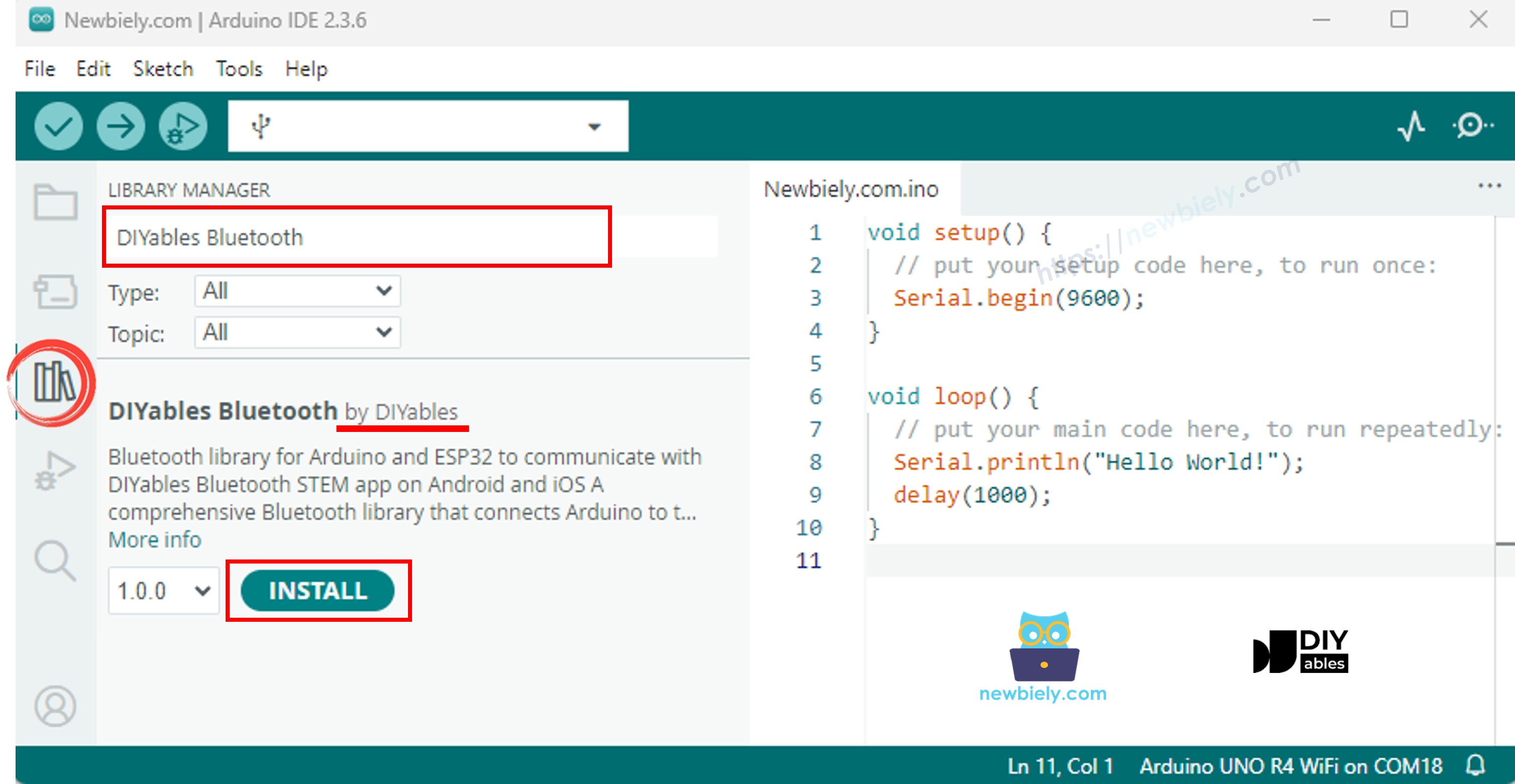
- Arduino IDE 왼쪽 바의 라이브러리 아이콘으로 이동합니다.
- "DIYables Bluetooth"를 검색한 다음 DIYables의 DIYables Bluetooth 라이브러리를 찾습니다.
- 설치 버튼을 클릭하여 라이브러리를 설치합니다.
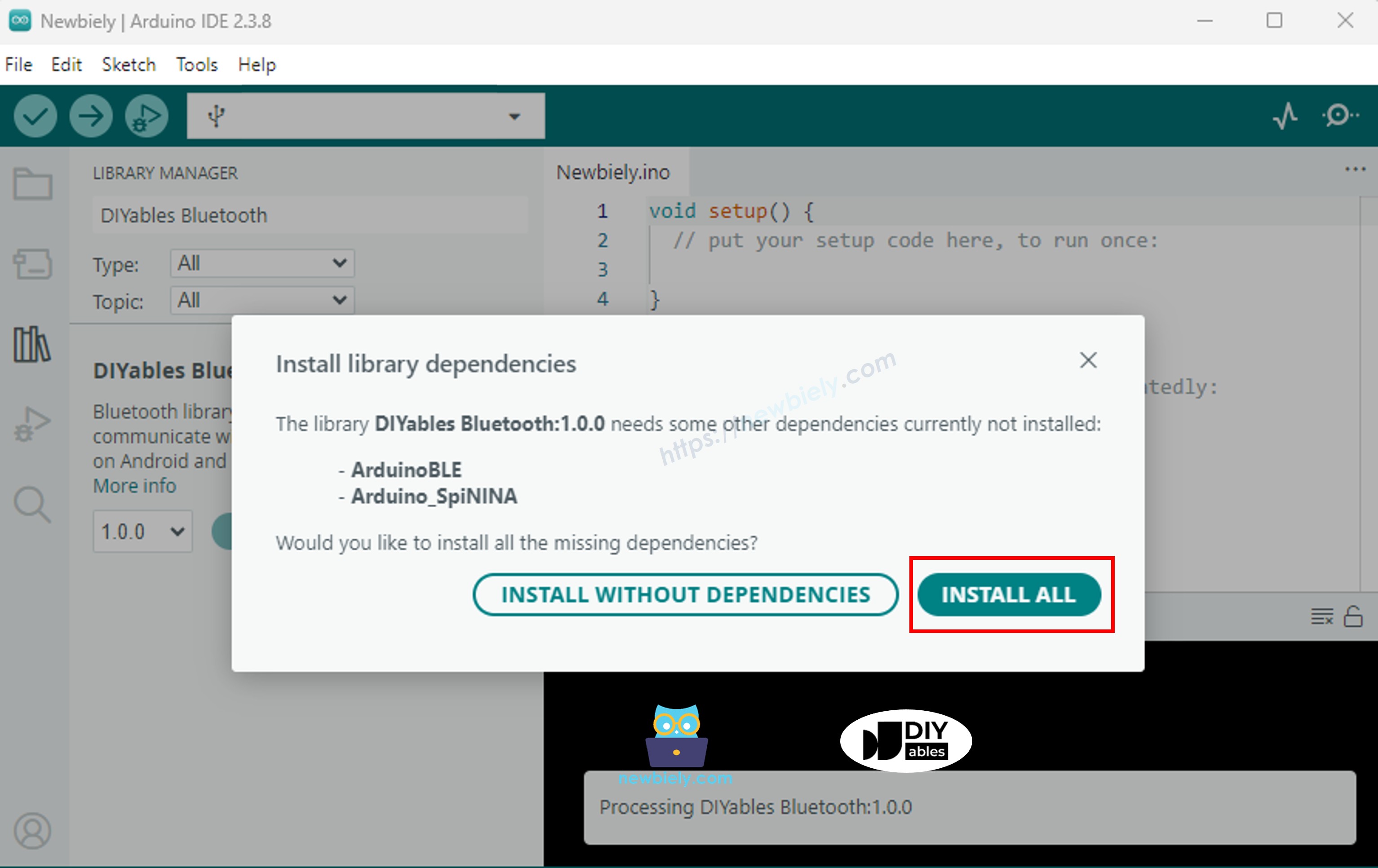
- 다른 라이브러리 종속성 설치 여부를 묻는 메시지가 표시됩니다.
- 모두 설치 버튼을 클릭하여 모든 라이브러리 종속성을 설치합니다.
필요에 따라 아래 두 가지 블루투스 모드 중 하나를 선택하세요:
ESP32 클래식 블루투스 코드 (Android의 앱에서만 작동)
참고: 클래식 블루투스는 iOS에서 지원되지 않습니다. iOS 지원이 필요한 경우 아래 BLE 코드를 사용하세요.
- Arduino IDE에서 파일 예제 DIYables Bluetooth Esp32Bluetooth_Plotter 예제로 이동하거나, 위의 코드를 복사하여 Arduino IDE 편집기에 붙여넣습니다.
/*
* DIYables Bluetooth Library - ESP32 Classic Bluetooth Plotter Example
* Works with DIYables Bluetooth STEM app on Android
* Note: Classic Bluetooth is NOT supported on iOS. Use BLE examples for iOS support.
*
* This example demonstrates the Bluetooth Plotter feature:
* - Real-time data plotting via Bluetooth
* - Plot multiple data series simultaneously
* - Configurable plot settings
*
* Compatible Boards:
* - ESP32 (all variants with Classic Bluetooth)
* - ESP32-WROOM-32
* - ESP32-DevKitC
* - ESP32-WROVER
*
* Note: Select "Huge APP (3MB No OTA/1MB SPIFFS)" partition scheme
* in Arduino IDE: Tools > Partition Scheme
*
* Setup:
* 1. Upload the sketch to your ESP32
* 2. Open Serial Monitor (115200 baud) to see connection status
* 3. Use DIYables Bluetooth App to connect and view the plot
*
* Tutorial: https://diyables.io/bluetooth-app
* Author: DIYables
*/
#include <DIYables_BluetoothServer.h>
#include <DIYables_BluetoothPlotter.h>
#include <platforms/DIYables_Esp32Bluetooth.h>
// Create Bluetooth instances
DIYables_Esp32Bluetooth bluetooth("ESP32_Plotter");
DIYables_BluetoothServer bluetoothServer(bluetooth);
// Create Plotter app instance
DIYables_BluetoothPlotter bluetoothPlotter;
// Variables for generating sample data
unsigned long lastPlotTime = 0;
const unsigned long PLOT_INTERVAL = 100; // Plot every 100ms
float phase = 0;
void setup() {
Serial.begin(115200);
delay(1000);
Serial.println("DIYables Bluetooth - ESP32 Plotter Example");
// Initialize Bluetooth server with platform-specific implementation
bluetoothServer.begin();
// Add plotter app to server
bluetoothServer.addApp(&bluetoothPlotter);
// Configure plotter settings
bluetoothPlotter.setPlotTitle("Sensor Data");
bluetoothPlotter.setAxisLabels("Time", "Value");
bluetoothPlotter.setYAxisRange(-15, 30); // Fixed range
bluetoothPlotter.setMaxSamples(100); // Show last 100 samples
bluetoothPlotter.setLegendLabels("Sine", "Cosine", "Tangent"); // Custom legend labels
// Uncomment to enable auto-scaling instead of fixed range:
// bluetoothPlotter.enableAutoScale(true);
// Set up connection event callbacks
bluetoothServer.setOnConnected([]() {
Serial.println("Bluetooth connected!");
});
bluetoothServer.setOnDisconnected([]() {
Serial.println("Bluetooth disconnected!");
});
// Optional: Handle requests for current plot data (when app loads)
bluetoothPlotter.onDataRequest([]() {
Serial.println("App requested plot data");
});
Serial.println("Waiting for Bluetooth connection...");
}
void loop() {
// Handle Bluetooth server communications
bluetoothServer.loop();
// Send plot data at regular intervals
if (millis() - lastPlotTime >= PLOT_INTERVAL) {
lastPlotTime = millis();
// Generate sample data (sine and cosine waves)
float sine = sin(phase);
float cosine = cos(phase);
float tangent = tan(phase) * 0.3; // Scaled down
// Send data to Bluetooth plotter (multiple series)
bluetoothPlotter.send(sine, cosine, tangent);
// Also print to Serial for Arduino IDE Serial Plotter comparison
Serial.print(sine, 2);
Serial.print(" ");
Serial.print(cosine, 2);
Serial.print(" ");
Serial.println(tangent, 2);
phase += 0.1;
if (phase > 2 * PI) {
phase = 0;
}
// TODO: Replace sample data with your actual sensor readings
// Examples:
// - Temperature sensor: bluetoothPlotter.send(temperature);
// - Accelerometer: bluetoothPlotter.send(accelX, accelY, accelZ);
// - Multiple sensors: bluetoothPlotter.send(sensor1, sensor2, sensor3);
}
delay(10);
}
- Arduino IDE에서 업로드 버튼을 클릭하여 ESP32에 코드를 업로드합니다.
- 시리얼 모니터를 엽니다.
- 시리얼 모니터에서 결과를 확인합니다. 다음과 같이 표시됩니다:
8
Serial.println("Hello World!");
Message (Enter to send message to 'ESP32 Dev Module' on 'COM15')
New Line
9600 baud
DIYables Bluetooth - ESP32 Plotter Example
Waiting for Bluetooth connection...
ESP32 BLE 코드 (Android과 iOS 앱 모두에서 작동)
- Arduino IDE에서 파일 예제 DIYables Bluetooth Esp32BLE_Plotter 예제로 이동하거나, 위의 코드를 복사하여 Arduino IDE 편집기에 붙여넣습니다.
/*
* DIYables Bluetooth Library - ESP32 BLE Plotter Example
* Works with DIYables Bluetooth STEM app on Android and iOS
*
* This example demonstrates the Bluetooth Plotter feature:
* - Real-time data plotting via Bluetooth
* - Plot multiple data series simultaneously
* - Configurable plot settings
*
* Compatible Boards:
* - ESP32-WROOM-32
* - ESP32-DevKitC
* - ESP32-WROVER
* - ESP32-S3
* - ESP32-C3
* - Any ESP32 board supporting BLE
*
* Note: Select "Huge APP (3MB No OTA/1MB SPIFFS)" partition scheme
* in Arduino IDE: Tools > Partition Scheme
*
* Setup:
* 1. Upload the sketch to your ESP32
* 2. Open Serial Monitor (115200 baud) to see connection status
* 3. Use DIYables Bluetooth App to connect and view the plot
*
* Tutorial: https://diyables.io/bluetooth-app
* Author: DIYables
*/
#include <DIYables_BluetoothServer.h>
#include <DIYables_BluetoothPlotter.h>
#include <platforms/DIYables_Esp32BLE.h>
// BLE Configuration
const char* DEVICE_NAME = "ESP32BLE_Plotter";
const char* SERVICE_UUID = "19B10000-E8F2-537E-4F6C-D104768A1214";
const char* TX_UUID = "19B10001-E8F2-537E-4F6C-D104768A1214";
const char* RX_UUID = "19B10002-E8F2-537E-4F6C-D104768A1214";
// Create Bluetooth instances
DIYables_Esp32BLE bluetooth(DEVICE_NAME, SERVICE_UUID, TX_UUID, RX_UUID);
DIYables_BluetoothServer bluetoothServer(bluetooth);
// Create Plotter app instance
DIYables_BluetoothPlotter bluetoothPlotter;
// Variables for generating sample data
unsigned long lastPlotTime = 0;
const unsigned long PLOT_INTERVAL = 100;
float phase = 0;
void setup() {
Serial.begin(115200);
delay(1000);
Serial.println("DIYables Bluetooth - ESP32 BLE Plotter Example");
// Initialize Bluetooth server with platform-specific implementation
bluetoothServer.begin();
// Add plotter app to server
bluetoothServer.addApp(&bluetoothPlotter);
// Configure plotter settings
bluetoothPlotter.setPlotTitle("Sensor Data");
bluetoothPlotter.setAxisLabels("Time", "Value");
bluetoothPlotter.setYAxisRange(-15, 30);
bluetoothPlotter.setMaxSamples(100);
bluetoothPlotter.setLegendLabels("Sine", "Cosine", "Tangent");
// Set up connection event callbacks
bluetoothServer.setOnConnected([]() {
Serial.println("Bluetooth connected!");
});
bluetoothServer.setOnDisconnected([]() {
Serial.println("Bluetooth disconnected!");
});
bluetoothPlotter.onDataRequest([]() {
Serial.println("App requested plot data");
});
Serial.println("Waiting for Bluetooth connection...");
}
void loop() {
bluetoothServer.loop();
if (millis() - lastPlotTime >= PLOT_INTERVAL) {
lastPlotTime = millis();
float sine = sin(phase);
float cosine = cos(phase);
float tangent = tan(phase) * 0.3;
bluetoothPlotter.send(sine, cosine, tangent);
Serial.print(sine, 2);
Serial.print(" ");
Serial.print(cosine, 2);
Serial.print(" ");
Serial.println(tangent, 2);
phase += 0.1;
if (phase > 2 * PI) {
phase = 0;
}
}
delay(10);
}
- Arduino IDE에서 업로드 버튼을 클릭하여 ESP32에 코드를 업로드합니다.
- 시리얼 모니터를 엽니다.
- 시리얼 모니터에서 결과를 확인합니다. 다음과 같이 표시됩니다:
8
Serial.println("Hello World!");
Message (Enter to send message to 'ESP32 Dev Module' on 'COM15')
New Line
9600 baud
DIYables Bluetooth - ESP32 BLE Plotter Example
Waiting for Bluetooth connection...
모바일 앱
- ESP32 클래식 블루투스 코드를 사용하는 경우, 앱을 열기 전에 Android 폰과 ESP32를 페어링해야 합니다:
- 폰의 설정 > 블루투스로 이동합니다.
- 블루투스가 켜져 있는지 확인합니다.
- 폰이 사용 가능한 기기를 검색합니다.
- 사용 가능한 기기 목록에서 "ESP32_Plotter"를 찾아 탭합니다.
- 페어링 요청을 확인합니다(PIN 필요 없음).
- 기기 이름 아래에 "페어링됨"이 표시될 때까지 기다립니다.
- ESP32 BLE 코드를 사용하는 경우, 페어링이 필요 없습니다. 다음 단계로 진행하면 됩니다.
- DIYables 블루투스 앱을 엽니다.
- 앱을 처음 열 때 권한을 요청합니다. 다음을 허용해 주세요:
- 주변 기기 권한 (Android 12+) / 블루투스 권한 (iOS) - 블루투스 기기를 검색하고 연결하는 데 필요
- 위치 권한 (Android 11 이하만 해당) - BLE 기기 검색을 위해 이전 Android 버전에서 필요
- 폰에서 블루투스가 켜져 있는지 확인합니다.
- 홈 화면에서 연결 버튼을 탭합니다. 앱이 BLE 및 클래식 블루투스 기기를 모두 검색합니다.
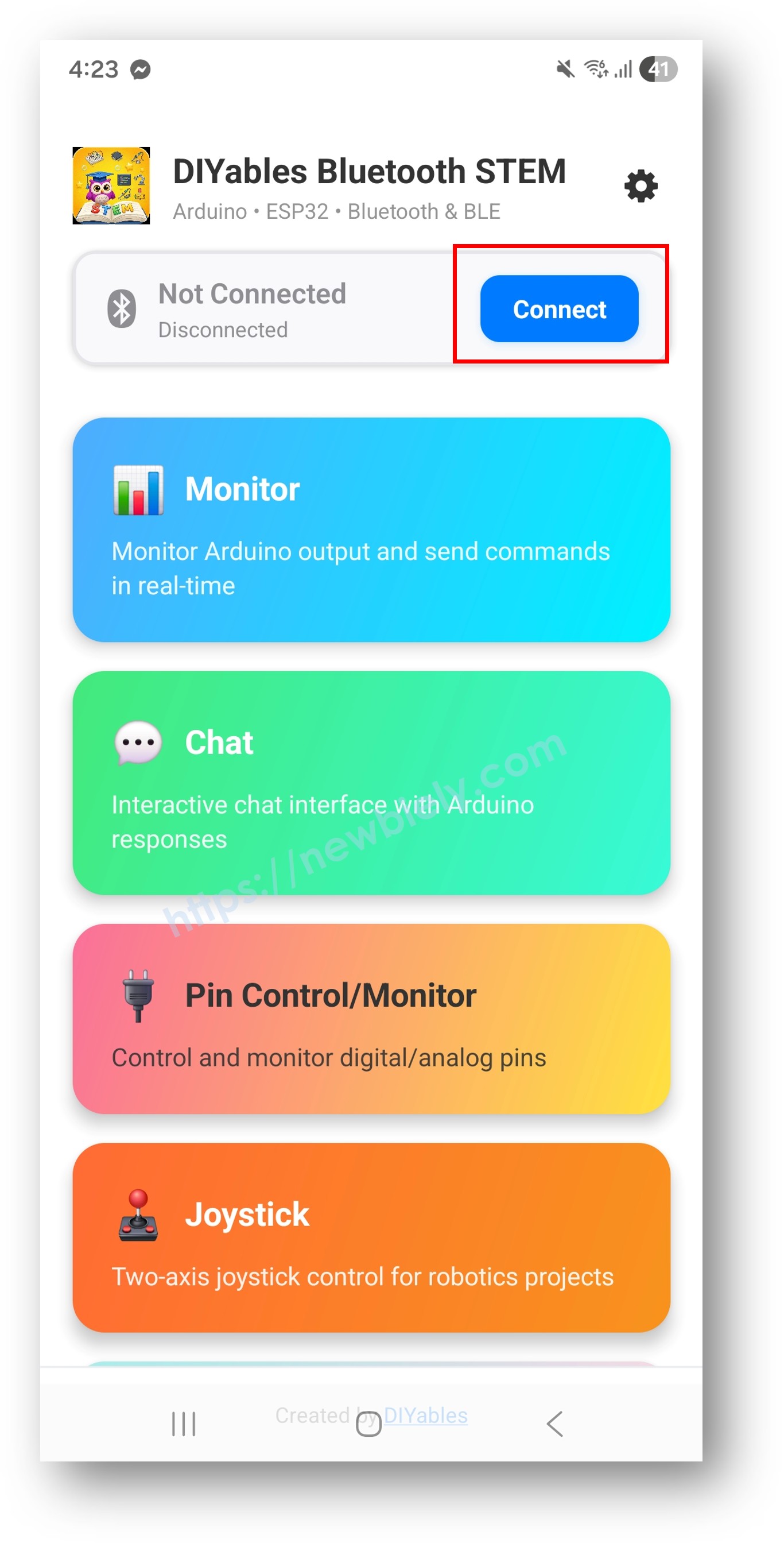
- 검색 결과에서 기기를 찾아 탭하여 연결합니다:
- 클래식 블루투스의 경우: "ESP32_Plotter" 탭
- BLE의 경우: "ESP32BLE_Plotter" 탭
- 연결되면 앱이 자동으로 홈 화면으로 돌아갑니다. 앱 메뉴에서 Plotter 앱을 선택합니다.
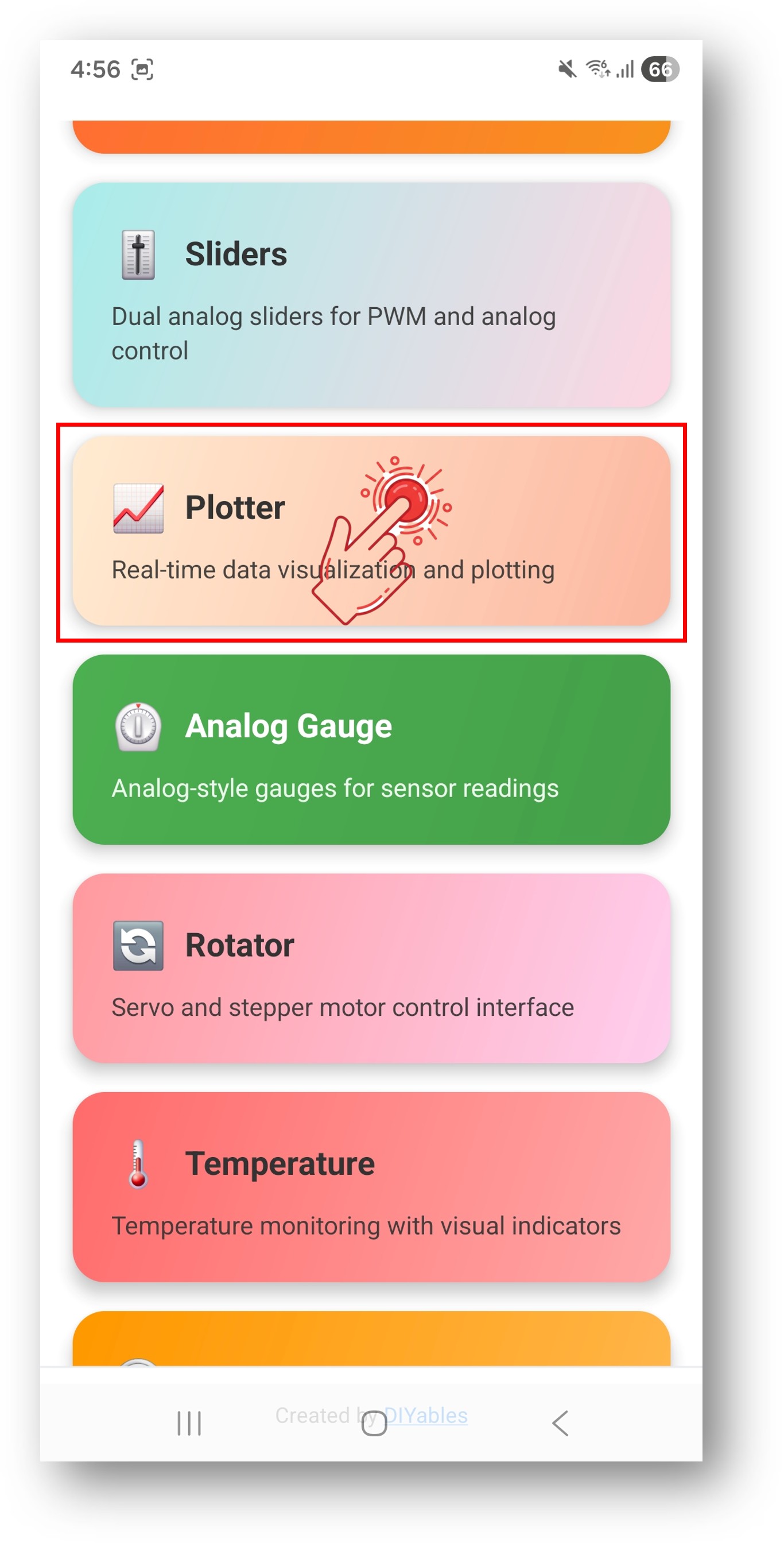
참고: 홈 화면에서 설정 아이콘을 탭하여 홈 화면에서 앱을 숨기거나 표시할 수 있습니다. 자세한 내용은 DIYables 블루투스 앱 사용 설명서를 참조하세요.
- 실시간 데이터 플롯이 화면을 가로질러 스크롤되는 것을 확인하세요.
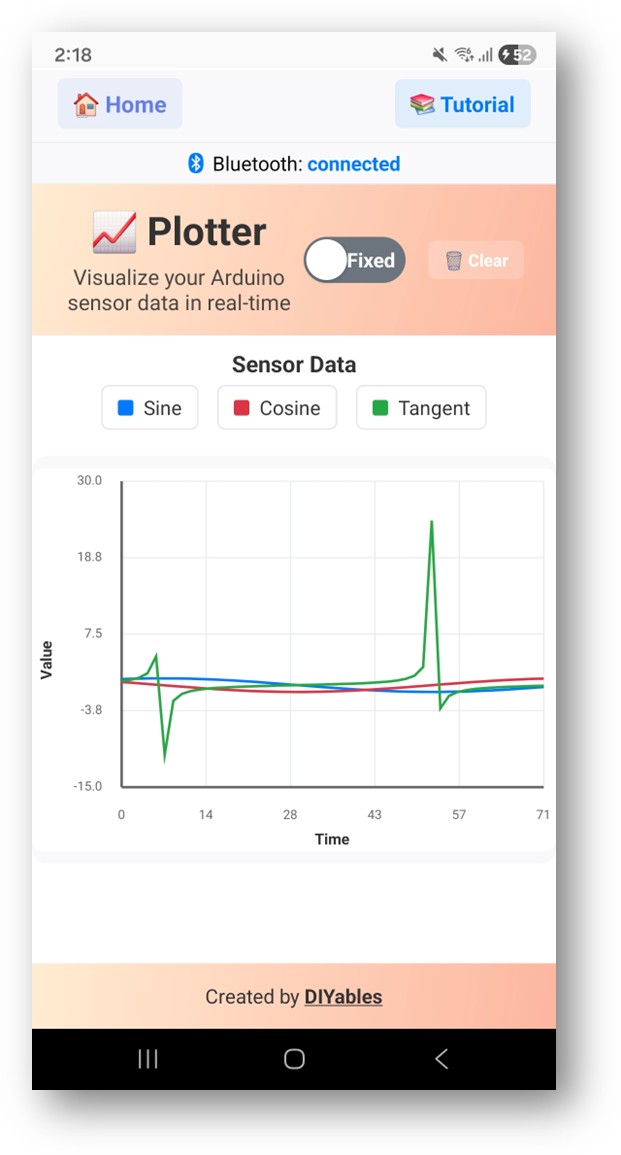
Arduino IDE의 시리얼 모니터를 다시 보면 다음과 같이 표시됩니다:
8
Serial.println("Hello World!");
Message (Enter to send message to 'ESP32 Dev Module' on 'COM15')
New Line
9600 baud
Bluetooth connected!
0.00 1.00 0.00
0.10 1.00 -0.15
0.20 0.98 0.08
0.29 0.96 -0.22
- 플로터가 실시간으로 사인, 코사인, 랜덤 노이즈 파형을 표시합니다.
창의적인 커스터마이징 - 프로젝트에 맞게 코드 조정하기
플롯 설정 구성
연결 전 플롯 모양을 설정합니다:
// Set plot title
bluetoothPlotter.setPlotTitle("Sensor Data");
// Set axis labels
bluetoothPlotter.setAxisLabels("Time", "Value");
// Set fixed Y-axis range
bluetoothPlotter.setYAxisRange(-15, 30);
// Or enable auto-scaling instead
bluetoothPlotter.enableAutoScale(true);
// Set number of visible data points
bluetoothPlotter.setMaxSamples(100);
// Set legend labels for each data series
bluetoothPlotter.setLegend(0, "Temperature");
bluetoothPlotter.setLegend(1, "Humidity");
데이터 전송
// Send single value
bluetoothPlotter.send(temperature);
// Send multiple values at once
bluetoothPlotter.send(temperature, humidity, pressure);


